Checked against the product’s code on 7 November 2026.
Learn how to invite a designer or another teammate. Open Team in your Praxis account. The owner and Admins can send the invitation and choose the person’s Role. Read What this grants before sending it, including whether that role can publish. Use Security for the team’s sign in rules. EmDash’s Users screen points you to the account for team and role management. For a client site, agree the role with its owner before sending an invitation.
An Author cannot edit another author’s page or post in EmDash; an Editor or Admin can. See the role table below before choosing access.
Invite a teammate
Section titled “Invite a teammate”- Open Team.
- Choose Invite member.
- Enter Email.
- Choose Role.
- Read What this grants.
- Choose Send invite when the address and permissions are right.
- Read the delivery result. If email delivery failed, Copy invite link gives you the invitation to share with its intended recipient.
The invite page names the site, email address, role and expiry date. A new member sets a password of at least 12 characters and chooses Accept invite. If that email already has an Amadalis account, the recipient must enter that account’s existing password. The link is single use. Read the Terms and Privacy Policy linked on the invitation form before accepting.
You can also ask the copilot: “Invite person@example.com as an Editor.” Replace the example address with the intended recipient’s. Check the address and role on the invitation card before choosing Send Editor invite.
| Role | What it grants |
|---|---|
| Contributor | Writes drafts for review and cannot publish. |
| Author | Creates and edits their own content; can publish it in the content editor. |
| Editor | Edits and publishes content. Cannot manage the team or privileged account data. |
| Admin | Publishes content and manages settings, privileged data and the team. |
In EmDash’s Pages and Posts, an Author can edit their own content. Editing another user’s page or post requires an Editor or Admin role. A byline is the person or team credited on the content; that credit does not grant editing permission.
Billing authority stays with the owner. Making someone an Admin does not transfer ownership or billing authority.
People newly added through SCIM provisioning join as Viewer, which can read site content but cannot create, edit or publish. Viewer is not offered by Invite member. An owner or Admin can use Change role in Team to give that member a higher role.
Member signup by email domain
Section titled “Member signup by email domain”In EmDash’s Settings, open Self-Signup Domains under Security Settings and use Allowed Domains to manage rules for people joining from an email domain. A new signup through an allowed email domain receives the chosen role, up to Editor. To give someone Admin access, invite them from Team in your Amadalis account.
An older rule may still show Default role: Admin. New signups under it join as Editor; the stored rule and existing people’s roles are not changed. Rules at Editor or below keep their chosen role.
Change access
Section titled “Change access”- In your account’s Team tab, choose Change role on a member.
- Select the new role.
- Read What changes.
- Choose Review change.
- Confirm the card that names the member and new role.
The account uses the new role at the member’s next request. A higher site role takes effect when the member next opens the site admin from their account. A role reduction delivered to an already open site applies from their next click. If the site could not be updated, the result says so; the platform retries eligible undelivered reductions and disabled access on its regular run while they still match the member’s current state. Do not assume an unreachable site has already changed.
For a copilot role change, give the teammate’s email and the new role’s name. Review the member and permissions before approving Change role to Editor, or the role you requested. This request cannot change the owner’s role or a Viewer’s role. For a Viewer, use the Change role steps above.
To remove a teammate’s access, use Disable in your account’s Team tab. This stops the member’s account access without deleting their membership or history. The confirmation is Disable access. Enable restores access under the current role after its own confirmation. Read the result: delivery to the running site can fail, so the person may still be able to work there after account access is off.
You can also ask the copilot to disable or enable the teammate by email. Its result says whether site sign-in was updated. A failed disable update can leave an open site session usable; a failed enable update can leave the member unable to enter that site. Read the receipt’s next step. If you disable your own access and the site is updated, you cannot press Undo; the owner or another Admin must enable you from Team. For managed client sites, read the separate sign-in limits.
For an unused invitation, Resend creates a fresh single-use link and replaces the old one. Revoke stops the open invitation working. Both ask for confirmation. Recovery requests a password recovery link for the member’s email; it does not show you that link. Read the delivery result.
You can also ask the copilot to resend or revoke the open invitation, naming the invited person’s email. Review Re-send this invite? or Revoke this invite? before approving. Resending replaces the old link; revoking stops it. Neither action has Undo.
Set the team’s session rules
Section titled “Set the team’s session rules”-
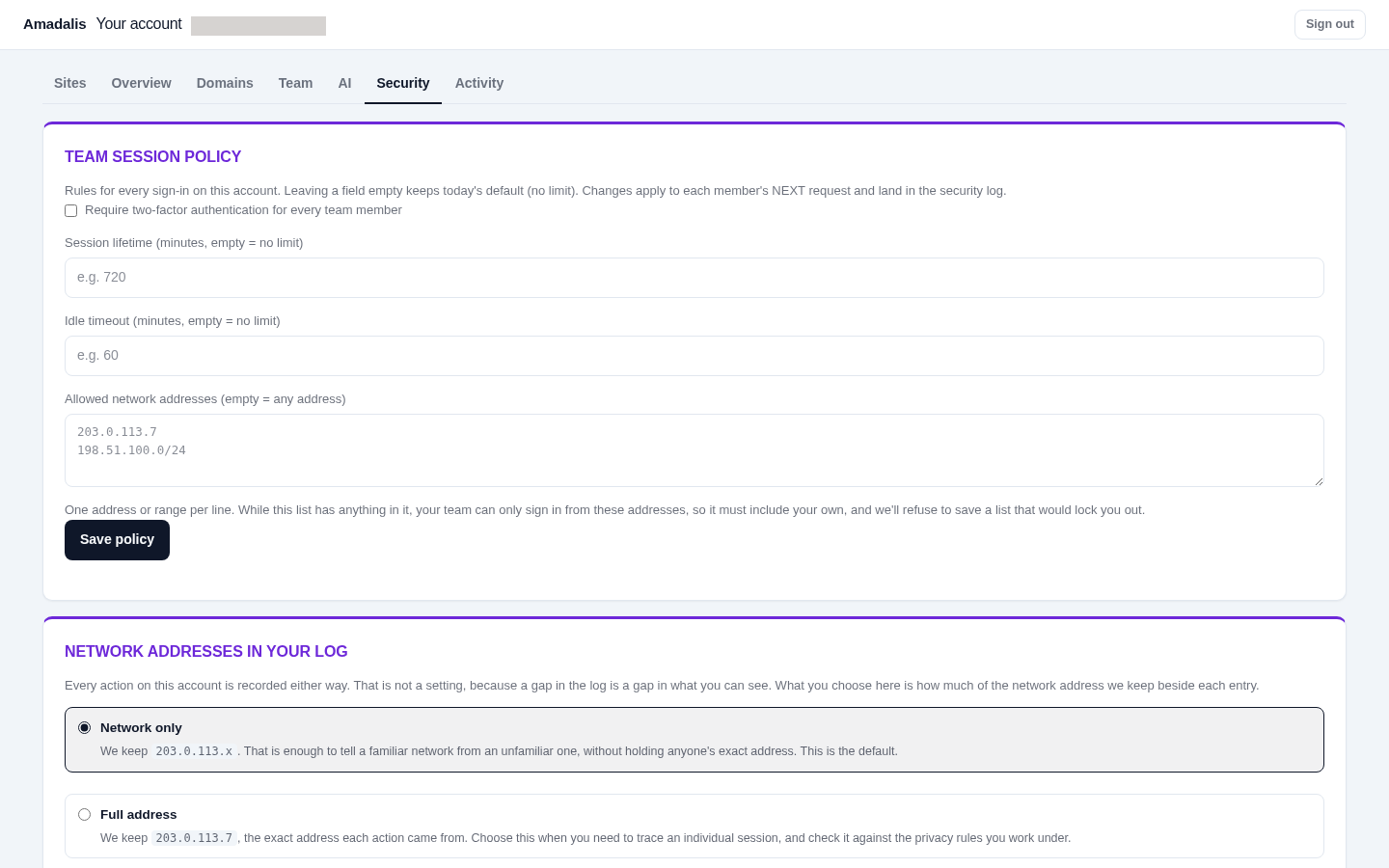
Open Security and find Team session policy. If the current policy failed to load, reload before editing; the displayed defaults are not evidence of the saved policy.
-
Set whether every teammate must use two-factor authentication.
-
Enter the session lifetime in minutes. This is the maximum duration of a sign in.
-
Enter the idle timeout in minutes. This is the allowed time without activity. Empty duration fields mean no limit.
-
If you restrict network addresses, enter one address or range per line. Include your own current address. An empty list allows any address.
-
Choose Save policy.
-
Read the confirmation wording on the control.
-
Choose it again to save.
The policy applies to each member’s next request in the account console and is recorded in the security log. The team session policy also applies inside an already open site admin session.
Limits. On requests inside the site, address and session limit changes are normally picked up within about 30 seconds, or longer if the site cannot reach the account. Idle expiry can be up to 30 seconds late. When two factor authentication is required, use Open admin → from your Praxis account; a direct site sign in does not meet that requirement. Requiring two factor authentication, the extra login check, does not end a site editing session already opened from the account. If the site cannot read the policy, it uses a policy read within the last five minutes. Without one, it pauses access if the last known policy has a rule or that record cannot be read. A team with no recorded policy or no last known rules can continue. A server that last read a rule may still pause access after another server has read that the rules were cleared. The paused page asks you to try again in a minute. An existing session is kept; a refused new site sign in opens no session. A network list that would exclude the person saving it is refused.
Site API tokens obey the team’s applicable network, membership and two factor rules, with the token checks and read-failure limits. Session lifetime and idle timeout do not apply to tokens.
This form has no Undo control. To reverse a policy change, restore the earlier values and save again.
Your next step
Section titled “Your next step”After inviting someone, review their role in Team. Use Sign in and recovery if they need help getting into the account.