Checked against the product’s code on 7 November 2026.
Use Collection index to introduce an existing collection and list its entries. It starts a page with Hero, Live list, Rich text, FAQ and Call to action sections. It creates a page draft, not a collection or its records.
Anyone with permission to create content can start the draft. For collection setup and permissions, see EmDash’s Content Types screen. The collection must already exist before the list can read it.
Choose a starting point
Section titled “Choose a starting point”There are three related choices:
| Choice | Where | What it starts |
|---|---|---|
| Collection index page type | Composer > New page > Page type | Five basic draft sections to finish. |
| Collection index page template | Add to the page > Page templates | The five sections with their designed starting settings. |
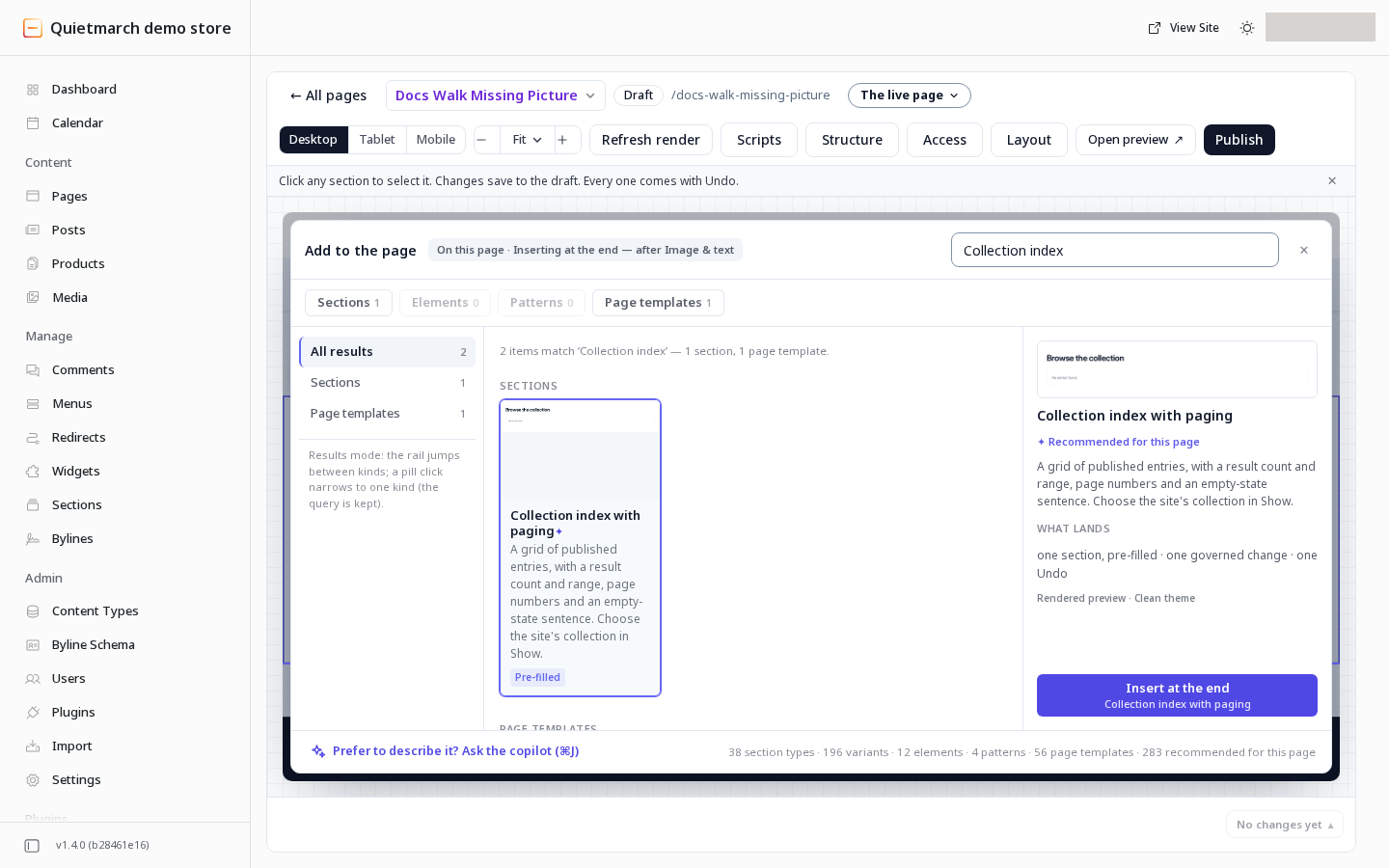
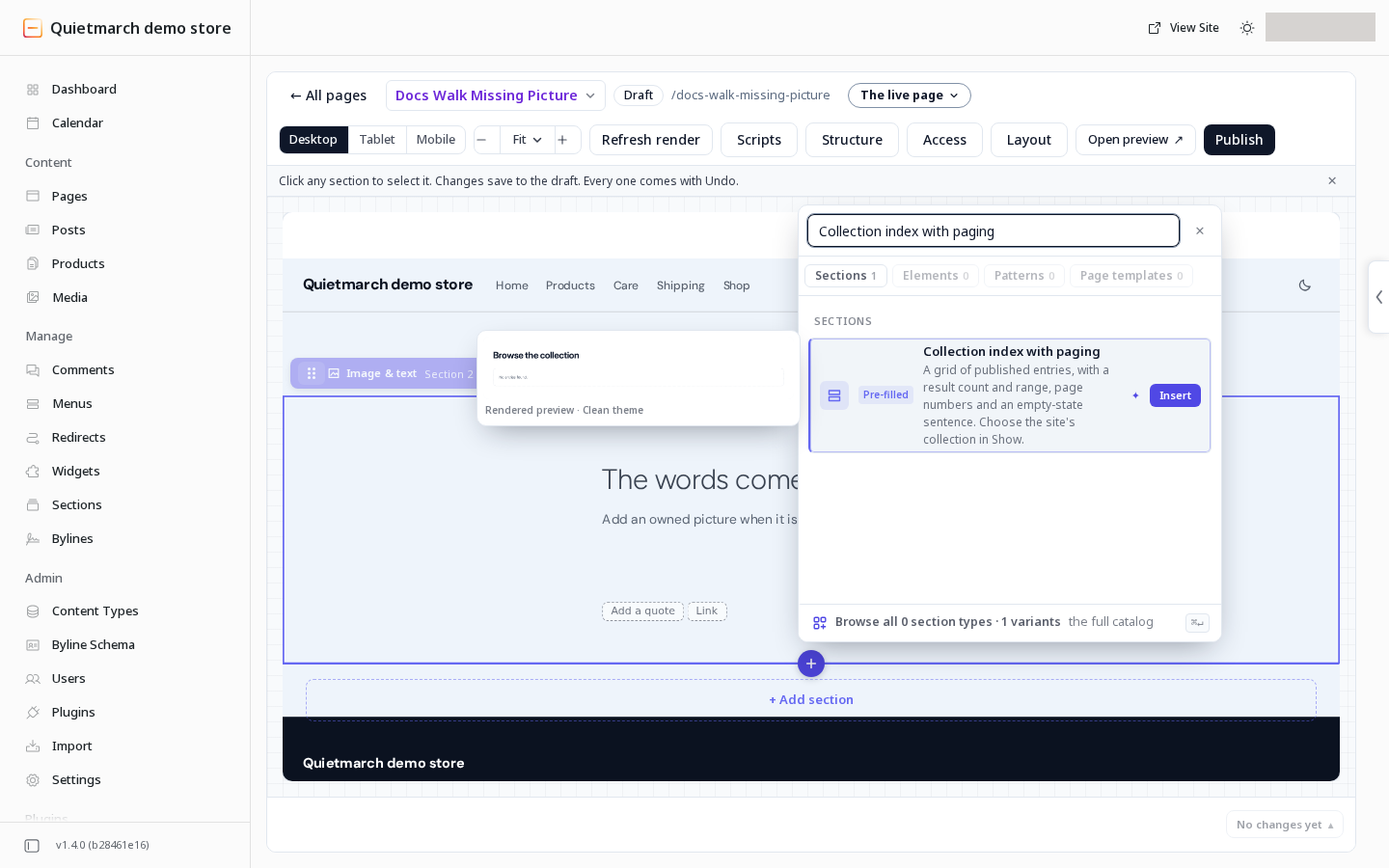
| Collection index with paging | The Live list section’s starting versions in Add to the page | One list section with the paged grid settings below. |
The page type and the designed template are separate choices. Create draft does not automatically apply the named list preset. A page template adds sections to the current draft; review Structure for sections already there.
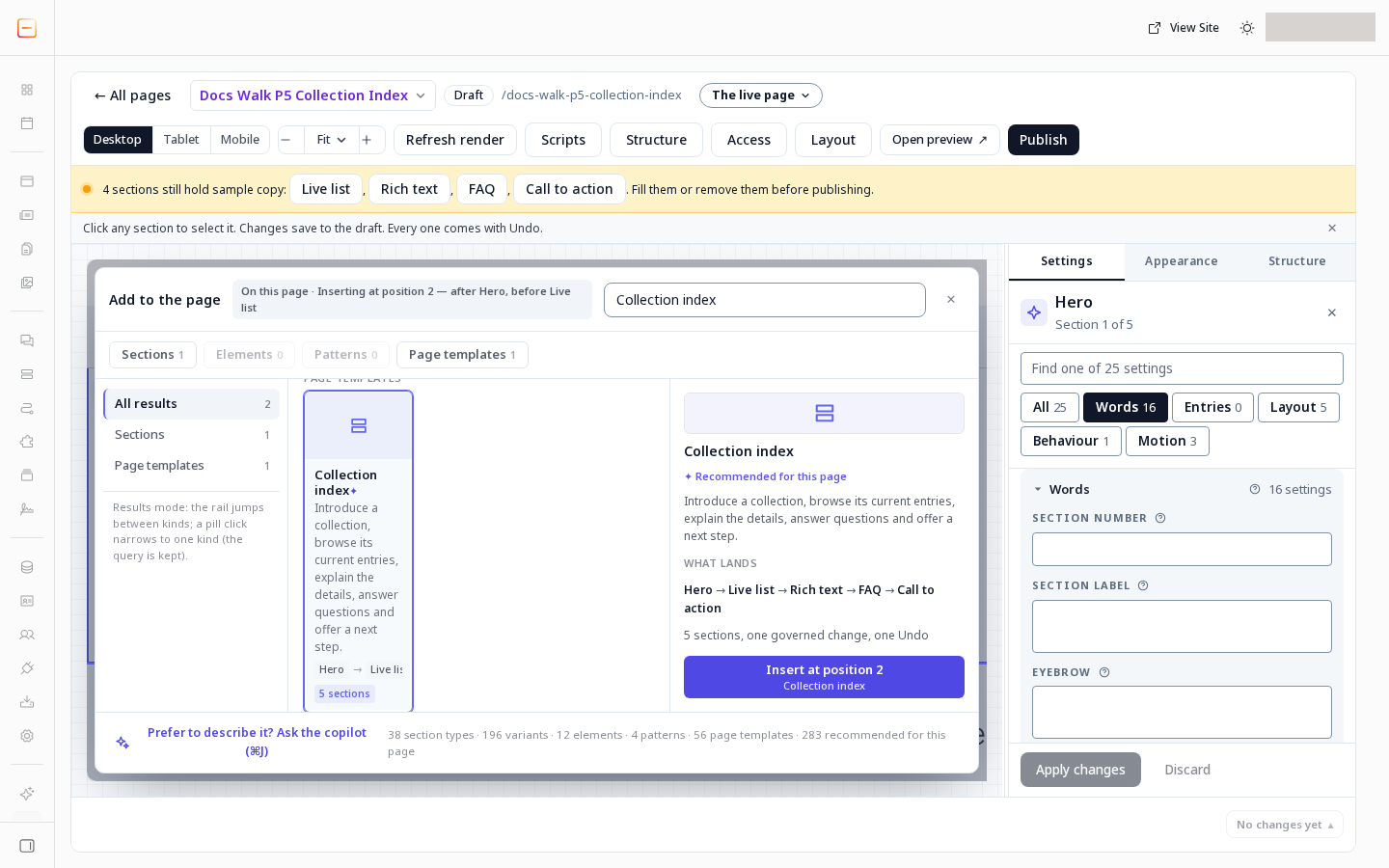
The preset has Light and Dark catalogue previews. Both show an empty example in Clean. They show the design, not the entries on your site, and do not activate a theme.
Create the page draft
Section titled “Create the page draft”-
Open Composer.
-
Choose New page.
-
Enter a Title.
-
If needed, use Filter page types (optional) to find Collection index.
-
Select Collection index.
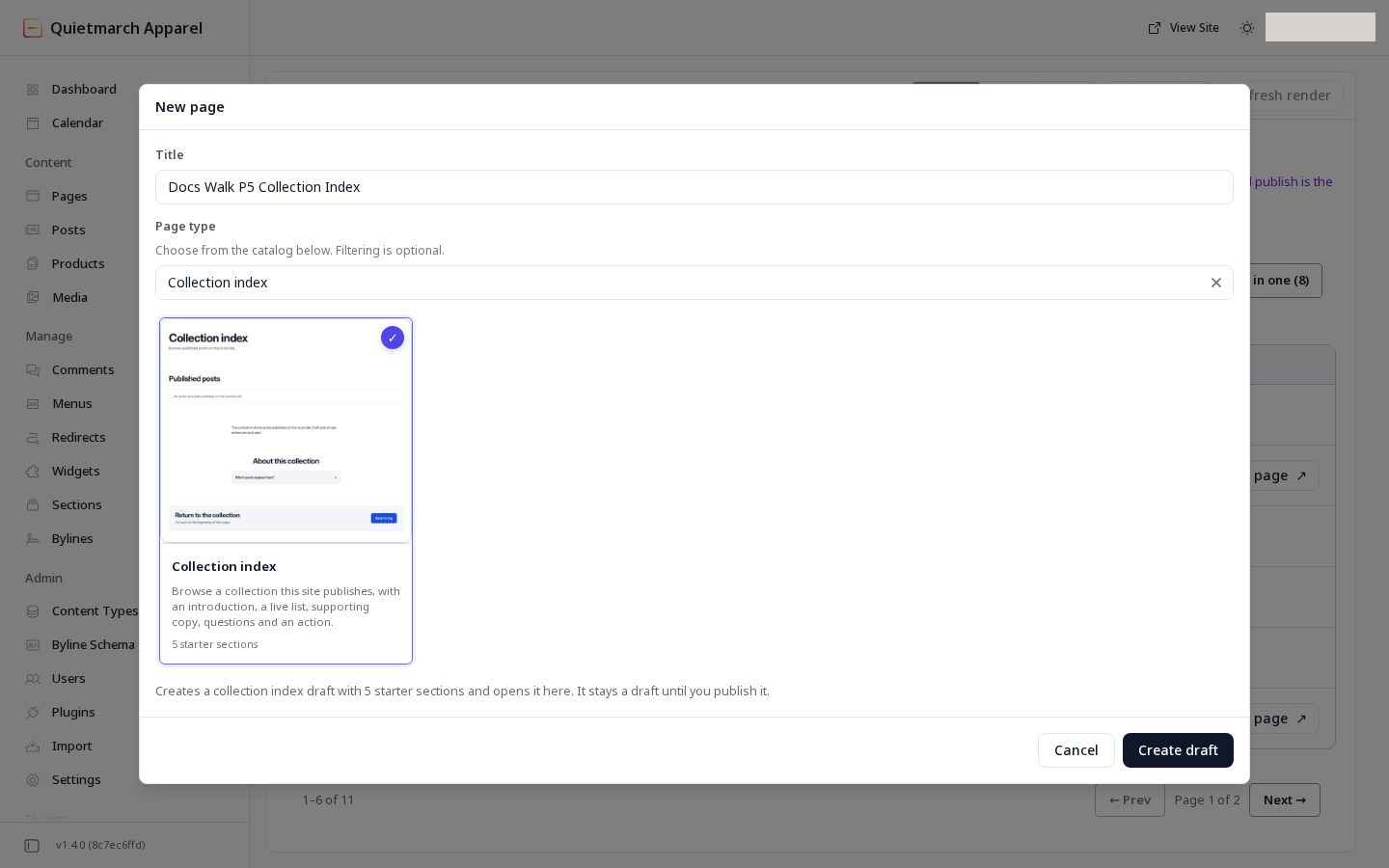
Choose the page type before creating the draft. -
Choose Create draft.
-
Review the five sections.
-
Finish the words that need your facts.
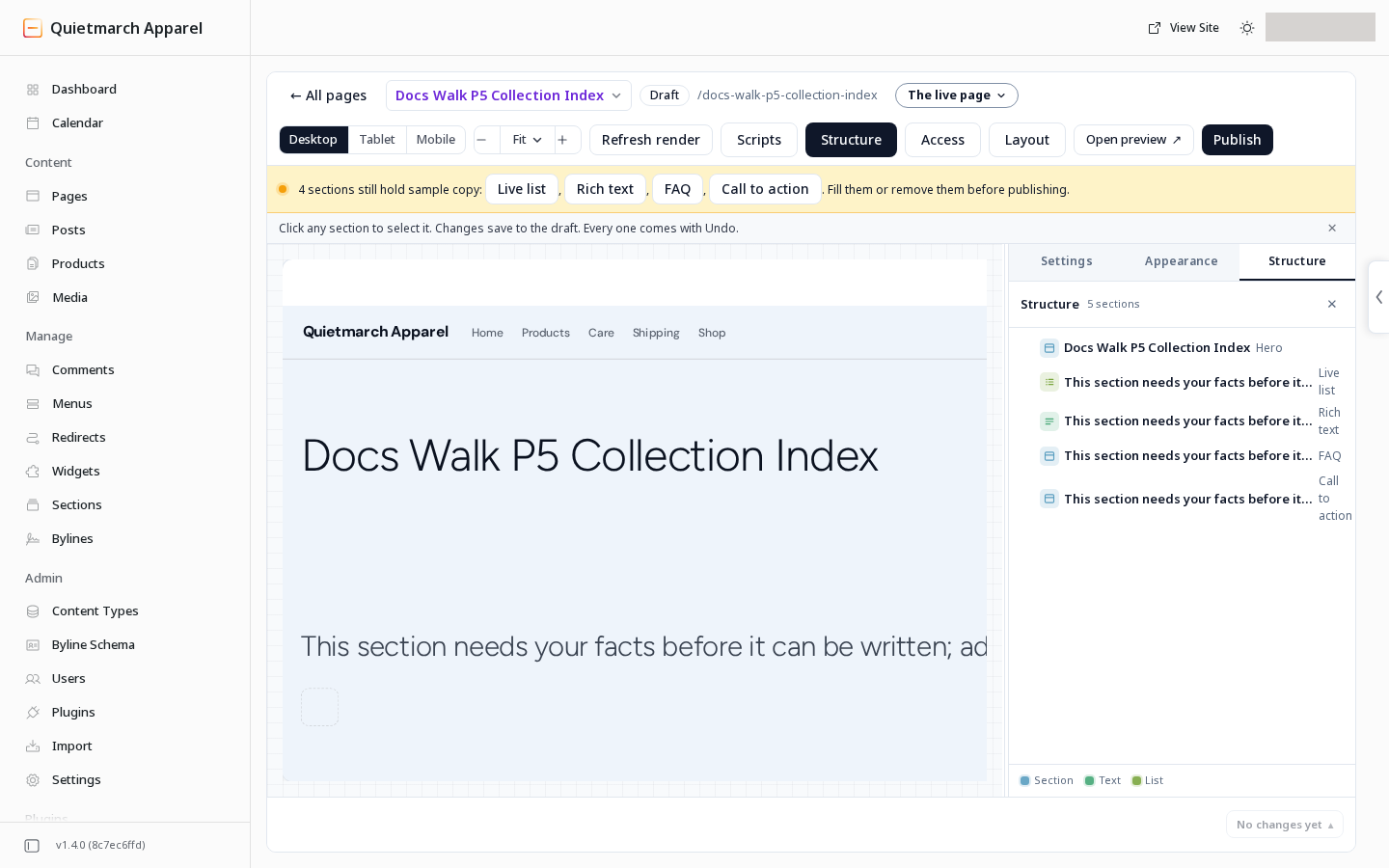
The page type starts five basic sections for you to finish. -
Select Live list.
-
Open Settings.
Its source starts with posts.
Keep one collection selected in Show. The list uses the first saved collection; clearing the field uses posts again. A custom collection needs public entry addresses and must not be hidden.
The collection and term suggestions do not reliably offer the right choices yet. Ask the copilot to set the list to your existing collection or filter, then check the saved values. Typing a name and pressing Enter alone does not add it.
-
Set the existing collection you want under Show.
-
Check the settings below.
-
Choose Apply changes.
-
Open Open preview.
Choose the entries
Section titled “Choose the entries”In Settings, the Words group includes Show, In these categories, With these tags, In these terms, By this author and Matching these words. Leave a filter empty to keep that part unrestricted. Use the collection’s actual categories, tags and authors.
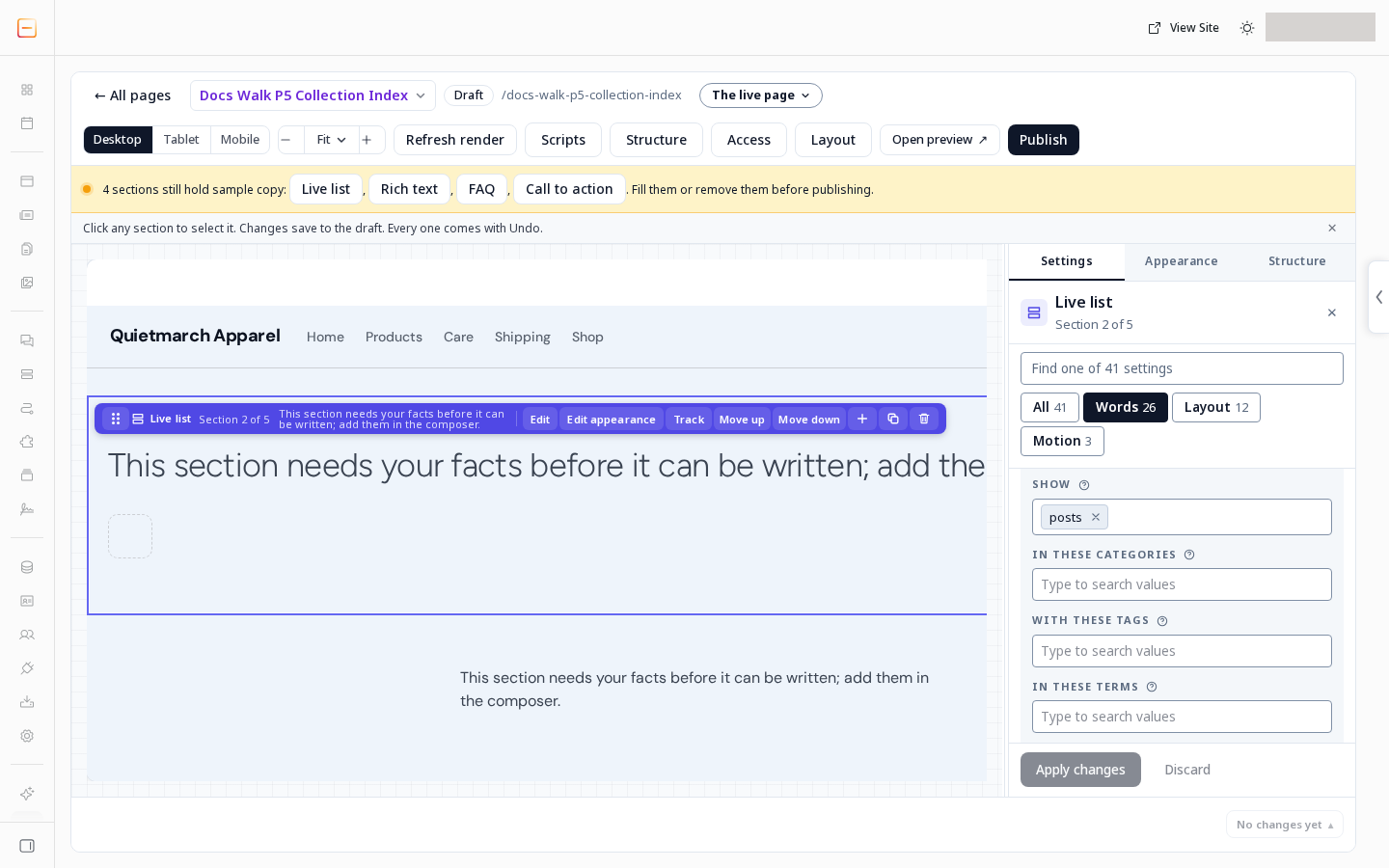
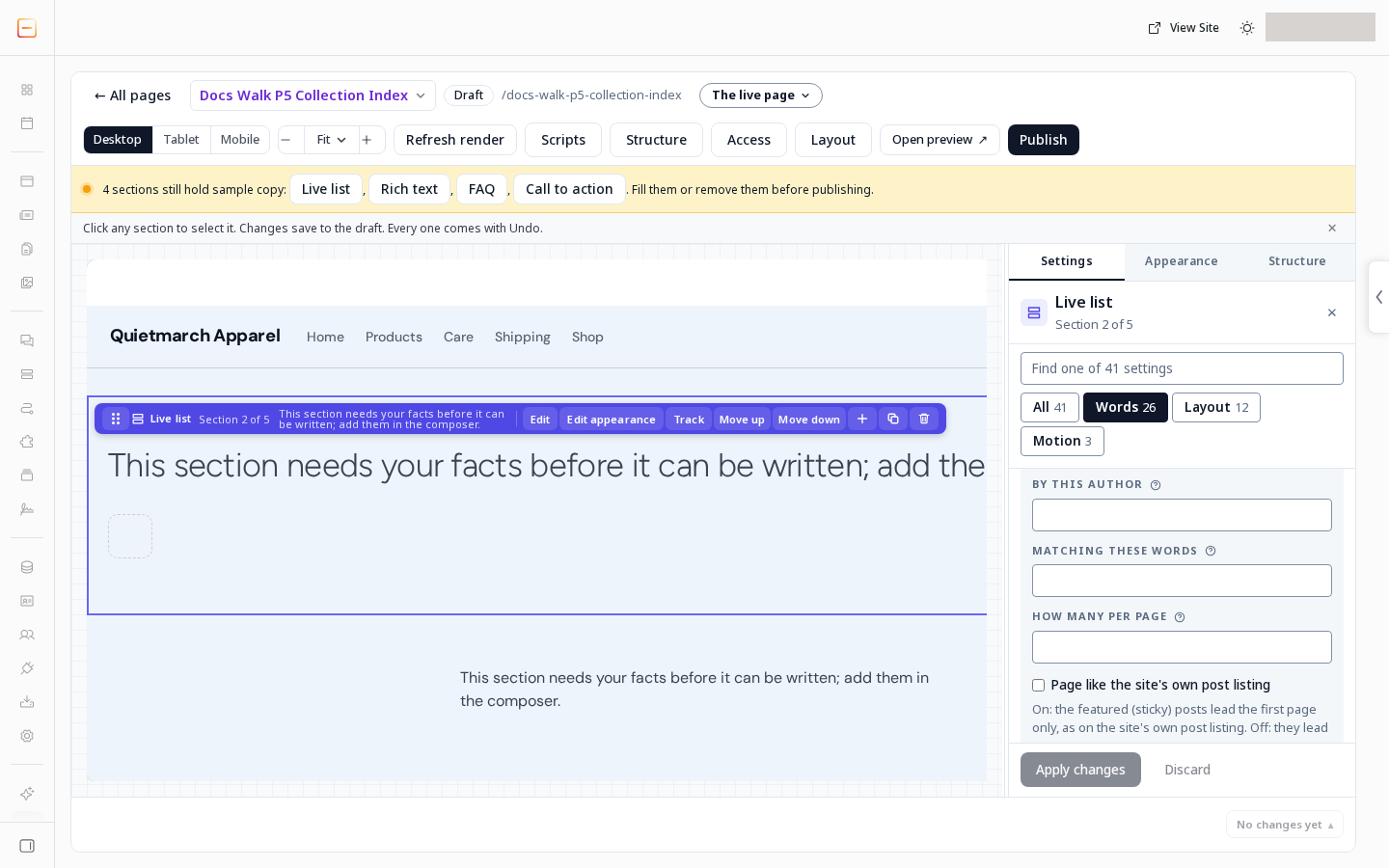
In these terms is for a collection’s other taxonomies, which group its entries. The saved value joins the taxonomy and term, such as project_category:residential. By this author uses the author’s address name. Matching these words narrows titles and readable body content.
In Layout, Order chooses the date or title order. By its date, soonest first and By its date, latest first use Its date field, which takes a datetime field’s slug from the selected collection. Only dates still to come leaves out earlier dates. If that switch is on without a usable datetime field, the list shows no entries. Skip the first leaves entries out before the list starts. Featured (sticky) posts chooses whether featured posts lead, stay in date order, are left out or are the only entries shown. Page like the site’s own post listing, under Words, limits that featured lead to the first page when featured posts are set to lead.
The public list uses published entries. Its cards read their titles, pictures, excerpts and other recorded details from those entries. Edit the source entry to change those words.
If an entry’s access cannot be checked, its card leaves out the excerpt. Title matches can still appear in a search, but the entry’s body text is not searched while that check is unavailable.
Use the paged grid
Section titled “Use the paged grid”The catalogue defines Collection index with paging with the settings below. Its preview shows that full example. When you insert it, the layout choices carry over, but its headline, empty sentence and numbers do not. Set the fields yourself:
- Finish Headline.
- Finish When there is nothing to show.
- Set How many per page.
- Set Skip the first.
- Set Columns (grid only).
Use these values for the paged grid, or choose your own. You can set them on the basic list created by New page too:
| Control | Group in Settings | Catalogue value in the named preset |
|---|---|---|
| Headline | Words | Browse the collection |
| Show | Words | Posts |
| How many per page | Words | 12 |
| Skip the first | Layout | 0 |
| Layout | Layout | Card grid |
| Columns (grid only) | Layout | 3; a phone uses one column |
| Paging | Words | Page numbers, with previous and next |
| Pager address | Words | collection-index |
| Say how many were found | Words | Both, the count first |
| When there is nothing to show | Words | No entries found. |
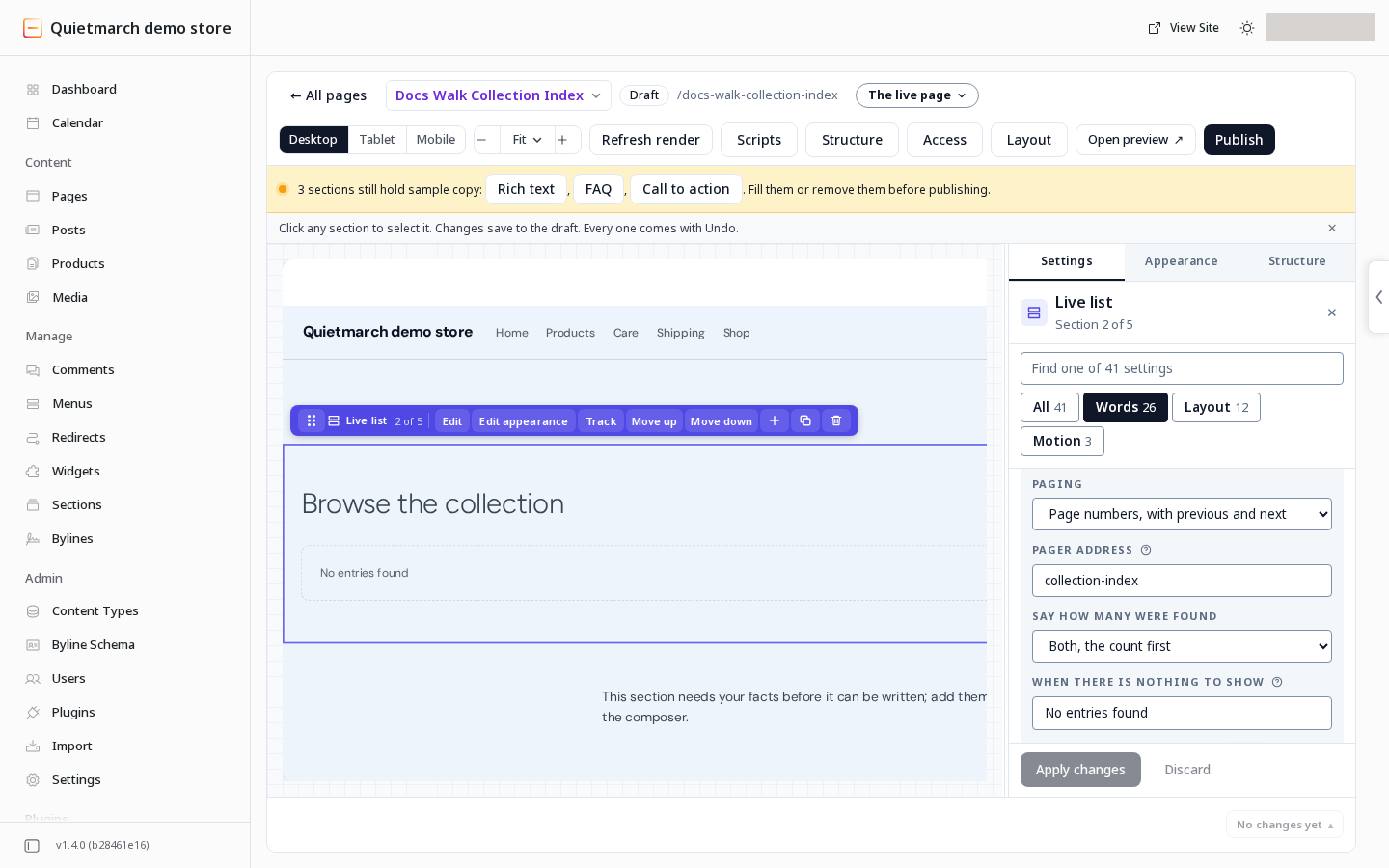
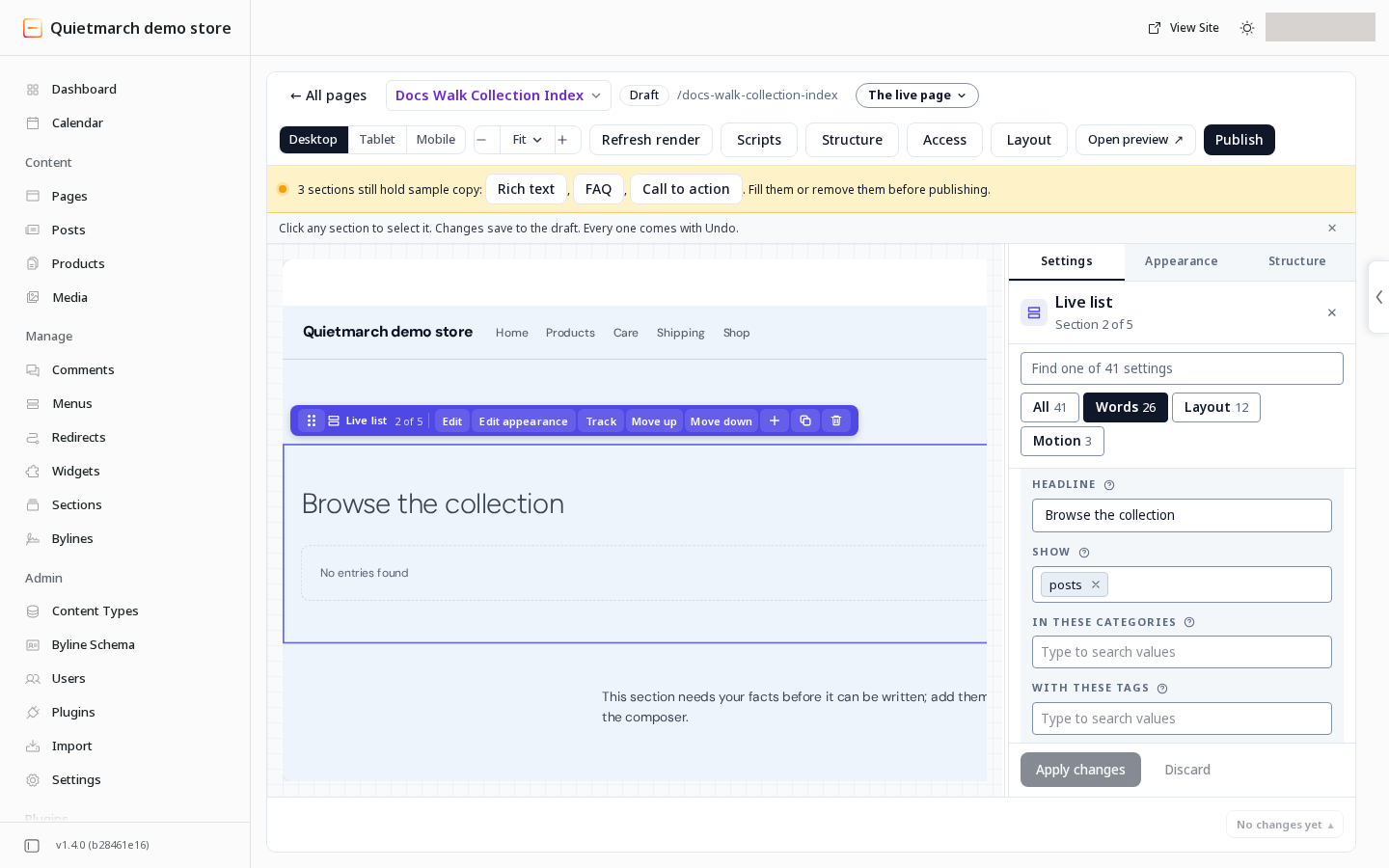
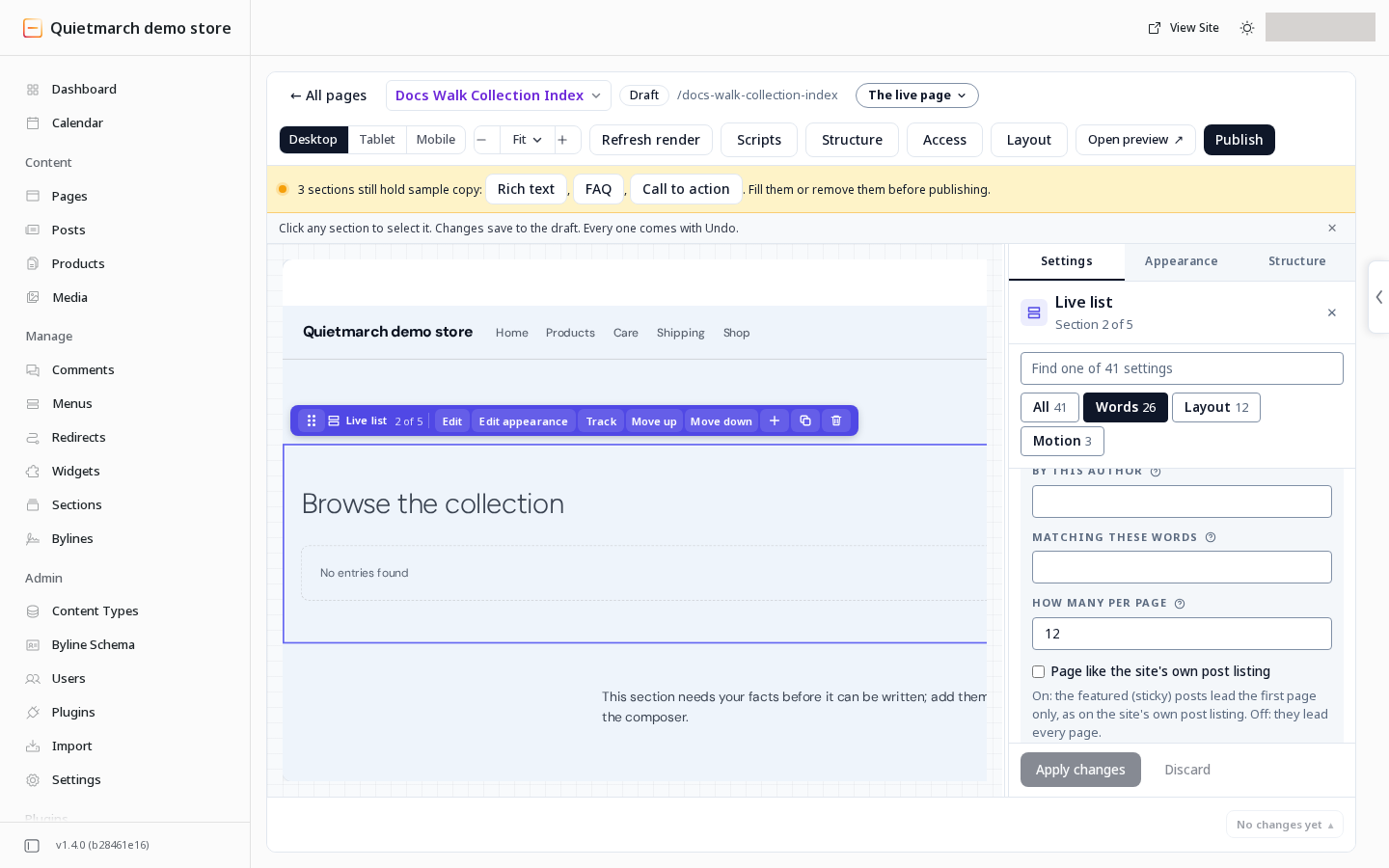
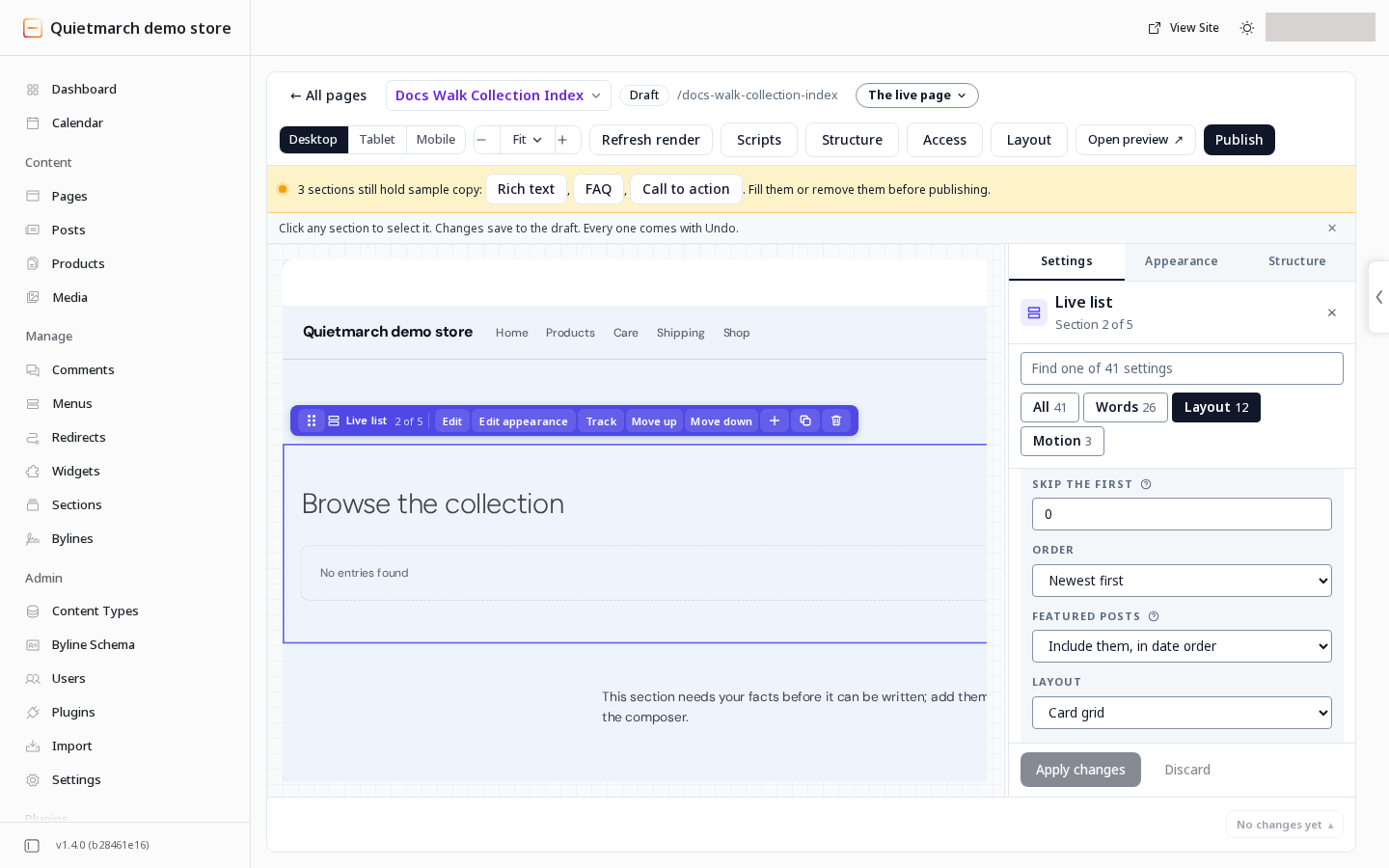
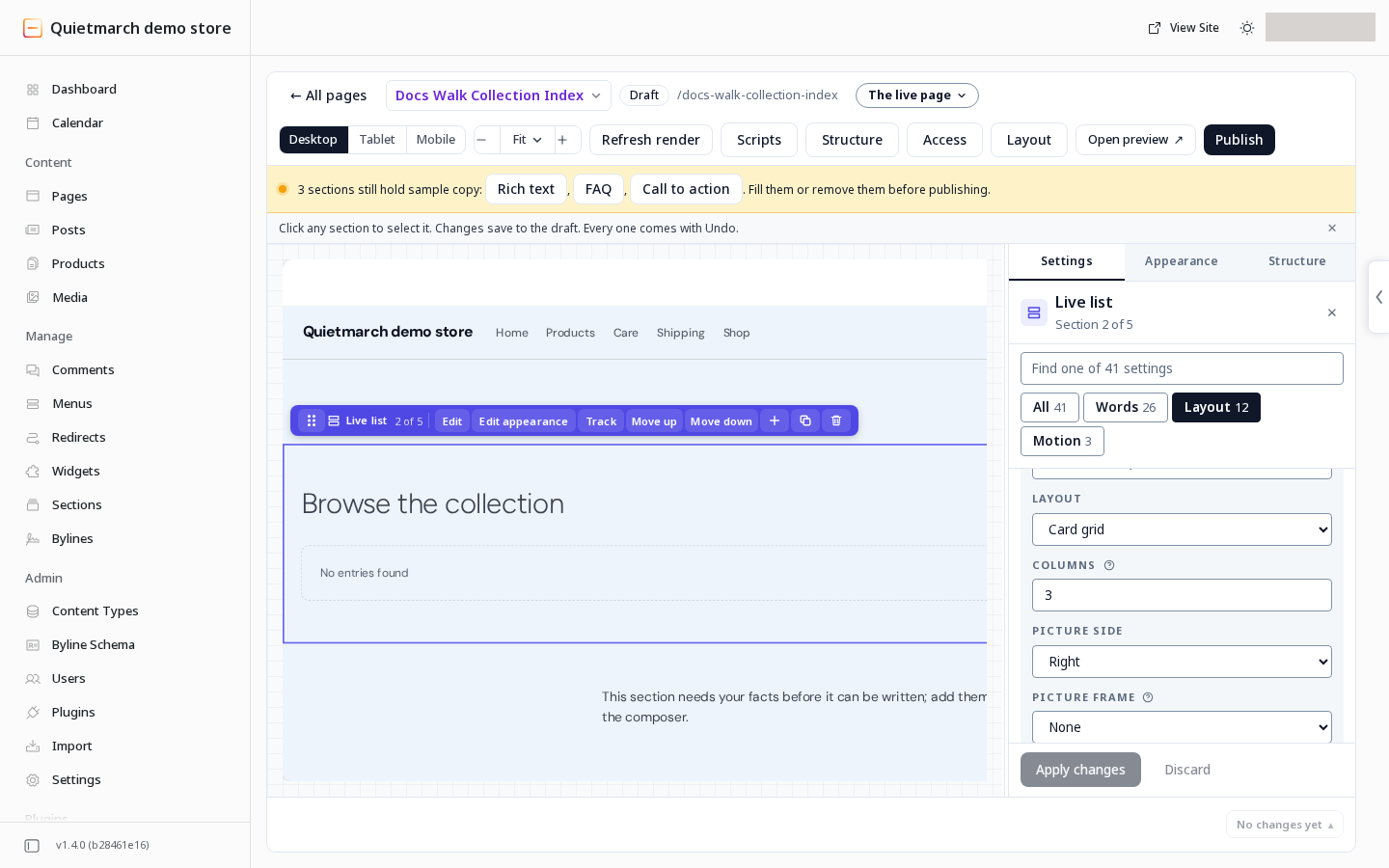
The captured editor labels the grid column field Columns. These settings were entered by hand, rather than kept from the catalogue example.
How many per page sets the page size. Say how many were found can hide the figures, show the total, show the current range or show both. Page links appear when the list has more than one page. If you place another paged list on the page, give it a different Pager address.
Under Words, choose Show the featured image, Show the excerpt, Show the date, Show the author, Show the categories and Show a read-more link. The named preset keeps pictures, excerpts and dates on; authors, categories and read-more links off. Excerpt length (words) controls the summary length. Show the price can display a recorded product price; this preset leaves it unset.
The list skips details an entry does not have. It does not invent a picture, date or summary. Use the Collection index reference to compare every query and display control with the basic Live list starter.
Check the empty state
Section titled “Check the empty state”Set When there is nothing to show to No entries found. On a page using a library theme or on a site that was not migrated, an empty result shows that sentence without 0 results found or Displaying 0 of 0, even when both counts are selected. It shows no cards or page links. Custom and imported themes on migrated sites keep their earlier empty-count behaviour. Change When there is nothing to show to use your own sentence.
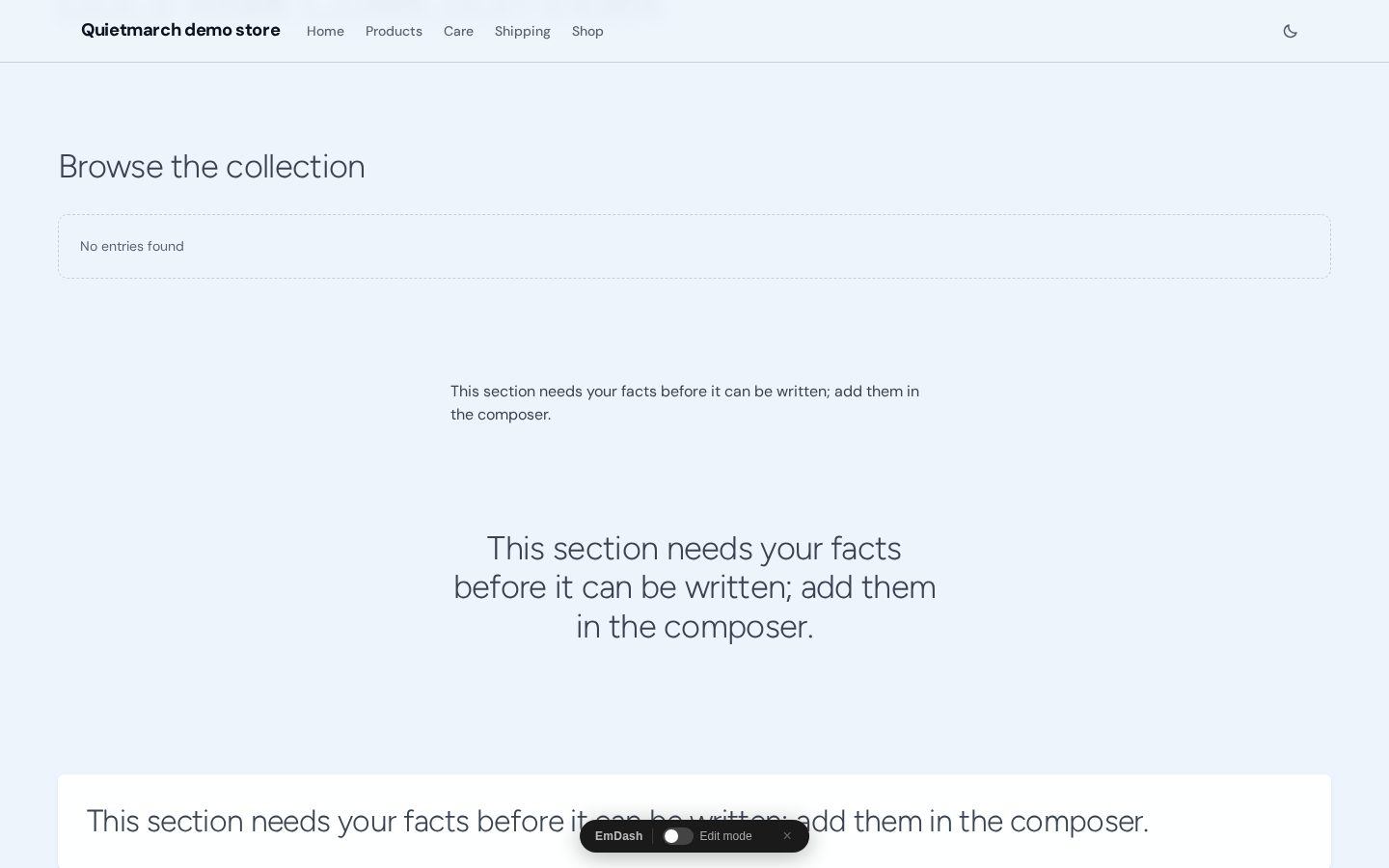
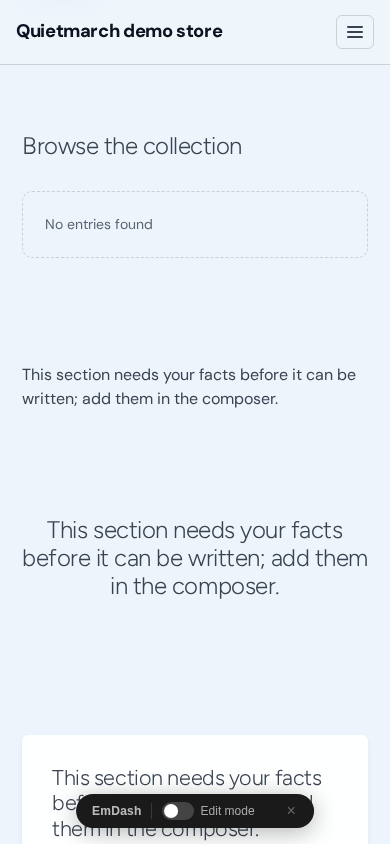
The same empty message can appear when the source or list cannot be read. Check the selected collection, filters and published entries before treating it as an empty collection. A list that has not loaded at all does not invent public rows; the Composer can still keep its section selectable.
How this differs from Live list
Section titled “How this differs from Live list”Collection index is a page recipe. Live list is the section that reads and draws the entries. You can place a Live list on another kind of page without using this recipe. The list can update as matching entries are published; it does not require you to rewrite each card on the index page.
Review the introduction, supporting copy, questions and next action as well as the list. Use the normal preview and publishing steps when the page is ready.