Checked against the product’s code on 7 November 2026.
To show related articles on a page, open that page in Composer in the site admin and add a Recommendations section. In Settings, choose which articles or other catalog content it can use and check what visitors should see when interest data is unavailable. Check the current save limits below before changing its cards, pins or exclusions.
A Recommendations section draws cards from the site’s content catalog. With a usable affinity score it can rank eligible items for the visitor. Otherwise it follows the fallback you choose. See The affinity engine for the scoring model.
Add and configure the section
Section titled “Add and configure the section”The content pool is the set of items the section can choose from. A fallback is what it can show when the preferred choice is unavailable. Categories and tags group that content.
The Composer currently refuses changes to What each card shows, Always show first and Never show. The fallback choice did save and offered Undo. After a refused edit, Discard left the typed value on screen in the recorded check; reload and check the saved draft before editing again. The pictures below show the existing section’s settings.
-
Open Composer.
-
Choose the page.
-
Use Add section below its sections.
-
Search for Recommendations in the add panel.
-
Select it.
-
Open Structure.
-
Select the Recommendations section.
-
Choose Settings.
-
Set Headline.
-
Choose the content pool under Show.
-
Set How many cards.
-
Choose a Layout: Card grid, Horizontal rail or List.
-
Inspect the existing parts under What each card shows; changes to that control cannot currently be saved.
Call-to-action words appear only when that card part is present.
-
Set Cards per row if you want an explicit row size.
-
Use Narrow by to limit eligible items to taxonomy values.
-
Choose the fallback below. Leave pins, exclusions and card parts unchanged while their saving limits apply.
-
Choose Apply changes.
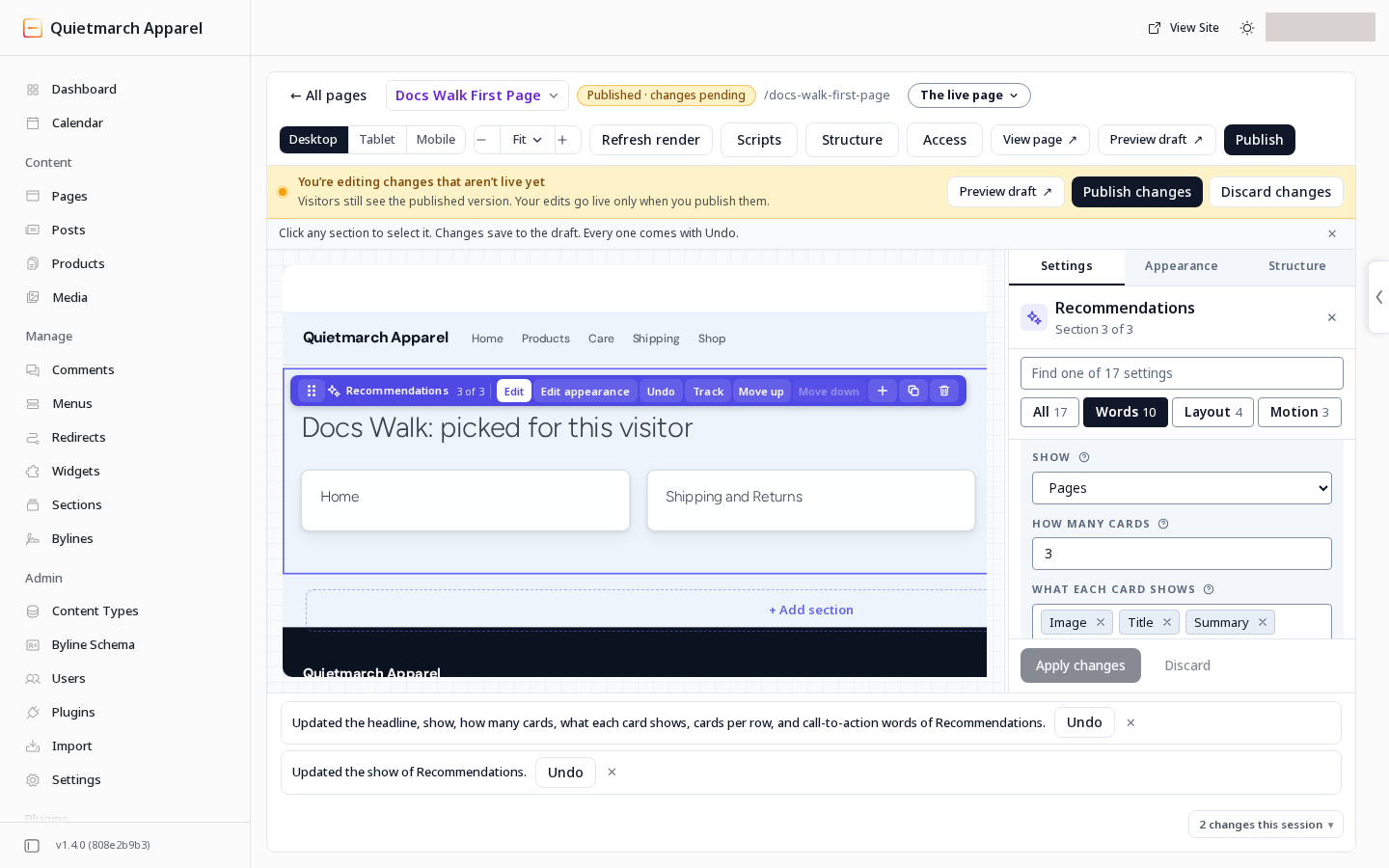
- Review the draft and publish the page when ready.
A changed section remains part of the page draft until you publish it. The Composer preview is useful for layout; checking visitor ranking also needs the published page and the intended visitor conditions.
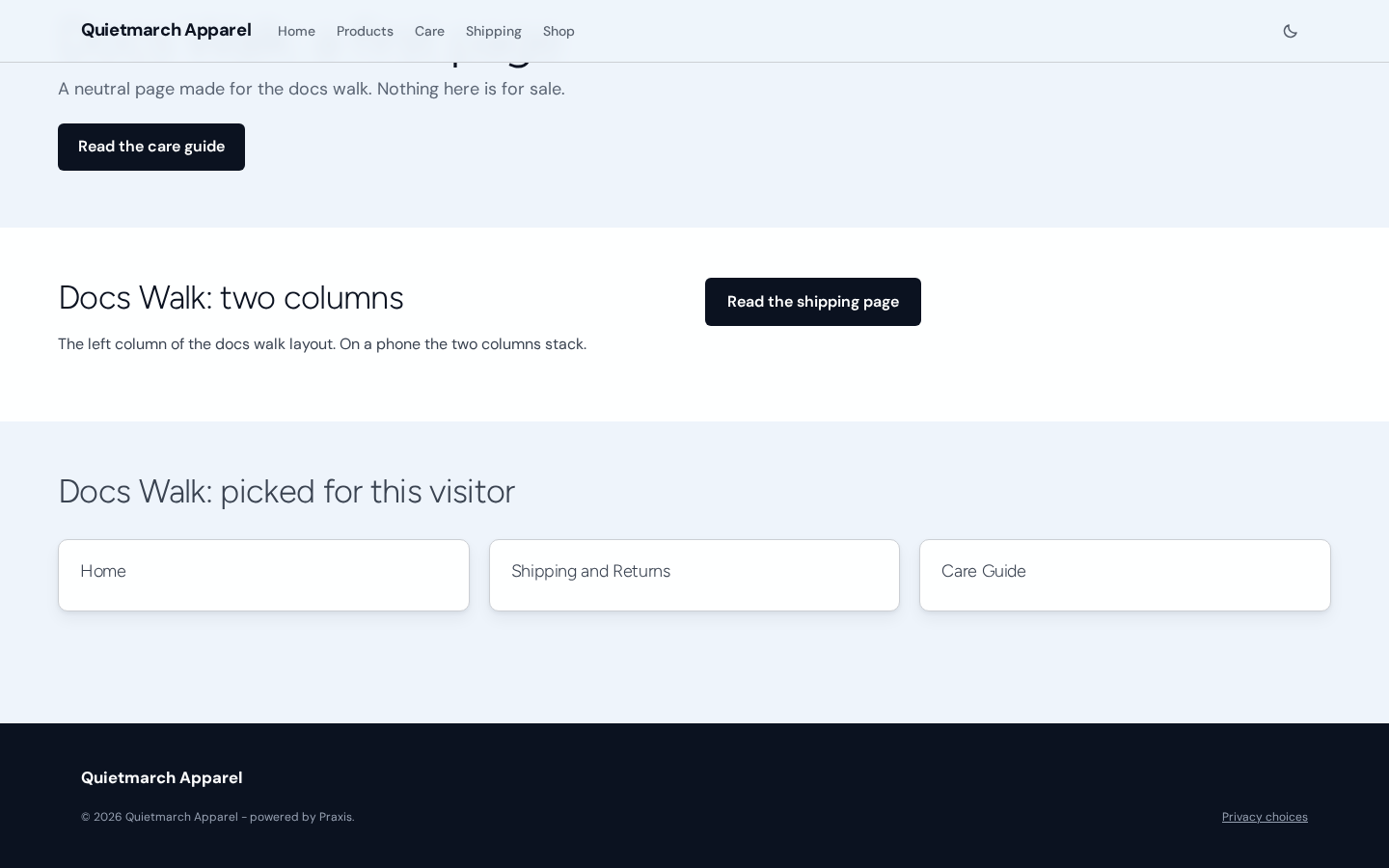
The three page cards are “Home”, “Shipping and Returns” and “Care Guide”.
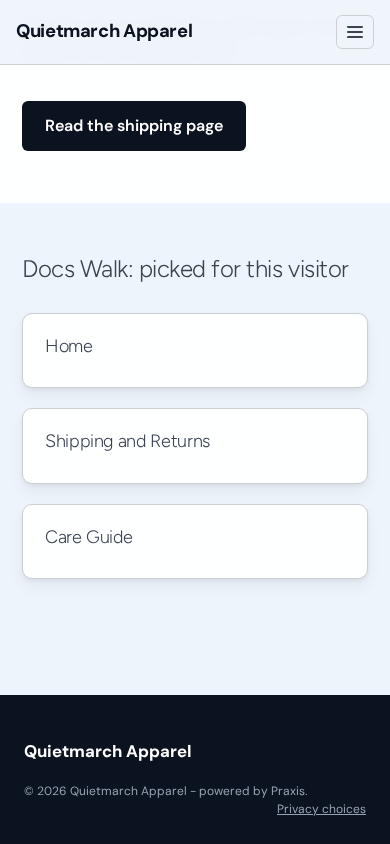
At phone width, those three cards form one vertical column in the same order.
Choose the editorial controls
Section titled “Choose the editorial controls”Always show first and Never show offer item searches, but the Composer currently refuses changes to both. You cannot currently save new pins or exclusions through these controls.
Pins still pass through the section’s content pool and filters. Multiple values of one taxonomy allow either value. Values from different taxonomies must both match.
The candidate content must be available to the catalog. Published native content is included; draft content is not served as a recommendation. If the pool or filters leave no candidates, the section can have no cards.
Choose the fallback
Section titled “Choose the fallback”Under When there is nothing to personalise on, choose:
| Choice | Result |
|---|---|
| The most recently updated items | Uses recent updates as the fallback order. |
| Your pins, then catalog order | Shows eligible pins first, then the remaining catalog order. |
| Hide the section entirely | Shows no section when there is no usable score, including none of your pins. |
Fallback applies when affinity is unavailable or unusable, including when consent or Global Privacy Control prevents personalised ranking.
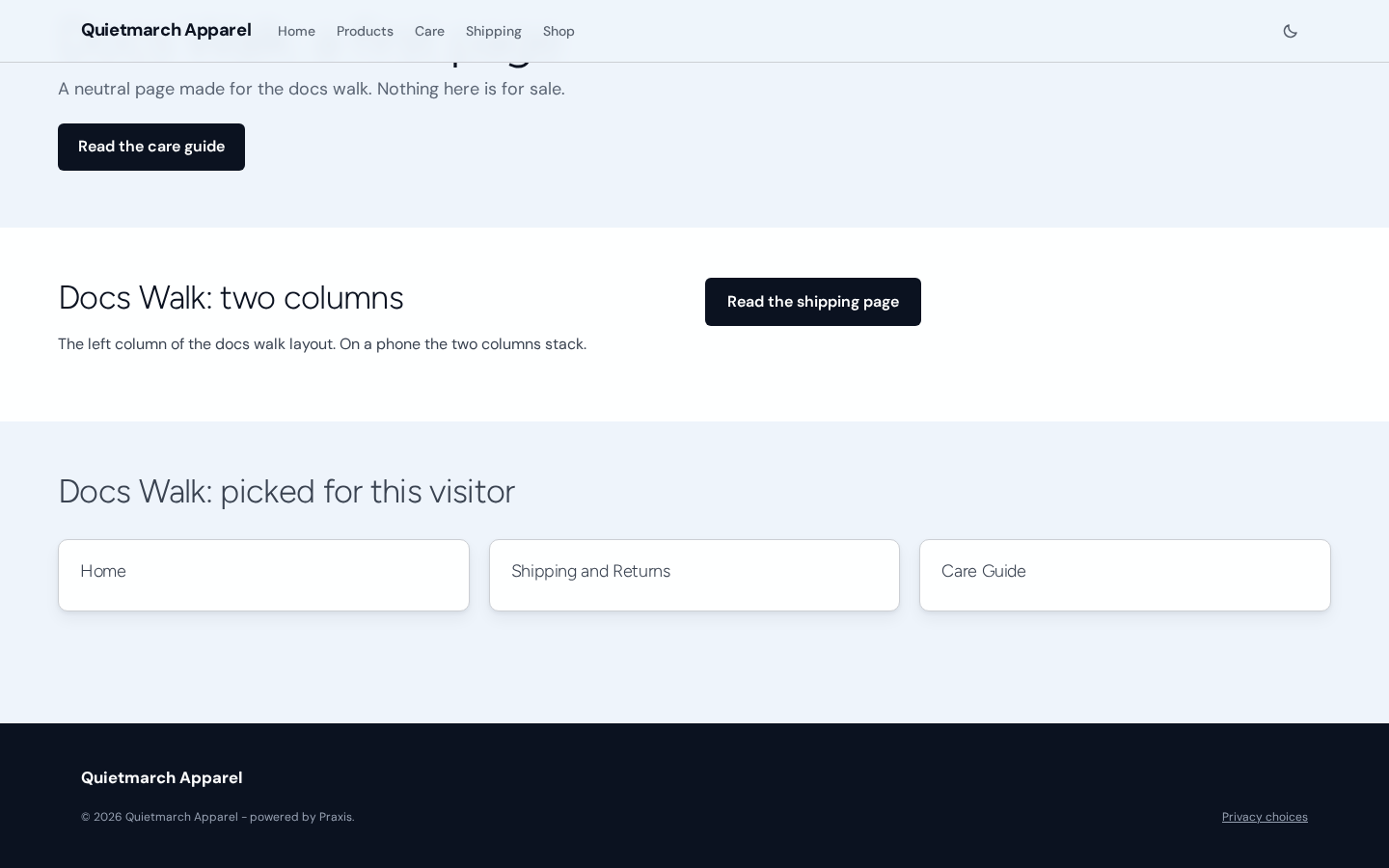
Cards use the data each item actually has. Choosing an image or summary card part does not invent missing pictures or text.
See the personalization section reference for the full field list. To investigate a visitor’s result, open that browser’s Decisions in Visitor Data.