Checked against the product’s code on 7 November 2026.
Open Optimization > Personalization > Targeted content in the site admin to prepare a live offer, such as a promo banner, or a different section order for an audience. Start with a published page and an active audience. See Audiences and targeted content for creating and activating an audience.
A new targeted item needs its own name. Its audience starts as returning visitors, so choose the intended audience deliberately. Holdback % starts at 10 percent. For an arrangement, held-back visitors keep the default order; setting it to zero removes the comparison needed to measure lift. Live event delivery uses the campaign’s own holdback too. Use a whole number from 0 to 100 in Holdback %. Trust that field after editing it; the “10%” hint underneath does not update.
Reorder sections for an audience
Section titled “Reorder sections for an audience”Holdback is the group that keeps the default experience for comparison. Lift is the measured difference between that group and the visitors who received the change.
- Open Optimization.
- Open Personalization.
- Open Targeted content.
- Choose New targeted content.
- Choose Arrangement.
- Enter a name in the top name field, such as
returning-page-order. - In 1 · Who, choose an active Audience.
- Set Holdback %. Read the field value, since the nearby hint does not follow an edited percentage.
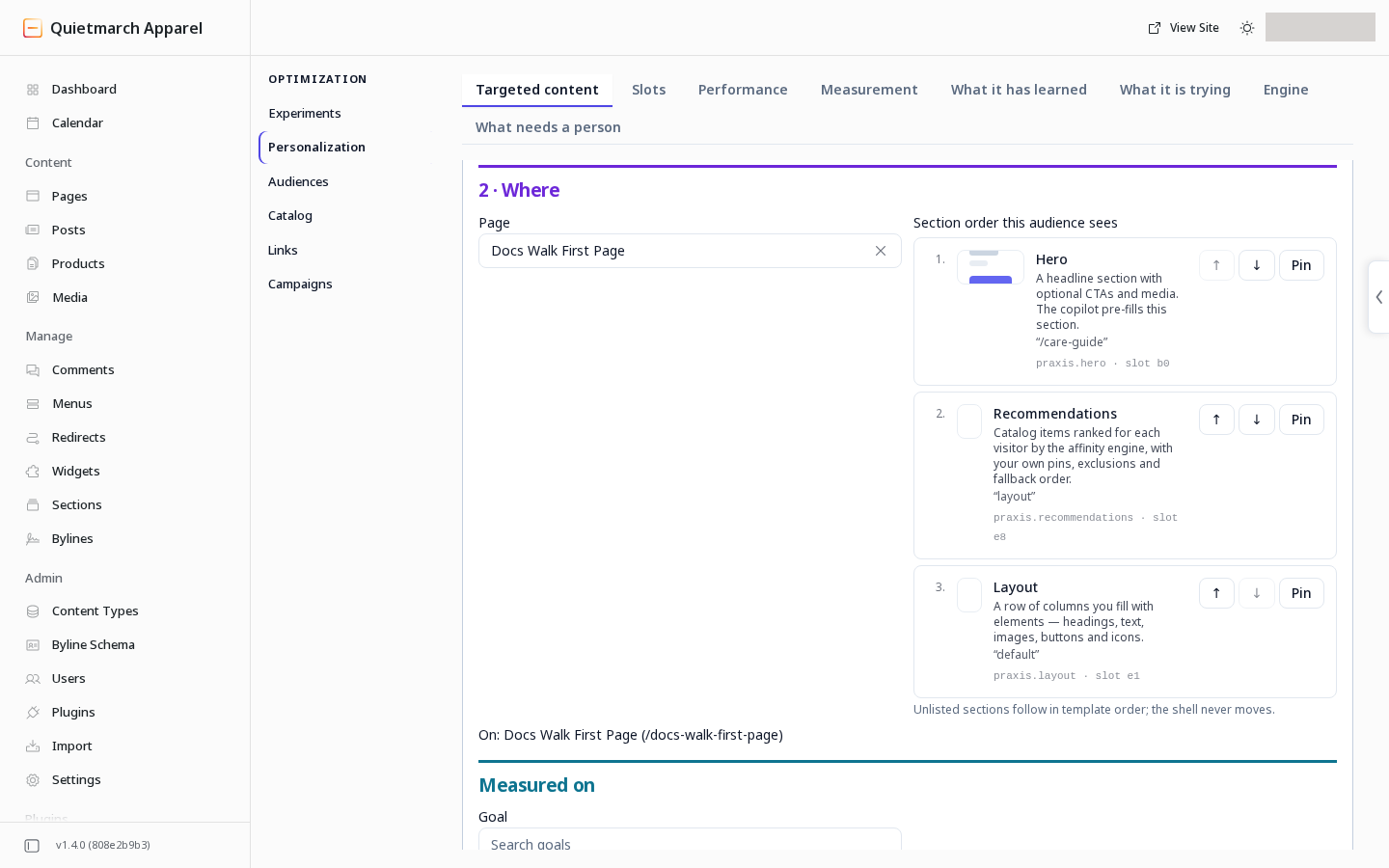
- In 2 · Where, choose the Page.
- Under Section order this audience sees, use the up and down arrows to move at least one section into the desired order.
- Leave the pin controls off. Pinned arrangements cannot currently be saved from this form.
- If you want to measure a result, choose a Goal under Measured on.
- Choose Preview change.
- Read the proposed order.
- Choose Approve & make it live or Keep as draft.
Moving a section is needed to enable the form’s save and preview actions. Pinning alone does not establish an order.
The arrangement applies when an eligible visitor loads the page. The site header and footer stay in place. Visitors outside the audience and those held back keep the default page order.
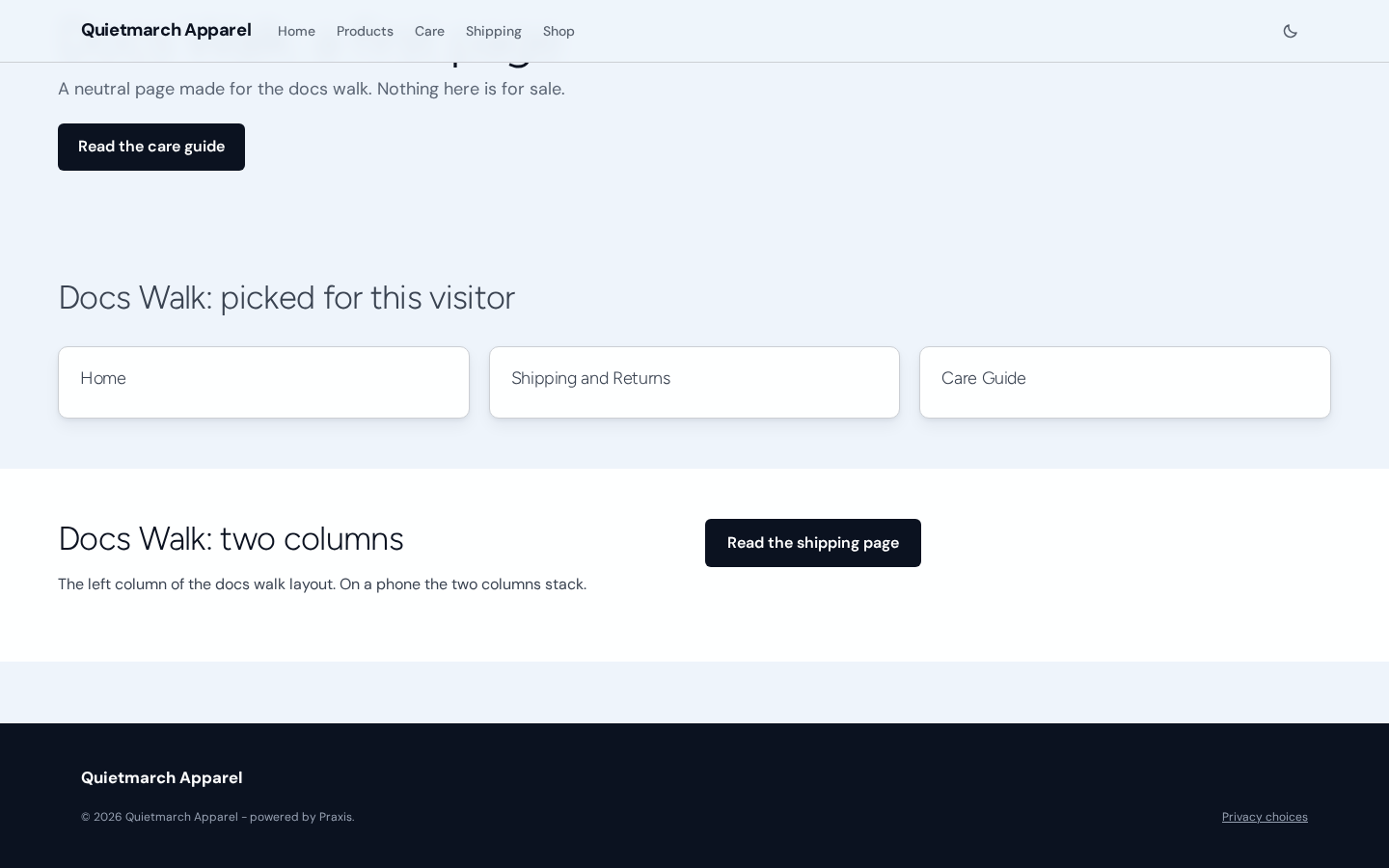
For the audience in this picture, the recommendation cards appear above the two column section.
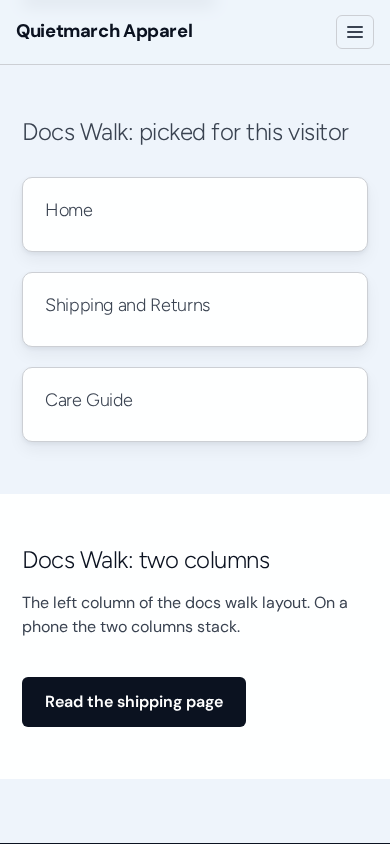
The audience’s phone view keeps the cards above the layout text and places one card on each row.
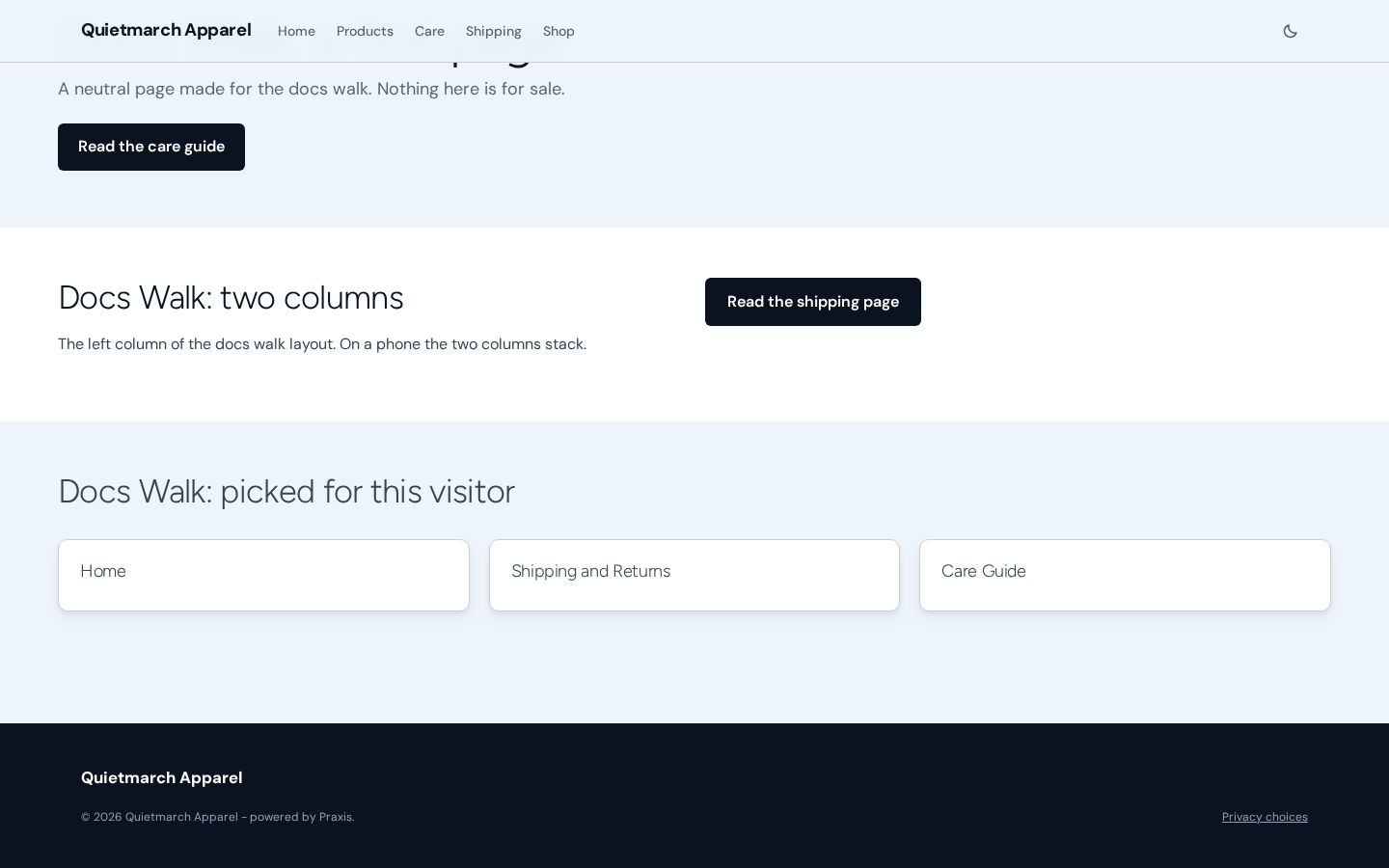
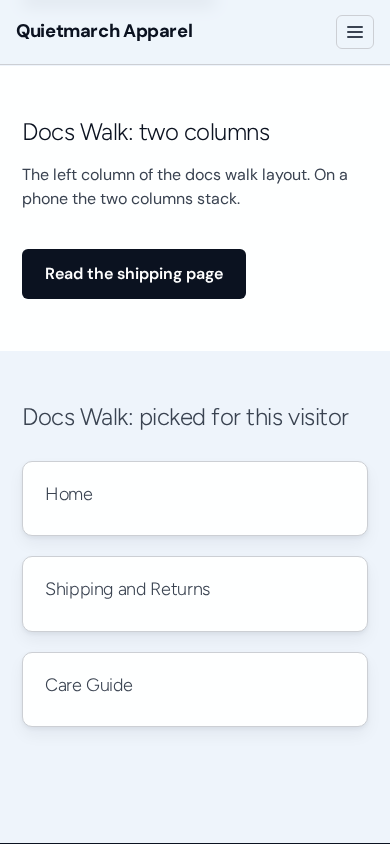
The default phone view keeps the layout’s words and button above the recommendation cards.
Show a live offer
Section titled “Show a live offer”Expires after (s) is the intended time until the offer should end after its trigger. It takes a duration in seconds. Read the expiry warning beside that field before relying on it.
A Live offer is a dormant overlay until an approved live update reveals it. Delivery needs the site’s live channel, allowed personalization and a visitor in the audience. A visitor outside the audience does not receive the offer.
For an offer triggered by joining its audience, the page can get a ticket before the visitor joins. Without that trigger, the visitor must already be in the offer’s audience for its slot to qualify for a ticket. The audience is checked before the offer is sent.
For a new page load, the live connection uses an encrypted ticket that page scripts cannot decode to read the visitor id. Consent and Global Privacy Control still decide whether a ticket is issued. A ticket must be used within two minutes to open the connection; that limit does not end a connection already open.
-
Open the intended page in the Composer.
-
Add a Live offer section.
-
Give its button a real destination if it uses one.
-
Apply the section change to the draft.
-
Publish the page when that base section is ready.
-
In Targeted content, choose New targeted content.
-
Choose the Time-boxed offer option.
-
Enter its name.
-
Choose the active audience.
-
Check Holdback %.
Live event updates honor this campaign’s Holdback %. A held-back visitor keeps the default instead of receiving this campaign’s live change.
-
Choose the Page.
-
Choose the Section. An offer needs a section that supports live updates; static sections are unavailable for this choice.
-
In 3 · What, type a supported text field’s exact name.
-
Enter its approved value.
-
Use + add a field for another value if needed. Repeat the name and value steps for that field.
For a Live offer,
headlineis the heading andbodyis its body text. The form takes typed names and values. Live delivery replaces visible words only. Set the button destination on the base section and publish it; a live text update does not change its address. See the conversion section reference for the available fields. -
Choose the Trigger event.
-
Set Expires after (s) to at least five seconds.
The server is intended to control expiry, and another matching trigger can start a new expiry period. In the supplied demo-store walk, the offer stayed visible after its configured 60 seconds. Confirm expiry on your site before relying on it. For an event trigger with a window, the event must arrive within that many seconds of the session’s start. If the session start cannot be read, that trigger does not send an offer.
-
Choose a measured Goal if needed.
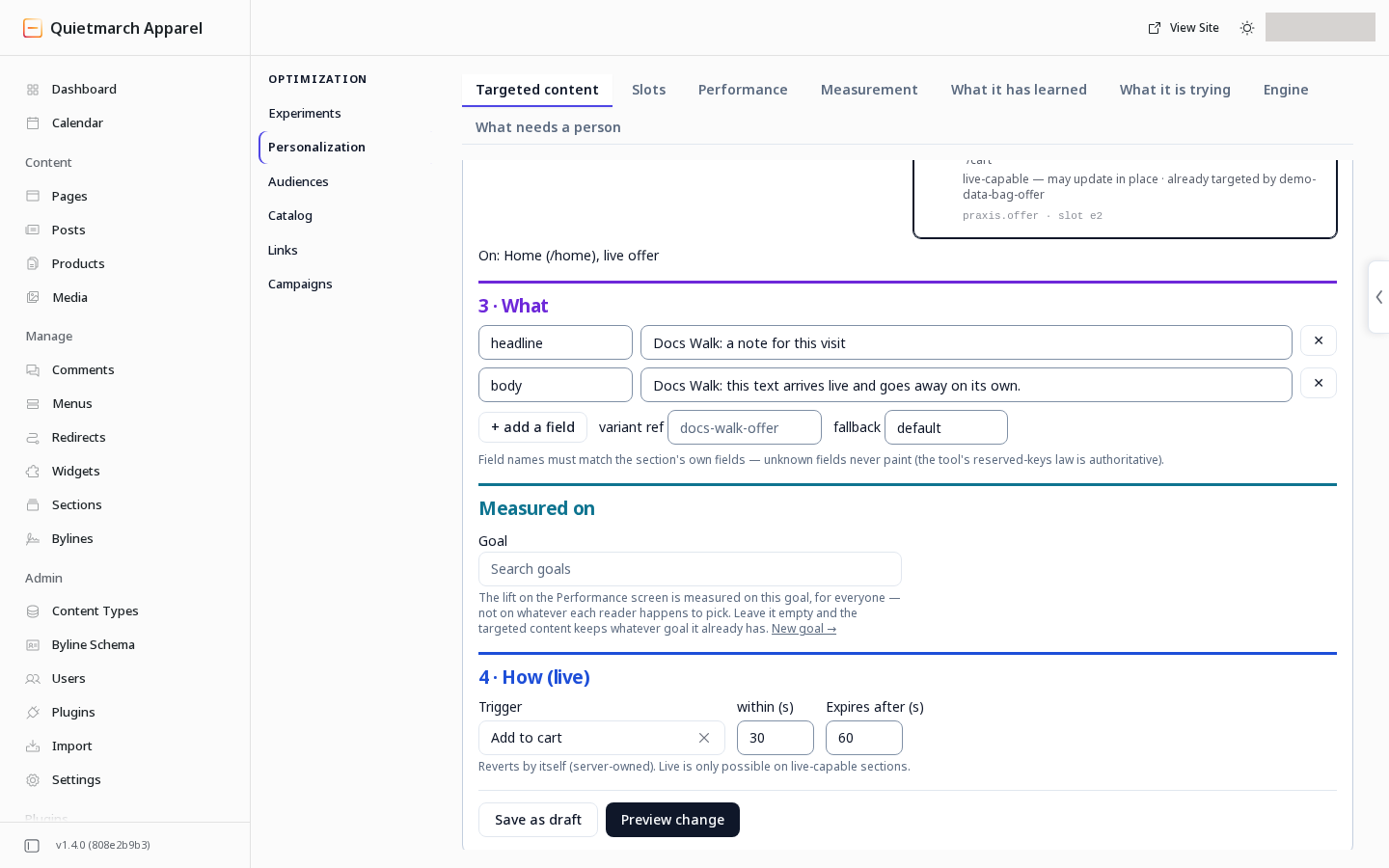
- Choose Preview change.
- Review the audience, page, section, words and expiry together.
- Choose Approve & make it live only if the change matches your intent and you have accounted for the expiry warning above.
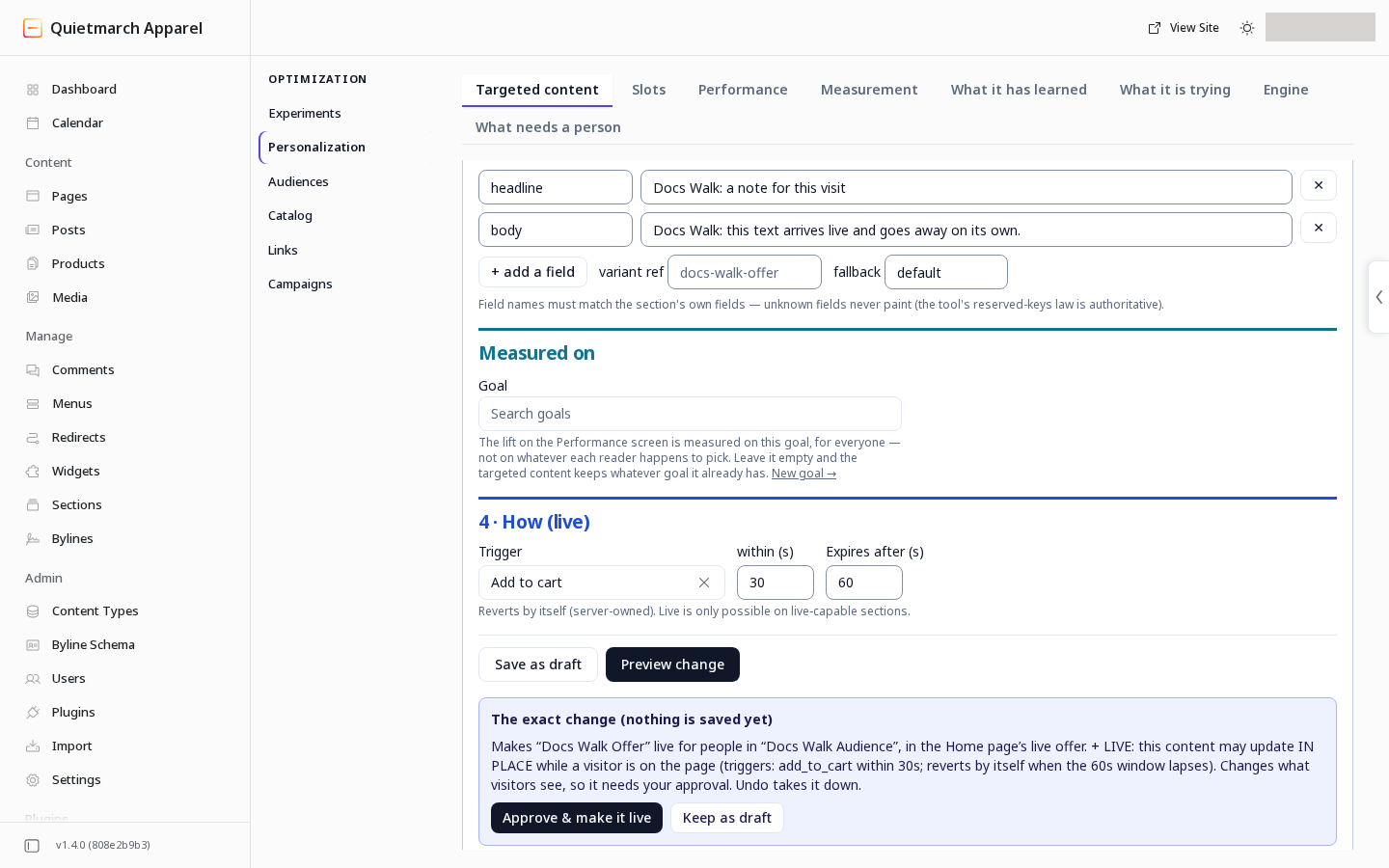
The card names the audience and page section that would show the offer; its stated expiry still needs the separate check described below.
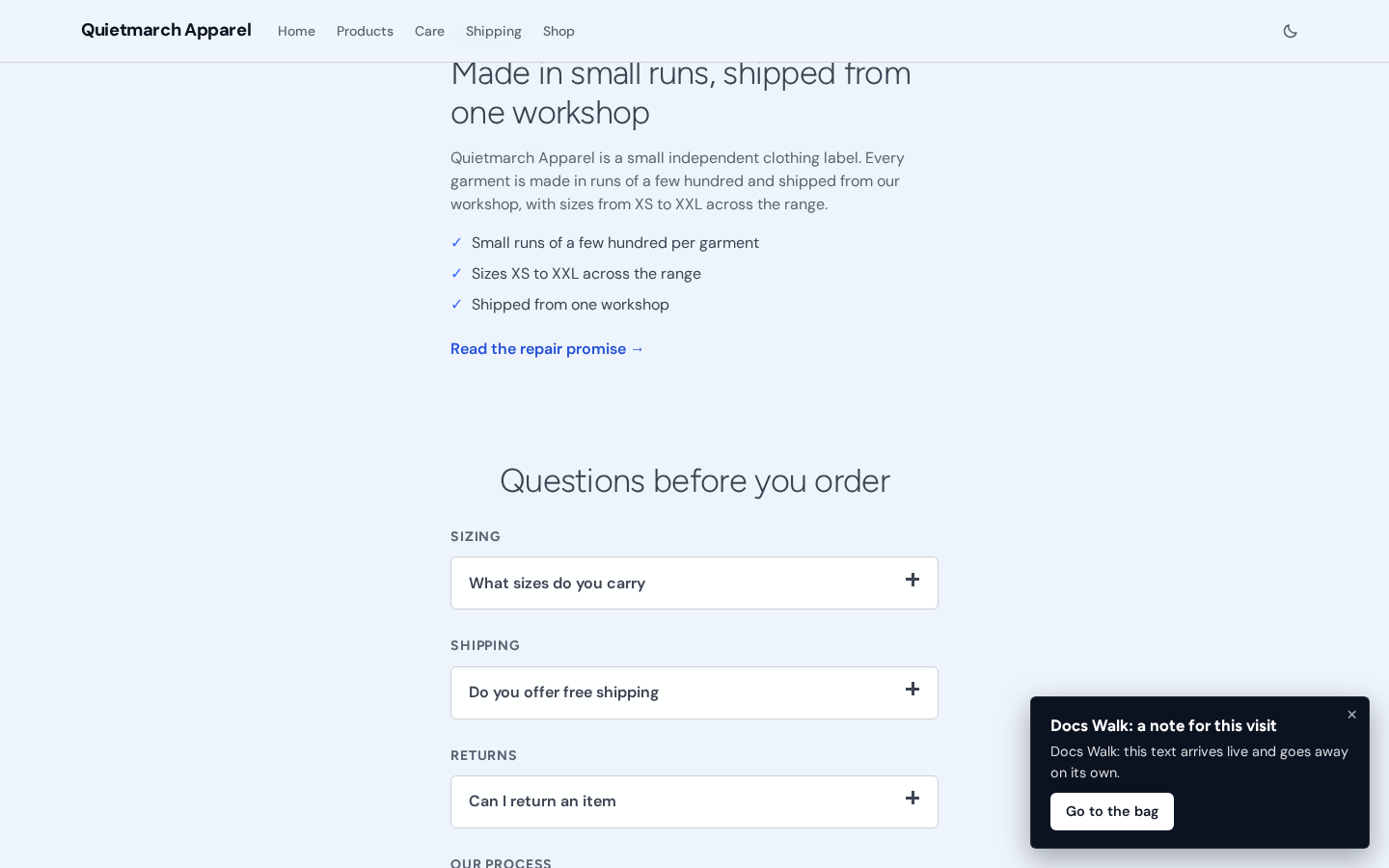
Check the published page after the configured duration to see whether the offer has ended. The recorded walk left it visible beyond 60 seconds.
Pause or reverse the change
Section titled “Pause or reverse the change”The approval receipt offers Undo. You can also Pause live targeted content and Resume it later. Pause an active item before archiving it.
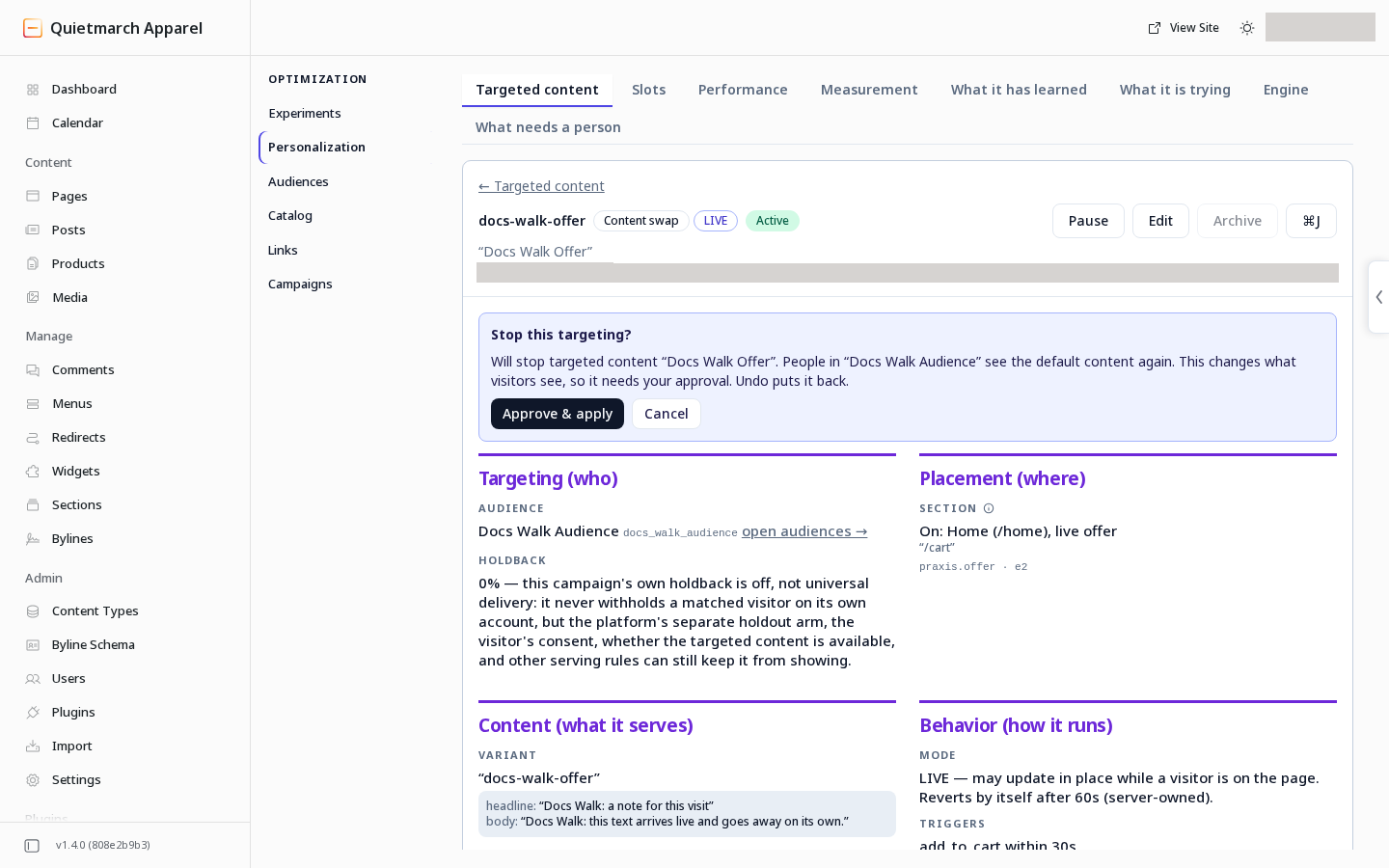
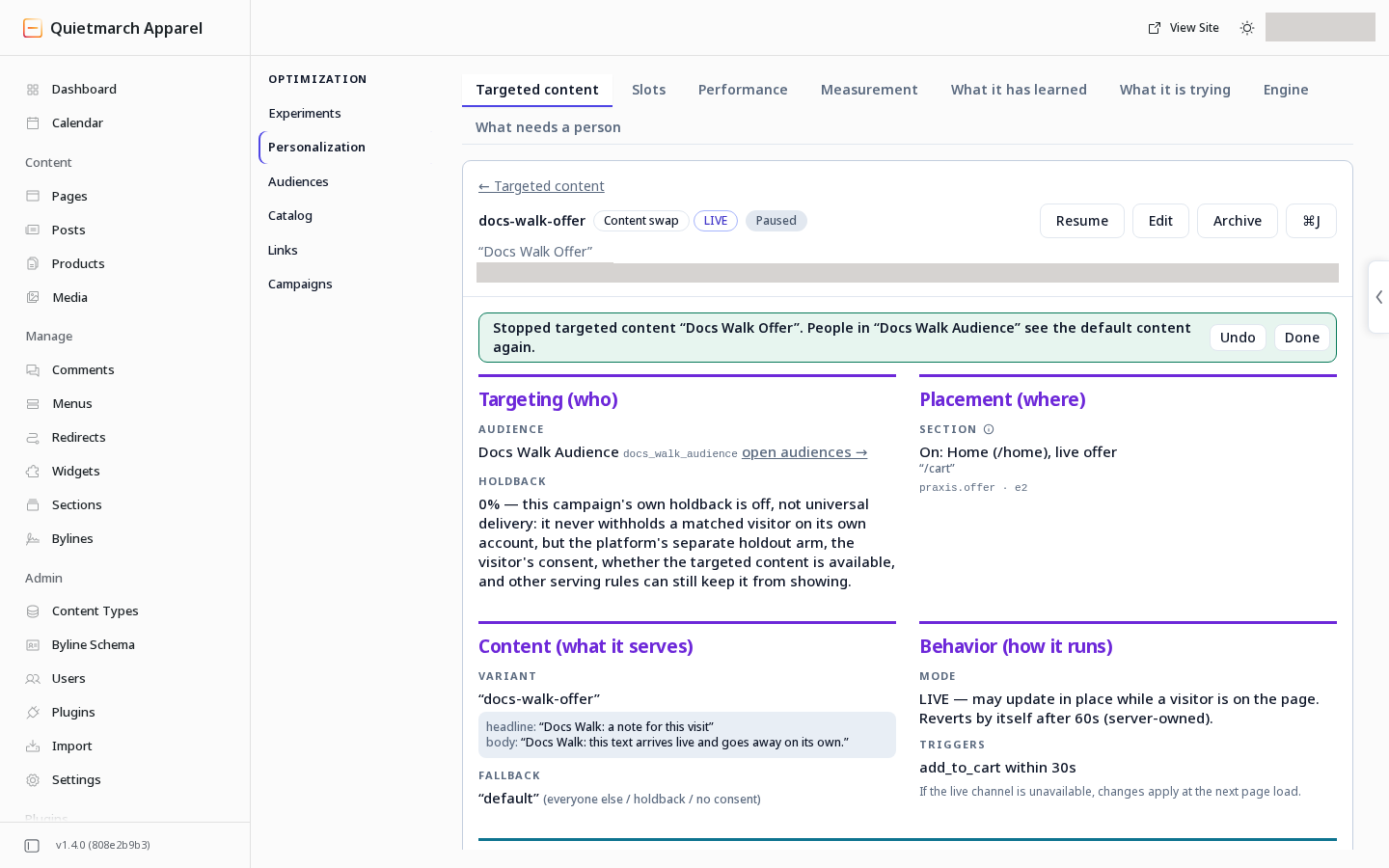
For an arrangement, read Performance for exposed and held-back results. For a live offer, check its trigger window, audience and campaign holdback. A saved draft serves nothing, and targeted content cannot serve on an unpublished page. Check the published page, audience, consent and holdback when an expected result does not appear.