Recover a page or post from Trash in EmDash’s own Pages or Posts screens in the site admin. An Author can recover their own entries; an Editor or Admin can recover other entries too. Permanent deletion needs an Admin.
Checked against the product’s code on 7 November 2026.
Find and restore an entry
Section titled “Find and restore an entry”- Open Pages or Posts in EmDash’s own content screens in the site admin. You see that collection’s entries.
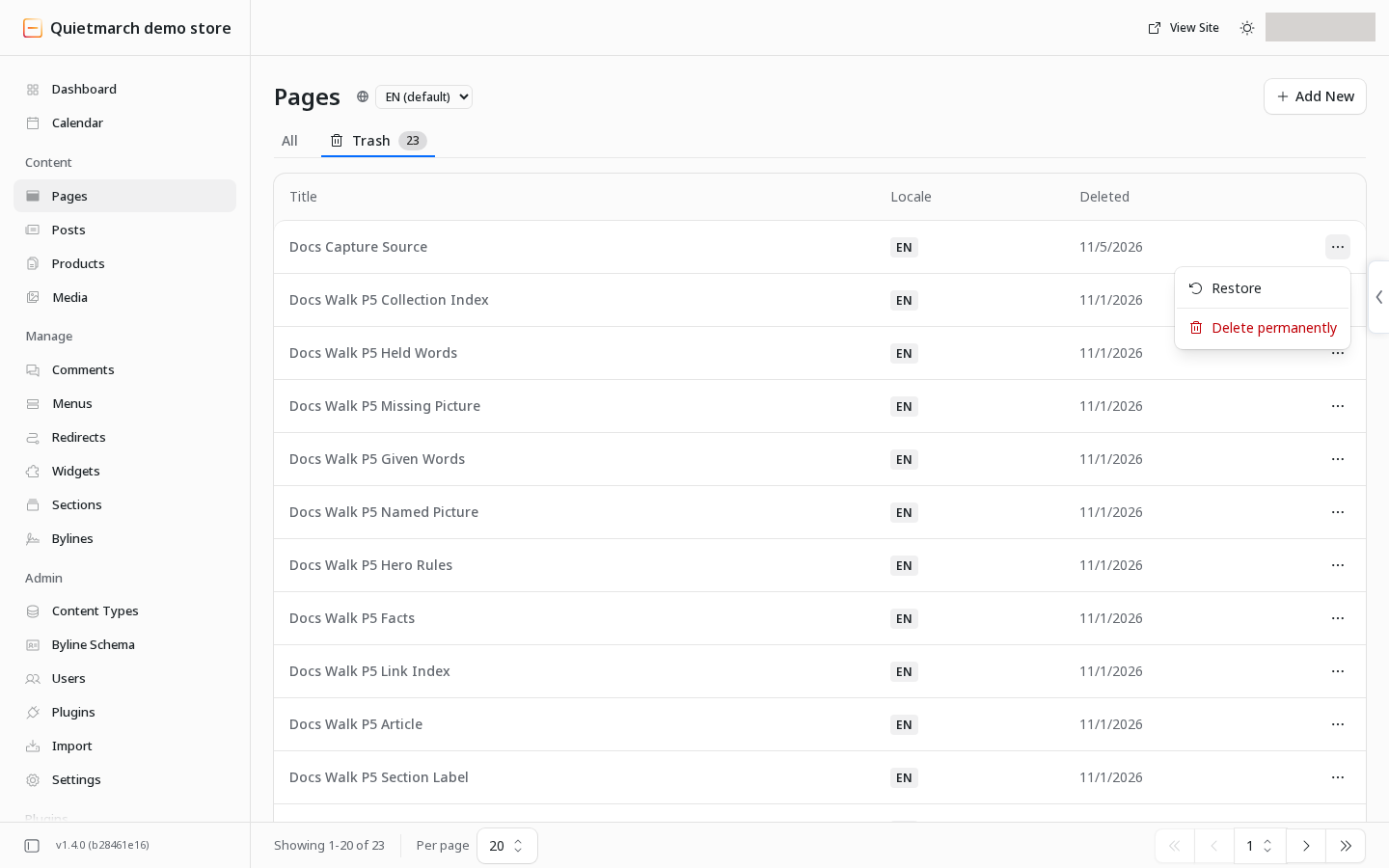
- Choose Trash. The list now shows its removed entries.
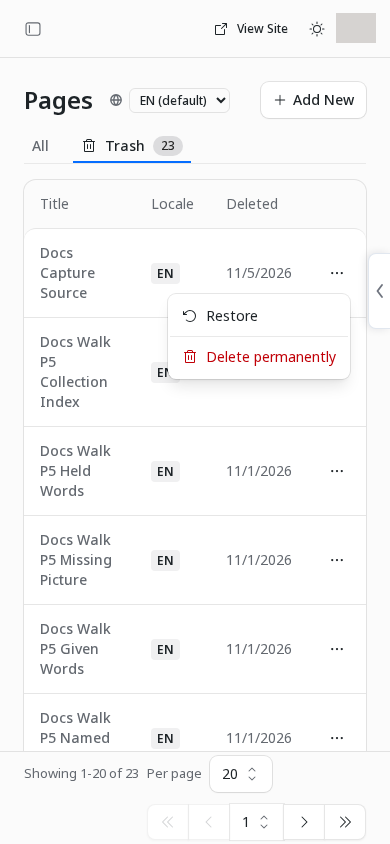
- Open the actions menu for the entry you want. It offers Restore and Delete permanently.
- Choose Restore. The entry leaves Trash.
- Choose All. The restored entry is back as a draft.
- Open its title. Review the restored content before putting it back on the site.
Restoring does not publish the entry. It also clears its old publication schedule, even if the entry was live or scheduled before it was removed. Follow Review and publish when it is ready. Set a new schedule separately if needed.
Ask the copilot
Section titled “Ask the copilot”The copilot restore needs an Editor or Admin.
- Open Copilot. The conversation is ready for your request.
- Type “Show the pages in Trash” or “Show the posts in Trash”. The request names the collection to search.
- Choose Send. Read the returned entries before choosing one.
- Ask “Restore [entry title] from Trash as a draft”, replacing the brackets with the entry you found.
- Choose Send. The card asks Restore this content from Trash?
- Check the entry, then choose Restore it. The receipt confirms restoration as a draft with no schedule.
The restore receipt’s Undo moves the same entry back to Trash. See Content and its catalog for the restore and permanent deletion requests.
Put it back in Trash
Section titled “Put it back in Trash”In Composer, the Move to trash control opens a card naming the page and its address. Confirm the move only after reading what happens to a live page. Its receipt’s Undo brings the page back as a draft; publish it separately when ready.
The screen’s Restore action does not produce a copilot Undo receipt. To reverse it:
- Open the restored entry’s actions menu in All. The menu offers Move to trash.
- Choose Move to trash. A confirmation opens.
- Confirm Move to Trash. The entry returns to Trash.
Permanent deletion
Section titled “Permanent deletion”Delete permanently in Trash opens Delete Permanently? Nothing is permanently deleted until an Admin confirms Delete Permanently. Use Cancel to keep the entry.
Permanent deletion removes the entry and its SEO data, comments, revision history and usage references. It has no Undo. Recovering from Trash is the reversible choice while you are still deciding.
Your next step
Section titled “Your next step”Review the restored draft, then follow Review and publish. If it needs a new publication time, use the scheduling steps in Pages, posts and media.