Checked against the product’s code on 7 November 2026.
Learn how to change a menu. Open Site > Navigation in the site admin. Choose the menu, edit its links and decide where it appears in the top navigation or footer. Review and publish the whole menu change together. EmDash also provides its own Menus screen. Both work with the site’s menus.
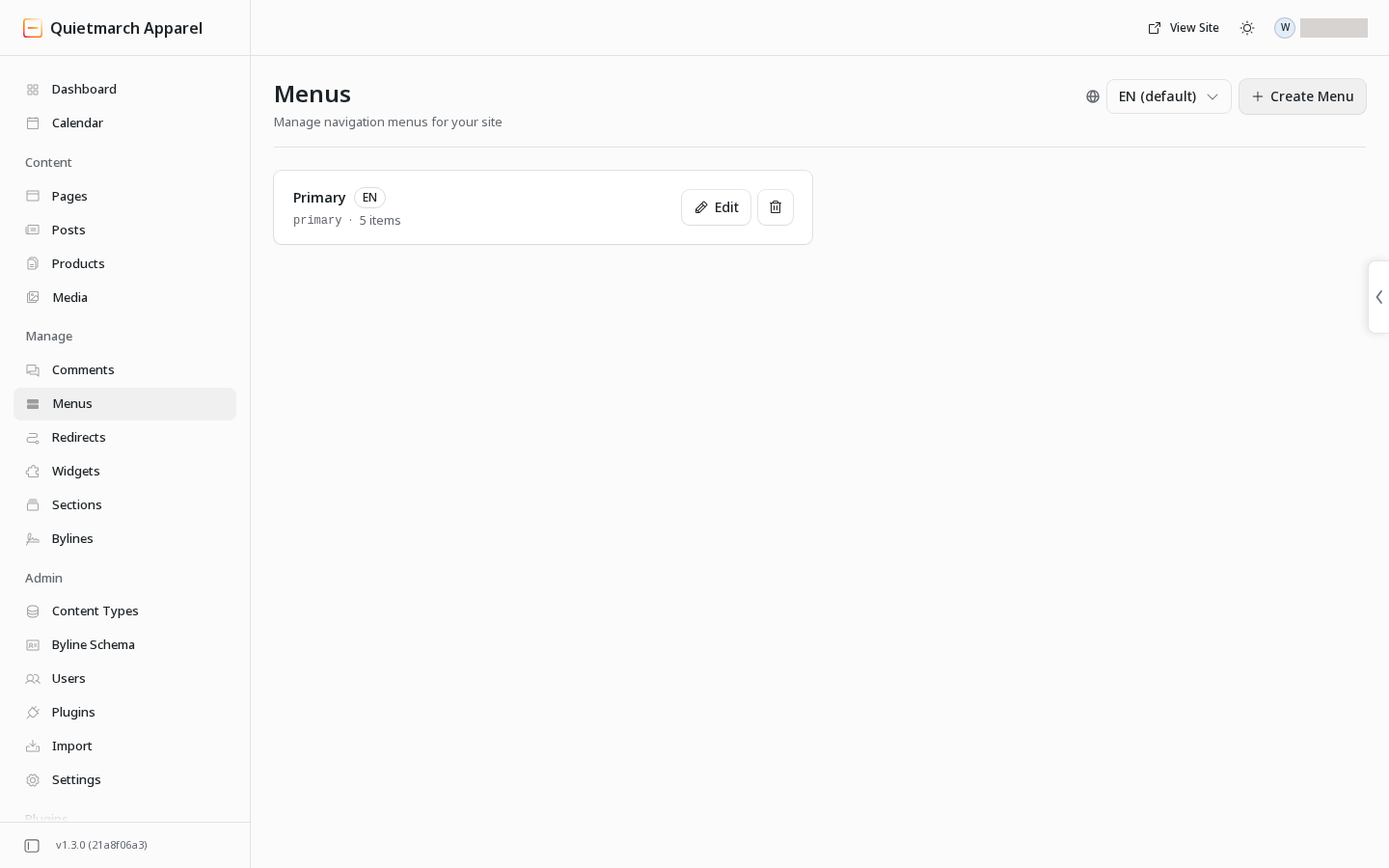
Start or choose a menu
Section titled “Start or choose a menu”-
Open Site.
-
Open Navigation.
-
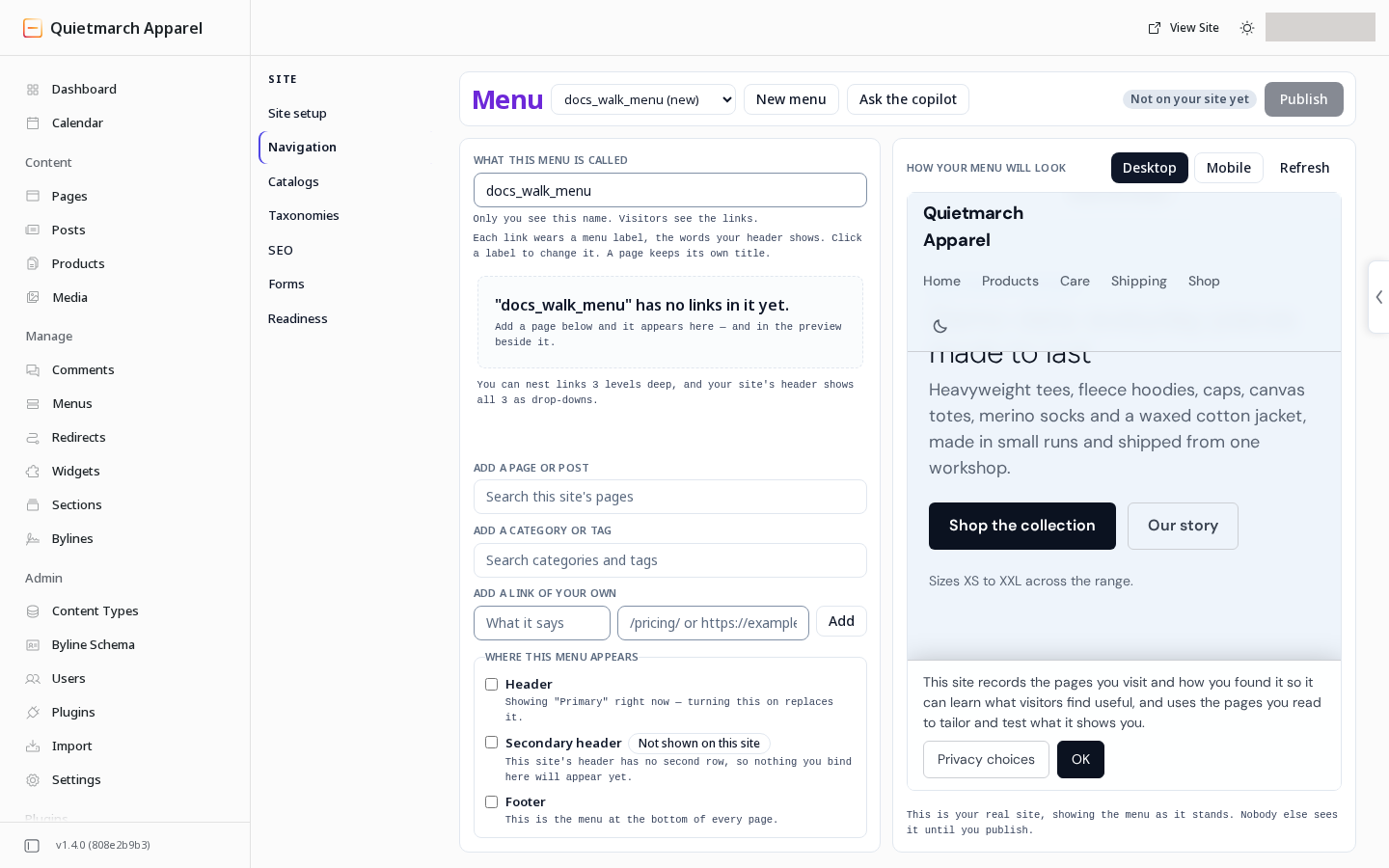
Choose an existing menu from the selector, or choose New menu.
-
For a new menu, fill in What to call it.
-
For a new menu, check Its stable name. The stable name identifies this menu independently of its display name.
-
For a new menu, choose Start building.
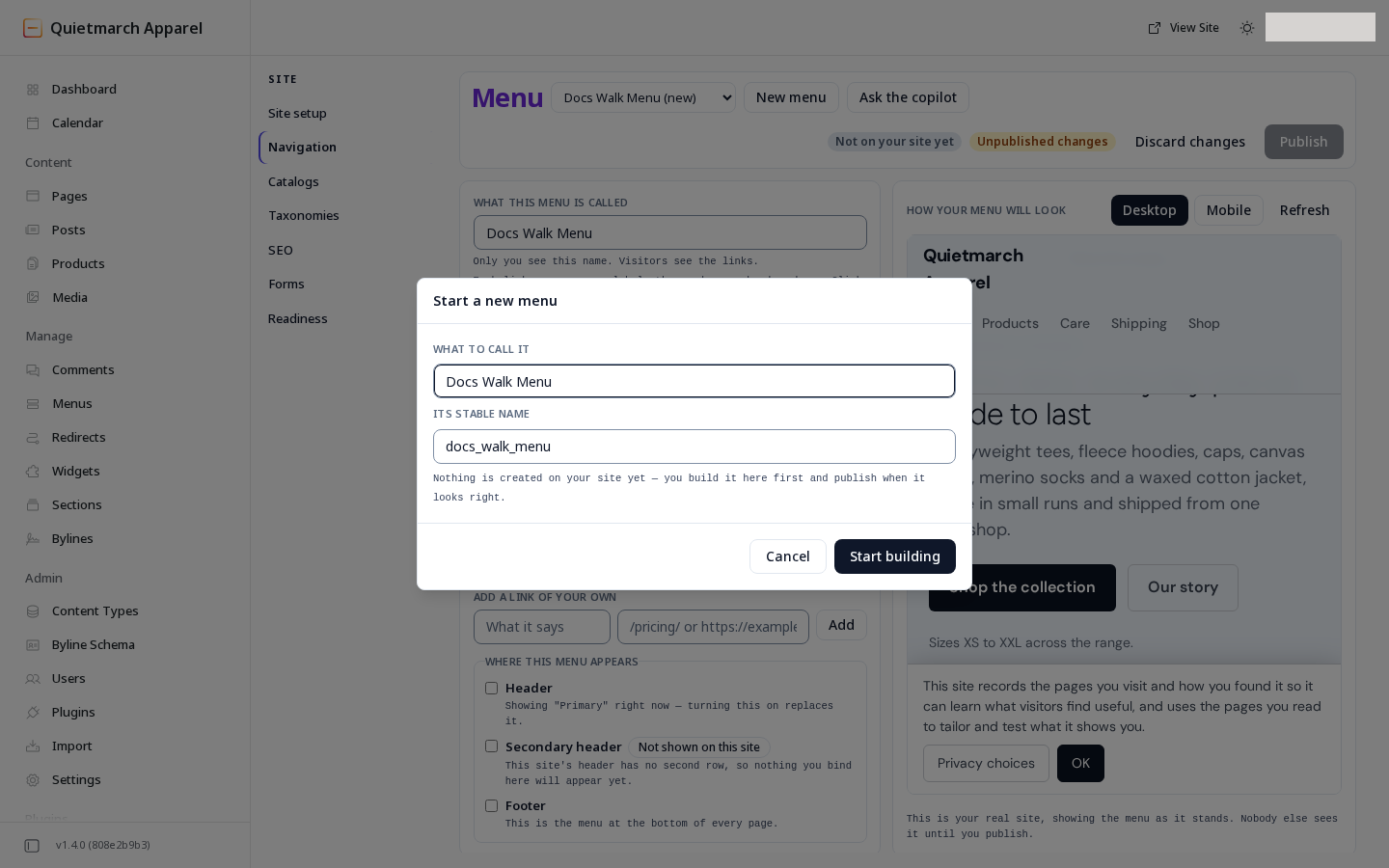
Name a new menu; its stable name follows.
Starting a menu does not publish it. You build its links and choose its locations before approving the live change.
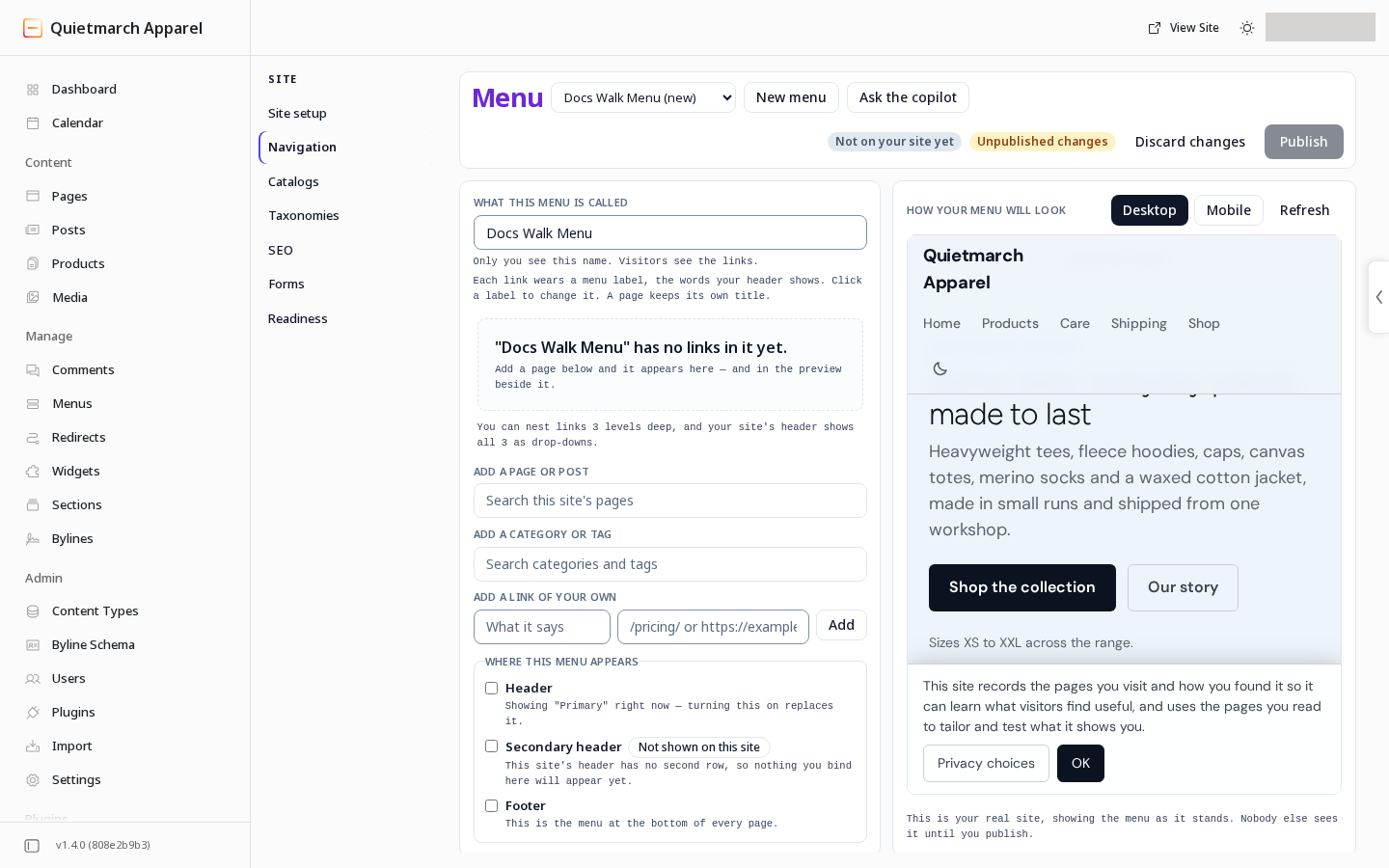
Add and arrange links
Section titled “Add and arrange links”To add content from this site, use Add a page or post to search for it. You can also add a category or tag.
For a custom link, including another website:
- Enter its words in the custom link row.
- Enter its address.
- Choose Add.
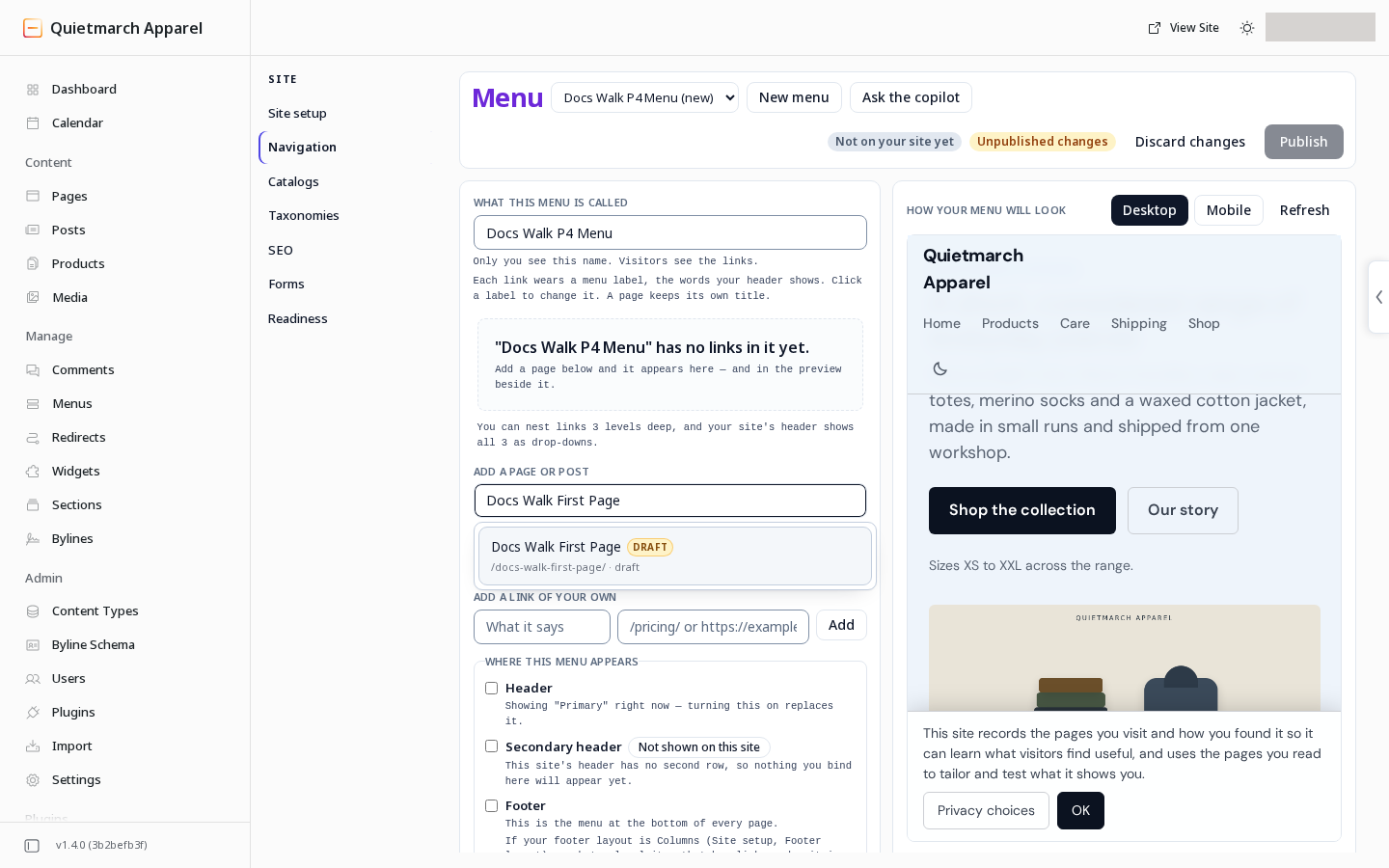
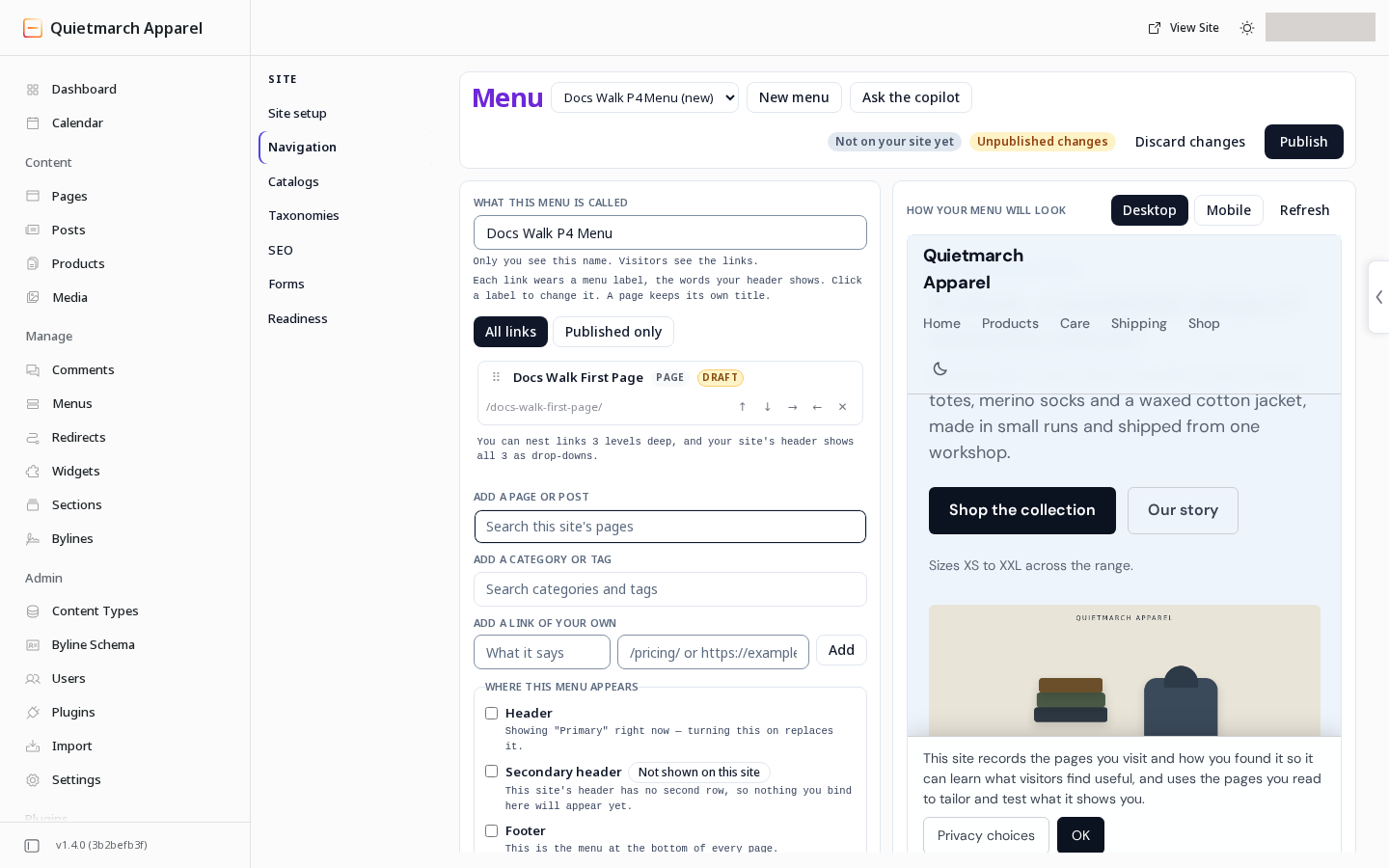
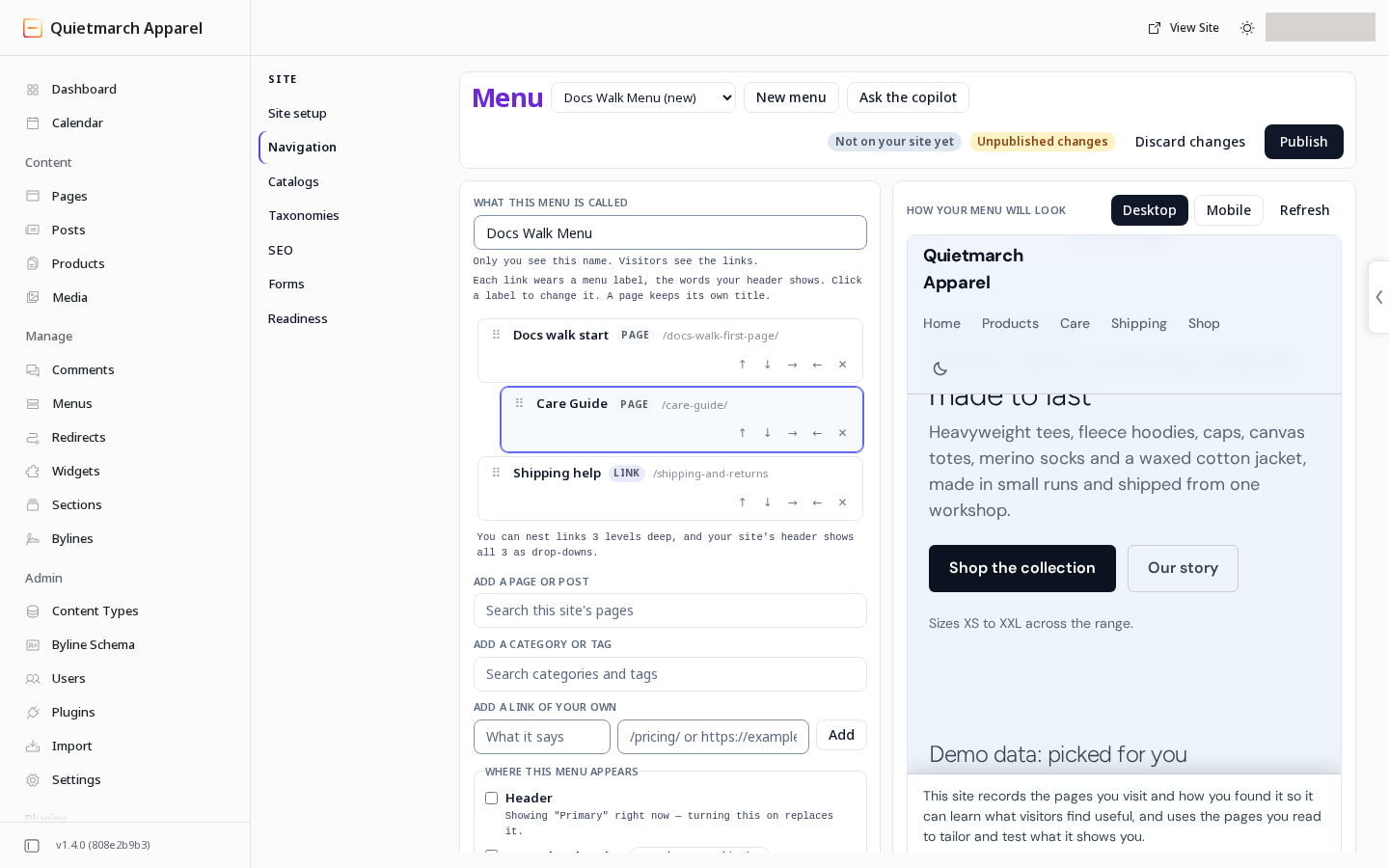
Click a link’s label to rename it. Drag a link to change its position or nest it under another. The builder supports three levels. You can also move links with the keyboard: pick one up with Space or Enter, move it with the arrow keys, then drop it with Space or Enter. Escape cancels a drag.
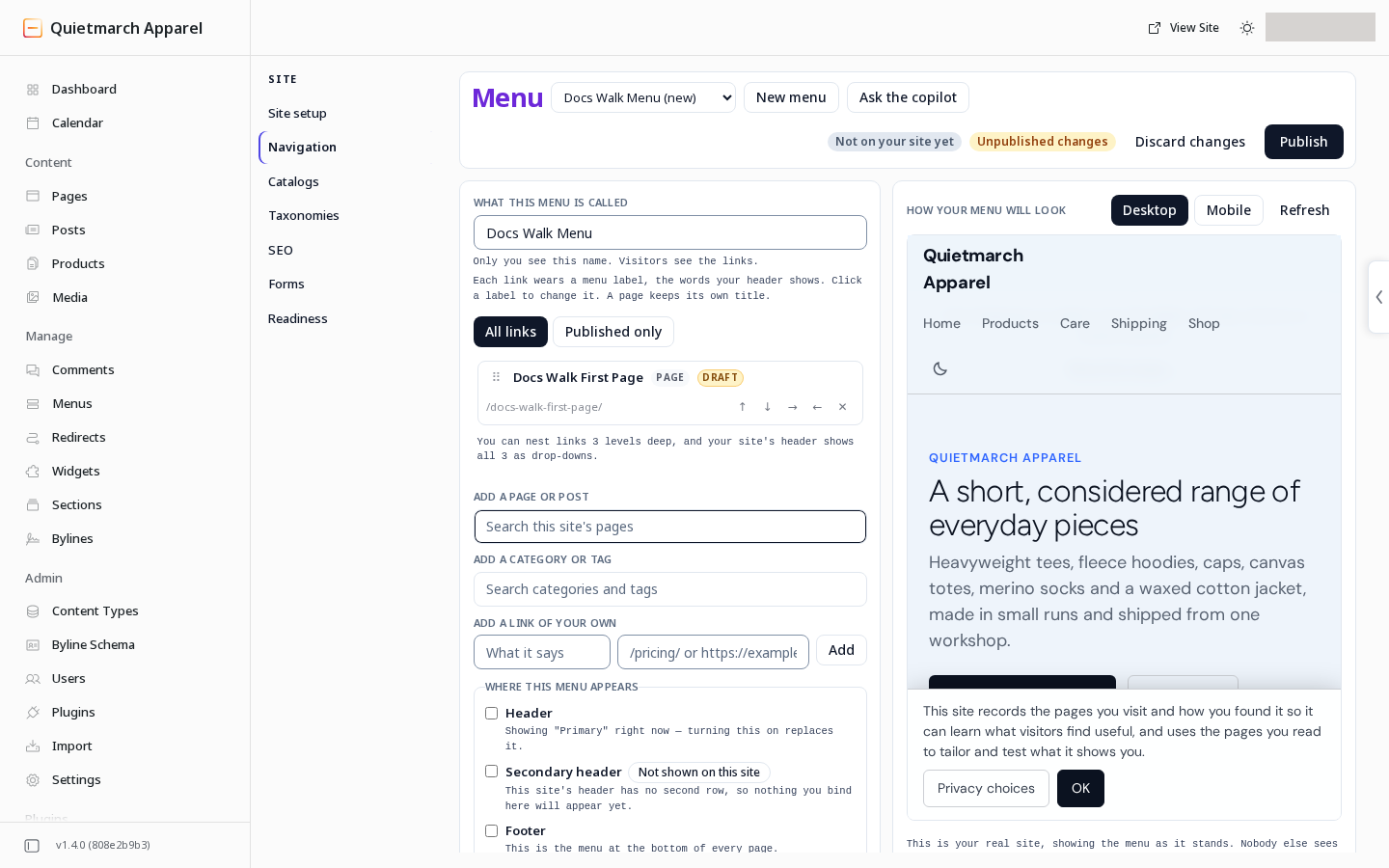
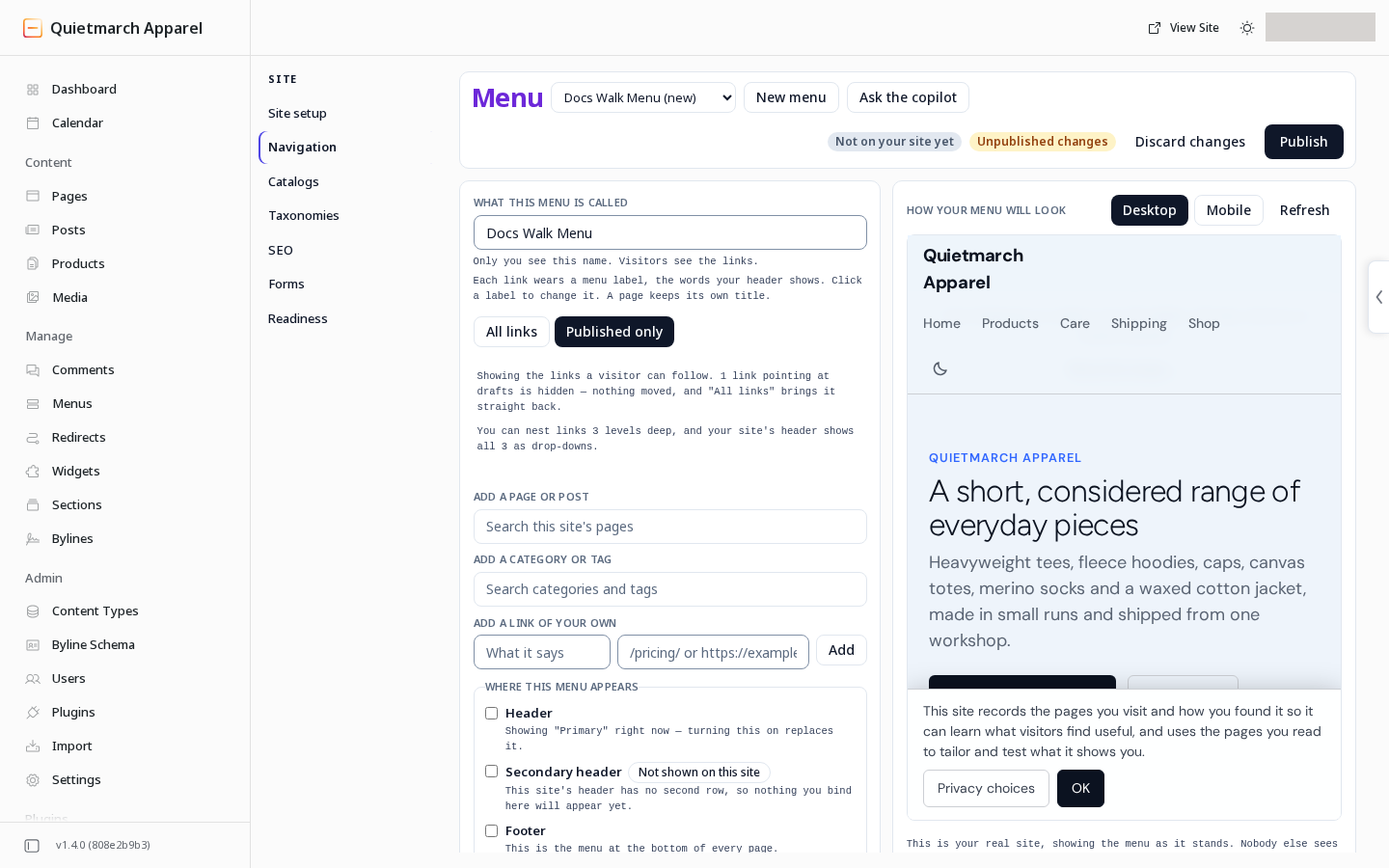
A link to a draft is marked in the builder. Published only changes the list you are looking at; it does not publish those draft destinations. Check every destination before publishing the menu.
Choose where it appears
Section titled “Choose where it appears”Under Where this menu appears, choose Header, Secondary header or Footer from the locations offered by this site. Read the note if a location already shows another menu. Publishing can replace that menu’s placement.
A location already assigned to this menu may stay checked. To replace it, place another menu in that location.
Review the site header preview at desktop and phone widths. Check the link labels, order and nesting.
On library themes, header menu text can adjust to its background in light and dark, including the current page’s link, links under the pointer and keyboard focus in an open submenu. The open editorial menu uses the same contrast check. Colors that already meet the contrast check stay. Migrated pages keep their earlier rendering. Check the public menu in both modes, especially after adding custom CSS.
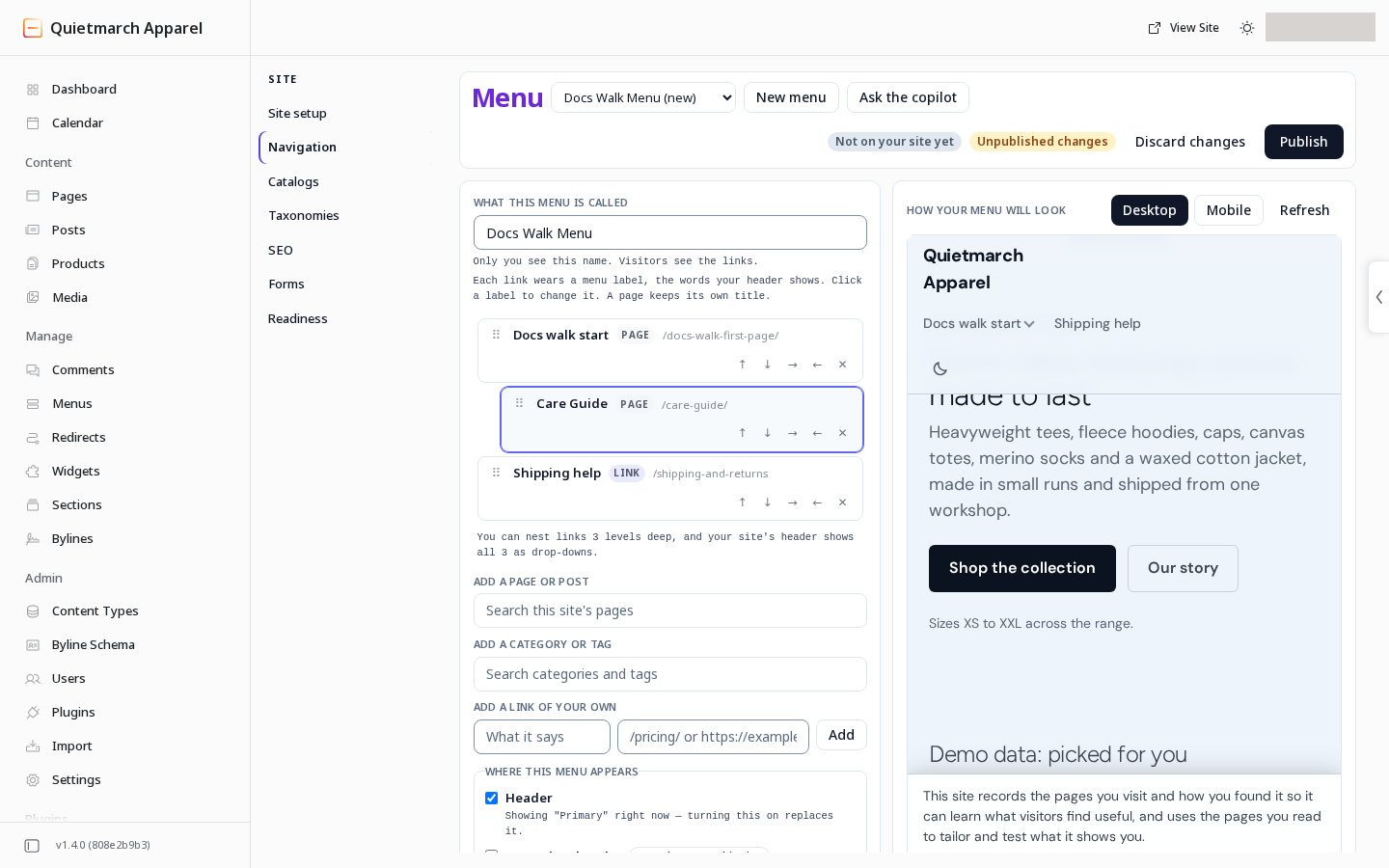
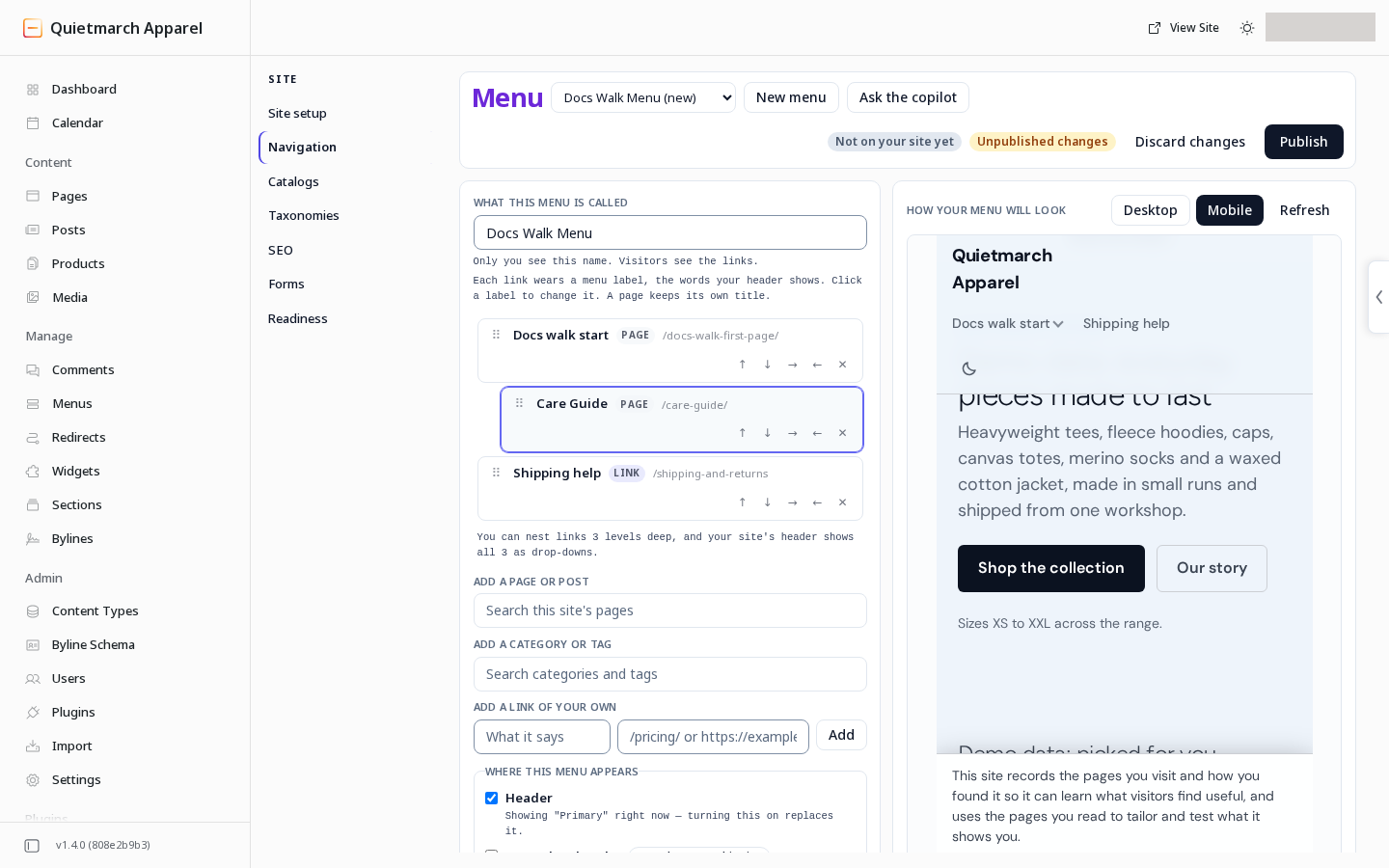
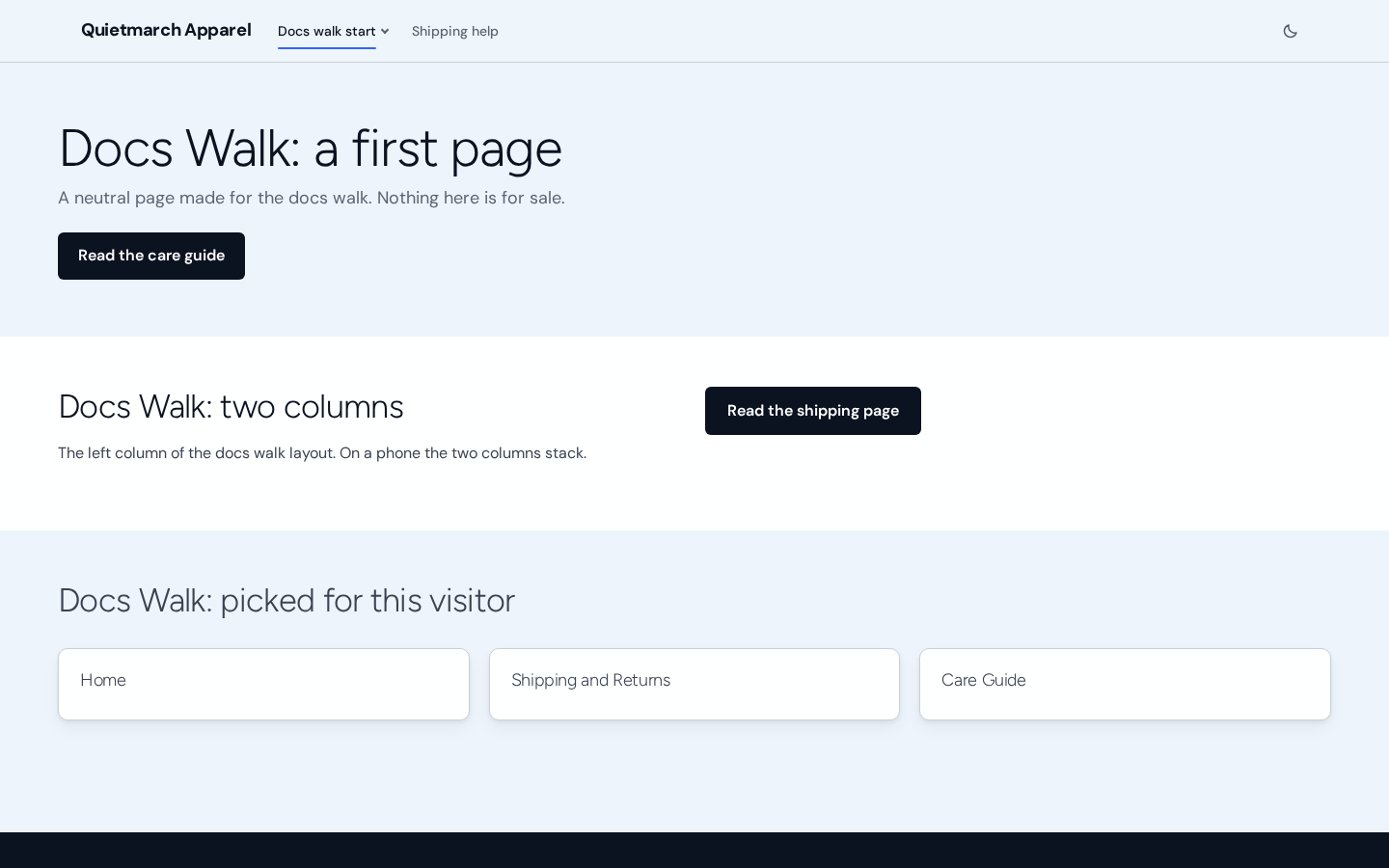
With Mobile selected, the preview shows Docs walk start as a dropdown while Care Guide is nested beneath it in the editor.
Publish and undo
Section titled “Publish and undo”-
Choose Publish.
-
Read Publish this menu to your site? The card names the links and placements that will change.
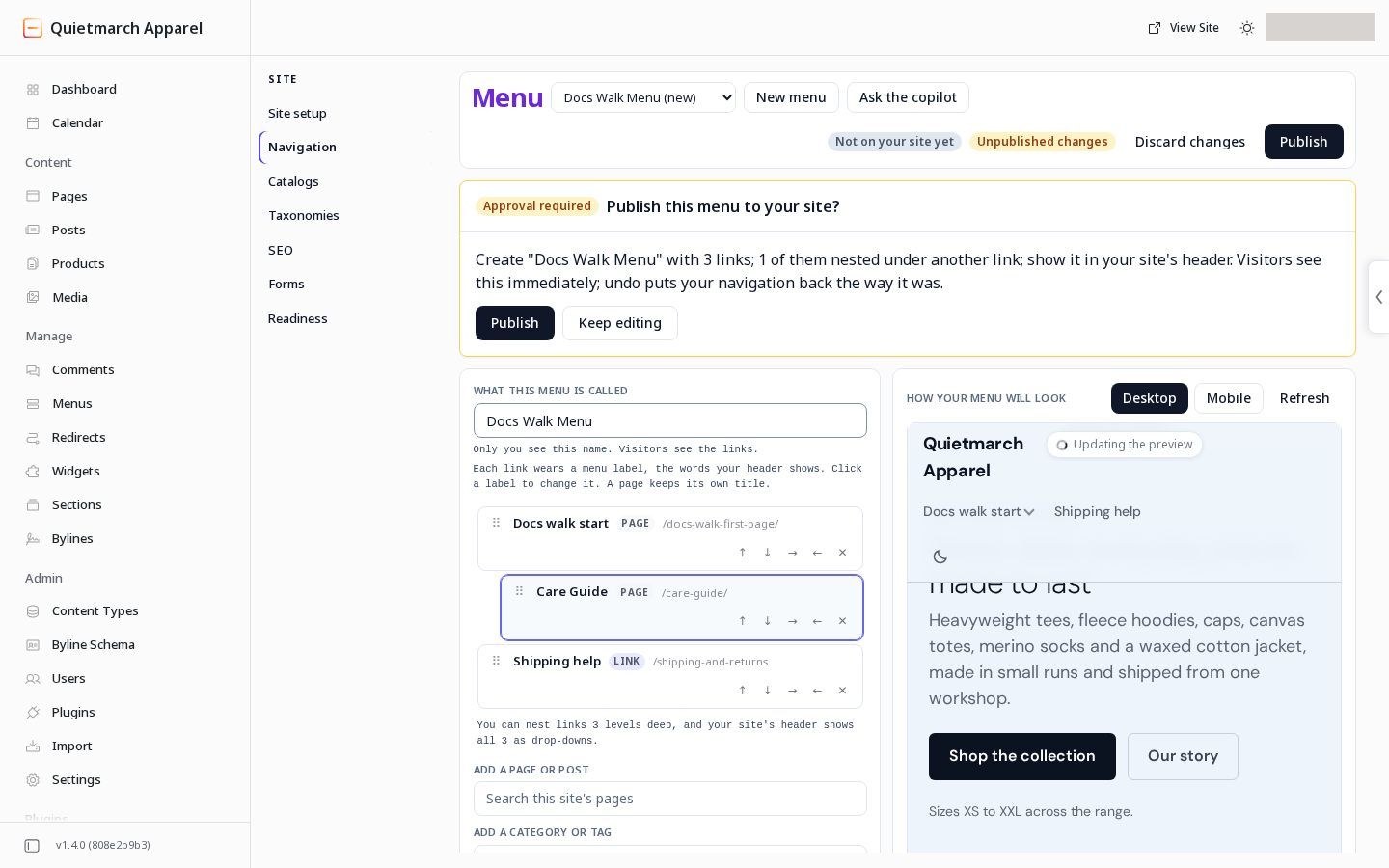
The card says exactly what will change. -
Choose Publish to apply the menu, or Keep editing to return to the draft.
The menu change is saved when you approve it. Visitors see the change within the hour, usually much sooner. While the site’s server is down, visitors may see the previous version of a page for up to a day. Its receipt offers Undo to reverse that published menu change.
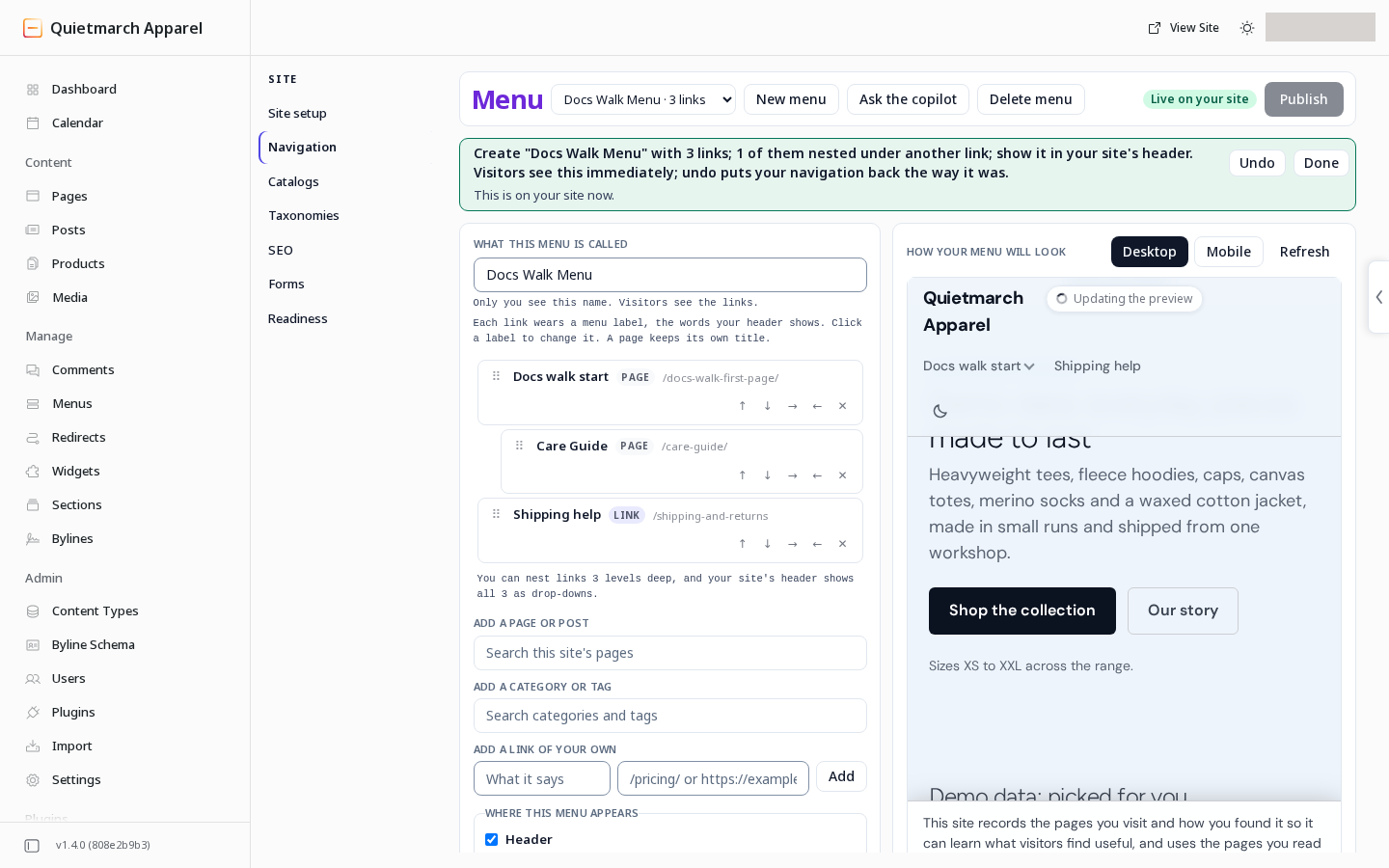
Publishing a menu does not publish the pages or posts it links to. Use the Composer for those publications.