Open Commerce > Membership in the site admin to check a connection or payment notification problem. An Editor or Admin can check the connection. Connecting Stripe or repairing its notification setup needs an Admin. Start with an already connected account; this guide does not take a test payment.
Checked against the product’s code on 7 November 2026.
Check the stored key
Section titled “Check the stored key”- Open Commerce in the site admin. The commerce screens are available to your role.
- Open Membership. The connection card names the connected Stripe account and its mode.
- Choose Check the connection. The platform asks Stripe whether the stored key still works.
- Read the result and its check time. An accepted key confirms that check, not a completed checkout or a delivered payment notification.
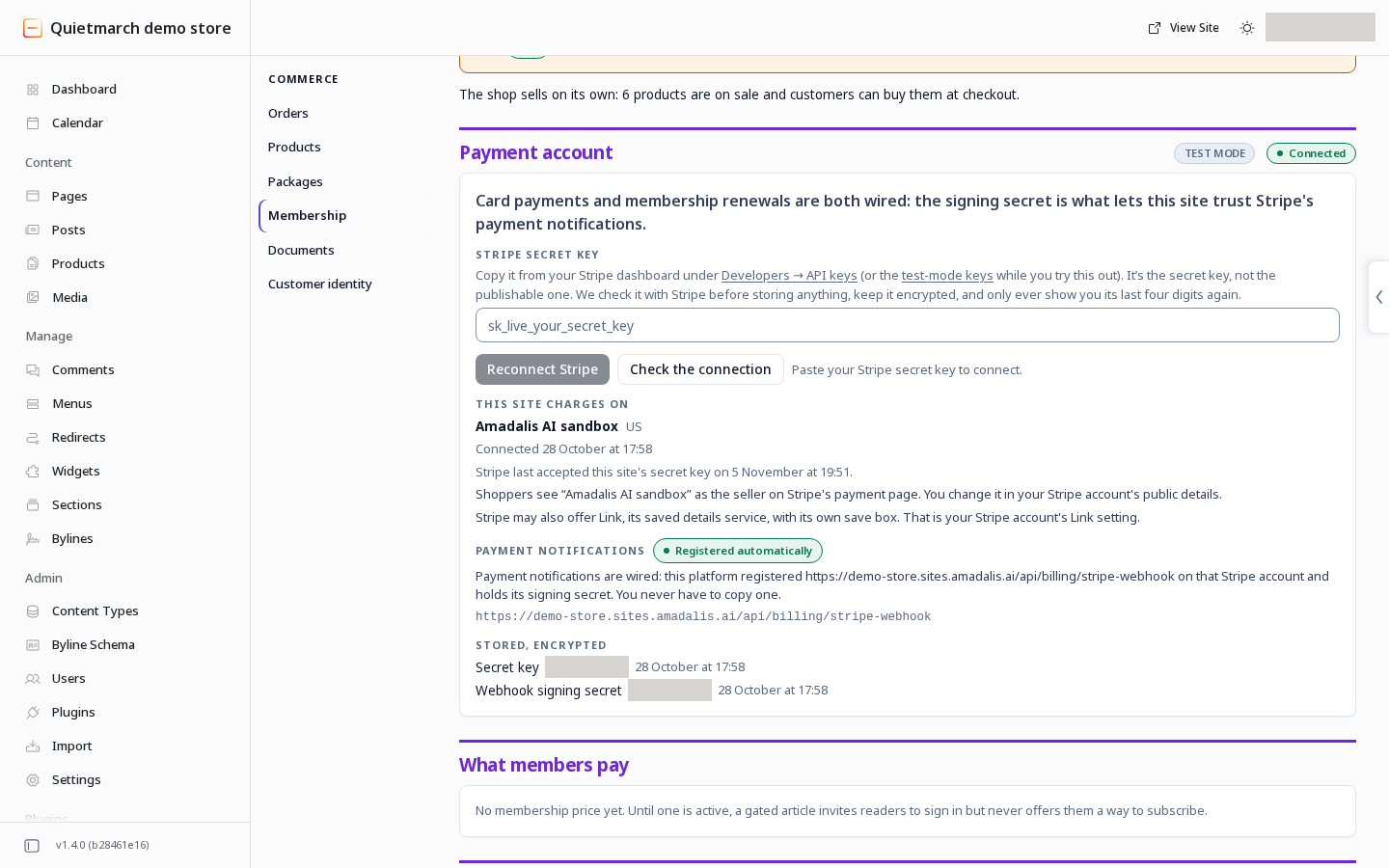
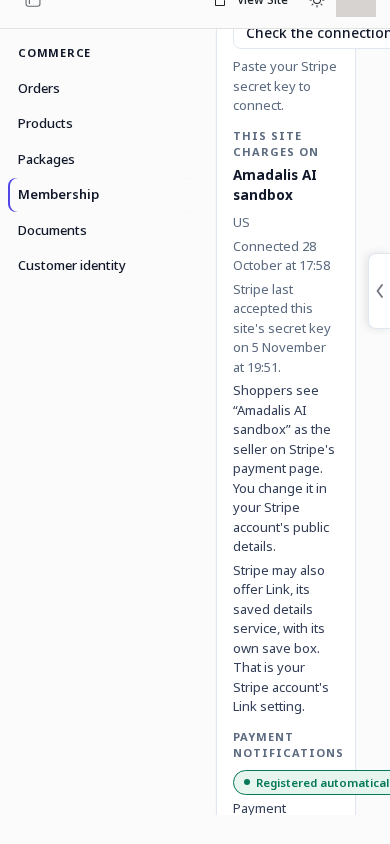
The check changes nothing in Stripe and does not display the secret. A connection failure is a reason to investigate, not proof that a payment succeeded or failed.
If the key must be replaced, use Stripe secret key in Membership, never a chat message. Review Connect this Stripe account to the site? and confirm Connect Stripe only for the intended account. Follow Packages and membership for the payment and access limits.
Repair payment notifications
Section titled “Repair payment notifications”Payment notifications let Stripe tell this site about payment changes. Read Payment notifications on the same connection card before choosing a repair.
When Register payment notifications again is offered:
- Choose Register payment notifications again. A confirmation asks Register the payment notifications again?
- Review the connected account and consequence. Leave them as they are cancels the request.
- Confirm Register payment notifications again. Read the returned registration state.
When the card instead offers Update the Stripe notifications:
- Choose Update the Stripe notifications. A confirmation asks Update the Stripe notifications?
- Read which notification types are missing. Leave them as they are cancels the request.
- Confirm Update the Stripe notifications. The existing registered endpoint receives the required notification list; no second endpoint is created.
If the platform cannot read the existing endpoint, the update is refused. Follow the displayed reason rather than assuming the repair finished.
Ask the copilot
Section titled “Ask the copilot”Ask Copilot to “Check this site’s Stripe connection”, then choose Send. It uses the stored key and needs no approval for the check. For a repair, ask it to register payment notifications again or update the registered notifications, according to the connection card’s reason. Each repair pauses for approval and accepts no pasted secret.
See Payment connection and Membership connection.
Undo and outside changes
Section titled “Undo and outside changes”Checking a key has no outside change to undo. Registration and notification updates have no automatic Undo. Remove a registered endpoint through the Stripe dashboard if it should no longer send to this site. Review that decision carefully, because the site relies on those notifications for payment state.
Your next step
Section titled “Your next step”Return to Commerce > Membership and read the latest connection result and Payment notifications. Follow Check selling readiness before offering paid access.