Checked against the product’s code on 7 November 2026.
Open Optimization > Experiments in the site admin to test two versions of a page, such as two headlines. Review the measurement plan, prepare the variations and inspect the results before choosing a winner.
An experiment compares versions of an experience. Before sending traffic to it, define what counts as success and lock its measurement plan. The optional Hypothesis records What the new version changes, What should happen to the goal and Why you expect it (optional). It cannot change after the plan is locked.
Create the draft
Section titled “Create the draft”A variation is one version of the experience. The control is the version used as the comparison. A guardrail is a measure you watch for unwanted effects. The outcome window is the time allowed for a visitor’s result to count.
-
Open Optimization.
-
Open Experiments.
-
Choose New experiment.
-
Enter its name.
-
Enter Experiment key. The key is chosen now and cannot be renamed after the draft exists.
-
Enter Description.
-
Set Traffic variations. For a first comparison, use a control and one alternative. The first variation is the control. Weights set the relative traffic shares.
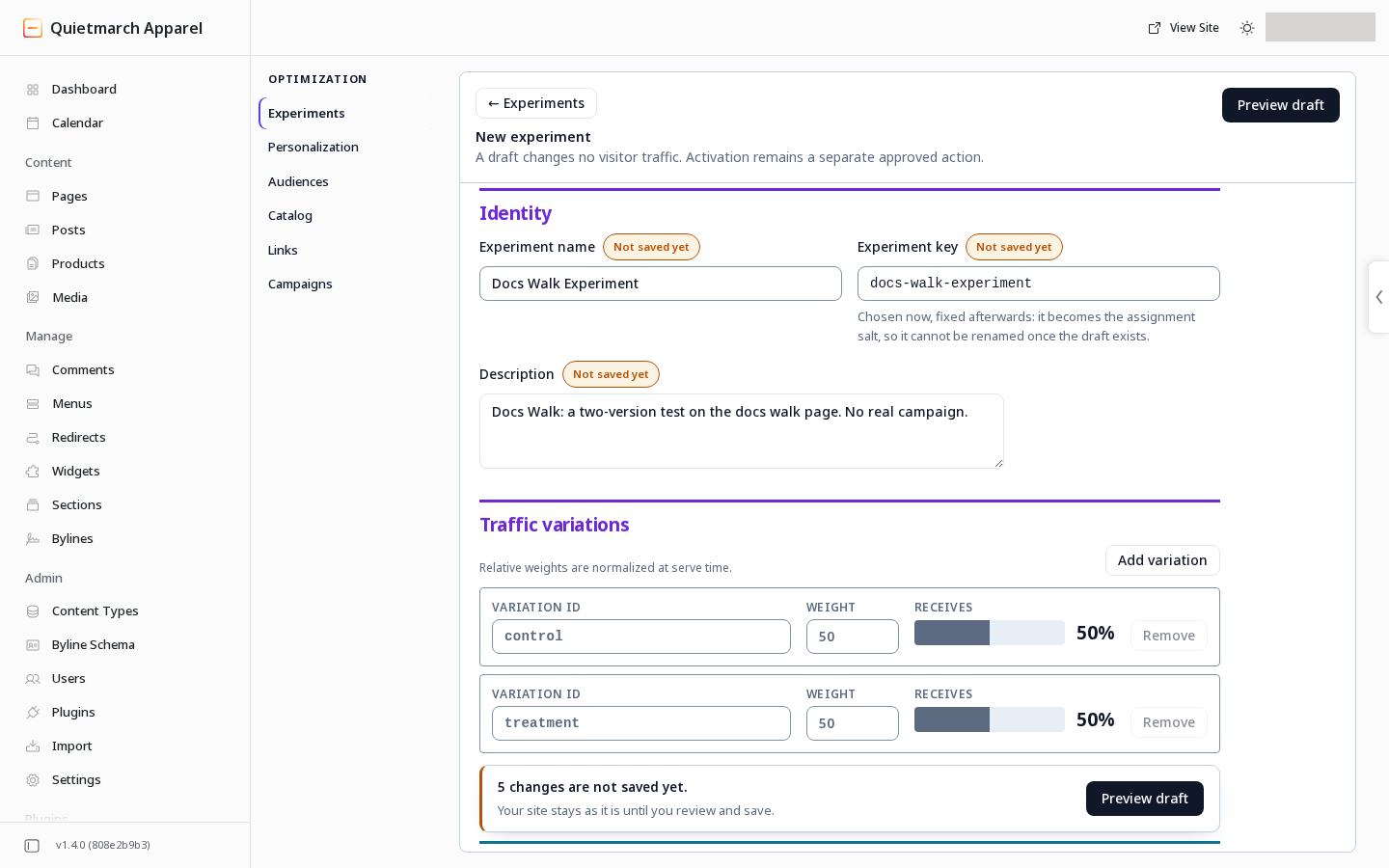
Name the experiment and set its versions. -
Choose a Primary goal.
-
Set Eligibility if the test should run only for particular audiences. People outside that eligibility see the normal live page and are not counted in the test.
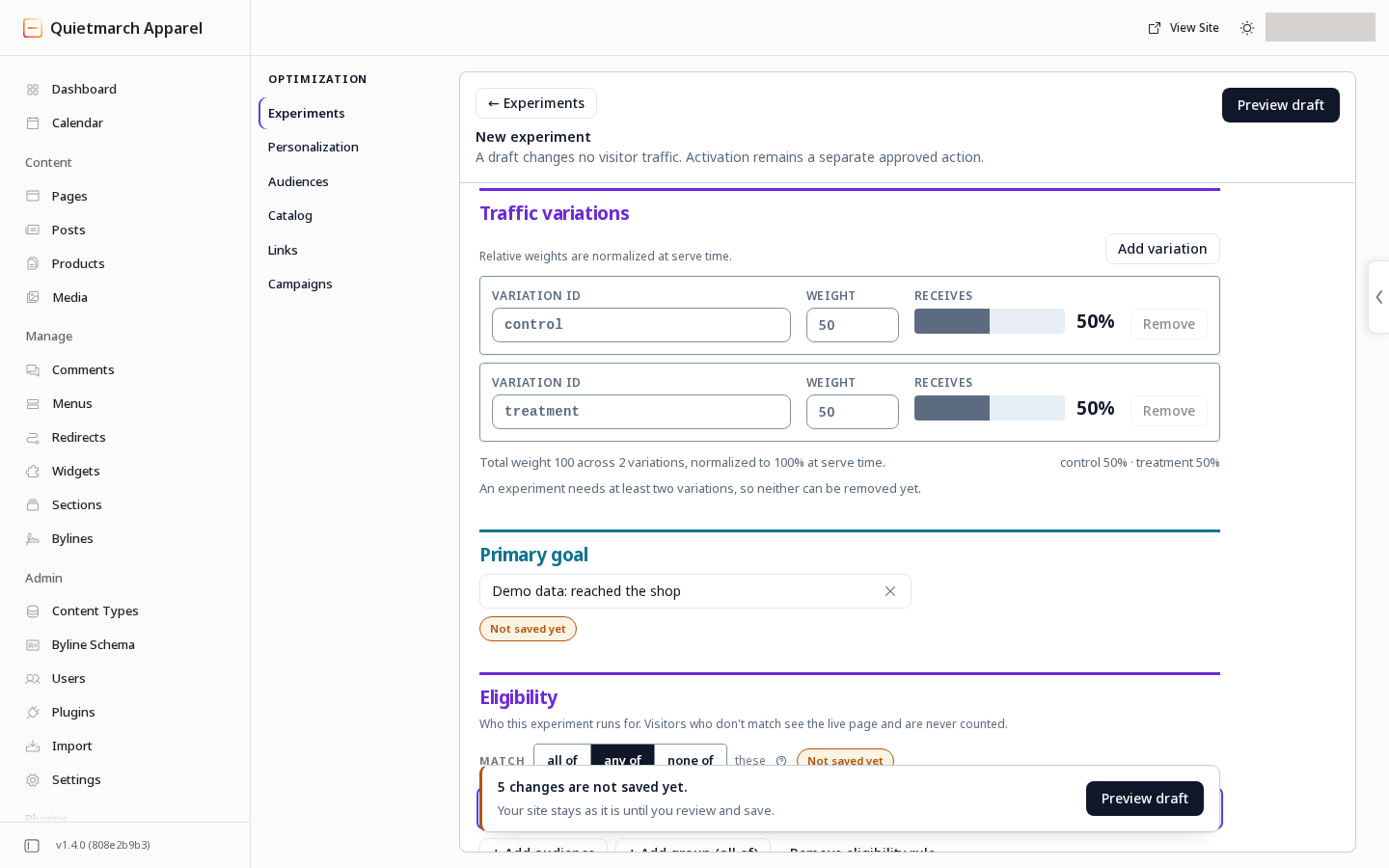
Choose the goal and who is eligible. -
Leave Arm override empty unless you deliberately want an eligible audience sent to a specific variation.
-
Choose Preview draft.
-
Review Save this experiment?
-
Choose Save draft.
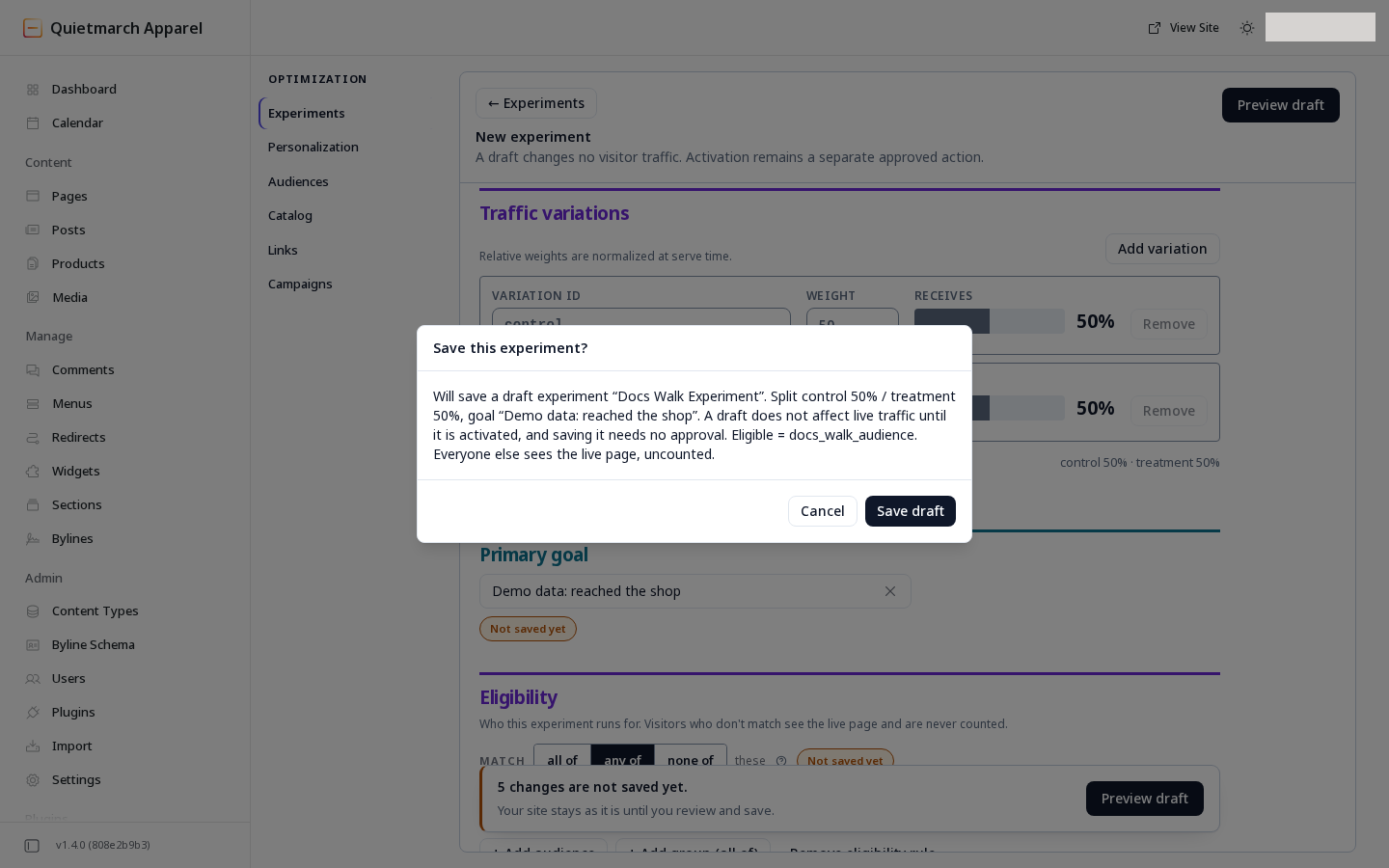
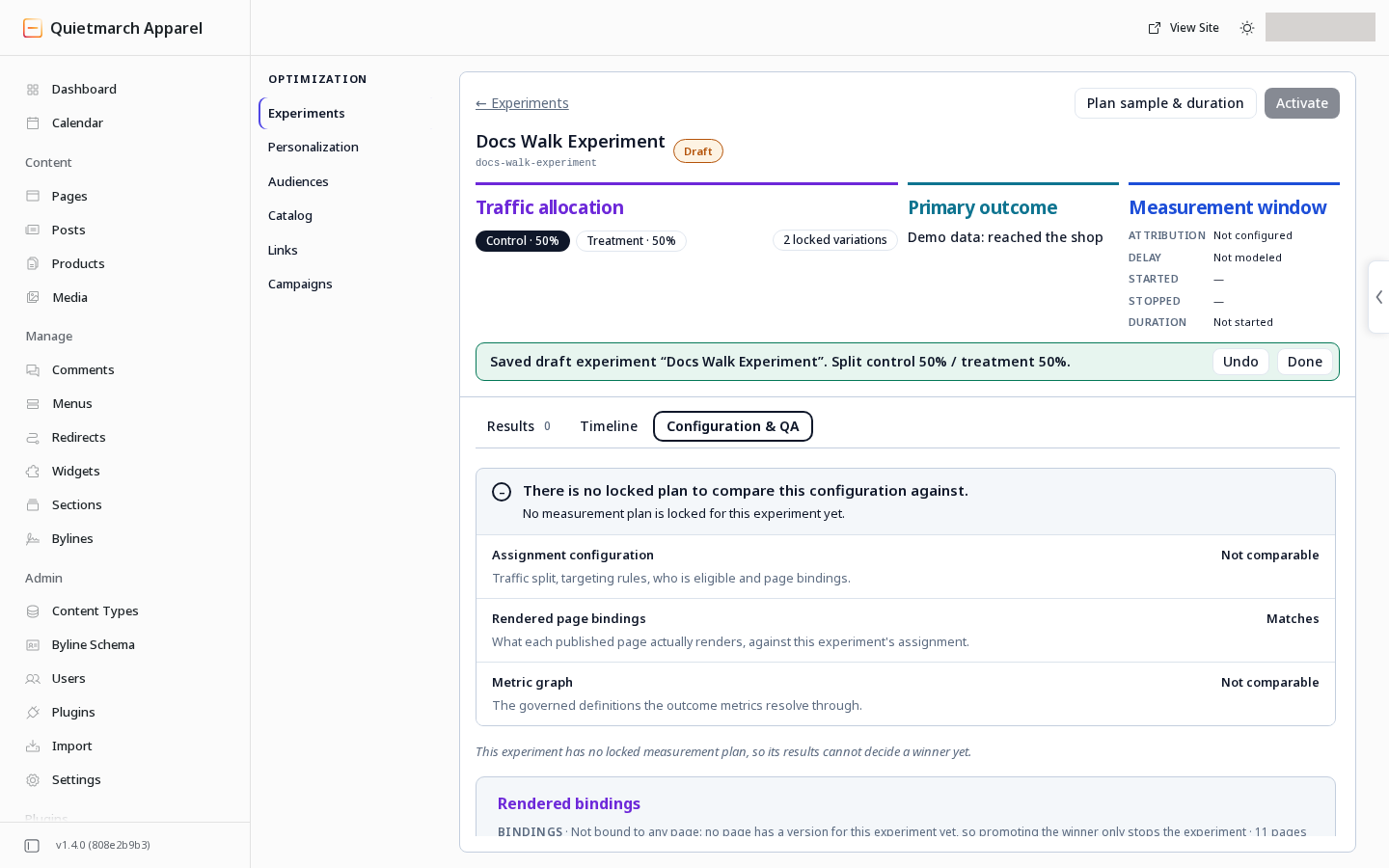
The Draft badge and Saved draft experiment receipt show that this saved setup has not started a live split.
Put content in each variation
Section titled “Put content in each variation”- Open the draft’s Configuration & QA tab.
- In Rendered bindings, search for the page the test belongs to.
- Bind that page.
The draft’s alternative starts from a copy of that page.
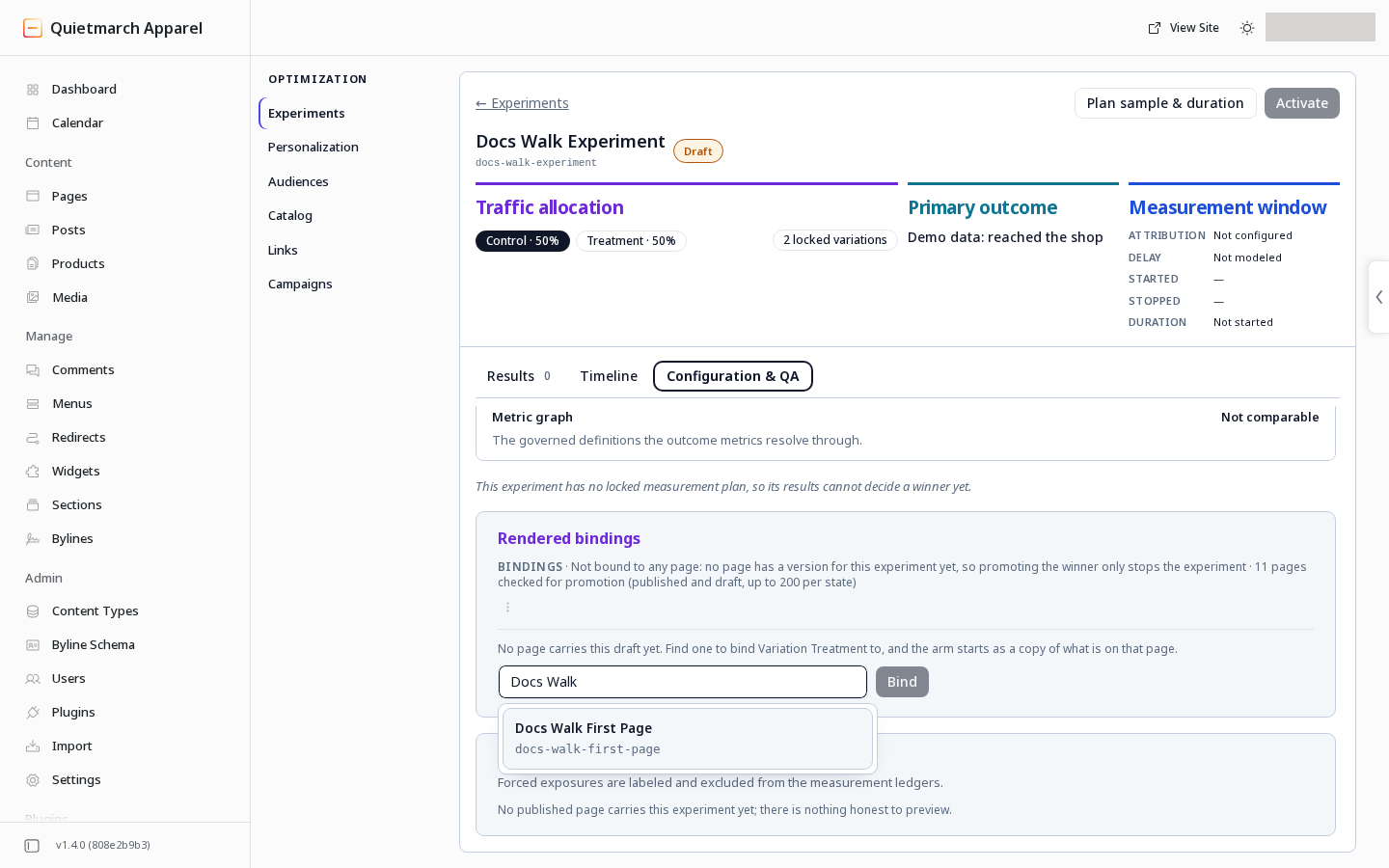
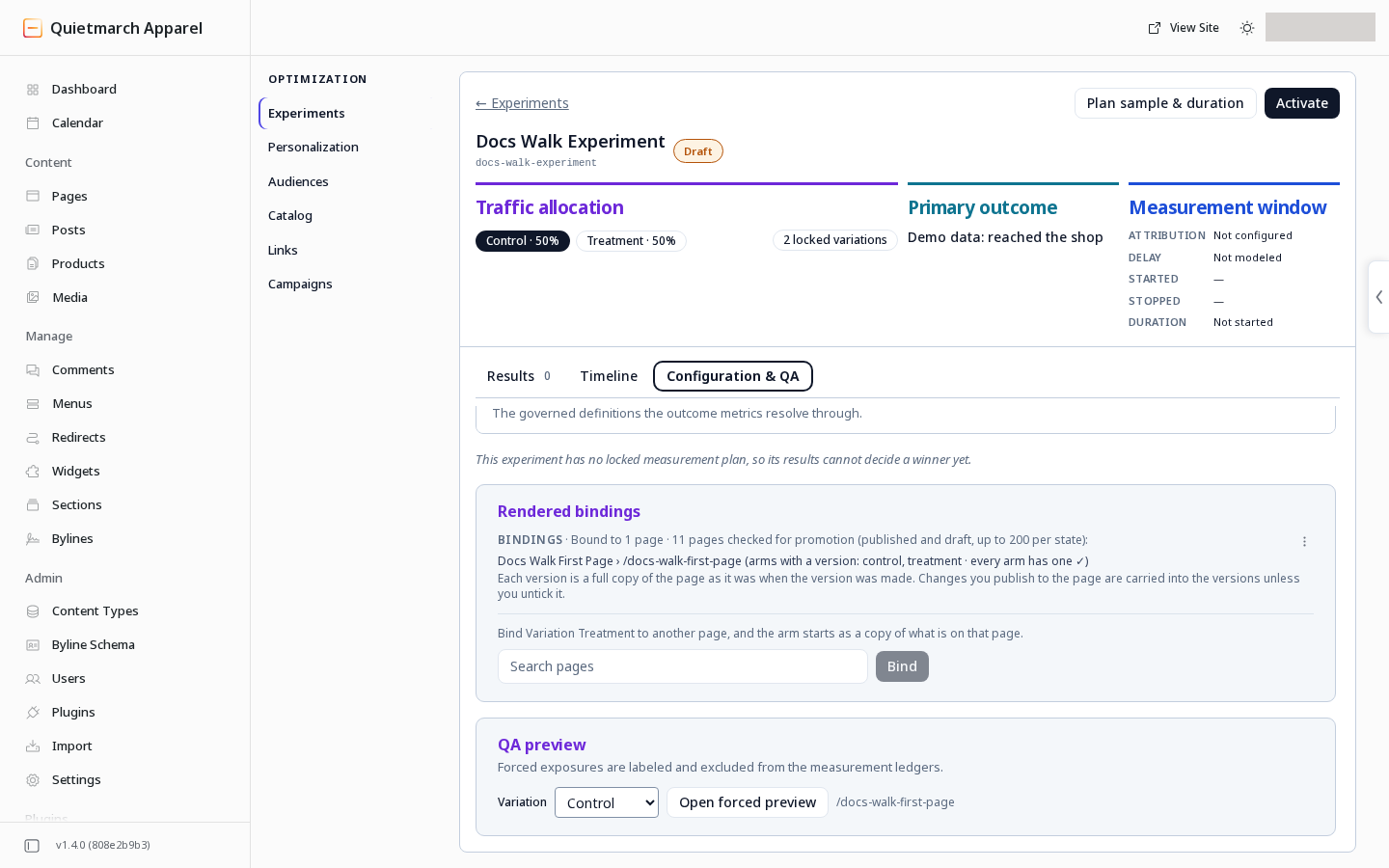
The binding names Docs Walk First Page, and Control is selected in the preview controls below it.
- Open the page in the Composer.
- Choose the chip that reads The live page.
- Pick the experiment.
- Pick its variation.
- Make the changes that version should test.
- Review that version before starting traffic. Repeat for the other versions.
While you edit a variation, the chip reads Editing Variation, then the variation and the experiment’s name.
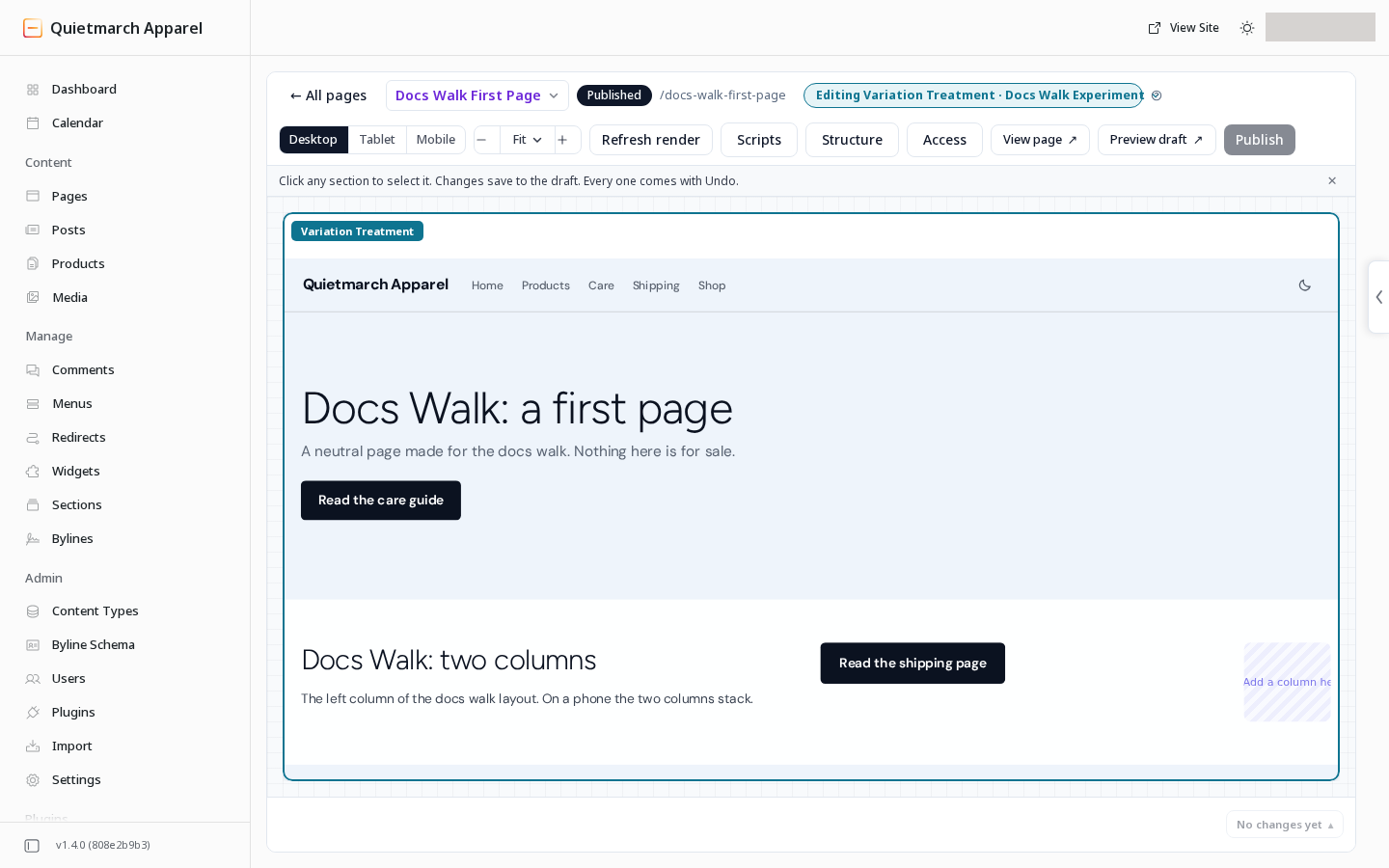
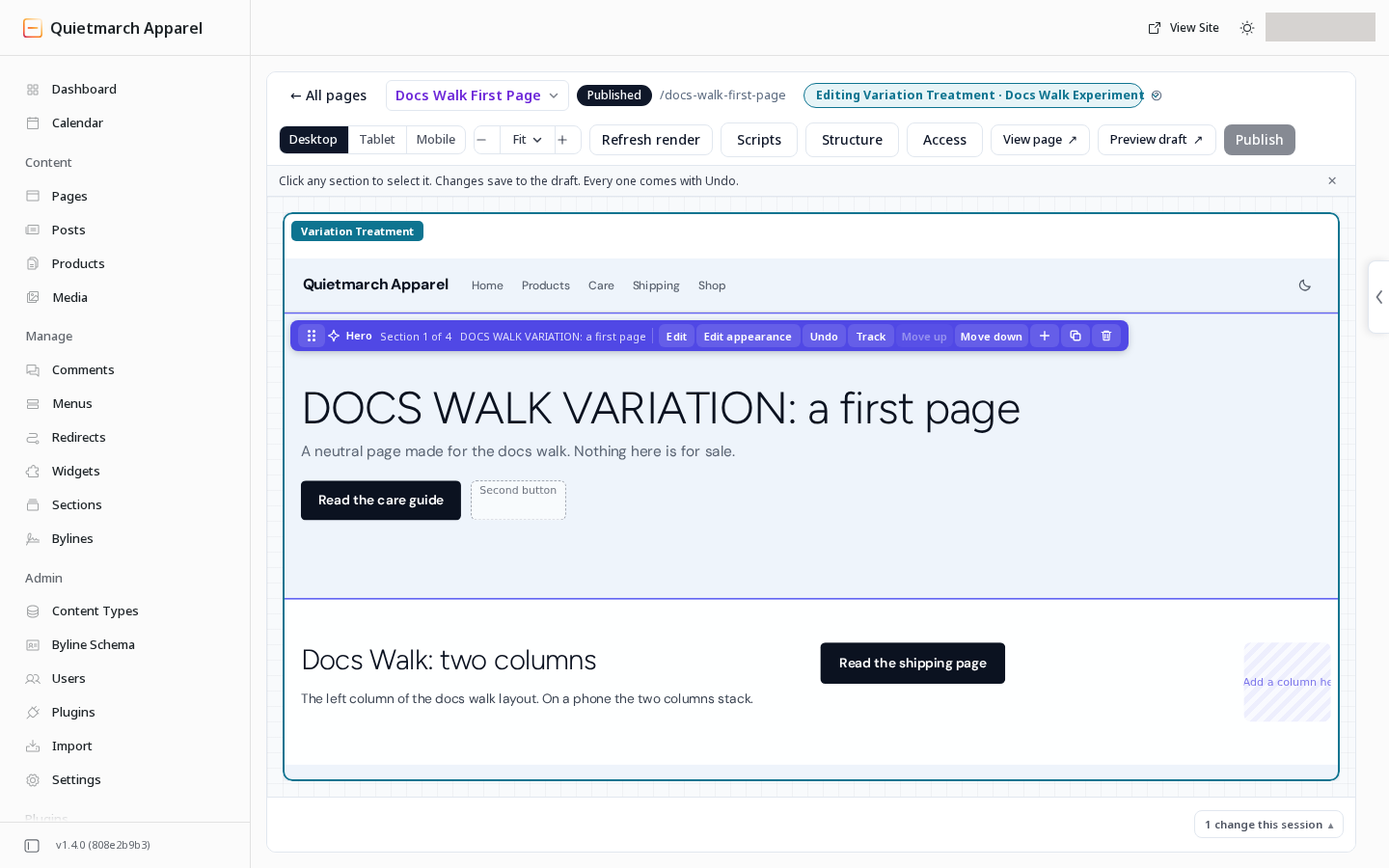
You can also start a draft test from the Composer’s New experiment action, or from a campaign’s experiment action. Check its page binding and content in the same way.
Use the planner
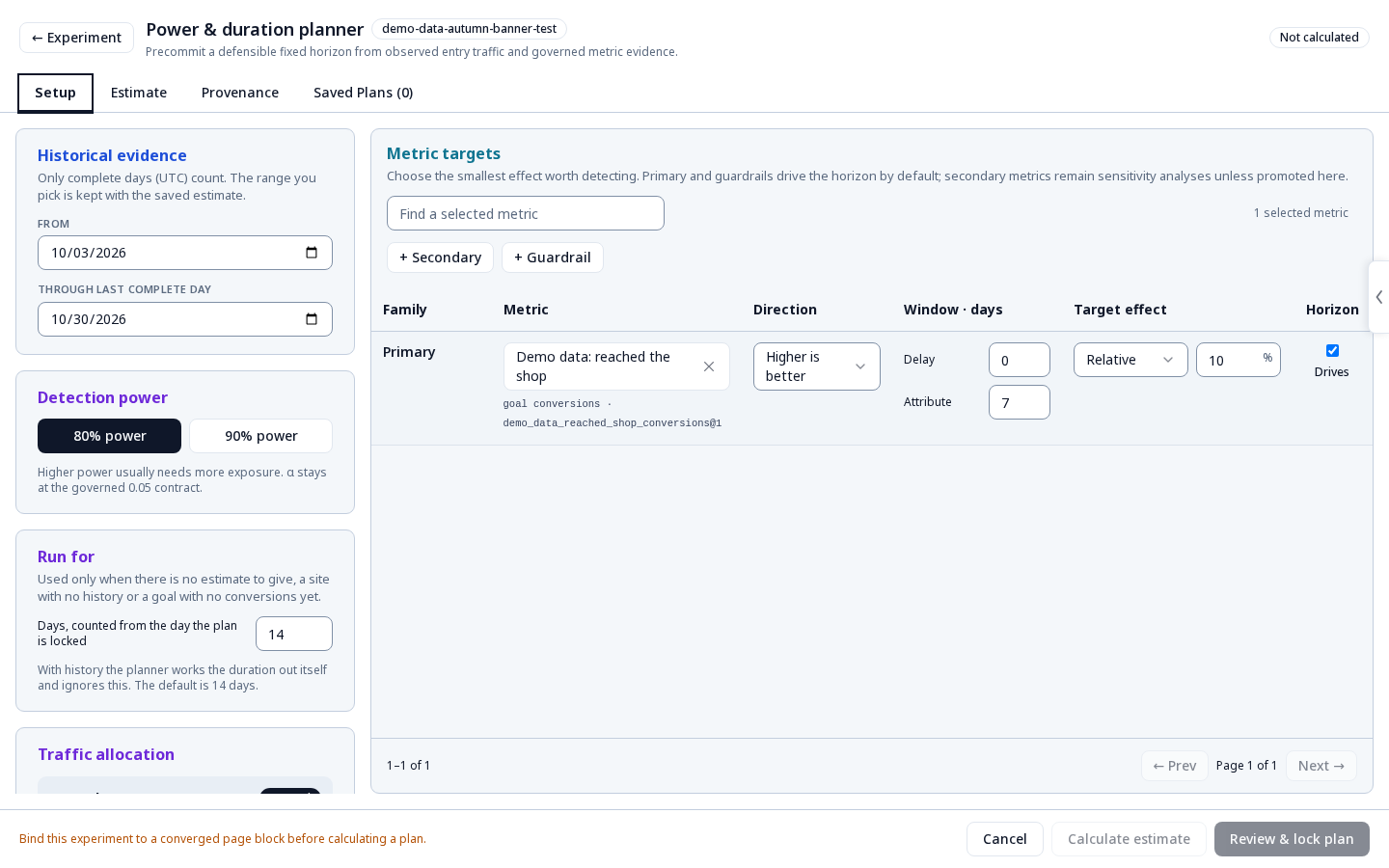
Section titled “Use the planner”On a draft without a locked plan, choose Plan sample & duration. The Power & duration planner opens with Setup, Estimate, Provenance and Saved plans views.
In Setup, review:
- The history window used to estimate traffic and outcomes.
- 80% power or 90% power. Higher power usually needs more visitors.
- The primary measure, its target change and direction.
- Any secondary measures and guardrails.
- The outcome delay and attribution window.
- The actual traffic shares of your variations.
- Choose Calculate estimate.
- Review the visitors and duration it estimates.
- Use Provenance to inspect where those inputs came from.
The saved calculation appears in Saved plans.
If the site lacks usable traffic history, or the chosen goal has no conversions yet, the planner can show No estimate yet. Use Run for to choose the duration for that case. Read the planner’s explanation before continuing.
Lock the plan
Section titled “Lock the plan”Choose Review & lock plan. Read Lock this metric plan permanently? It lists each measure being locked with its direction, delay and attribution window, and says the plan cannot be edited, replaced or undone. The lock is refused if the settings or page bindings changed after the estimate.
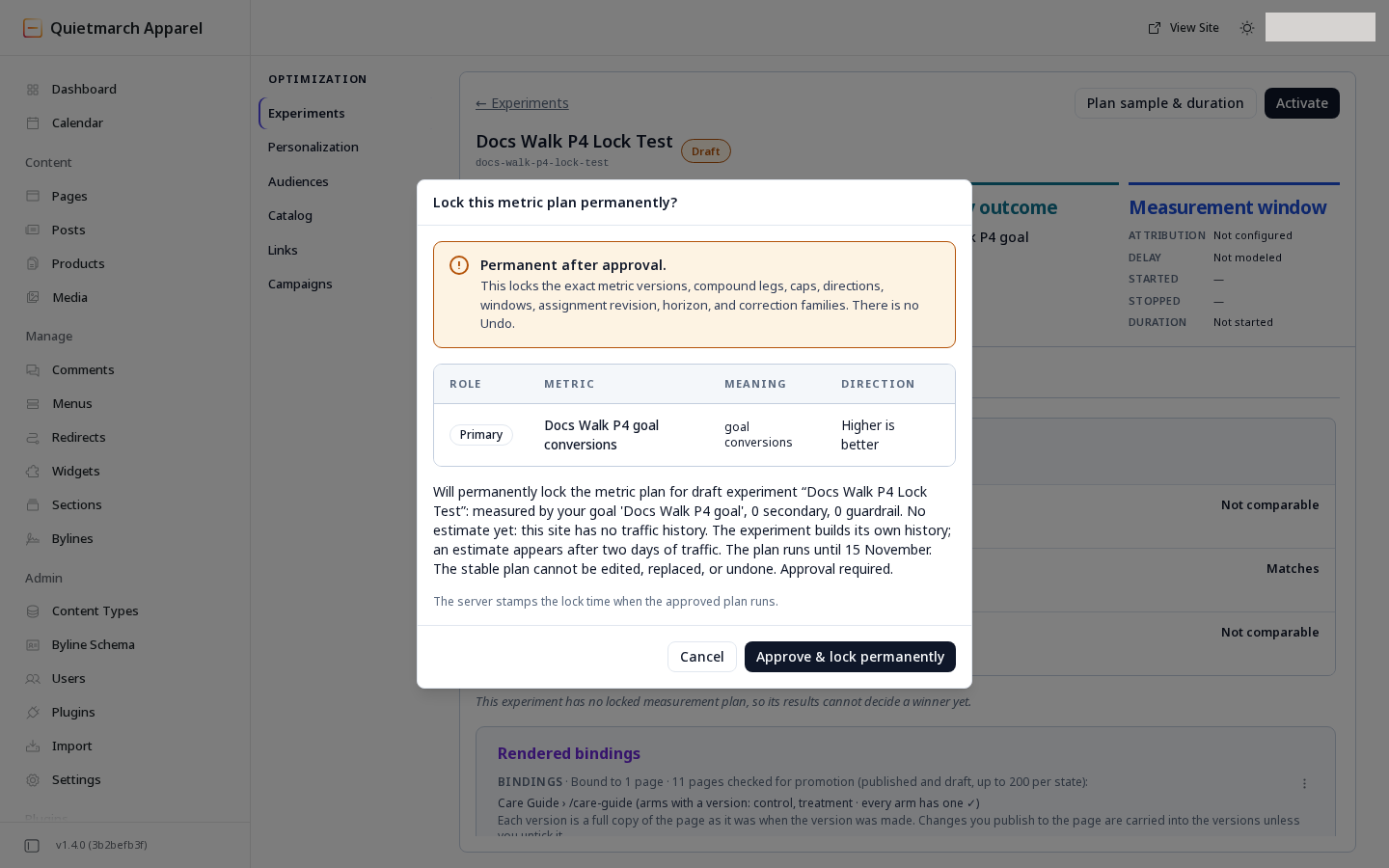
If delay or attribution is out of view, scroll the card’s table sideways and check those columns before approving. Choose Cancel if you do not want to lock this plan. The draft stays unlocked.
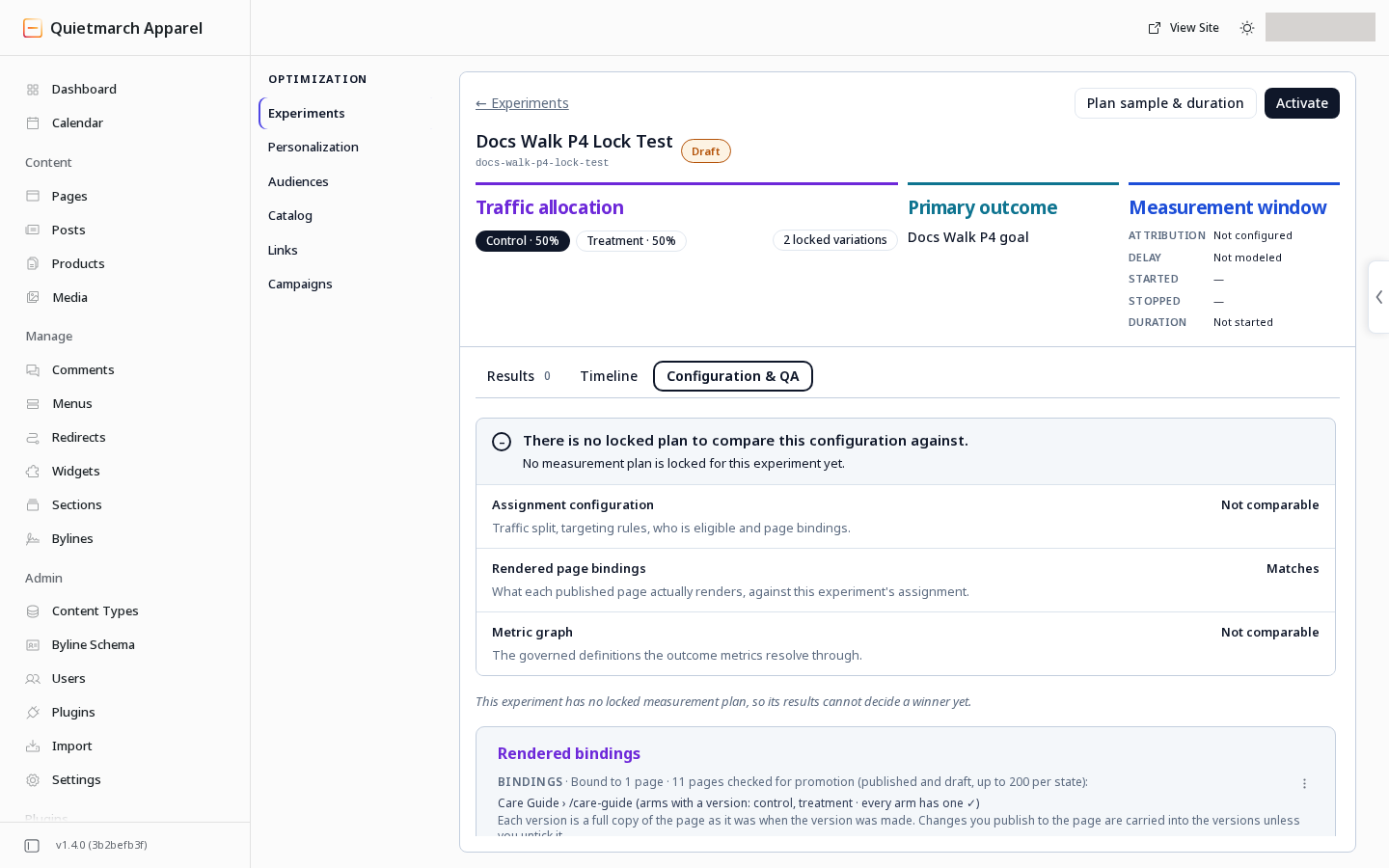
If the plan measures something other than the draft’s Primary goal, the card says what it replaces. From activation, the experiment is measured on the plan’s measure.
Choose Approve & lock permanently only when those choices are right. This lock cannot be edited, replaced or undone. If a locked plan no longer fits the question, make a new draft test or clone the experiment rather than rewriting that plan.
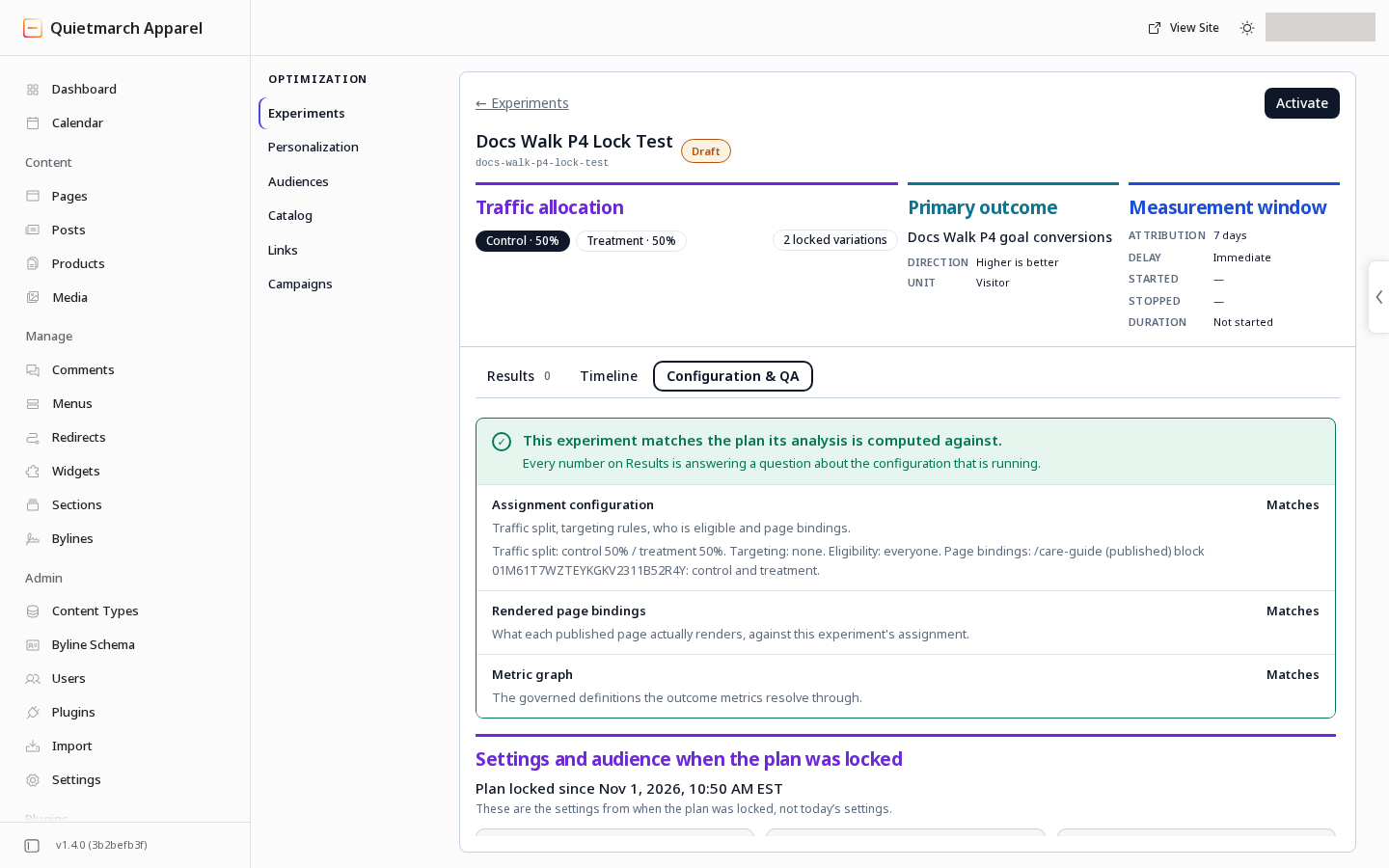
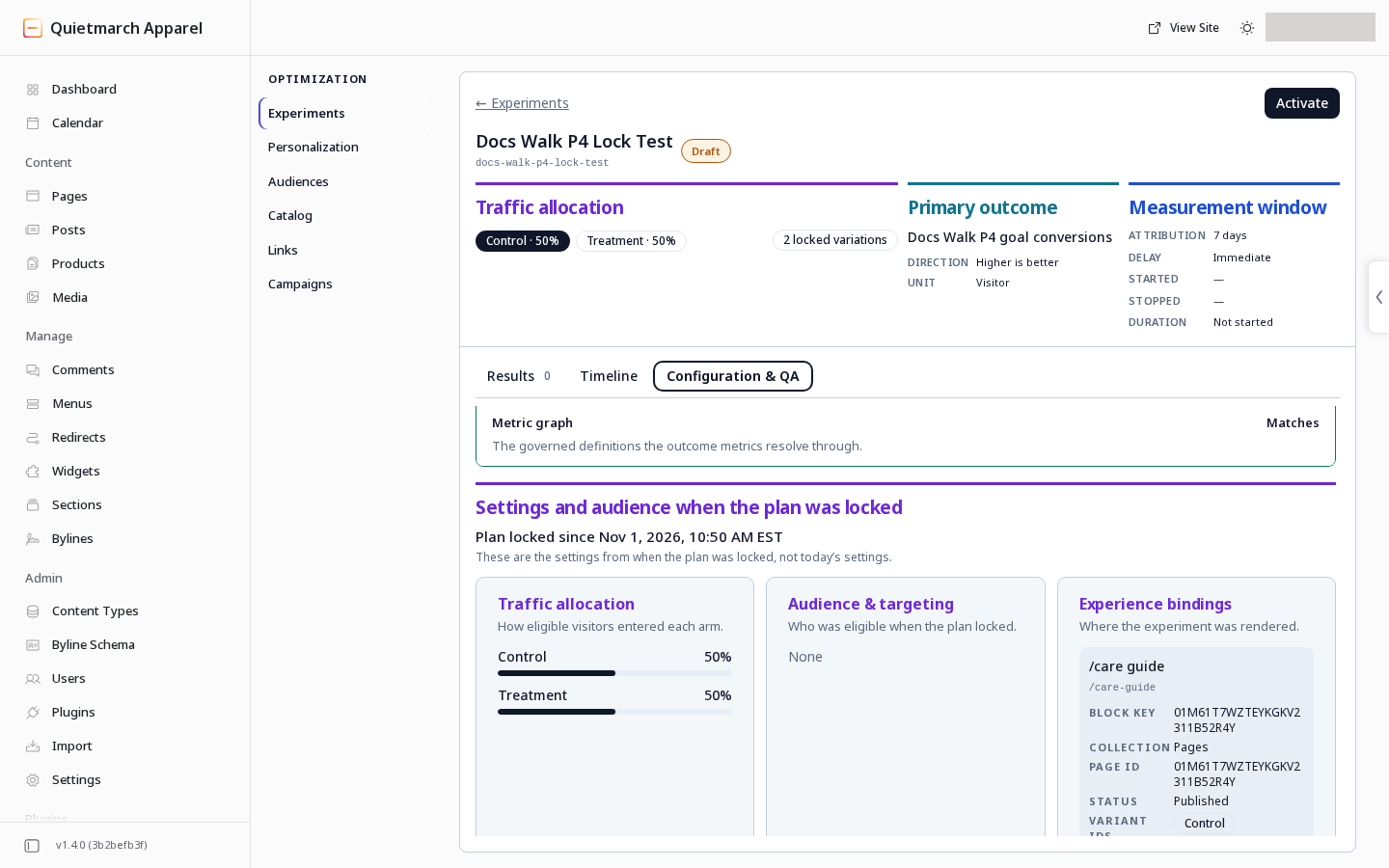
Locking the plan is separate from sending traffic.
Activate and check the experience
Section titled “Activate and check the experience”Choose Activate. If the plan still needs work, this can open the planner first. Traffic cannot start without the required locked plan.
In Optimization > Experiments, open the experiment and use Activate in its header to open the activation card once the measurement plan is locked. Review the traffic change, then choose Approve & go live to start the split.
Use QA preview in Configuration & QA to choose the Variation, then Open forced preview. The preview is intended to show that variation on a published, bound page with a QA marker. In the supplied demo-store walk, the selected Treatment served the live content without that marker, even after consent and a reload. Verify both the variation and the marker before treating a view as a QA check. Correctly marked forced QA exposures are intended to be excluded from experiment results. Eligible participation also depends on visitor identity and personalization consent.
Read the results
Section titled “Read the results”- Open Results.
- Open Results explorer.
- Check the result’s time window and whether it can name a winner before interpreting the difference between variations.
| What you see | How to use it |
|---|---|
| Visitor and conversion counts | Check how much measured activity supports the comparison. |
| Lift and intervals | Read the estimated difference together with its uncertainty. |
| These results cannot name a winner yet. | Keep the experiment running or resolve the stated missing evidence. |
| A Sample-ratio mismatch alert | Investigate the traffic split. The results are not trustworthy while it persists. |
The default analysis waits for the planned end and for visitors to have had their allowed time to reach the outcome. New plans also wait for whole weeks counted from the first exposure’s UTC day. Earlier locked plans keep their own rules. Early results and visitors whose outcome windows are still open do not provide the final decision.
The analysis controls offer several statistical methods for reading the results. See Experiment results and checks for those views. Switching the method does not change the recorded decision. Some methods record their own decision when you choose Evaluate & record decision. Only the deciding method locked in the plan can support promotion; other methods remain for exploration. Recording the decision changes no traffic. Date slices and exploratory views can help you investigate; the screen identifies when a view cannot decide a winner.
Stop or promote
Section titled “Stop or promote”To pause a running experiment:
- Use Stop in its header.
- Read Stop this experiment?
- Choose Approve & stop.
All traffic returns to the default, and the receipt’s Undo starts the split again.
When the evidence supports promotion:
- Choose Promote winner, or Promote followed by the winning variation’s name.
- Read Promote the winner? and review the pages it will affect.
- Choose Approve & promote.
Promotion stops the split and prepares the winner in the bound pages’ drafts. Traffic returns to the default when the split stops.
Review those drafts and publish them through their separate page approval cards when ready. Read the promotion receipt for its available Undo, which can restore the pages and the running split.
Copy or archive an experiment
Section titled “Copy or archive an experiment”Editors and Admins can reuse a setup or remove an old experiment from Current. Use its row buttons, or open its Actions menu when they are folded into a menu.
Copy the setup into a new draft
Section titled “Copy the setup into a new draft”- Choose Clone on the source experiment.
- Enter the new Experiment name.
- Choose a unique Experiment key. It is fixed after creation.
- Review the copied setup under Clone as draft.
- Choose Preview draft.
- Read Create this clean draft?.
- Choose Create draft.
The copy is a new draft. It carries editable setup, not the source’s traffic, bindings, locked plans, results or history. Review and lock its own plan before separately activating it. The receipt’s Undo reverses the clone.
Archive and bring it back
Section titled “Archive and bring it back”Stop a running experiment through Stop or promote before archiving it.
- Choose Archive on a Draft or Stopped experiment.
- Read Archive this experiment?.
- Choose Archive experiment. It leaves Current, keeping its setup and history.
- To bring it back later, choose the Archived filter.
- Choose Unarchive on the experiment.
- Read Return this experiment to Current?.
- Choose Unarchive.
It returns as its saved Draft or Stopped state. Unarchive does not resume visitor traffic. The archive receipt’s Undo restores the exact state before that archive; Unarchive has its own receipt Undo.
You can also ask the copilot to “Copy [experiment name] into a new draft called [new name]”, “Archive [experiment name]” or “Unarchive [experiment name]”. These requests do not need an approval card; the screen’s review steps above still apply when using its controls. See Experiment requests.
Give an older experiment a measurement plan
Section titled “Give an older experiment a measurement plan”Editors and Admins can use this for an older running or stopped experiment whose goal was free text. Have its recorded page placements, analysis dates, the time data is complete through, and its planned sample or end date. Do not guess missing history. A draft should use Lock the plan instead.
- Ask the copilot to preview migrating the named older experiment, supplying those recorded facts.
- Read the proposed outcome and its reason. The preview writes no migration record, plan or saved result.
- Read Migrate this legacy experiment?.
- Choose Run legacy migration only if the historical facts and outcome are right.
- Read the receipt and any next action it names.
History that can reproduce the saved result against one goal receives a locked plan. Ambiguous or unreconstructable history remains in a named state that cannot authorize promotion. The receipt can ask you to resolve the goal and try again, or explain that only the older saved result can be read.
This has no Undo. It does not rewrite an existing locked plan, and a migrated lock cannot be edited or replaced. See Older experiment requests.
Your next step
Section titled “Your next step”After approving publication, check the affected public pages. Use Experiment results and checks to review the recorded outcome before planning another comparison.