Checked against the product’s code on 7 November 2026.
Use Optimization > Personalization > Engine in the site admin to inspect and change how recorded actions contribute to visitor interest scores.
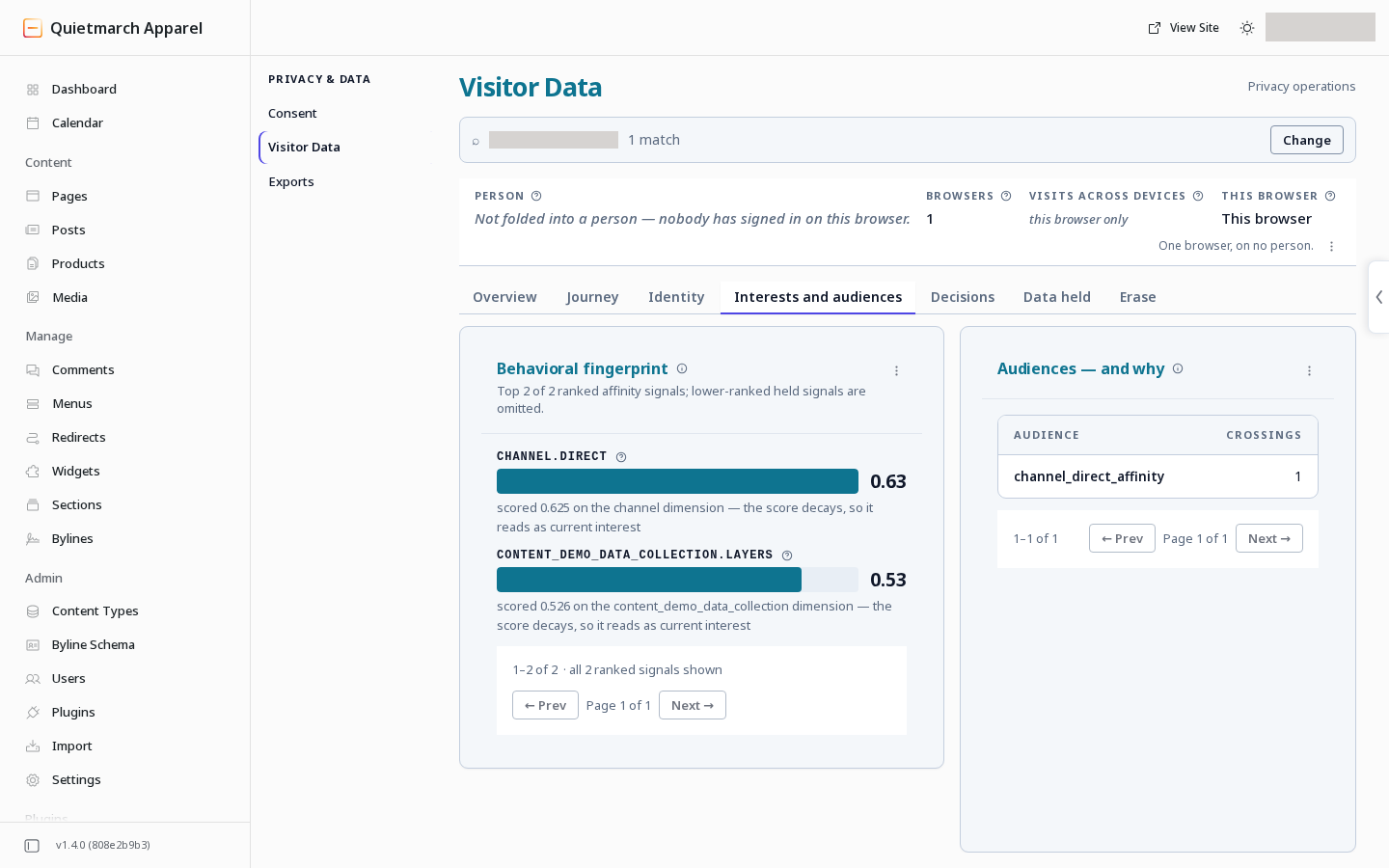
The affinity engine keeps interest scores for a visitor. Relevant actions add weight to those scores. Time reduces them. Audiences and recommendations can use the resulting strength.
The scores come from configured arithmetic. With the same settings, activity and time, the calculation gives the same result.
Setup comes first
Section titled “Setup comes first”- Open Optimization.
- Open Personalization.
- Open Engine.
- Read Affinity on or Affinity off. The information tip beside it gives the reason.
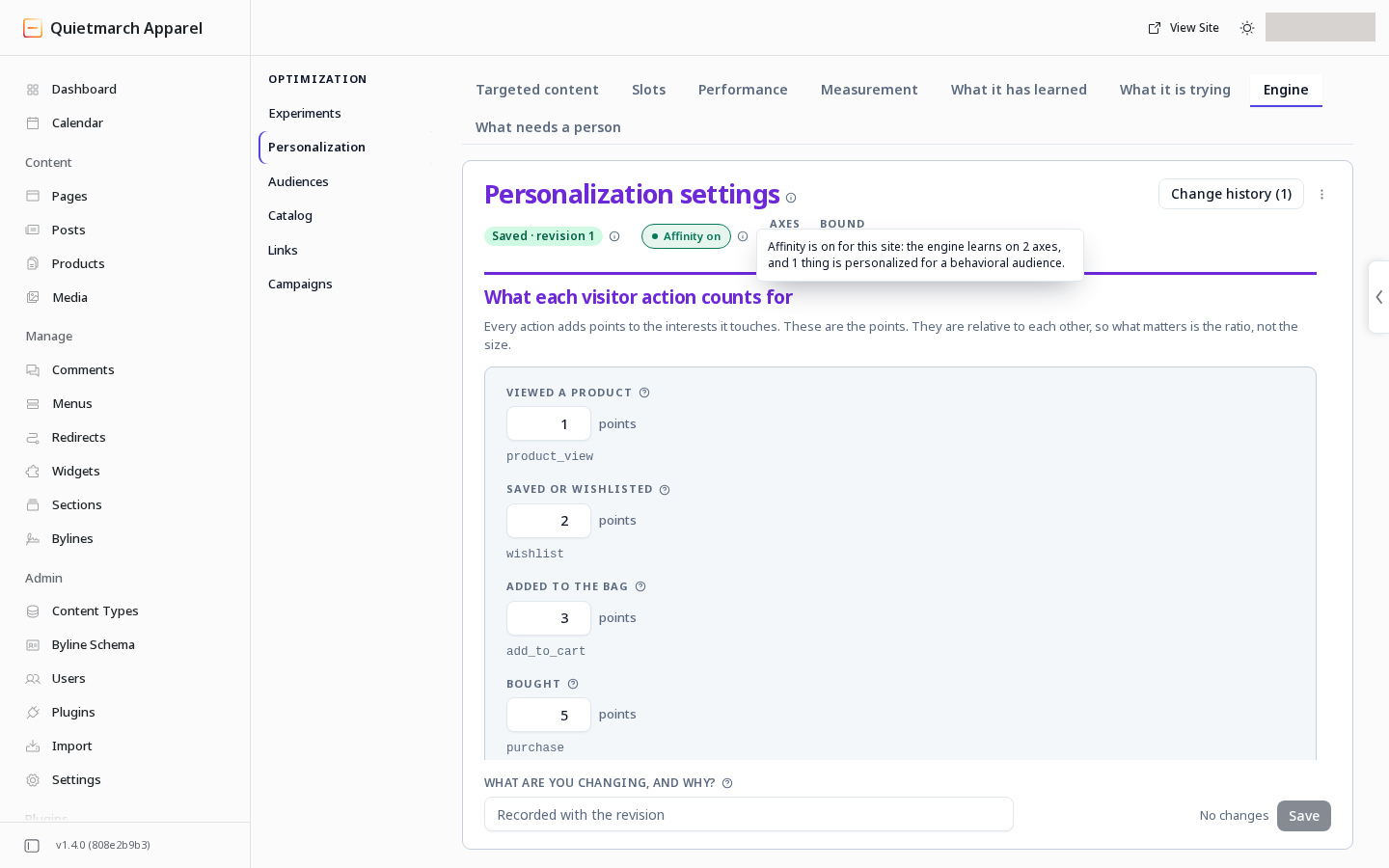
The saved settings have Affinity on, and the fields below set how many interest points each recorded visitor action adds.
Showing targeted content needs saved settings, an active piece of content assigned to an affinity audience and the personalization service connection. Your content interests and relevant events also need to be configured. Ask Amadalis to check that setup with you before relying on the scores.
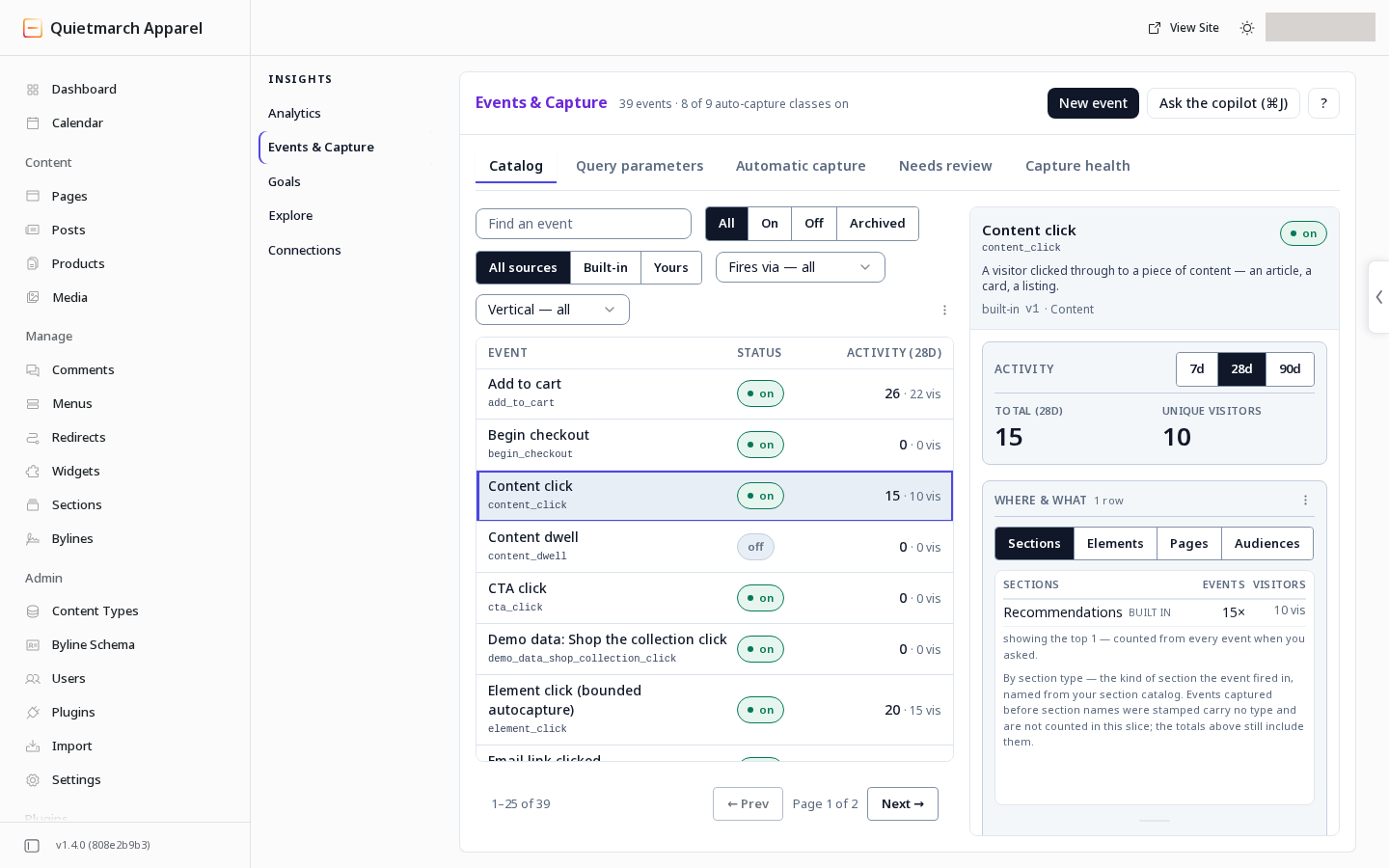
In the Add an interest panel:
- Enter the Interest name.
- In Read from, enter the tag or field on your content that carries it.
- Use the add button below the fields.
The interest is only staged until you choose Save and approve the change. Follow Tune and review below to save it. Content categories and tags can also supply interests through the content catalog.
Build the content catalog
Section titled “Build the content catalog”A catalog snapshot is the content list saved at one point in time.
The content catalog is separate from the section and theme catalogs. Prepare your published content and its categories and tags first.
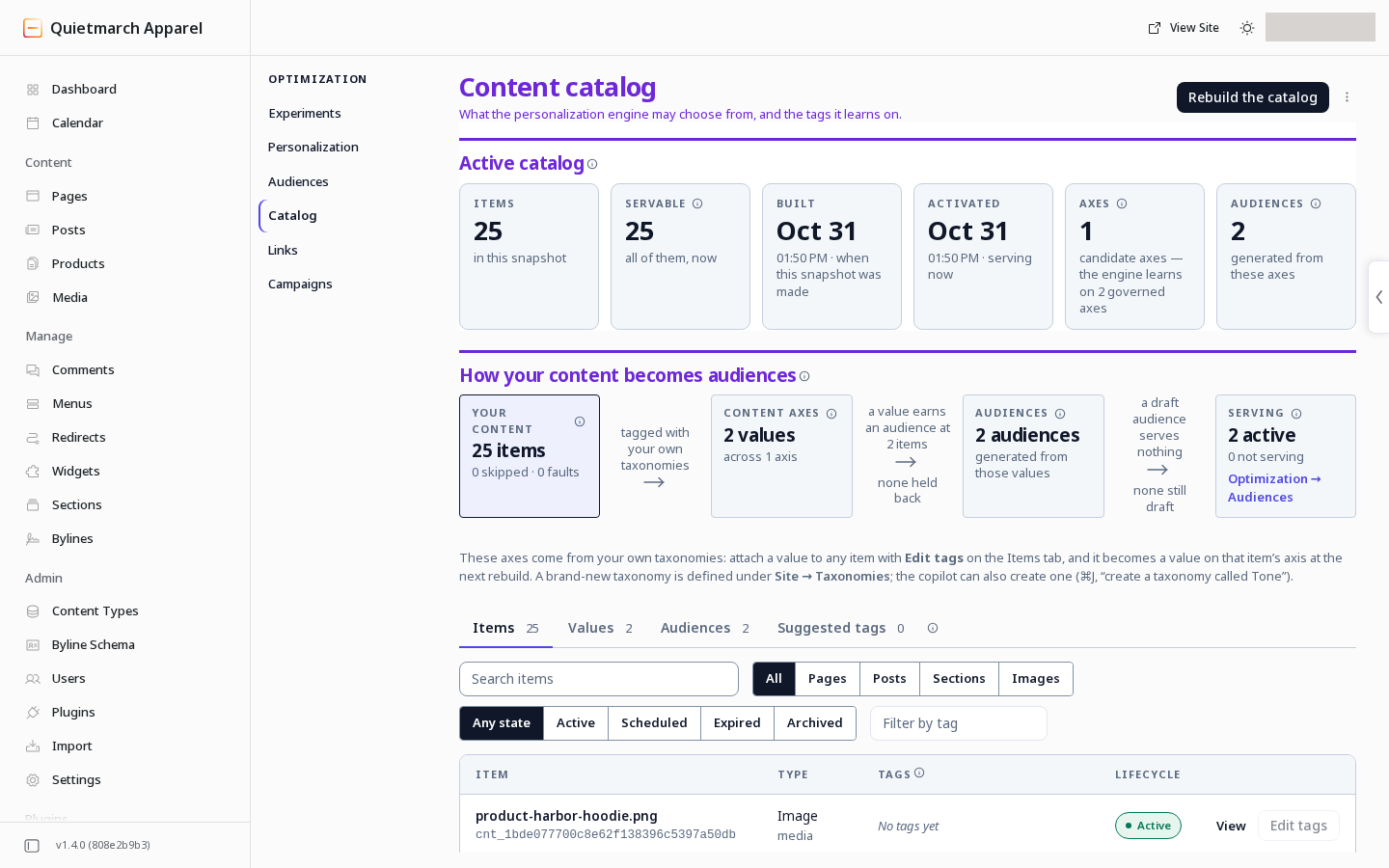
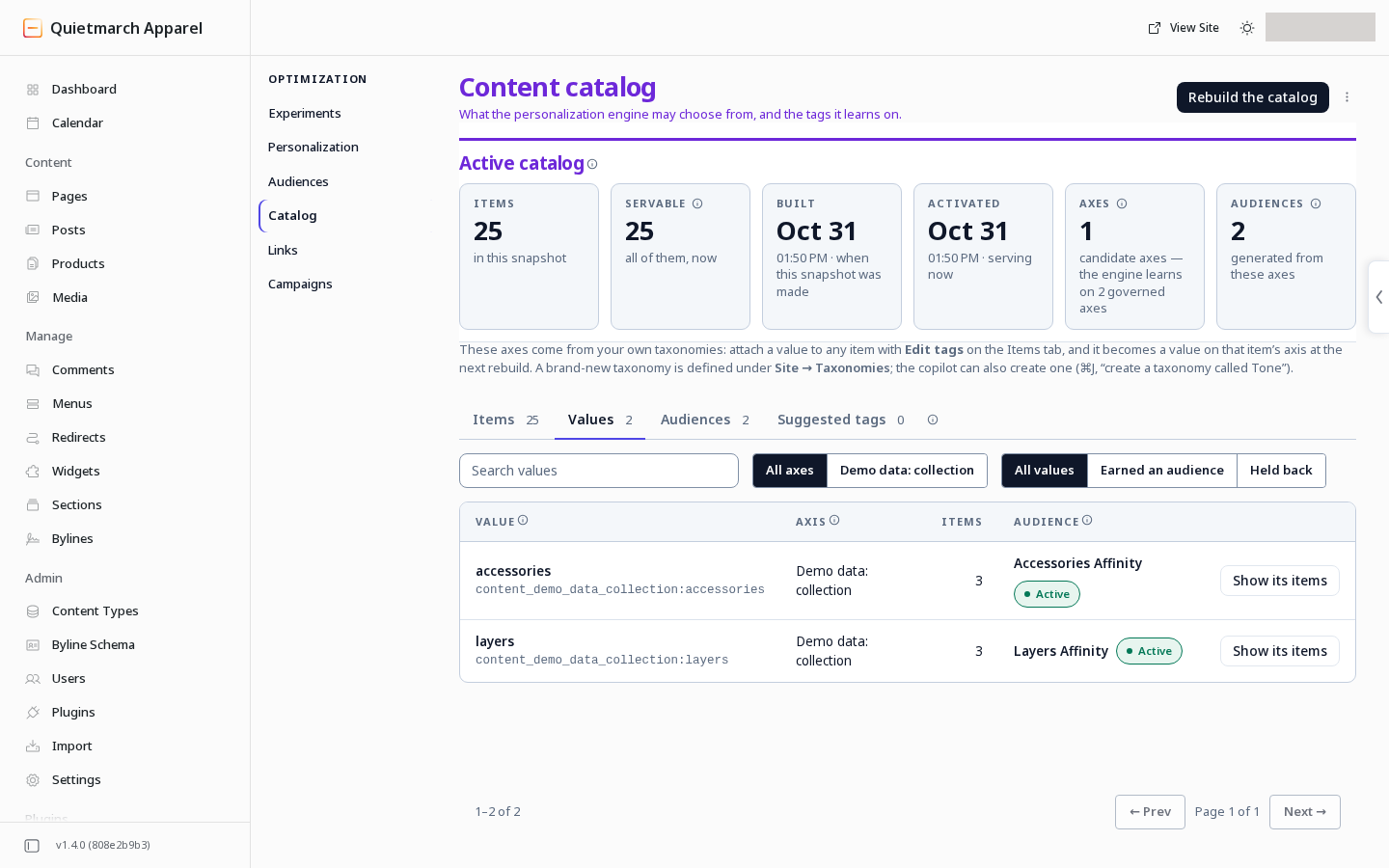
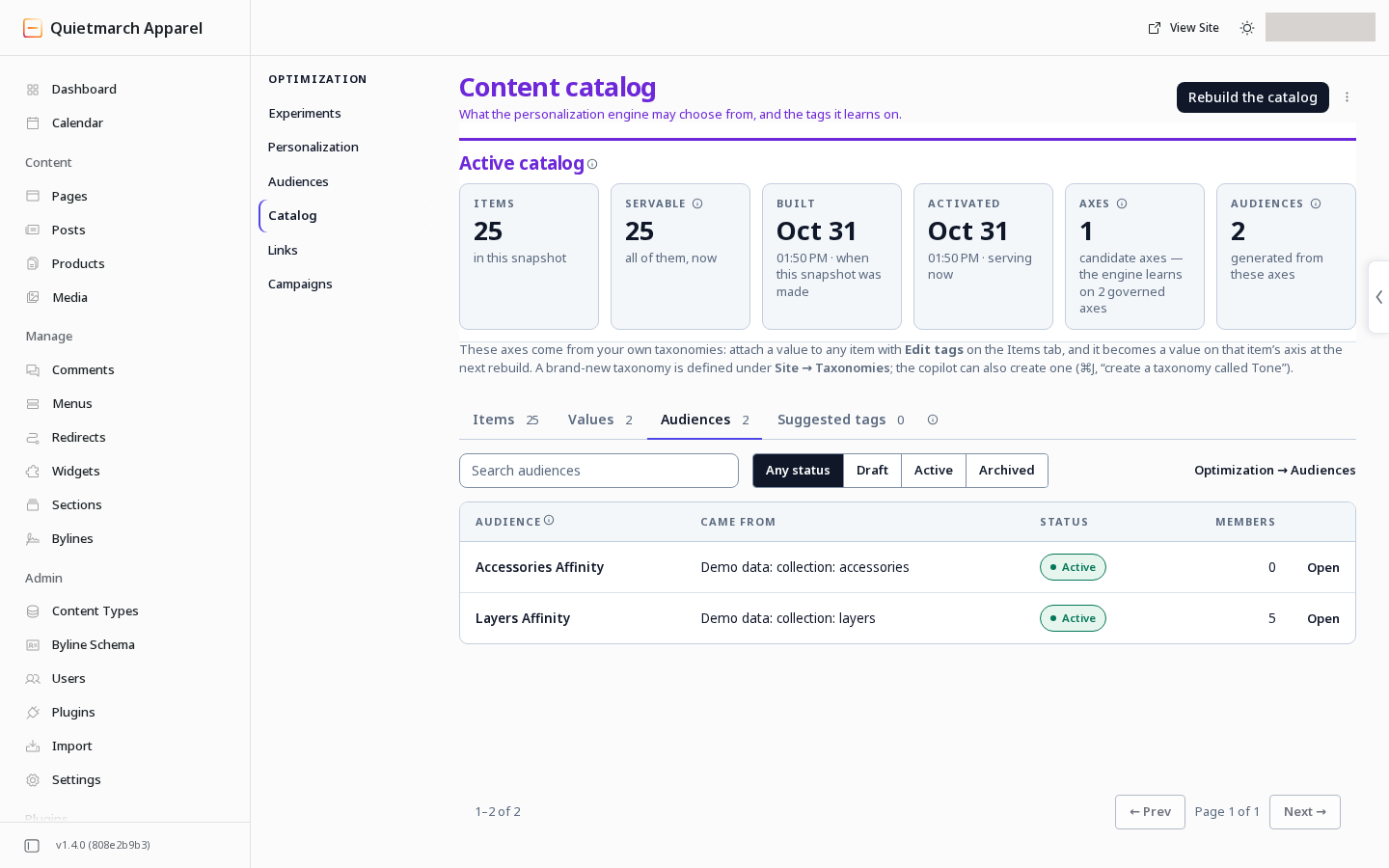
The active catalog snapshot contains 25 items, with its build and activation times shown beside it.
-
Open Optimization.
-
Open Catalog.
-
Choose Build the catalog if none exists, or Rebuild the catalog for an existing one.
-
Read Build this site’s content catalog? or Rebuild the content catalog? and its scope.
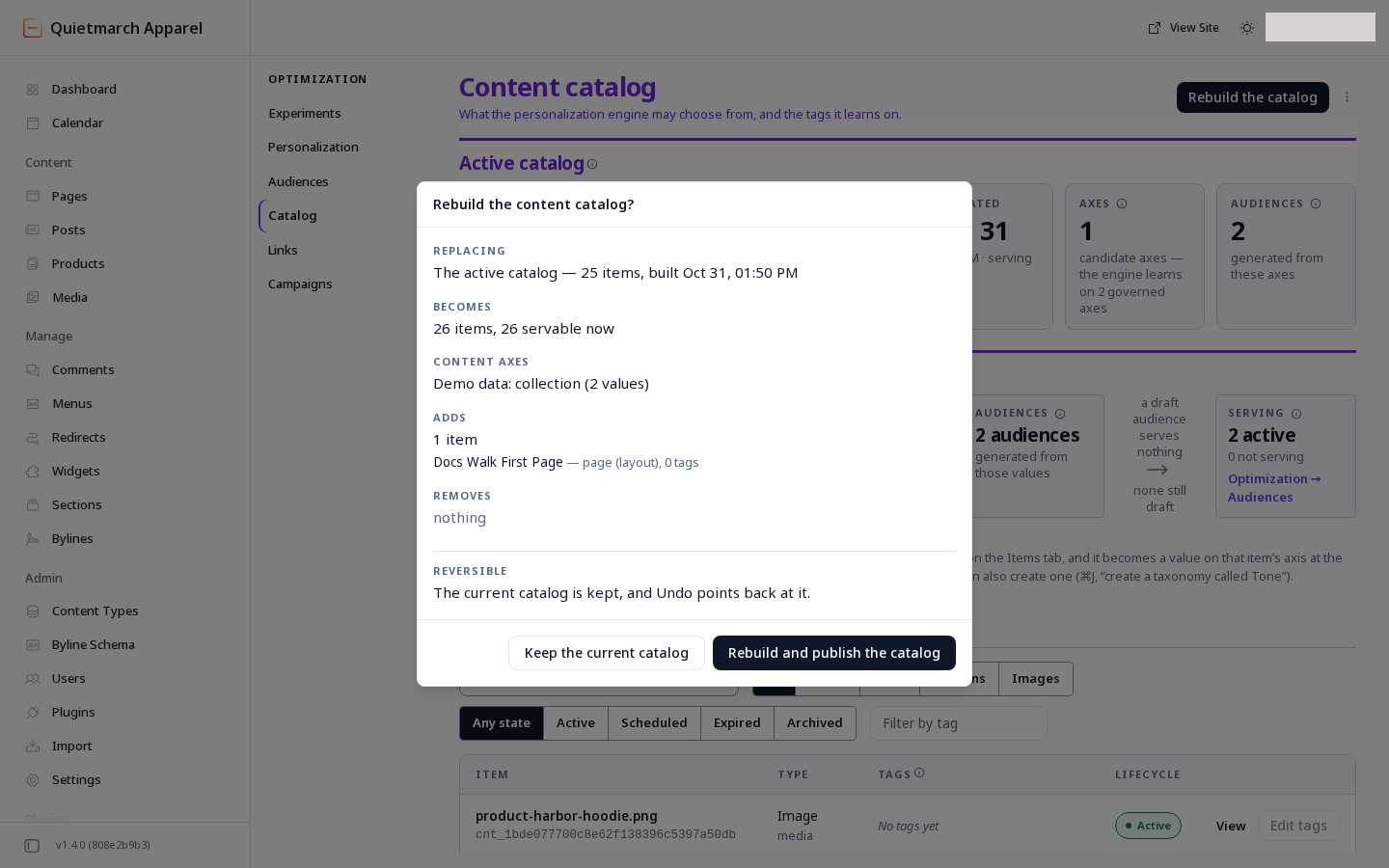
Rebuilding shows what it would add and remove first.
The rebuild replaces the active catalog snapshot, independently of publishing a page draft.
- Confirm Build the catalog or Rebuild and publish the catalog, as offered.
- Inspect Items.
- Inspect Values.
- Inspect Audiences.
- Inspect Suggested tags.
- Compare the content and values with what you expected to include.
- Under Suggested tags, choose Propose tags.
- Read the separate approval.
- Confirm Propose tags if you want those suggestions prepared.
- Review the suggestions it returns.
- Choose Approve or Decline on the suggestion’s row.
- Read the prepared change.
- Confirm Approve the tag or Decline the tag, or choose Leave it proposed.
A suggestion is not an accepted tag.
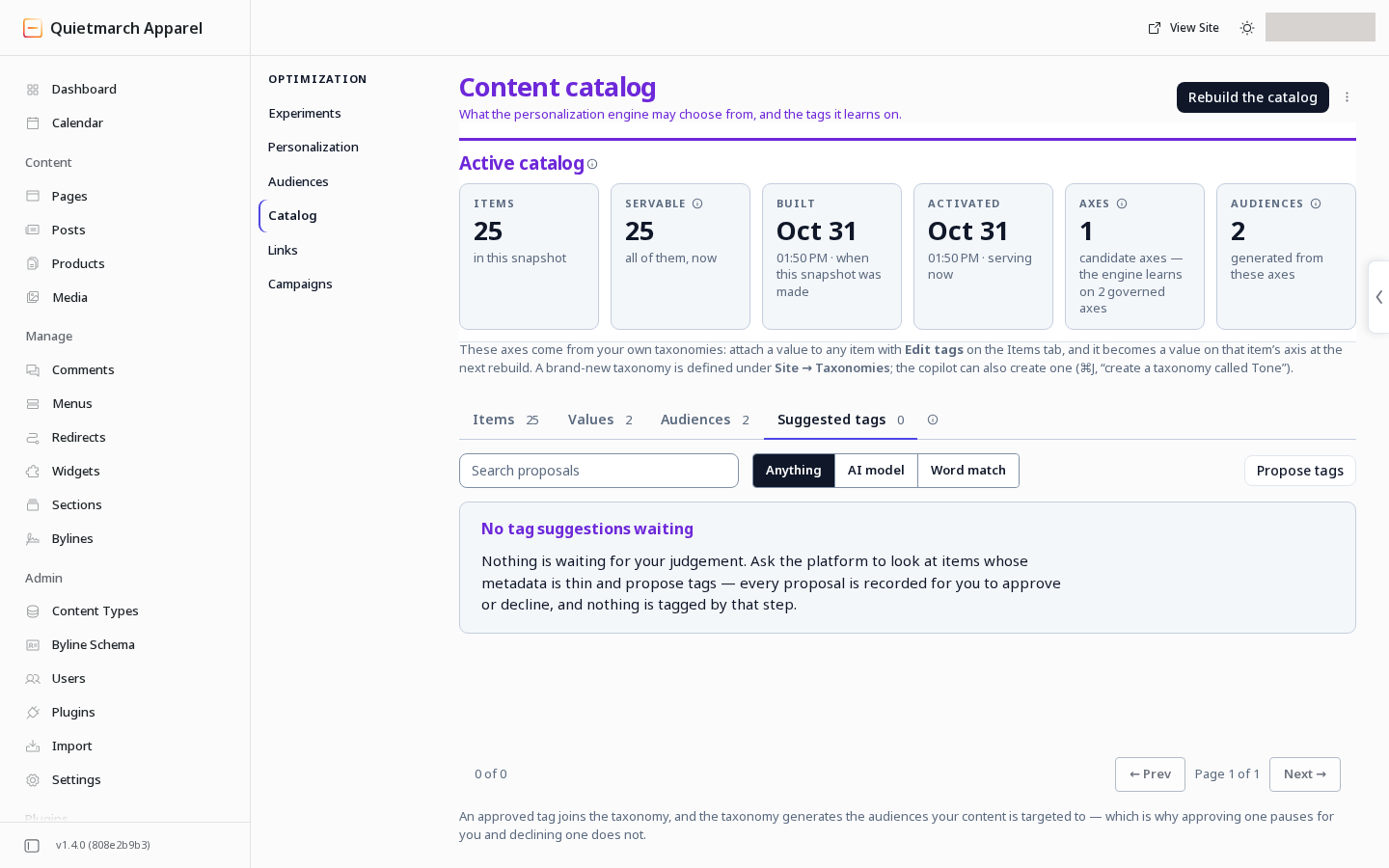
No tag suggestions are waiting for approval, and Propose tags is the control for requesting suggestions.
Use a receipt’s Undo when offered to restore the previous catalog state. A rebuilt catalog alone does not establish that affinity delivery is configured. Check the service, settings, audience and active-content prerequisites above.
What adds to a score
Section titled “What adds to a score”An event must carry a value for a configured interest and have a positive weight. The engine first reduces the old score for elapsed time, then adds that action’s weight.
A page visit alone does not establish a particular interest. Check which events your site actually sends in Insights, then Events & Capture. An event appearing in a settings list is not proof that your site sends it.
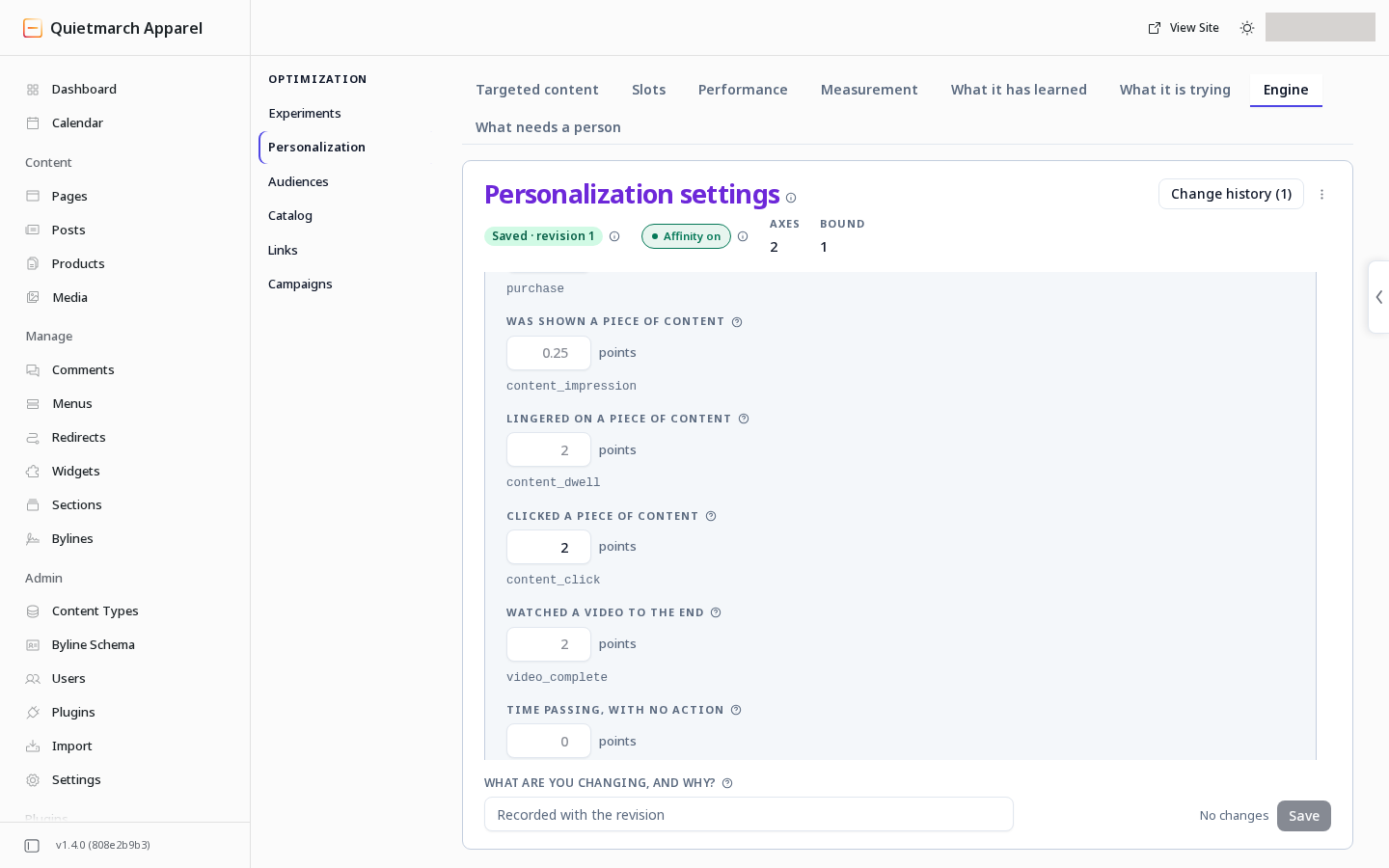
Use What each visitor action counts for to review the weights. A larger weight adds more evidence for the values carried by that action.
A blank weight counts as zero. The greyed number in an empty field is the platform’s suggested value, and it does not apply until you enter it and save.
How interest fades
Section titled “How interest fades”The raw score is the interest total after action weights and their fading over time, before it is converted to a strength between zero and one.
How long interest lasts controls the decay rate. In the platform’s initial settings, that value is seven days. The screen reads this as interest halving about every 4.9 days of inactivity. The score continues to fade over time.
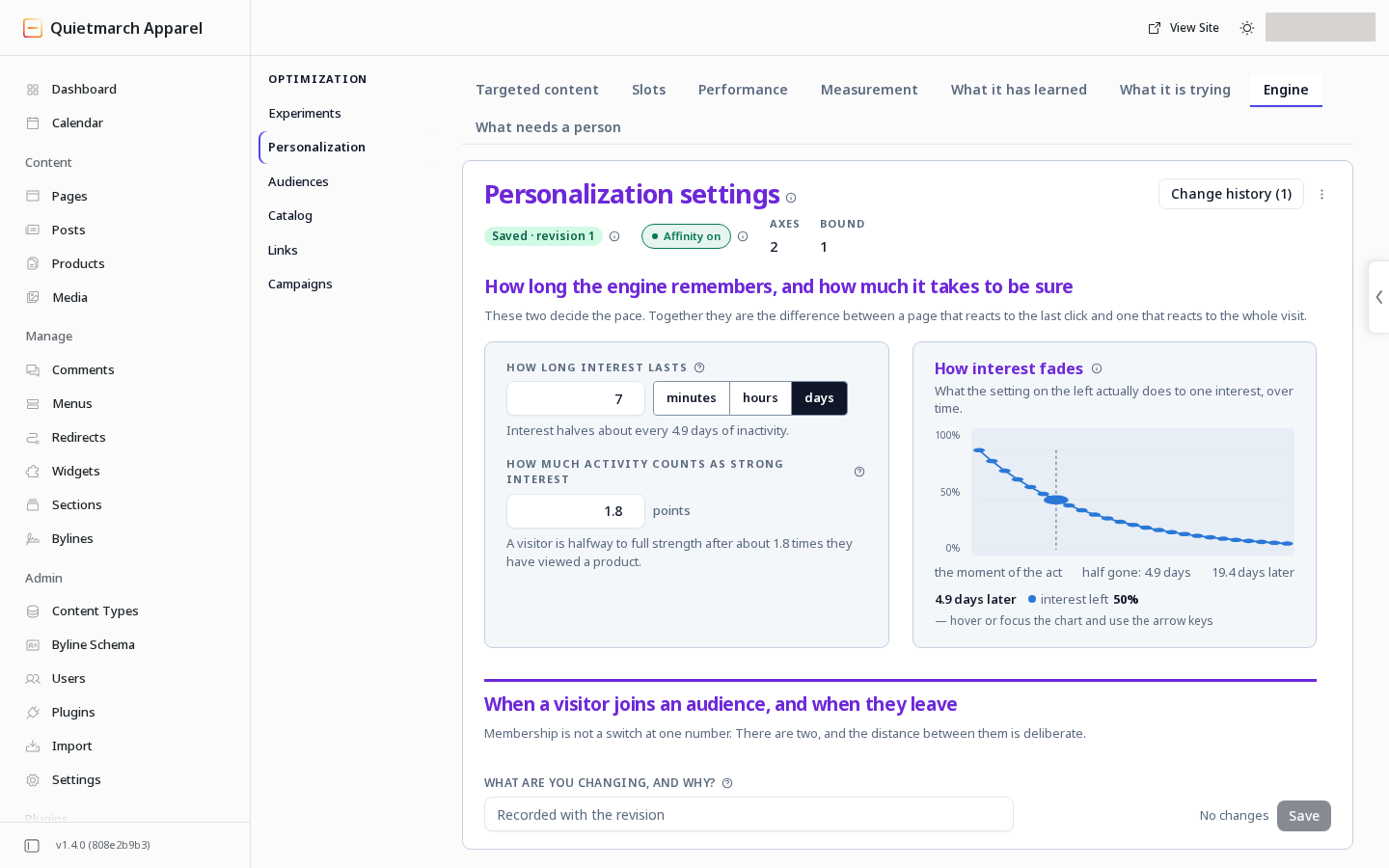
The downward curve shows interest scores fading during inactivity rather than ending at a fixed deadline.
The raw score is converted into a strength between zero and one. How much activity counts as strong interest controls how much evidence is needed for a high strength.
For example, with a raw score of 3 and that setting at 1.8:
strength = 3 / (3 + 1.8) = 0.625At a join threshold of 0.6, that passes the interest check. This is a calculation example. Actual delivery also needs a usable audience, active targeted content and visitor consent.
When an audience applies
Section titled “When an audience applies”A threshold is a boundary value.
A visitor joins an audience at sets the join threshold. and leaves when it falls below sets the lower threshold used for recorded membership exits.
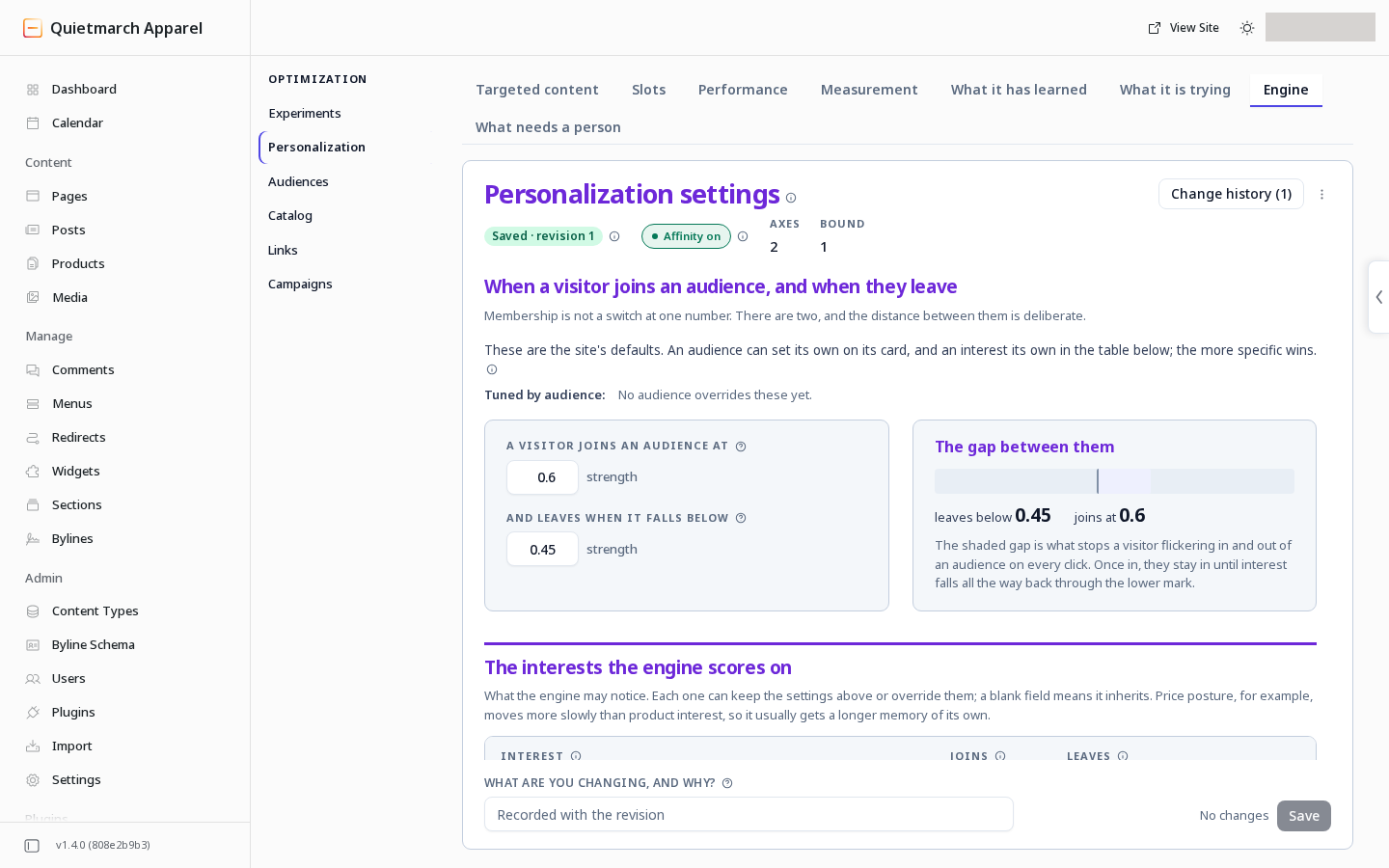
There are two views to understand. Page delivery checks the current faded score against that audience’s join threshold. Recorded membership transitions use the join and leave thresholds when activity is processed. A delivered page and the recorded member list can therefore change at different times.
Use the audience’s definition and Members & why alongside a check of the delivered content. A tune for one audience can override its join threshold, memory and evidence setting. An interest can also set its own values in the interests table, and where both apply, the interest’s own setting wins. Current limitation: the audience’s leave setting and individual action weights do not provide separate page delivery controls.
How recommendations use scores
Section titled “How recommendations use scores”A Recommendations section ranks catalog items using the visitor’s strengths for the items’ tags. The Composer offers Always show first, but currently refuses saving changes to pins. Changes to Never show and What each card shows are refused too; see Recommendations for the saving limits.
Set When there is nothing to personalise on for cases without a usable score. The choices are The most recently updated items, Your pins, then catalog order and Hide the section entirely.
With Hide the section entirely, a visitor without a usable score sees no section at all, not even your pinned items.
A usable catalog, settings and service connection are part of this setup. Personalization consent and Global Privacy Control also govern whether visitor interest can be used or updated.
Tune and review
Section titled “Tune and review”A revision is a saved version of the settings.
- Change the intended setting in Engine.
- Choose Save.
- Read Review this change.
- Choose Approve & save if it matches your intent.
- Read the resulting revision and its receipt, which offers Undo this change.
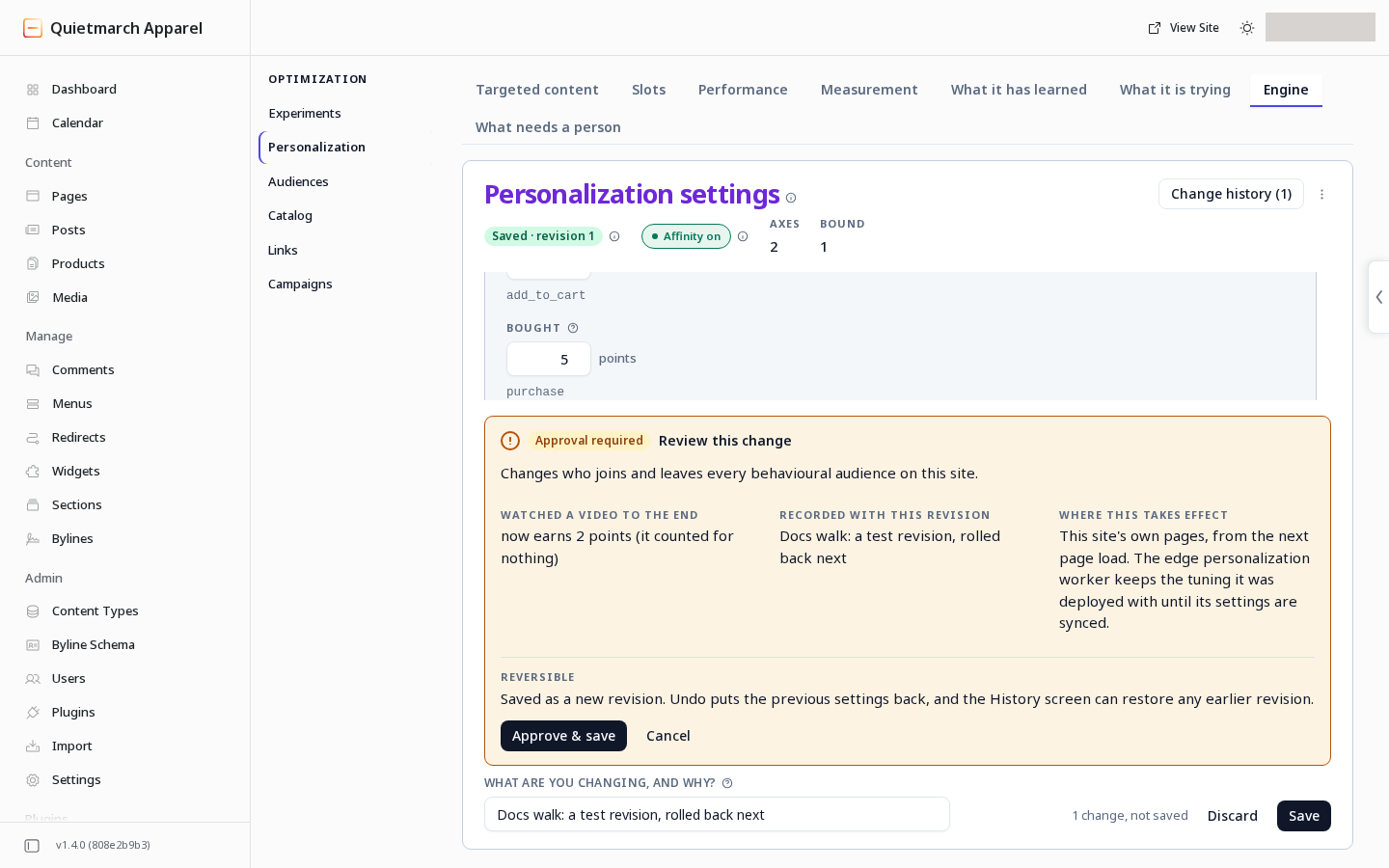
Open Change history, followed by its revision count, to inspect earlier revisions. Roll back to this restored a different written video weight as a new revision, and Undo this change returned the previous settings. Restoring a revision with a blank video weight was refused when the current weight was zero. Do not treat a blank field and a written zero as an interchangeable put-back. The revision 3 picture below records an earlier manual save, not an automatic restore.
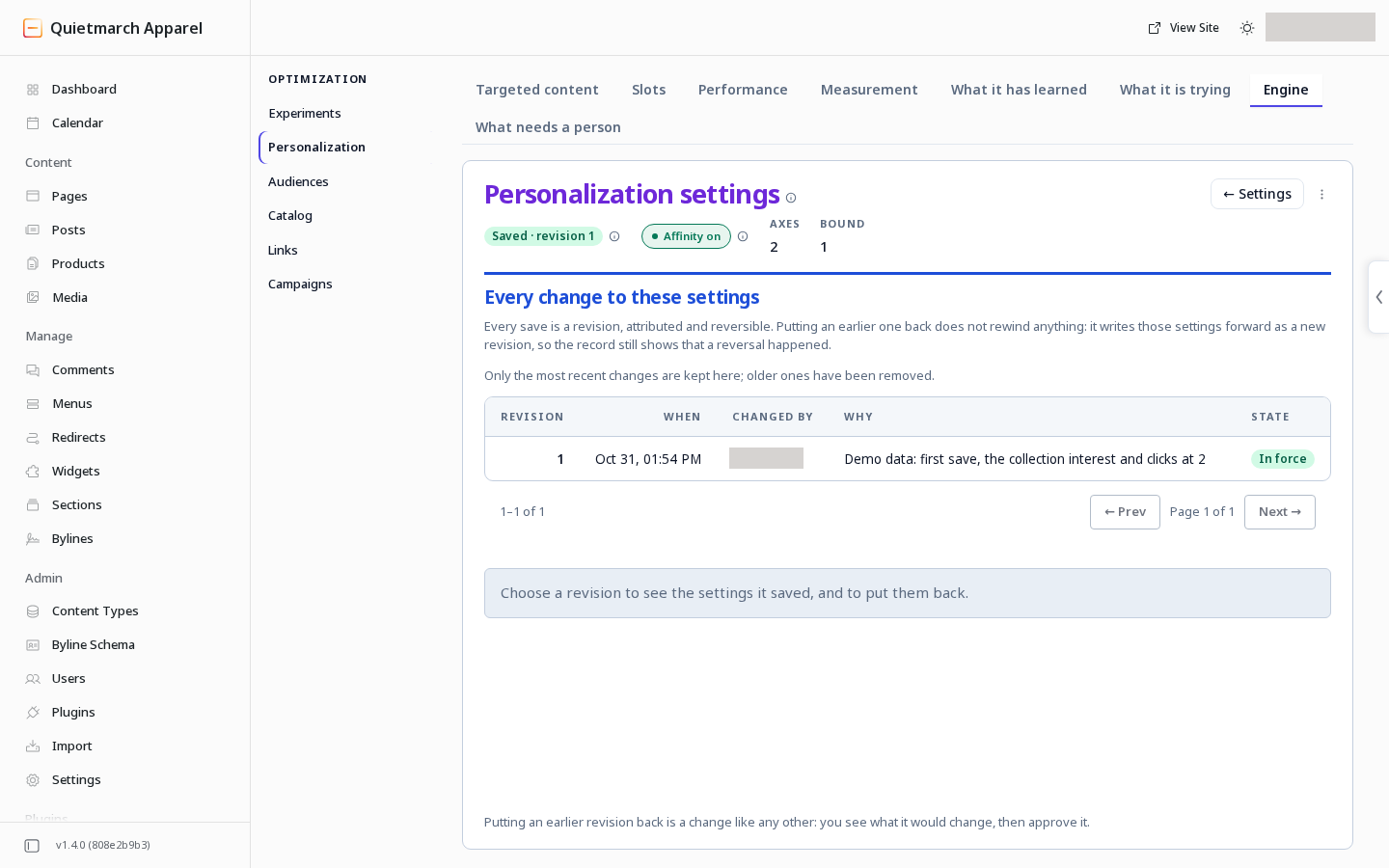
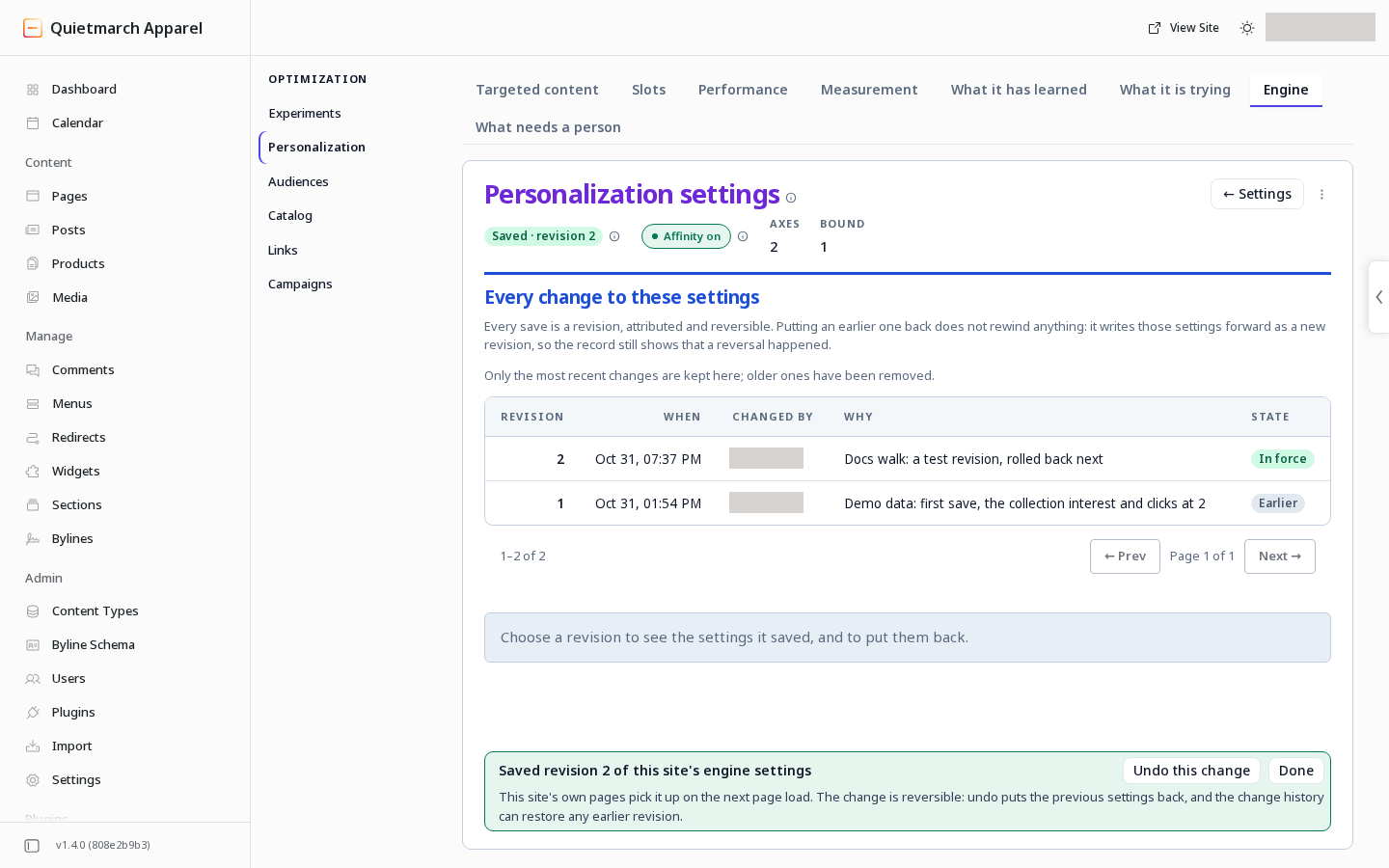
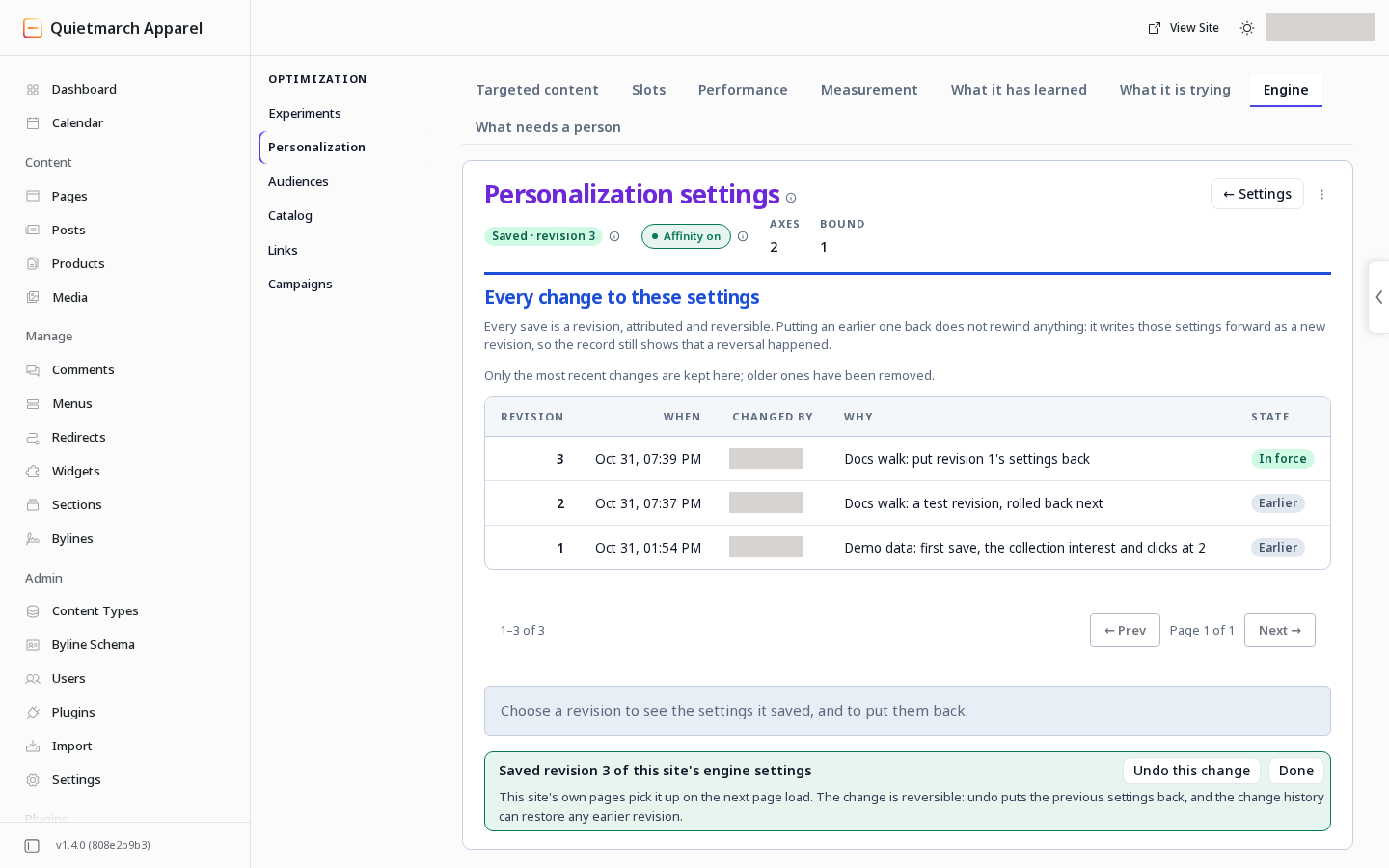
Revision 3 was manually saved after the attempt to restore earlier settings was refused.
Continue with Audiences and targeted content to put an interest audience to use.