Restore a saved revision to get an old version of a page back as the draft. Use a revision in EmDash’s own Pages or Posts screens in the site admin to get an earlier saved draft back. An Author can restore their own entries; an Editor or Admin can restore other entries too. This is different from a receipt’s Undo, which reverses the change covered by that receipt.
Checked against the product’s code on 7 November 2026.
Choose a saved version
Section titled “Choose a saved version”For a page open in Composer:
- Choose History beside Layout. Saved versions lists the versions, newest first, with when, who and what changed.
- Select the earlier version you need.
- Choose Restore this version. Read the approval card and the schedule it would cancel.
- Choose Restore it only for the intended version. It becomes the draft; the published page is unchanged.
The receipt’s Undo, when offered, puts back the preceding draft. It can bring back the cancelled schedule while its time is still ahead. A later draft change or an entry held by someone else can prevent Undo.
For EmDash’s content editor:
- Open Pages or Posts in the site admin. You see that collection’s entries.
- Open the entry by its title. EmDash’s content editor shows its settings, even when its content is edited in Composer.
- If you have edits open in Composer, apply the ones you want to keep before continuing. Use Save here only for content edited in EmDash.
- Open Revisions in the entry’s settings. The saved versions appear; No versions yet means there is no saved history to choose from.
- Select the version you need. Its saved content opens for inspection.
- Use Older version or Newer version if you need to inspect a neighbour. The selected version changes without restoring it.
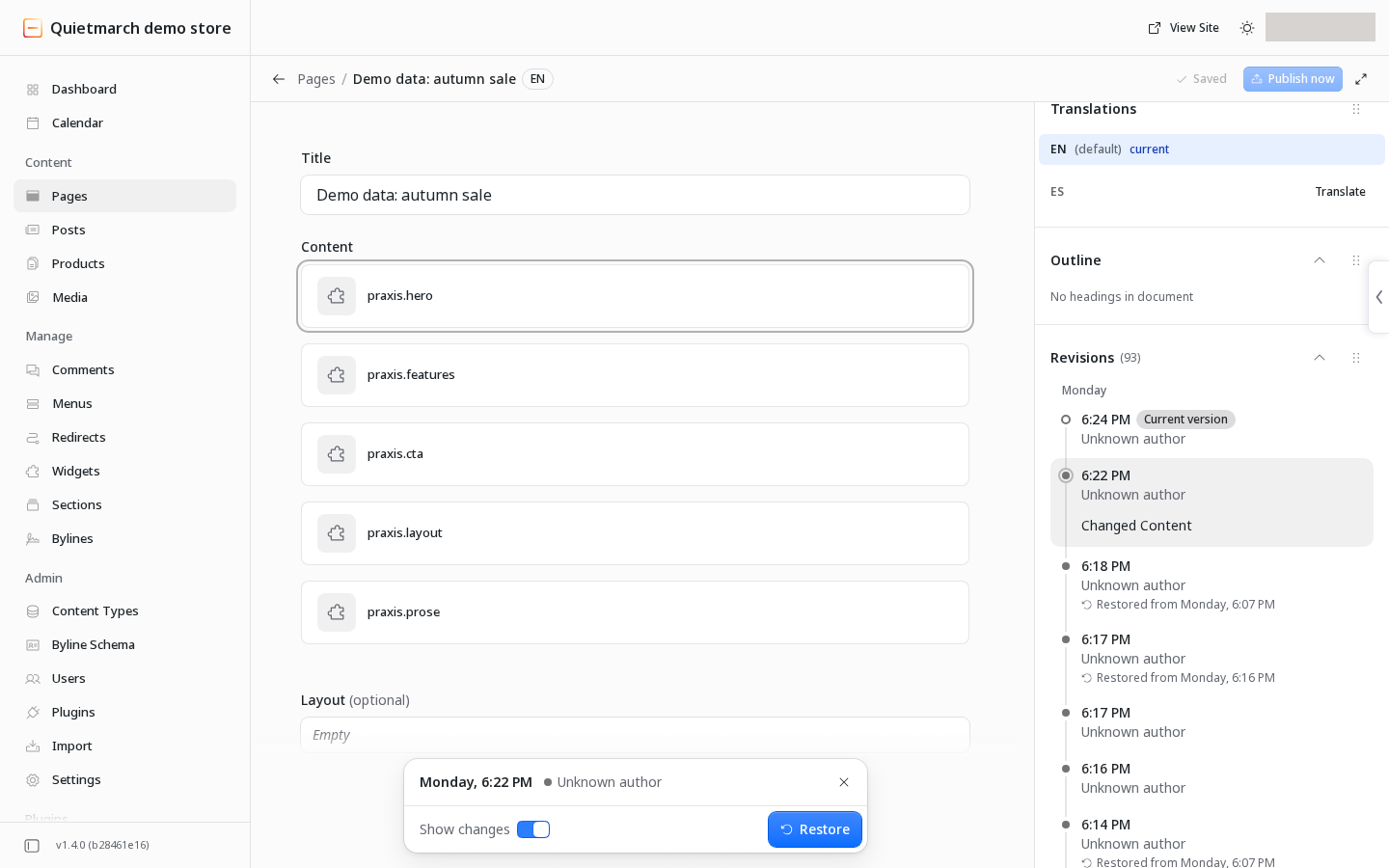
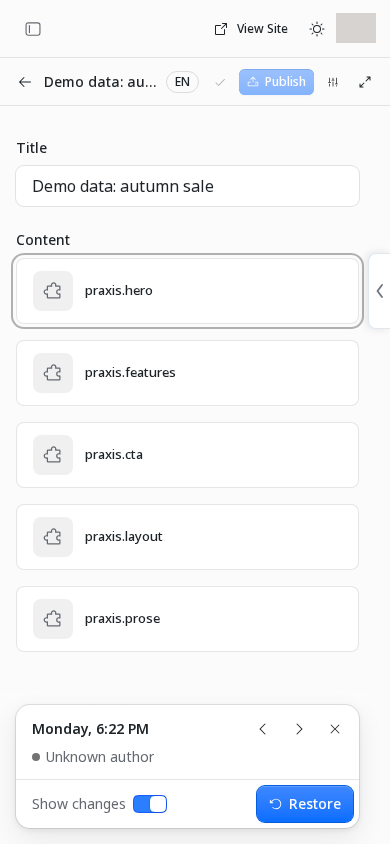
Show changes compares the selected saved version with its preceding version. Back to editing leaves the history view without restoring anything. If the versions could not load, Try again repeats that read.
Compare the saved draft with the published content
Section titled “Compare the saved draft with the published content”Use this read before publishing saved changes to a page or post. You need access to drafts. It compares the current saved content with the published content; Show changes above compares neighbouring versions in history.
- Save the changes you want included. Unsaved typing is not part of the comparison.
- Open Copilot.
- Ask “Compare the saved draft and published content of [page or post title]. Do not change it.”
- Choose Send. The result returns both stored versions and whether there is a separate saved draft. An item that has never been published has no published version.
- Read the two versions before deciding what to publish.
This read does not restore, discard or publish anything, so it needs no approval card or Undo. Use Composer preview to inspect the page’s appearance too.
See Compare a content item’s draft and published version.
Restore the draft
Section titled “Restore the draft”For pages and posts built in Composer, recovering earlier writing stages a draft and leaves the published version alone. Restoring cancels the existing publication schedule. A page due to go out on Friday needs a new approved schedule. Unsaved changes are lost.
The dialog or success message may still mention the old scheduled time. Check Publish after restoring. Other EmDash collections can keep their schedule.
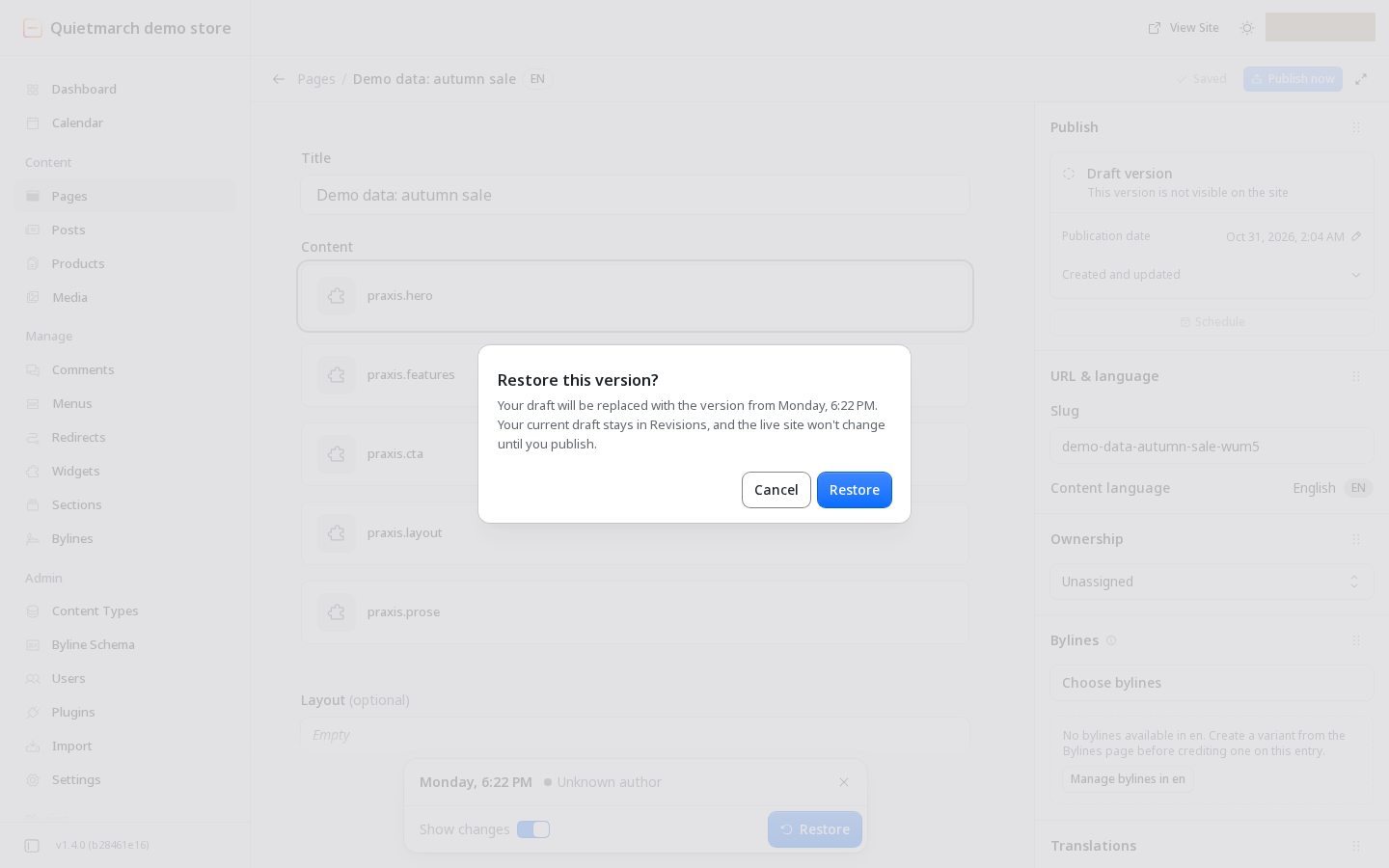
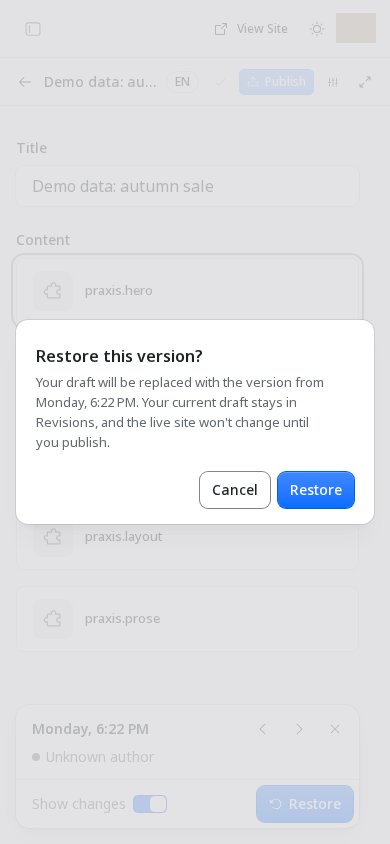
- Choose Restore on the selected version. The dialog asks Restore this version?
- Read the dialog’s warning about the draft and any schedule. Choose Cancel if this is not the version you want.
- Confirm Restore. Version restored confirms that the selected version is now the draft.
- Review the restored draft. The live site keeps its published version until you publish again.
Ask the copilot
Section titled “Ask the copilot”- Open Copilot. The conversation is ready for your request.
- Type a request to list the saved revisions of the entry. Name the page or post you want to recover.
- Choose Send. The history is returned newest first.
- Ask it to restore the specific saved version you chose from that history. The request identifies that version rather than guessing from a receipt time.
- Choose Send. The card asks Restore this earlier version?
- Review the replacement and schedule before approving. Keep the current draft cancels the request.
- Choose Restore it. Read the result, then review the restored draft.
An eligible copilot restore now offers Undo on its receipt, with the same draft and schedule limits as Composer History. See Revisions.
Recover after a restore
Section titled “Recover after a restore”Use Undo on a Composer or copilot restore receipt when offered. EmDash’s own restore dialog does not provide that receipt. Saved revision history remains available, so you can inspect and restore another saved version. It does not recover work you never saved.
For a recent Composer change with a receipt, use Composer Undo when that receipt covers the result you need.
Your next step
Section titled “Your next step”Review the restored draft and any publication schedule before leaving it. Use Pages, posts and media to review the scheduling controls, or Review and publish if you choose to publish it now.