Checked against the product’s code on 7 November 2026.
Open Insights > Analytics to see how busy your site was, measured by recorded visits. Use Period for yesterday or another range. Use Sources to see where visitors come from and Funnels to review what they did next, such as submitting a form. These reports use recorded activity, so consent can leave visits out.
Set Period before reading a result. It applies across the tabs and is kept in the page address, so a link can reopen that view.
Start with Overview
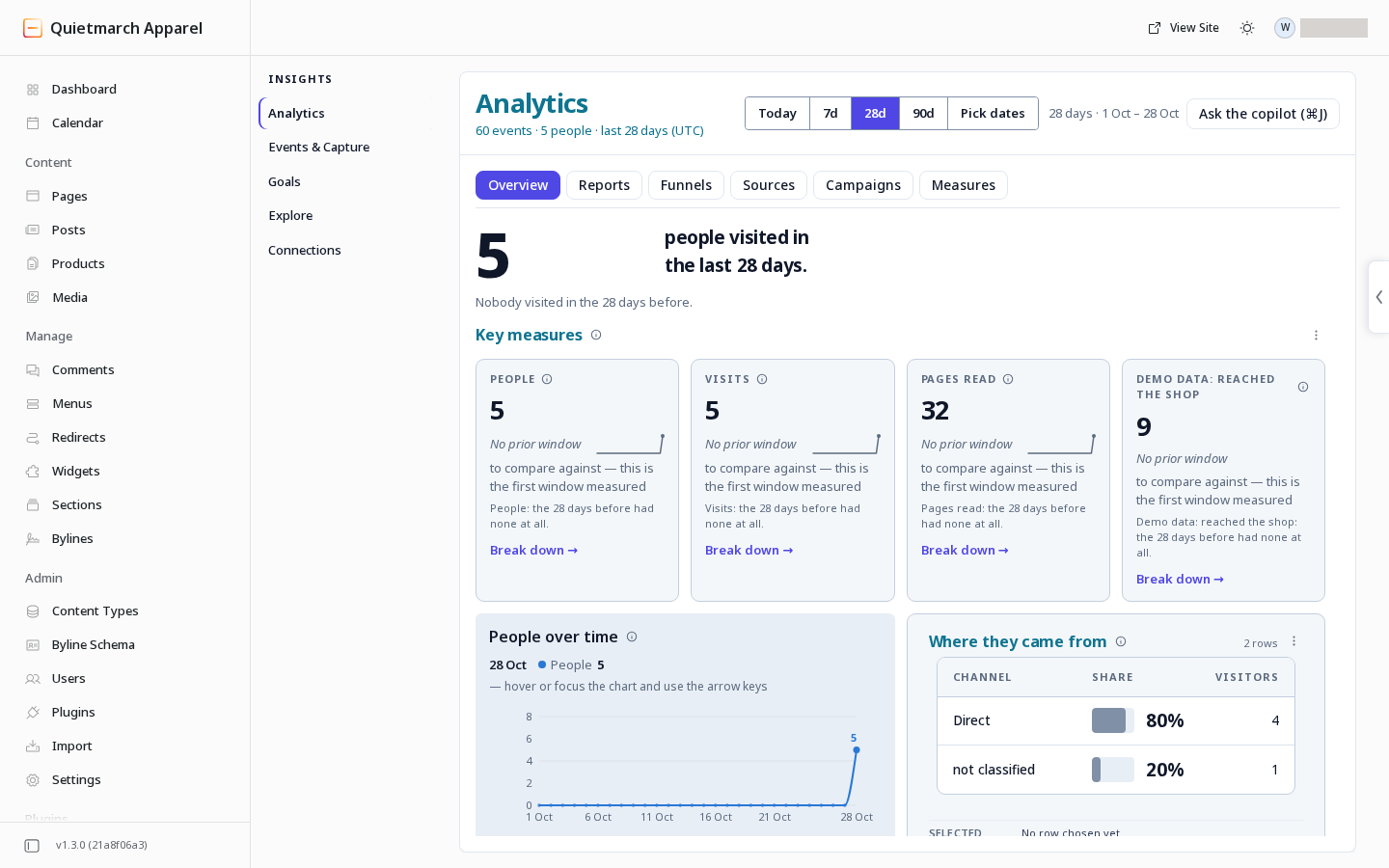
Section titled “Start with Overview”Read the headline and the People, Visits and Pages read tiles. The goal tile depends on the site’s configured goal and measure. A missing or unavailable measure is different from a measured zero.
Open How these numbers are made to see where the records came from, who was counted, how much history is kept and what is missing. Use Measures to look up what a measure counts. See event retention for how a saved period affects the available history.
| Count | Meaning |
|---|---|
| People | Distinct recorded visitors in the period. |
| Visits | Recorded sessions. A new session starts on first activity, after 30 minutes of inactivity or after 24 hours in one session. |
| Pages read | Recorded page views. Opening the same page again counts again. |
| Revenue | Recorded purchases less refunds, in their recorded currency. A refund counts in the period when it occurred. |
Under opt-in consent, visitors who have not accepted analytics are absent from these traffic counts. Under opt-out, analytics can start before a choice unless the visitor refuses it. Global Privacy Control prevents that visitor tracking. Missing traffic is not estimated into the answer.
An order can contribute revenue without a visitor identity when the shopper has refused analytics. Revenue and identified people therefore count different groups. Questions that combine different currencies are refused; money is not converted for you.
Choose what Analytics shows and counts
Section titled “Choose what Analytics shows and counts”Leave known bots out of the numbers
Section titled “Leave known bots out of the numbers”Editors and Admins can change whether supported reports count visitors marked as known crawlers or monitors. They are counted by default.
- Open Measures.
- Choose the switch Leave out visitors marked as bots.
- Read Change how this site counts bots?, including the named standing alerts.
- Choose Approve & change counting if the effect is intended.
- Read the receipt.
Analytics queries, funnel step counts, retention, campaign numbers and standing-alert checks follow this setting. Content performance, capture counts and experiment results keep their own counting.
An alert can start or stop firing because of this change. Emails already sent cannot be recalled. The receipt’s Undo restores the previous setting; switching it back also asks for approval. The copilot can make the same change; see Analytics configuration requests.
Choose the goal Analytics shows
Section titled “Choose the goal Analytics shows”Editors and Admins can choose one active goal for the site’s Overview tile and Sources > Converting on.
Use the screen chooser
Section titled “Use the screen chooser”When a goal is in view and the site has more than one active goal, Overview and Sources offer Showing: [goal].
- Open Overview.
- Open Showing: [goal].
- Choose the active goal you want to show.
- Read the receipt. The choice needs no approval card.
- If you want to put back the earlier choice, use the receipt’s Undo before leaving Overview.
- Open Sources and check Converting on.
Later, choose the earlier goal in the same chooser. You can also use that chooser on Sources.
Ask the copilot
Section titled “Ask the copilot”- Open Goals and find the active goal you want to show.
- Ask the copilot: “Show [goal name] as the goal in Analytics.”
- Read the receipt. This choice needs no approval card.
- Return to Overview to check its goal tile.
- Open Sources and check Converting on.
This is one shared choice for the site. It changes neither a goal or measure nor the events collected. If the goal is not counted yet, choosing it does not count it; use Count this goal. Use the receipt’s Undo to put back the previous choice. See Choose the goal shown in Analytics.
Find where traffic came from
Section titled “Find where traffic came from”-
Open Sources.
-
Use By to choose a level such as Channel or Source. A level with no recorded data is unavailable and explains why.
-
Open a row to narrow the result. Check the filter sentence as you go.
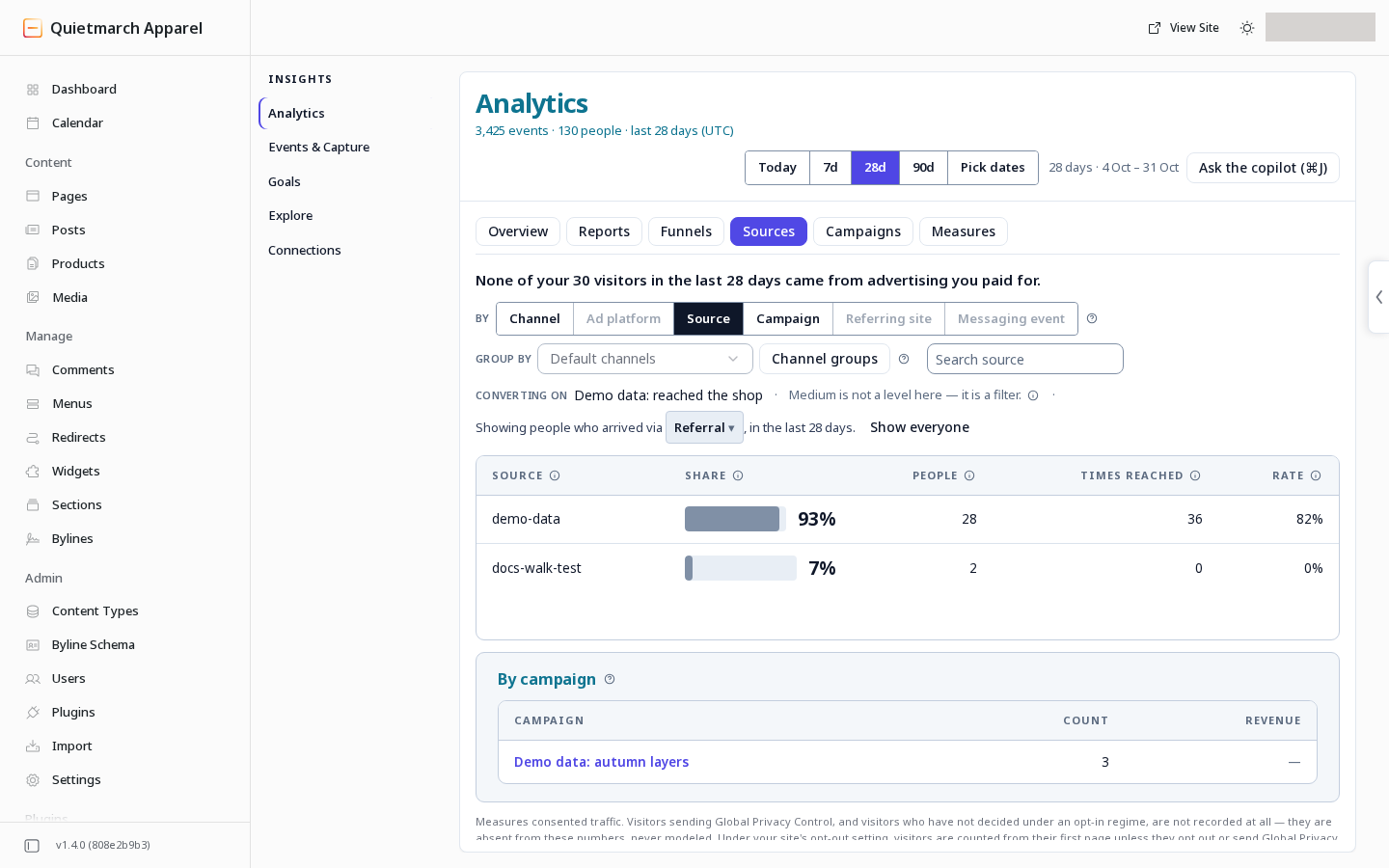
Open a row to see its sources and the filter in plain words. -
Read Converting on to see which goal the conversion result uses.
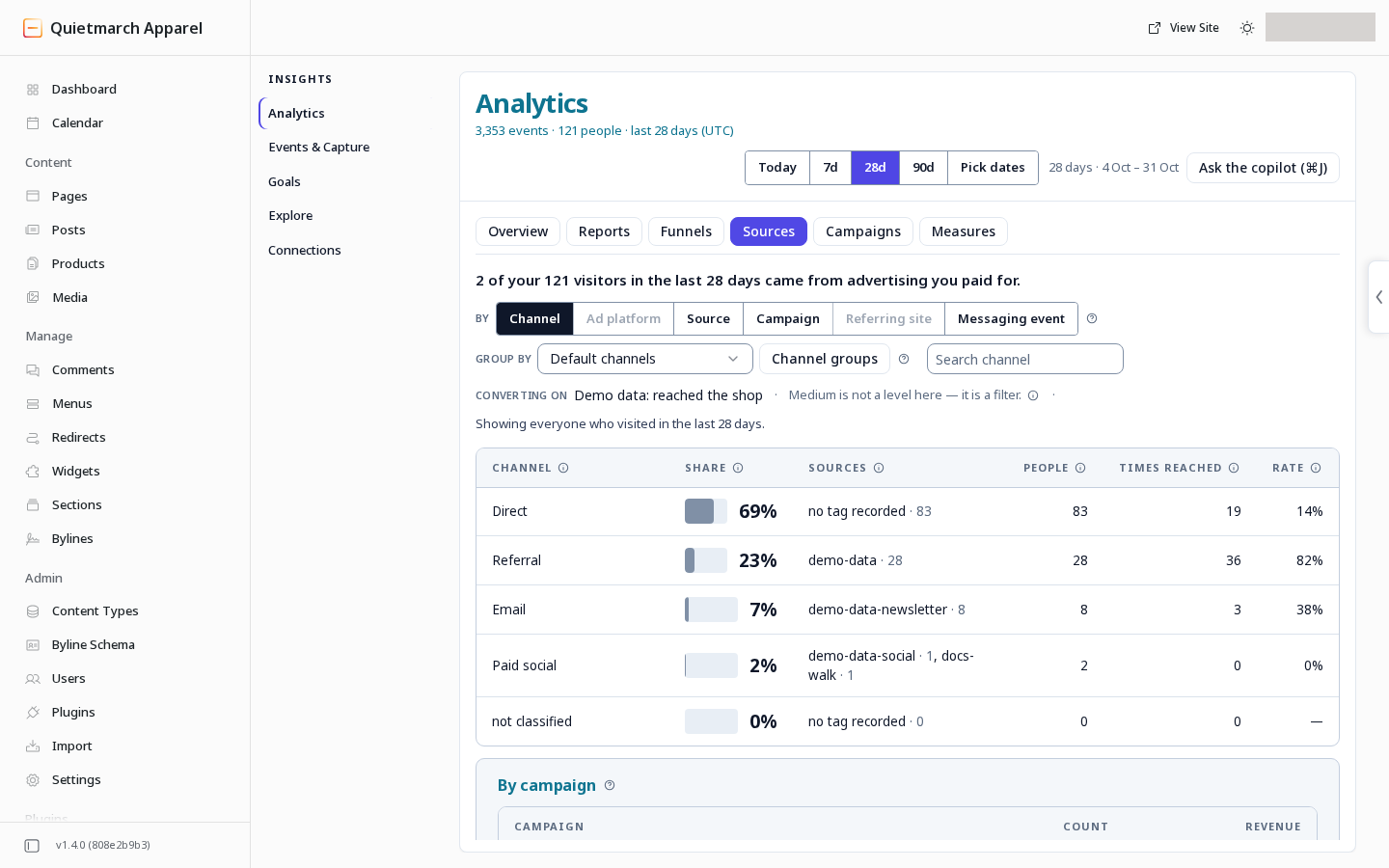
Where visitors came from over 28 days.
This view uses the visitor’s first arrival. Other measures can use the most recent arrival, so check the measure definition before comparing reports. The Group by control applies your channel grouping only at the channel level.
If your own test visit is absent, read the browser notice. Check the site’s Privacy choices, when offered, and any browser privacy signal before expecting that browser to appear.
Ask a report question
Section titled “Ask a report question”- Open Reports.
- Choose a question under What do you want to know?
- Read the answer.
- Expand Change what this counts if you want to adjust it.
- Change Count as needed.
- Change Split by as needed.
- Change Then by as needed.
- Change the filters as needed.
Compare with is available when the report supports an audience comparison.
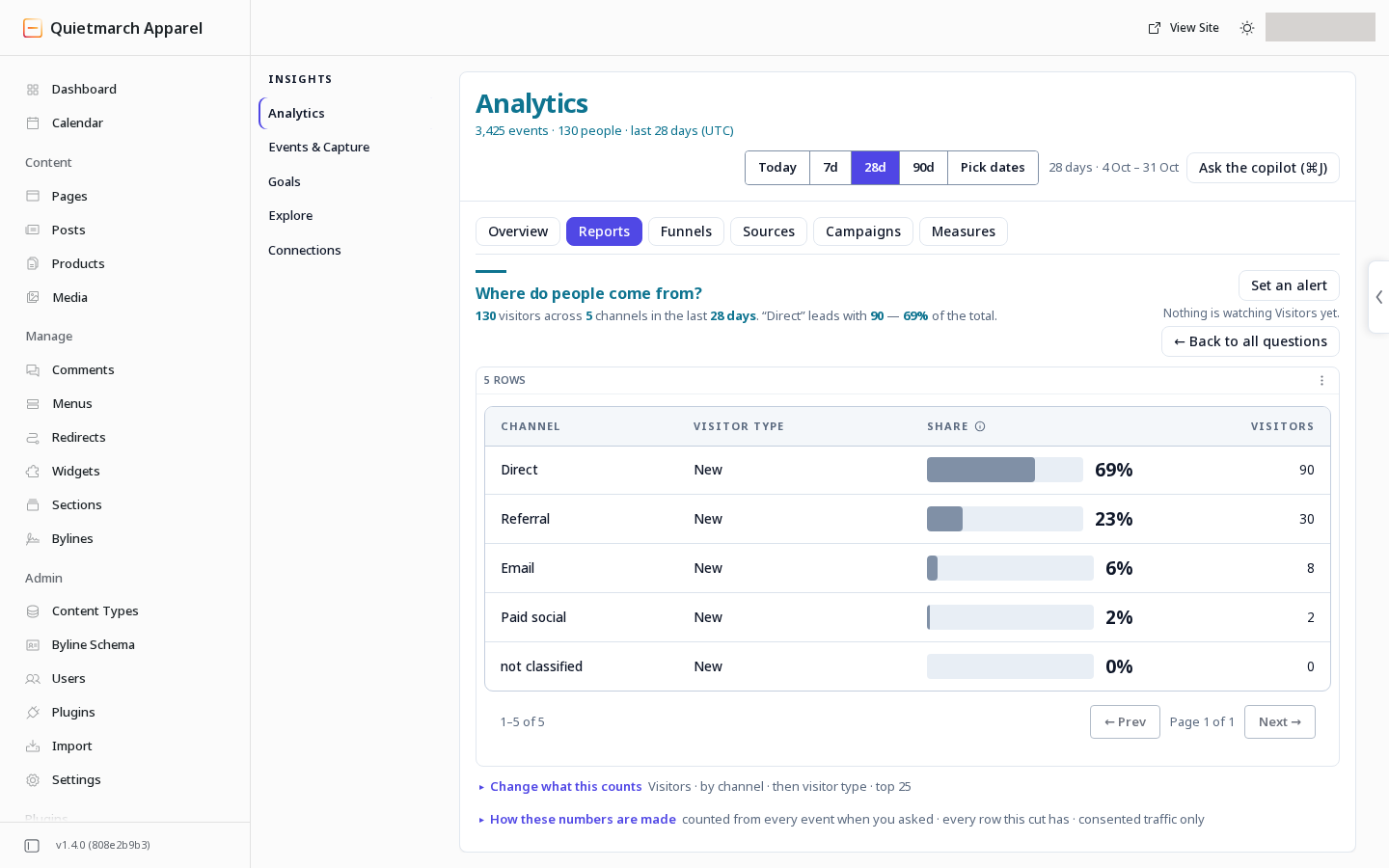
The report groups visitors first by channel and then by visitor type, with each row’s share and visitor count shown together.
The view’s people links open the visitors counted with those filters. A difference between two report values is not an experiment verdict. Use Experiments to test a change.
Build a funnel
Section titled “Build a funnel”To inspect how many people finished a form, build a funnel whose last step is that form’s recorded submission event. Choose visitors under Count when you want people rather than sessions. A funnel compares the recorded steps you chose, such as opening a page and then submitting the form. Read the example’s count mismatch below before relying on its totals.
-
Open Funnels.
-
Choose a starting question, or build a funnel step by step.
-
Choose the recorded event for a step.
-
Use + Add step for a longer journey, then repeat the event choice for each added step.
-
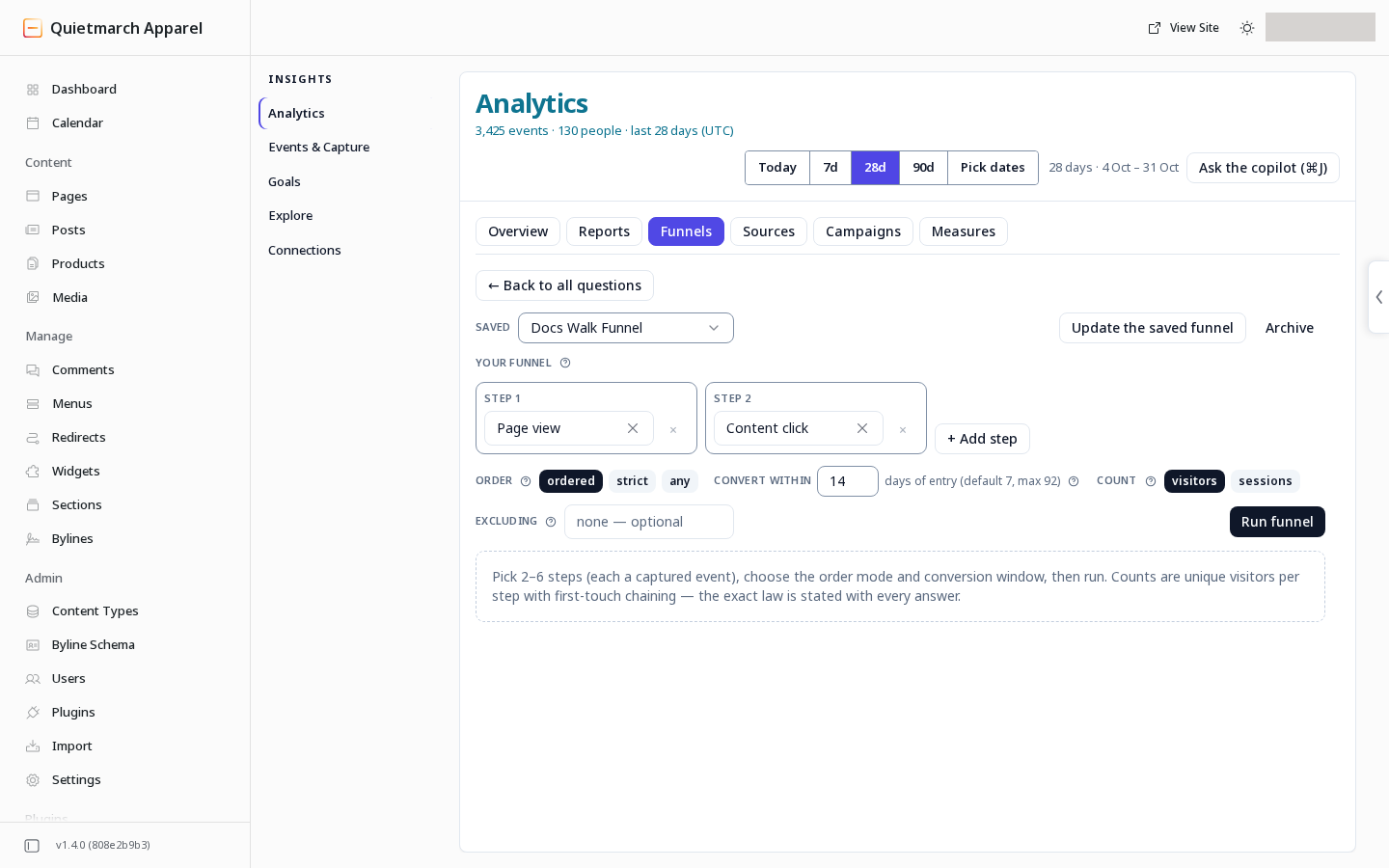
Choose ordered, strict or any under Order. Ordered allows other events between steps. Strict allows no other funnel step between them. Any counts each step independently.
-
Set Convert within in days, counted from entry into the first step.
-
Under Count, choose visitors or sessions.
-
Set an Excluding event only if it should disqualify the journey.
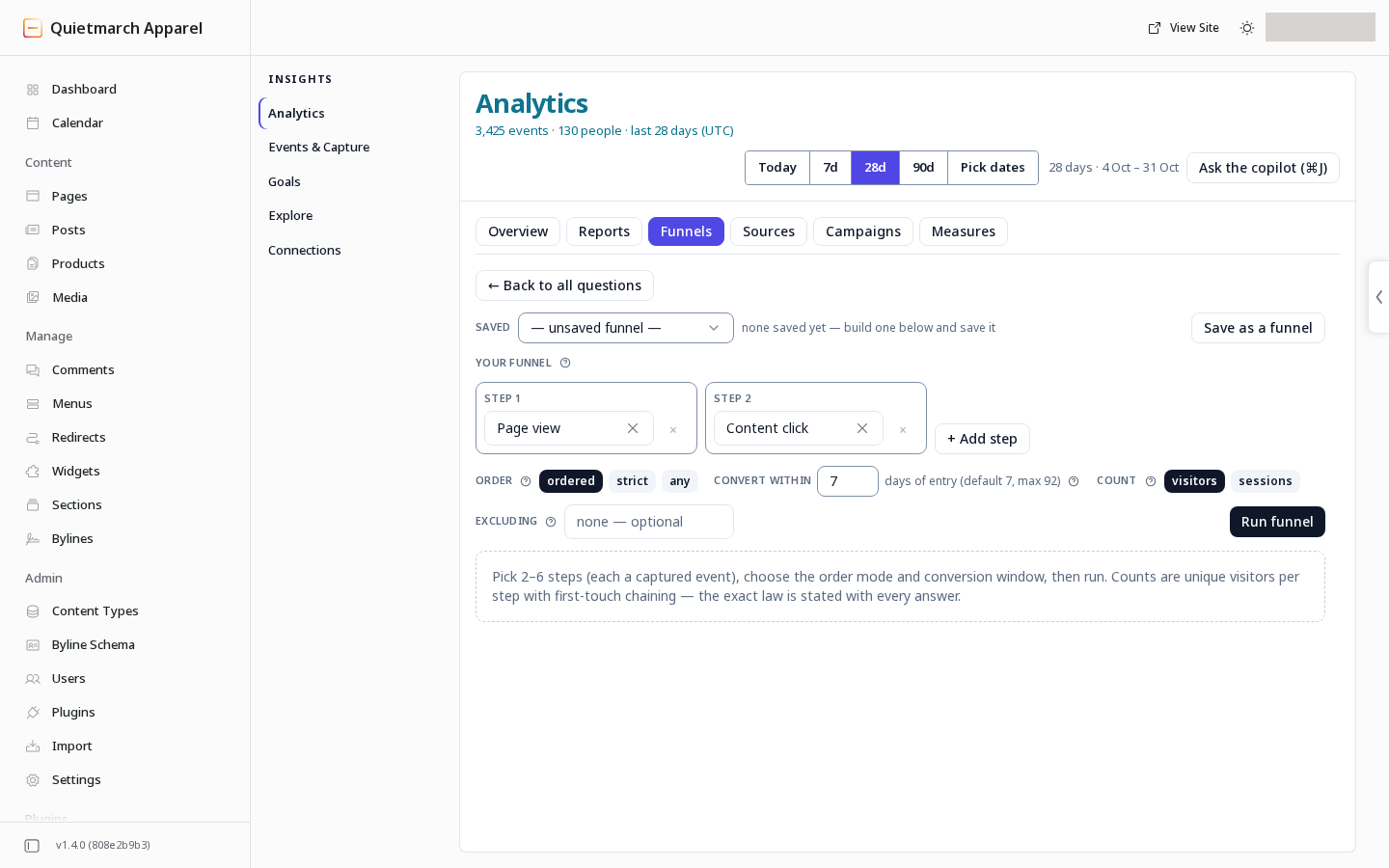
Choose the steps, order and window. -
Choose Run funnel. After a result, the controls are under Change this funnel.
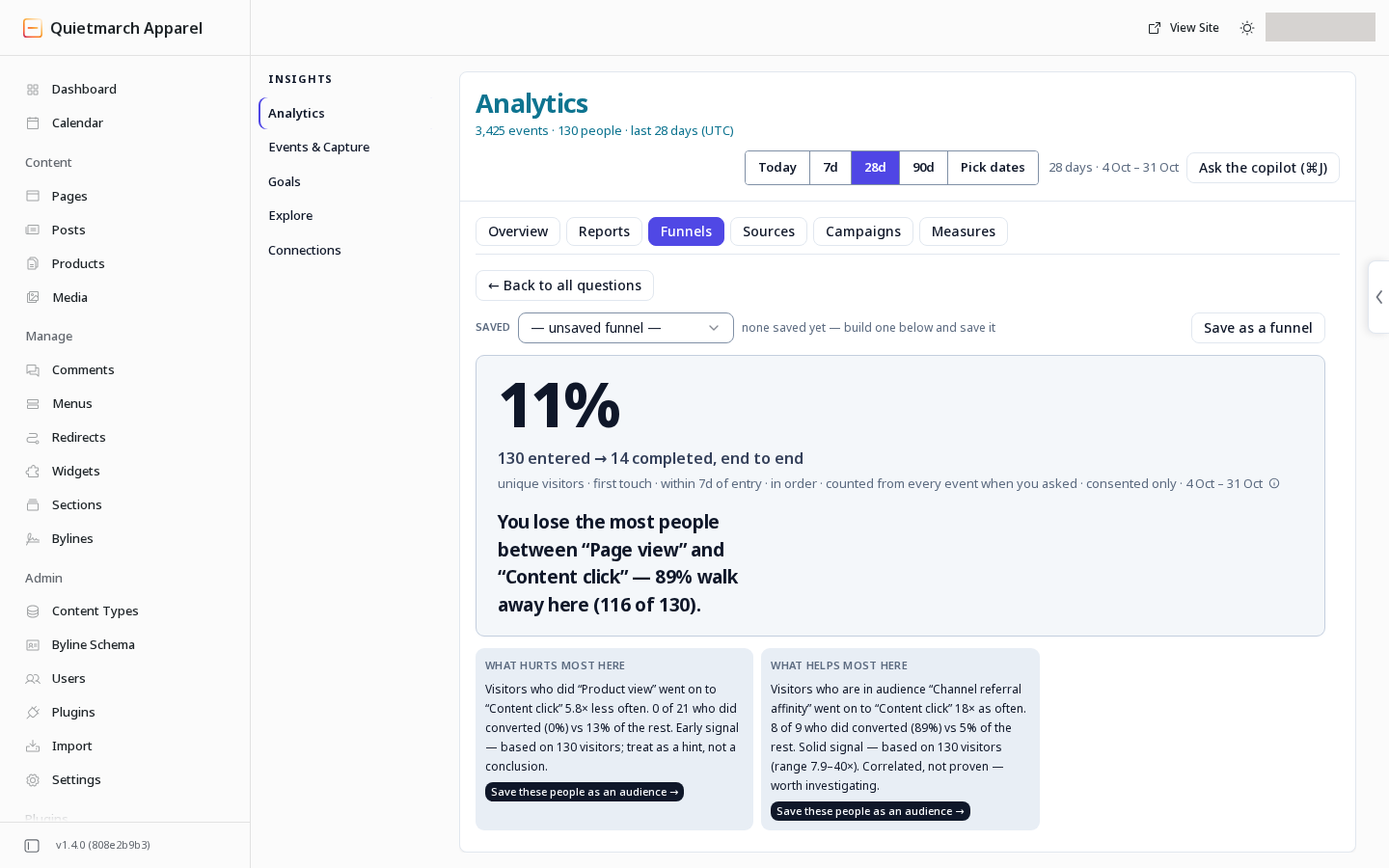
The answer states exactly how it was counted. The headline reports 130 entrants and 14 completions, but the example’s step table reported 130 at the final step.
Read the drop between steps and open the people behind it. The explanation of possible drivers describes correlation, not proof that one action caused the result.
To keep the definition:
- Choose Save as a funnel.
- Enter a descriptive name such as “Checkout journey”.
- Choose Save funnel.
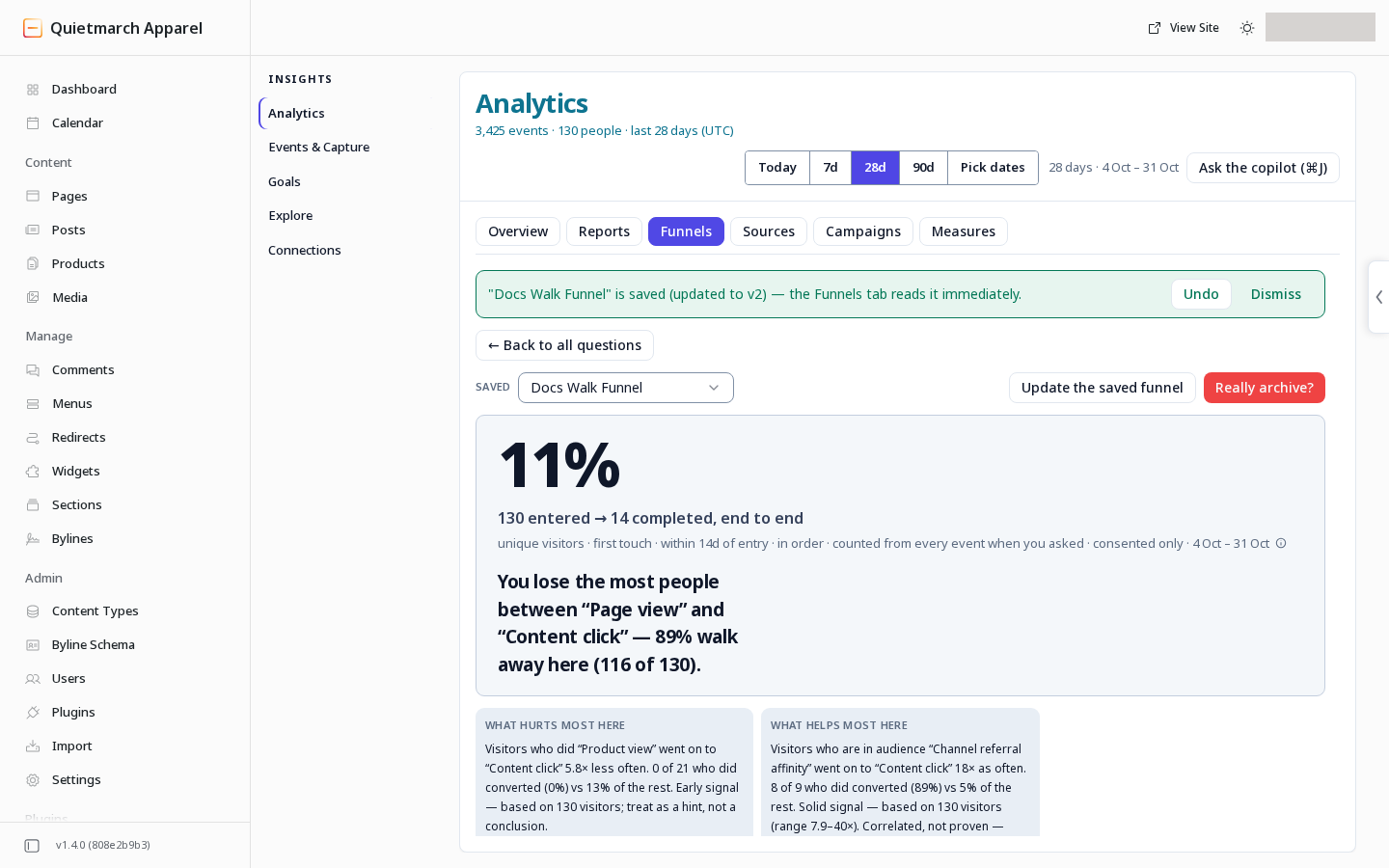
Changing a saved definition uses Update the saved funnel. Running a funnel or choosing a starting question does not save it.
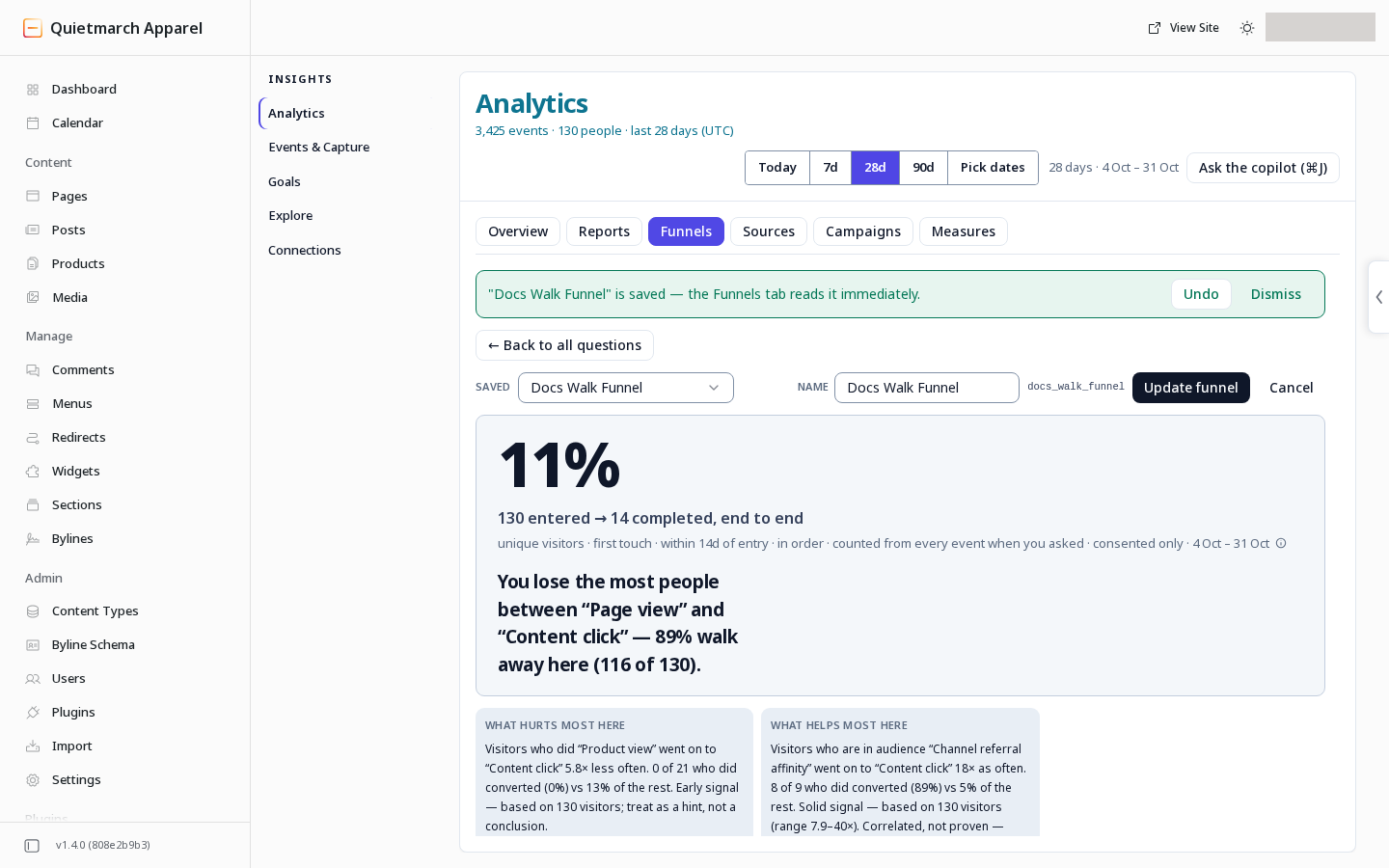
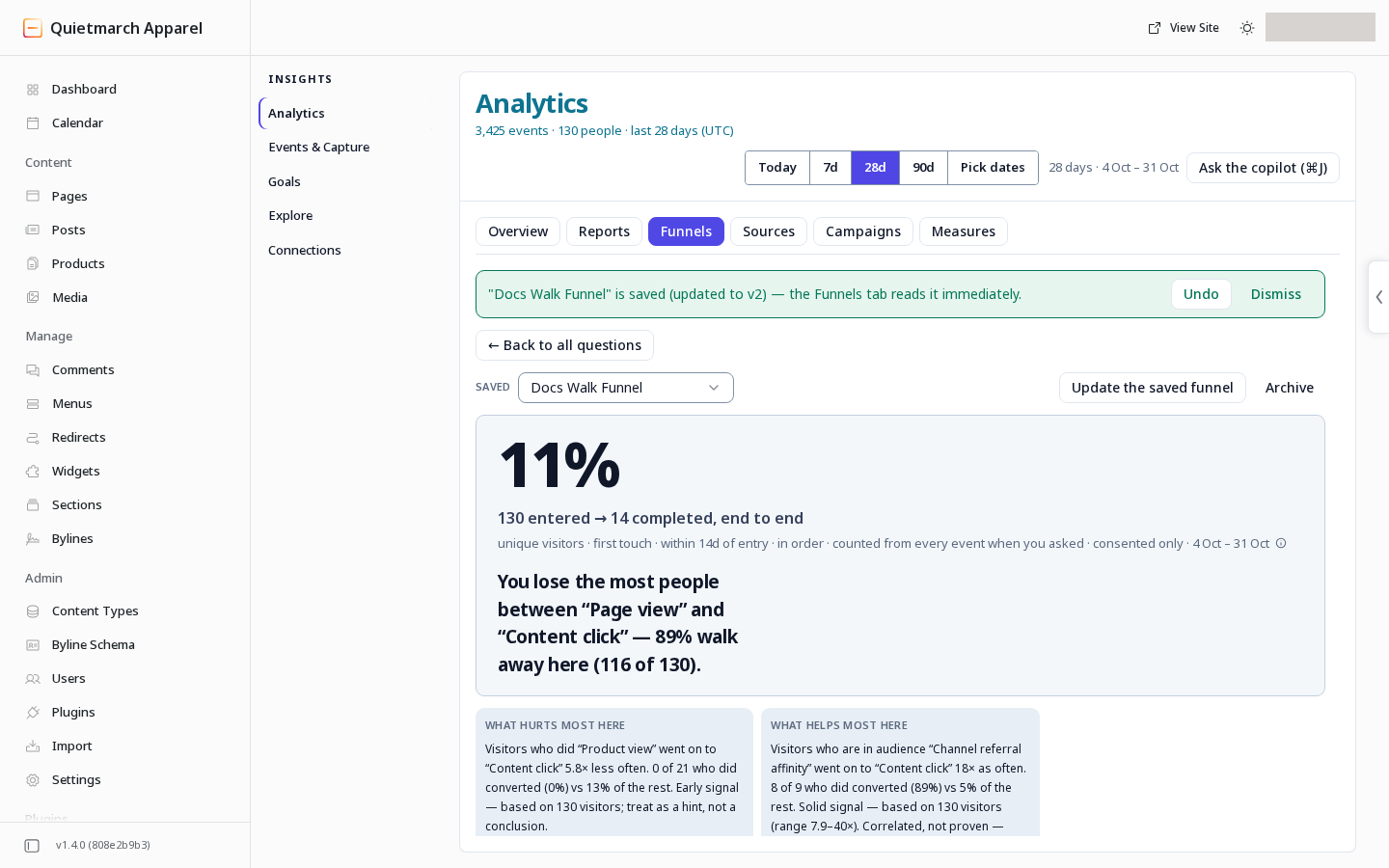
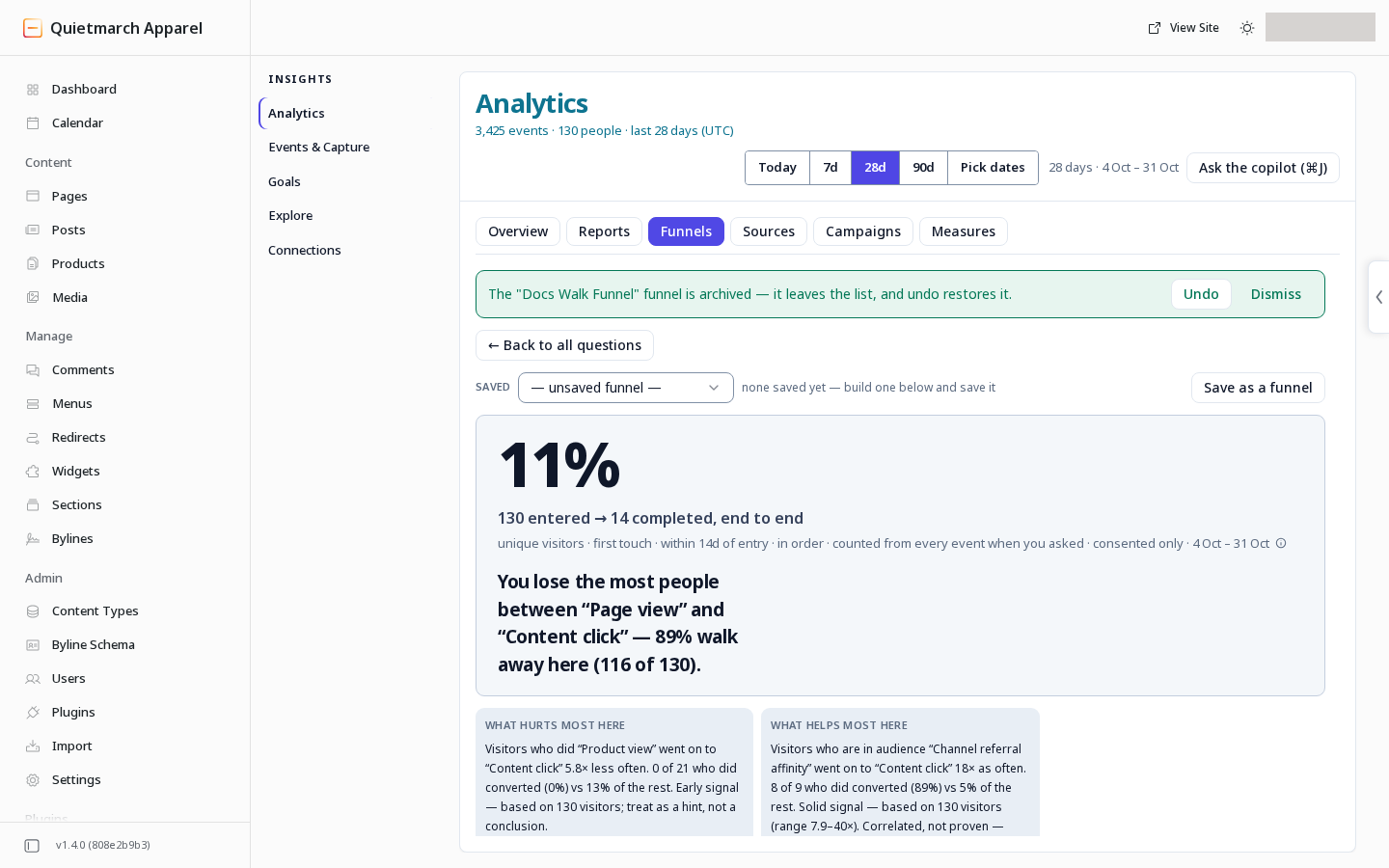
To archive a saved funnel:
- Choose Archive.
- Read Really archive?
- Confirm only if you want to archive it.
Its receipt’s Undo can restore it. If the restored funnel is not selected immediately, choose it again from the saved list and verify its steps and window.
Your next step
Section titled “Your next step”Choose the result you want to measure next. Use Goals to define it, then return to the report and check what it counts.