Make a draft page translation between English and Spanish with Copilot in the site admin. An Editor or Admin can follow the page and navigation workflow below. A page translation and a menu translation are separate changes.
Checked against the product’s code on 7 November 2026.
Create the page translation
Section titled “Create the page translation”- Open Copilot in the site admin. The conversation is ready for your request.
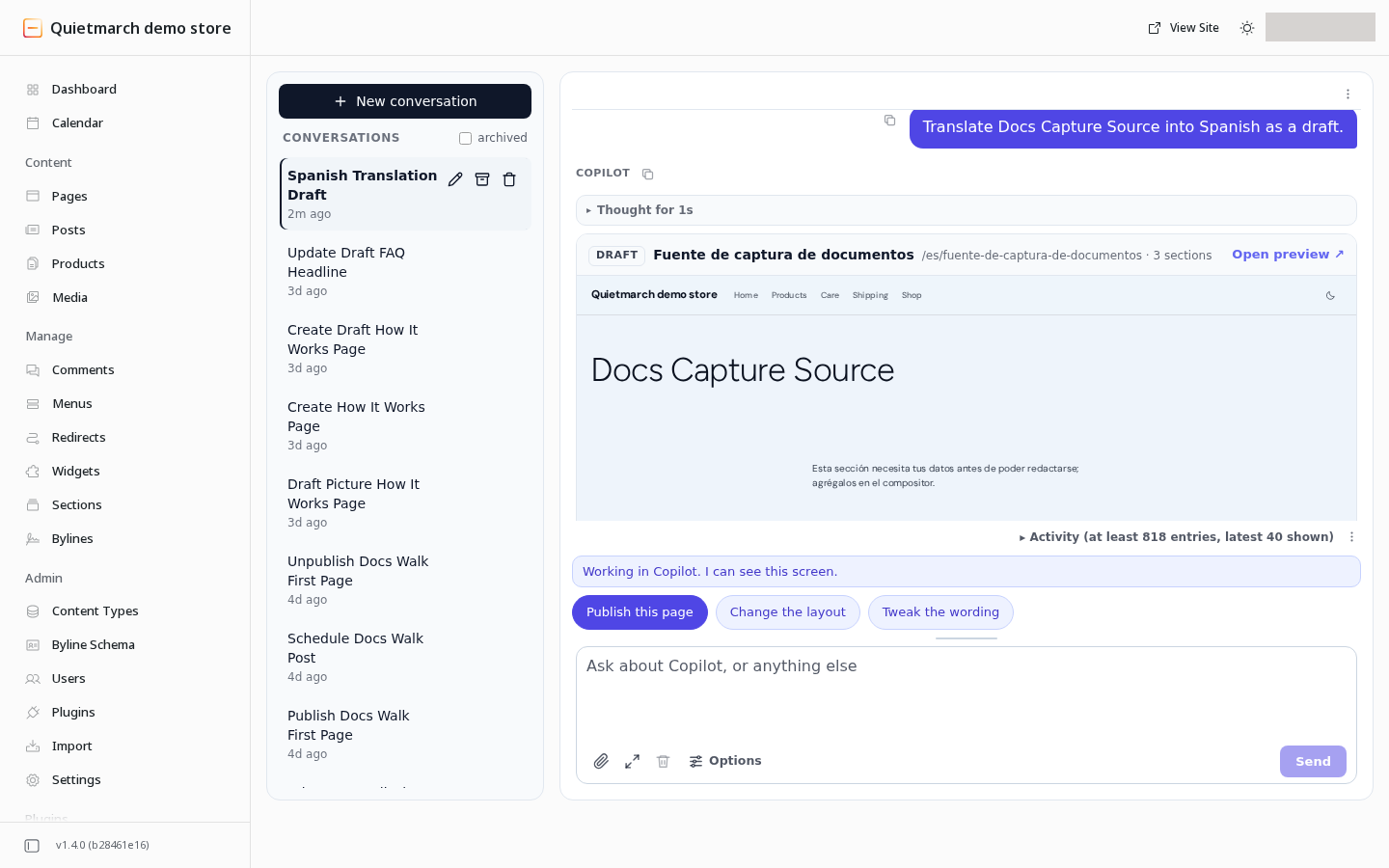
- Type “Translate [page title] into Spanish as a draft”, replacing the brackets with the real title. For a Spanish source, ask for English instead.
- Choose Send. The copilot creates a linked draft and returns its preview. No approval is needed to create that draft.
- Open the returned preview. Review the translated headings, paragraphs and picture descriptions.
- Check the links. Translation keeps their existing destinations, so a link can still lead to the source language.
- Check any preserved HTML. Those blocks are copied without translation and need your review.
- Follow Review and publish when the translated draft is ready. Publishing is a separate decision.
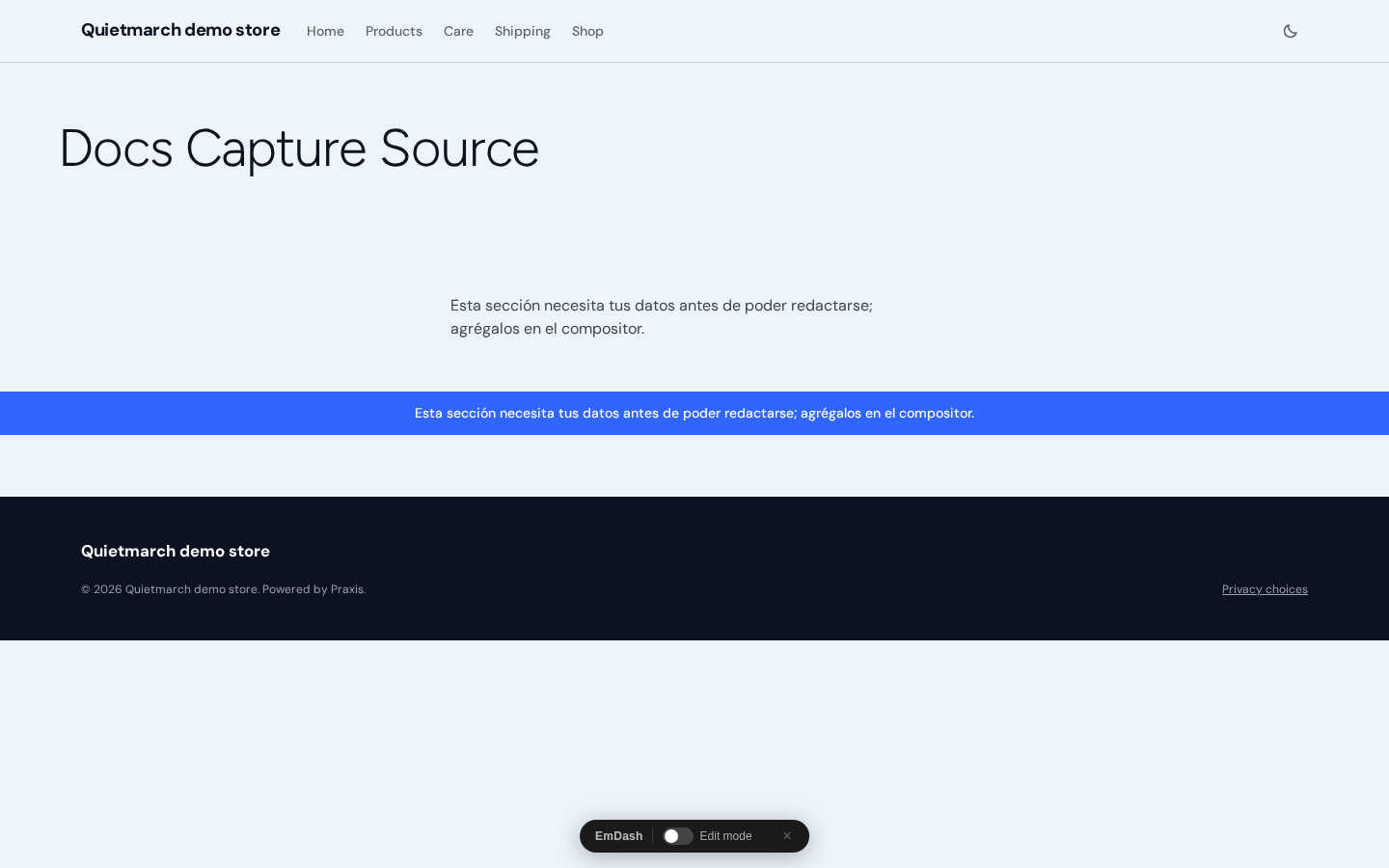
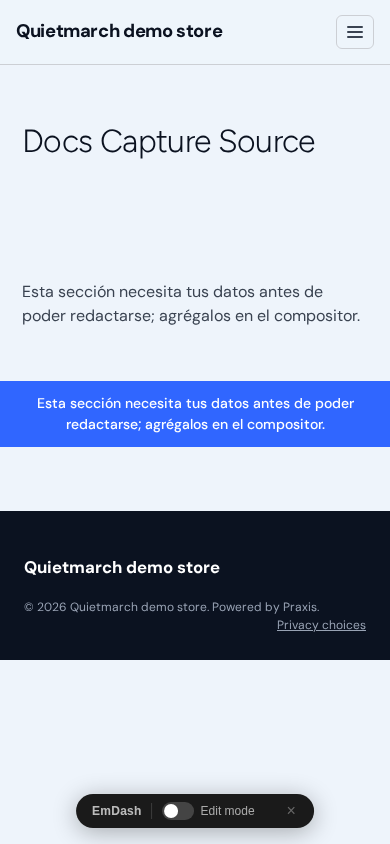
If a translation already exists, the request names it and refuses to overwrite it. Edit that entry instead. If translation is not configured on the site, the request is refused rather than creating a translated page.
If a translated picture description exceeds 500 characters, the draft keeps its original words and the result asks you to review it. It is not shortened silently.
Prepare its navigation
Section titled “Prepare its navigation”A menu translation clones the source menu’s current items. It does not translate every label or replace every destination for you. Creating it can affect navigation for that language immediately, so review the approval before continuing.
- Ask Copilot to show the menu you want to translate and its current items. You can check its name, language, labels and links.
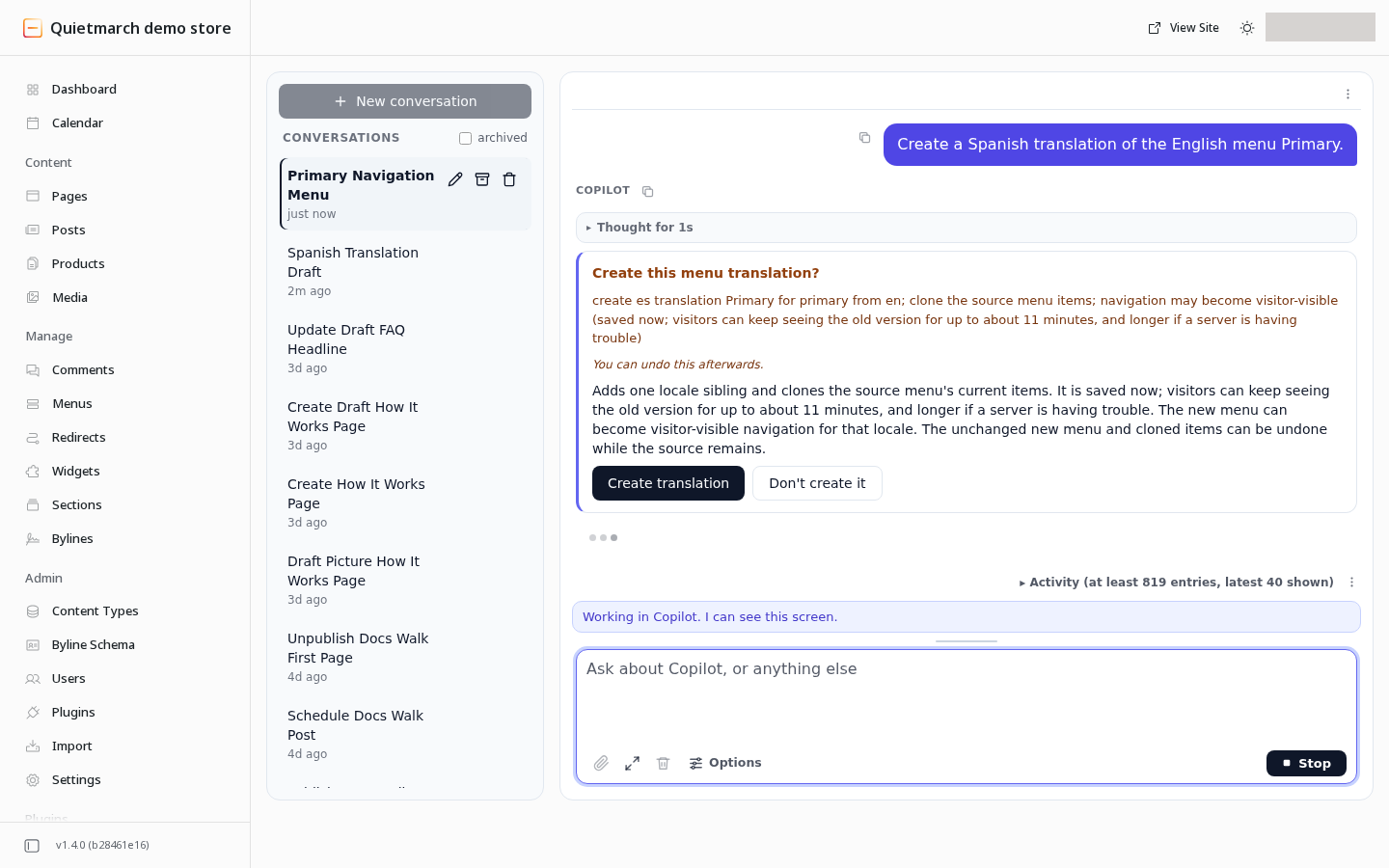
- Ask “Create a Spanish translation of the English menu [menu name]”, using the real menu name. Reverse the languages for a Spanish source.
- Choose Send. The card asks Create this menu translation?
- Review the source and target language. The card describes the cloned items and the possible immediate change to navigation.
- Choose Create translation only if that change is right. The receipt names the saved menu translation.
- Follow Change a menu to review its labels and destinations in the target language. Review each further public change before publishing it.
Other content and credited authors
Section titled “Other content and credited authors”For other content collections, asking for a translation starts a draft copy of the fields. It does not automatically translate all their words.
A translated byline is a separate approved change. Supply the translated biography if you need one; an omitted biography is blank, and the new byline is not linked to a user account. Translating a taxonomy value also needs approval. It does not assign that value to content or translate its prose automatically.
Reverse a translation
Section titled “Reverse a translation”Page translation has no automatic Undo. Move an unwanted translated draft to Trash rather than removing its source.
The menu, byline and taxonomy translation receipts can offer Undo while the new sibling and its covered state are unchanged. For a menu, Undo removes only the new language sibling while the source remains.
See Page translation, Site menus, Author bylines and Taxonomies for the matching requests.
Your next step
Section titled “Your next step”Review the translated draft and its links before following Review and publish for that page. Use Menus for further changes to navigation labels and destinations.