Checked against the product’s code on 7 November 2026.
A site Editor or Admin can read Manage > Redirects in the admin sidebar. Changing a redirect needs an Admin. Use it to send an old address to its replacement and review requests for missing pages.
Redirects is EmDash’s own screen for redirect rules and the site’s 404 log. A redirect sends a request for an old path to another destination. A 404 means the requested page was not found.
Send an old path to a new one
Section titled “Send an old path to a new one”-
Open Redirects in the admin sidebar.
-
Choose New Redirect.
-
Enter the old address in Source path, such as
/old-contact/. -
Enter the replacement in Destination path, such as
/contact/. -
Choose 301 Permanent for a permanent move, or 302 Temporary for a temporary one, in Status code.
-
Check Enabled. Leave it off if you want to save the rule without redirecting visitors yet.
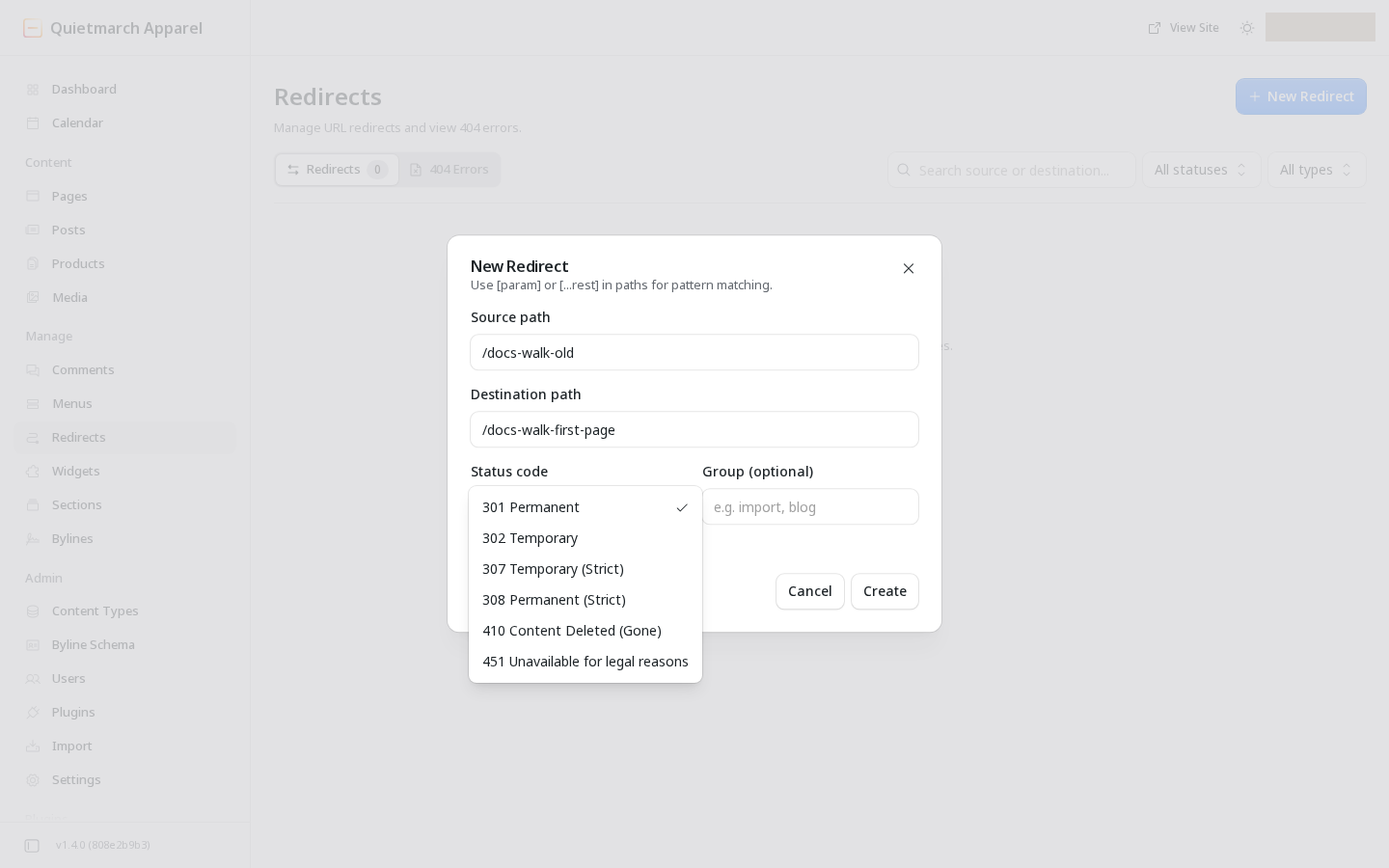
Choose the kind of redirect. 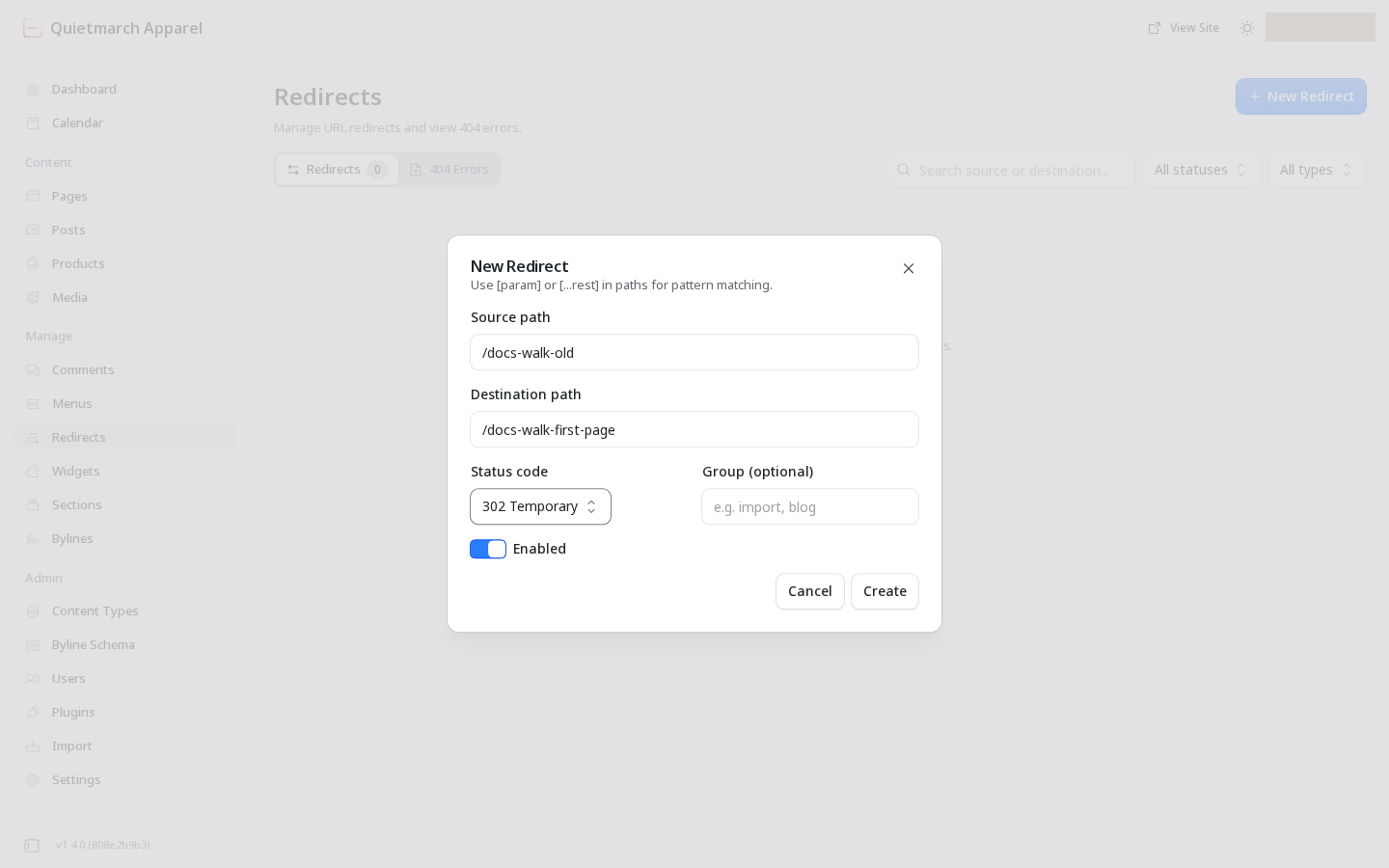
A temporary redirect, enabled. -
Choose Create.
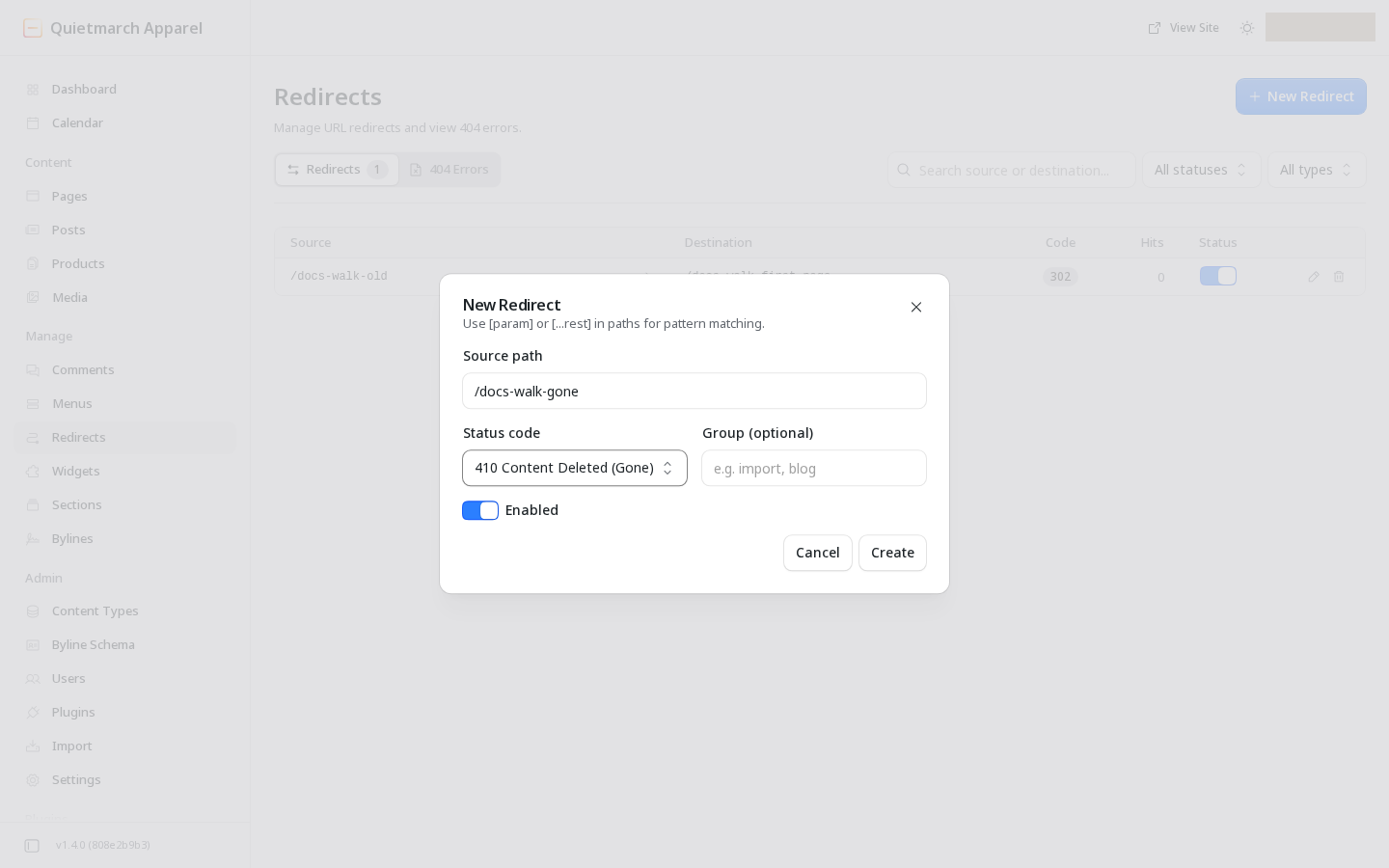
A Gone rule needs no destination.
An enabled rule is saved now. Visitors see the change within the hour, usually much sooner. While the site’s server is down, visitors may see the previous version of a page for up to a day. Check the old address and its final destination after the change. Redirect loops are reported on the screen; correct a loop before relying on the rule.
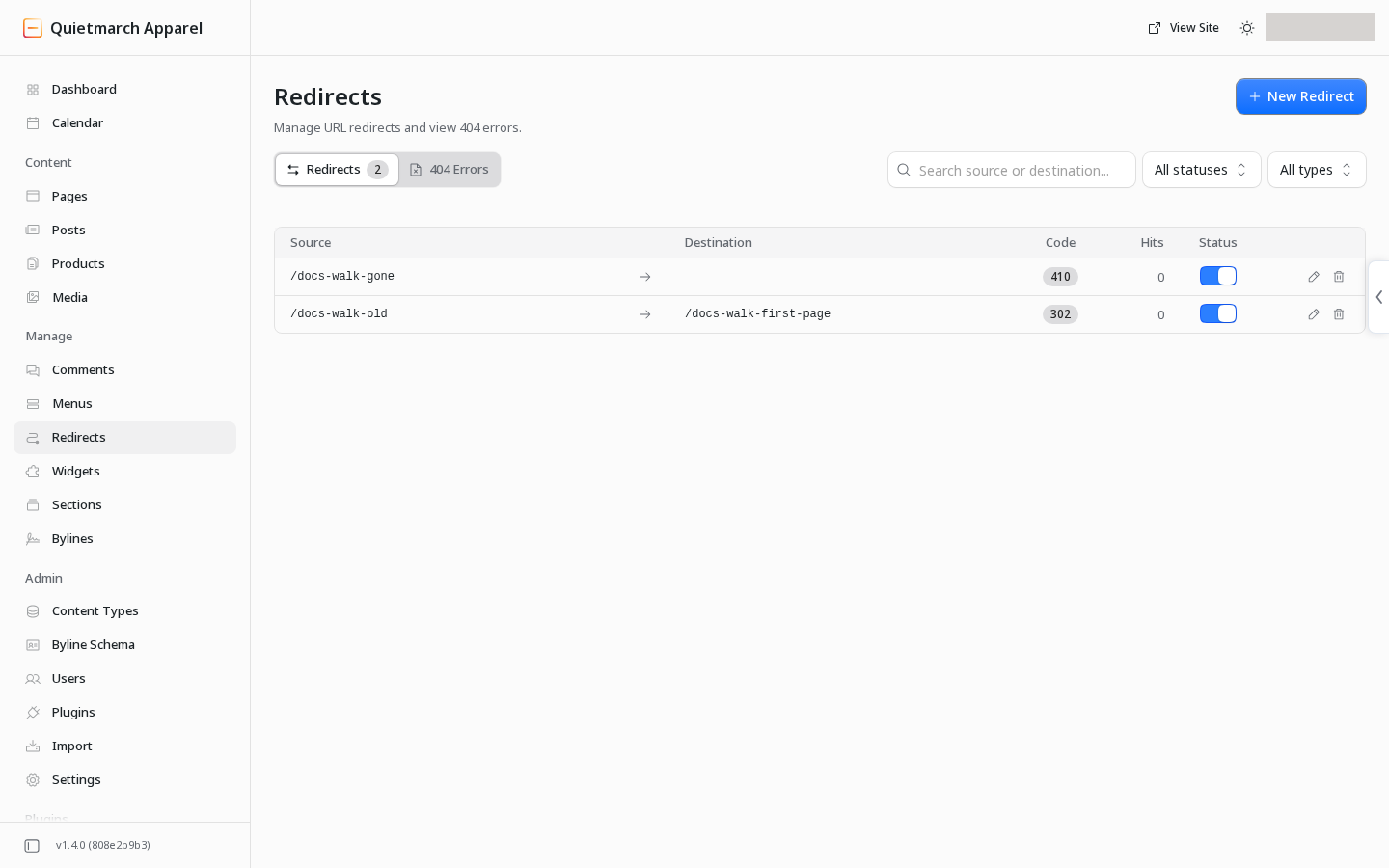
To change an existing rule:
- Open Manage > Redirects.
- Choose the pencil icon at the right of its row, labelled Edit redirect.
- Change the intended field.
- Choose Save.
- Check the old address and its final destination.
The enabled switch can turn a rule off. Deleting a rule asks Delete Redirect? and permanently removes that rule.
Use the 404 log
Section titled “Use the 404 log”- Open the 404 Errors tab.
- Read each missing Path, its Hits and Last seen date.
- If a replacement page exists, choose the paired arrows icon at the right of that row, labelled Create redirect for this path. It opens the new rule form with the missing path filled in.
- Fill in Destination path.
- Choose the intended Status code.
- Choose Create.
A missing path is evidence of a request, not proof that a page should exist. Check the address before choosing its replacement.
The row’s 410 control is different: it creates an enabled rule immediately, without a confirmation card. It says the content is deliberately gone and sends no destination. Use it only when that is the intended result. You can later disable or remove the rule from Redirects.
Ask the copilot
Section titled “Ask the copilot”You can ask the copilot to create, change or delete a redirect. That route shows an approval card before changing where visitors are sent. Its cards are Create this redirect?, Change this redirect? and Delete this redirect? Review the old path, destination and effect before approving. When the destination can be read, the card also says whether it is published, still a draft, redirected again or empty. If that cannot be settled, it makes no claim about the destination.
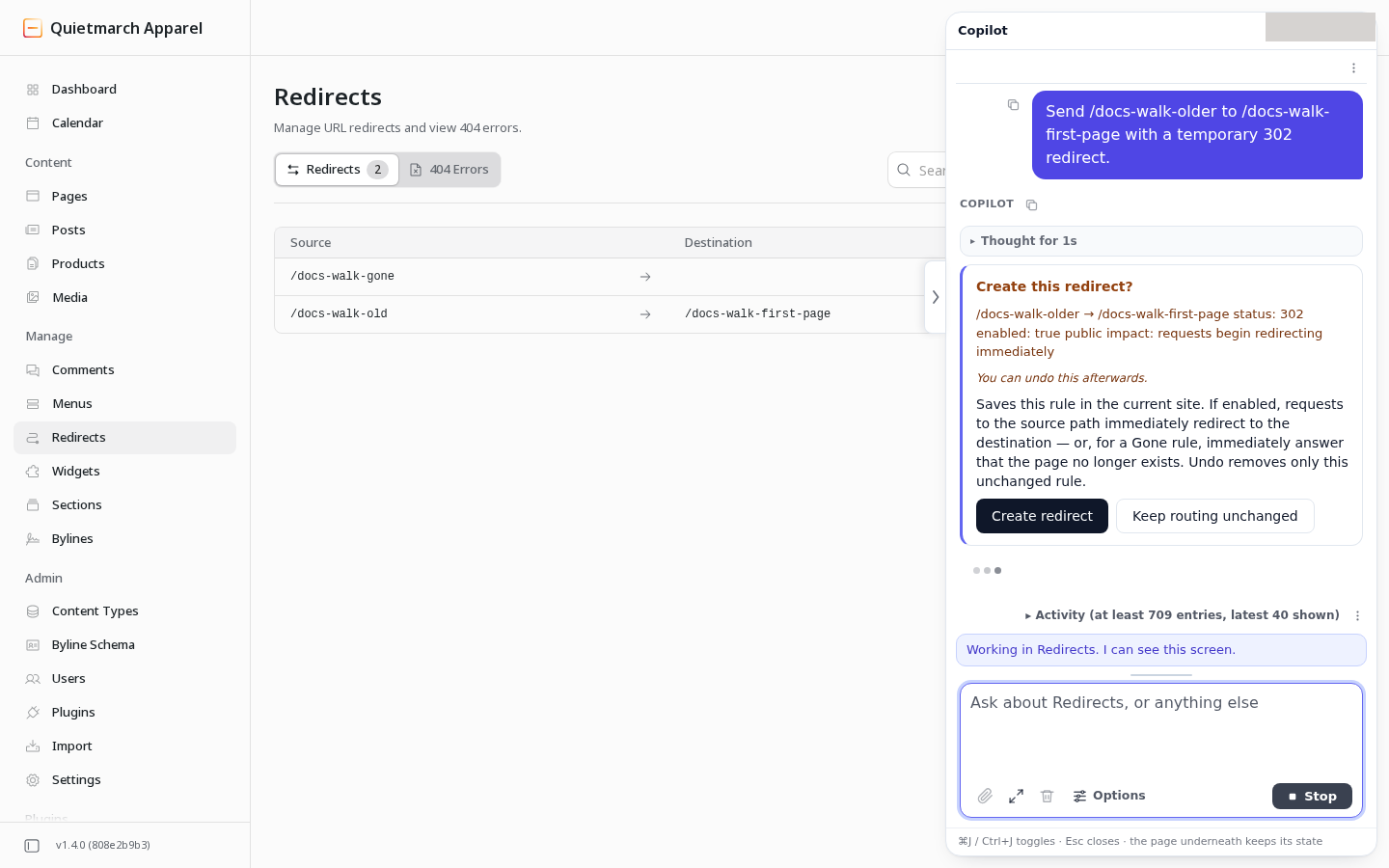
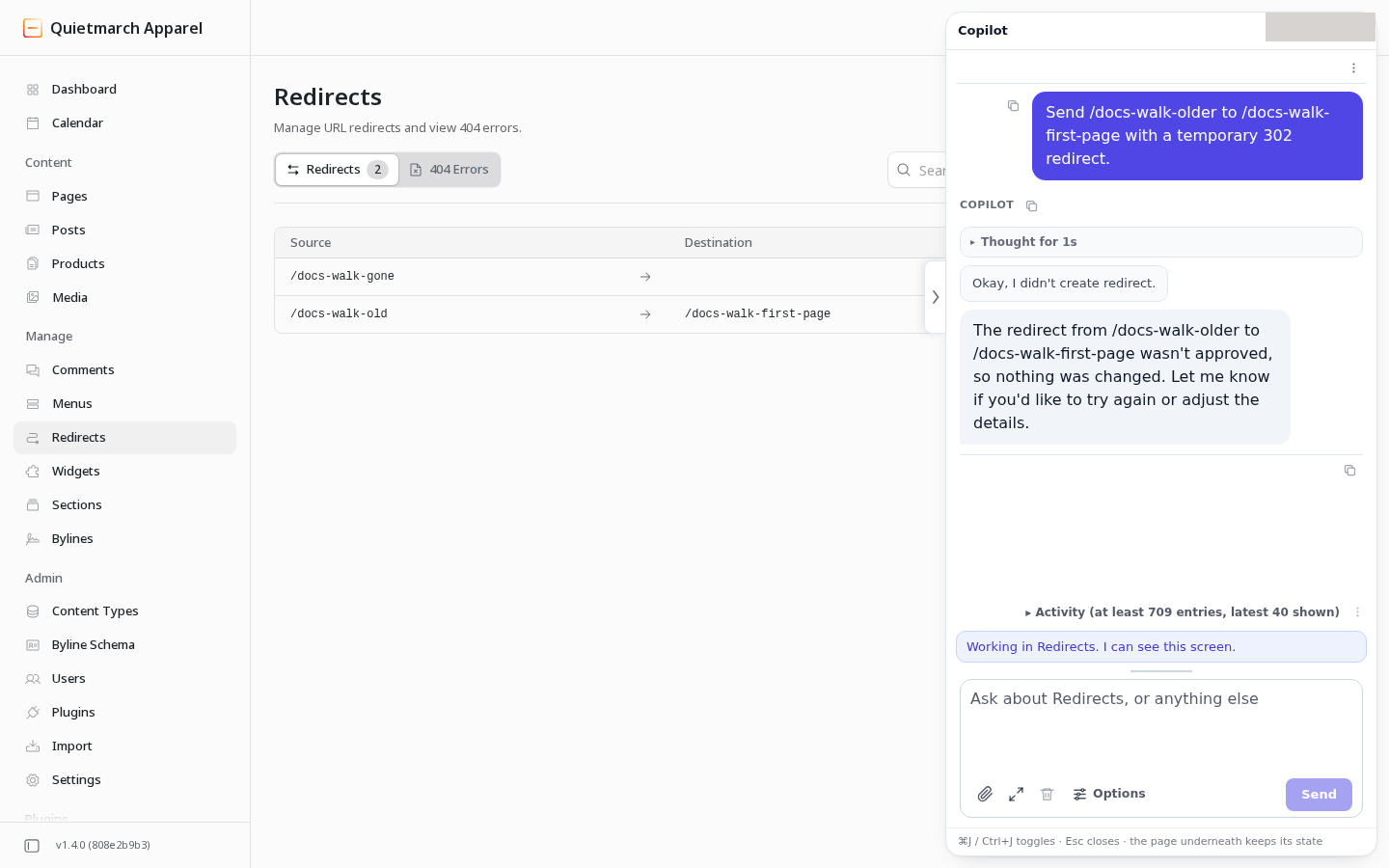
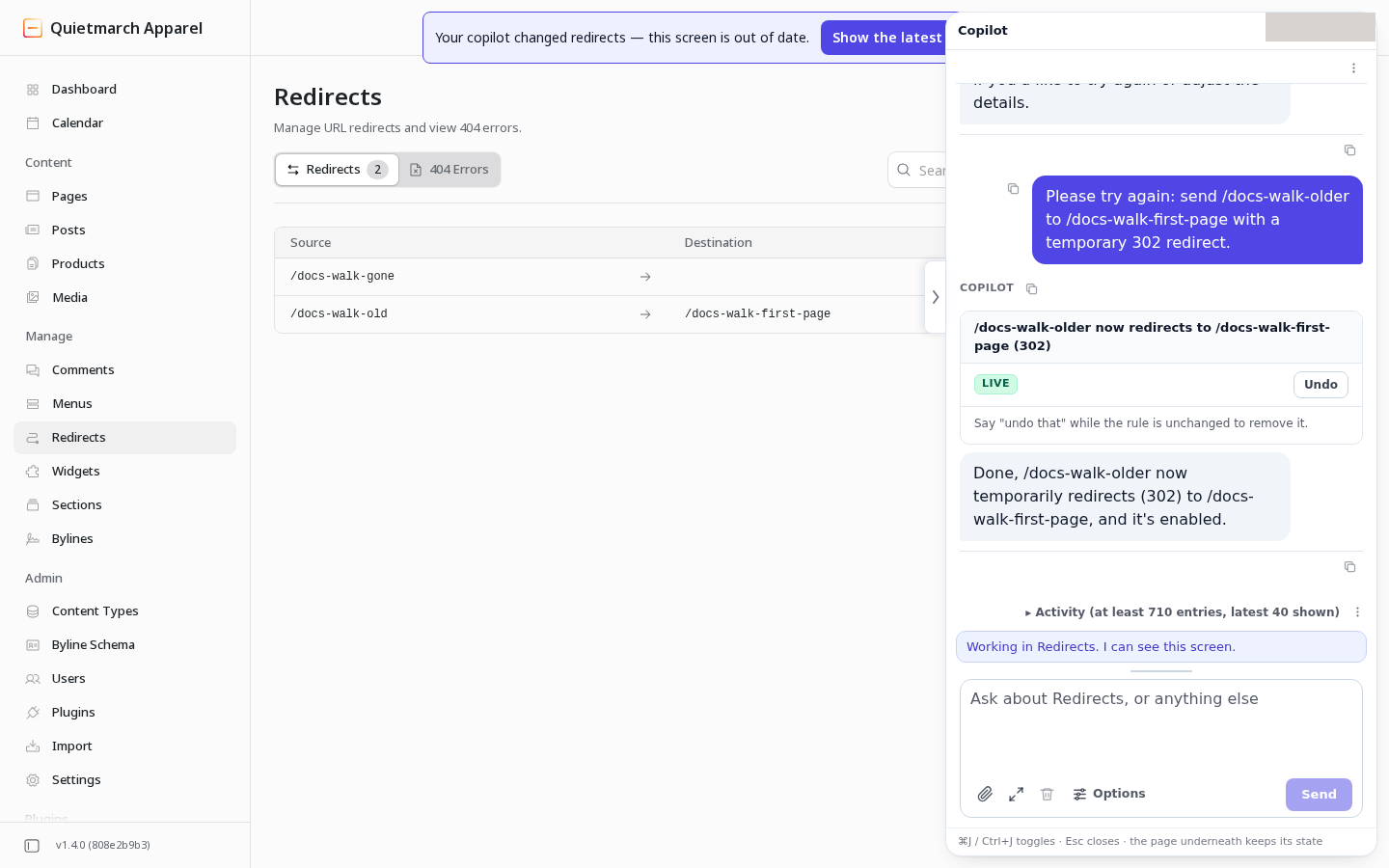
The direct EmDash screen follows its own save and delete controls. Do not expect the copilot’s approval card to appear after Create on that screen.
Your next step
Section titled “Your next step”Open the old address and check that it reaches the intended page. Review Menus so the site’s own links use the current address.