Use Copilot in the site admin when a native page belongs below another page or needs a different address (URL). An Editor or Admin can prepare the change. The parent page is the page it sits below. That parent and the page’s own address segment determine its place in the hierarchy.
Checked against the product’s code on 7 November 2026.
Prepare the move
Section titled “Prepare the move”- Open Copilot in the site admin. The conversation is ready for your request.
- Ask “Show [page title] and its current parent and address”. The copilot reads the saved page before preparing a change.
- Check that it found the right page. Use the returned page rather than another entry with a similar title.
- Ask “Move that page below [parent page title], using [address segment] for its own part of the address. Change nothing else.” To make it a top level page, ask for no parent instead.
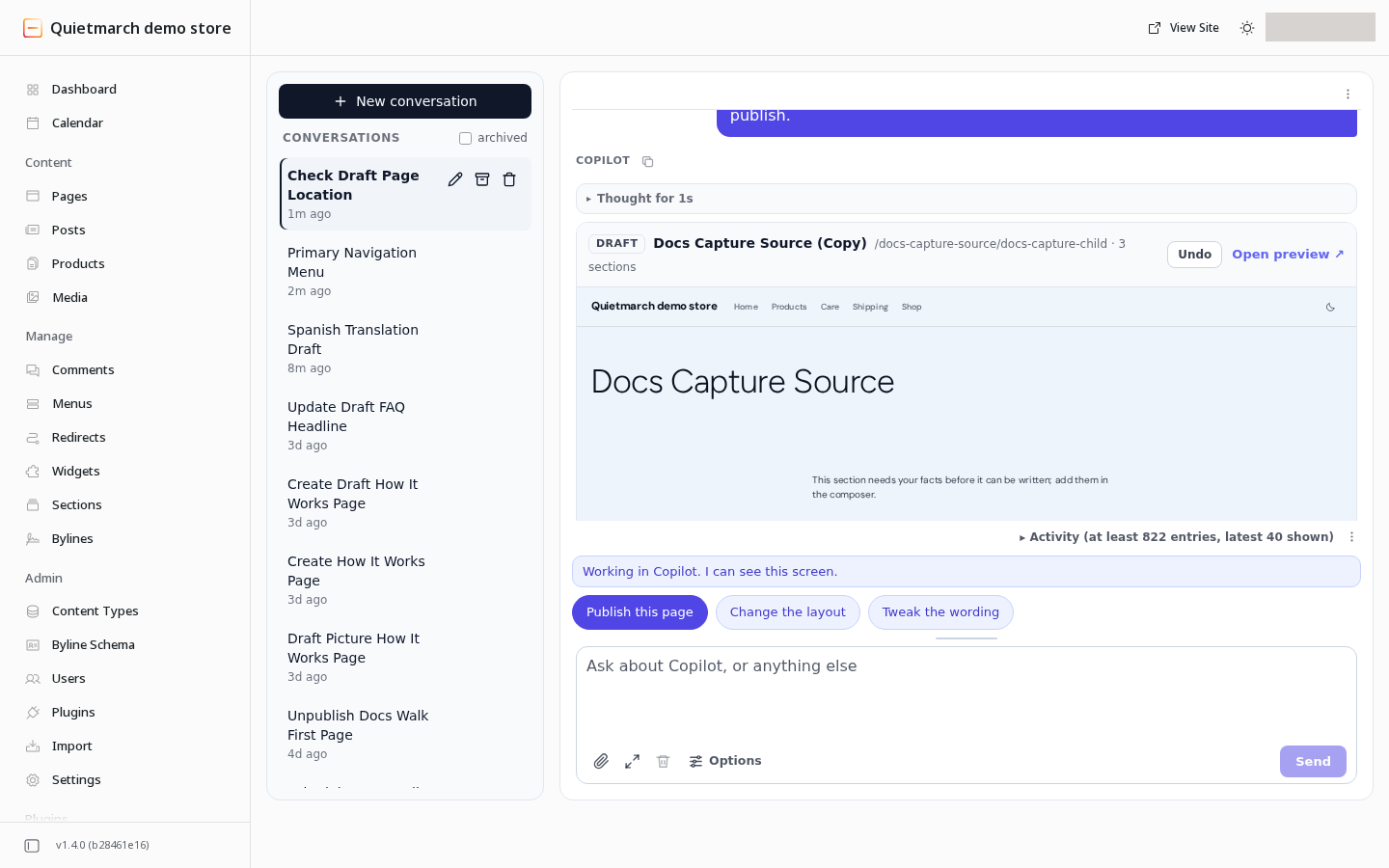
- Choose Send. The result names the prepared path and saves the move in the draft.
- Open the returned draft preview. Check the proposed path and the unchanged content.
Use the real page names and one nonempty address segment in place of the brackets. The parent must be a real native page. A hierarchy move is one separate edit; ask for text or section changes afterwards.
Review and publish
Section titled “Review and publish”Saving this change does not change the published page’s address. The hierarchy edit also leaves the stored content slug and the page’s content alone.
- Follow Review and publish. Review the destination before putting the change on the public site.
- Check links to the page. Use Redirects and 404s when an old address needs to lead visitors to its replacement.
Publication is refused if the native public route cannot be resolved. If the page changed after the copilot read it, read it again before retrying the move.
Undo the draft move
Section titled “Undo the draft move”Use the edit receipt’s Undo while it remains eligible to restore the covered draft state. Later changes can prevent that reversal. Do not treat draft Undo as a promise to reverse a later publish.
The workflow above uses the page edit request. See Pages for its approval and Undo boundaries.
Your next step
Section titled “Your next step”After publication, review Menus so your navigation uses the intended address. Use Redirects and 404s when an old address needs to lead to its replacement.