As an Editor or Admin, open Insights > Analytics > Sources in the site admin when your Sources report needs your own traffic labels. A channel group groups recorded arrivals without changing the recorded events or their original channels.
Checked against the product’s code on 7 November 2026.
Build the grouping
Section titled “Build the grouping”- Open Insights in the site admin. Its reporting tools are available.
- Open Analytics. The reporting tabs appear.
- Open Sources. You see the traffic sources report.
- Choose Channel groups. The grouping form opens.
- Fill in Name this grouping. This is the name readers will choose in the report.
- Fill in Rule 1 files them under. This names the group for arrivals that match the first rule.
- Choose the channels under when the channel is any of. They appear as selected values.
- If needed, choose a comparison under and the source. The comparison controls how recorded source values will match.
- Supply the matching values under any of these source values. The selected values become part of this rule.
- If needed, set and the medium in the same way. Its chosen values further narrow the rule.
- Choose Add another rule if you need another group. Fill in that rule before continuing.
- Fill in Everything no rule matched is called. Arrivals that match no rule use this fallback group.
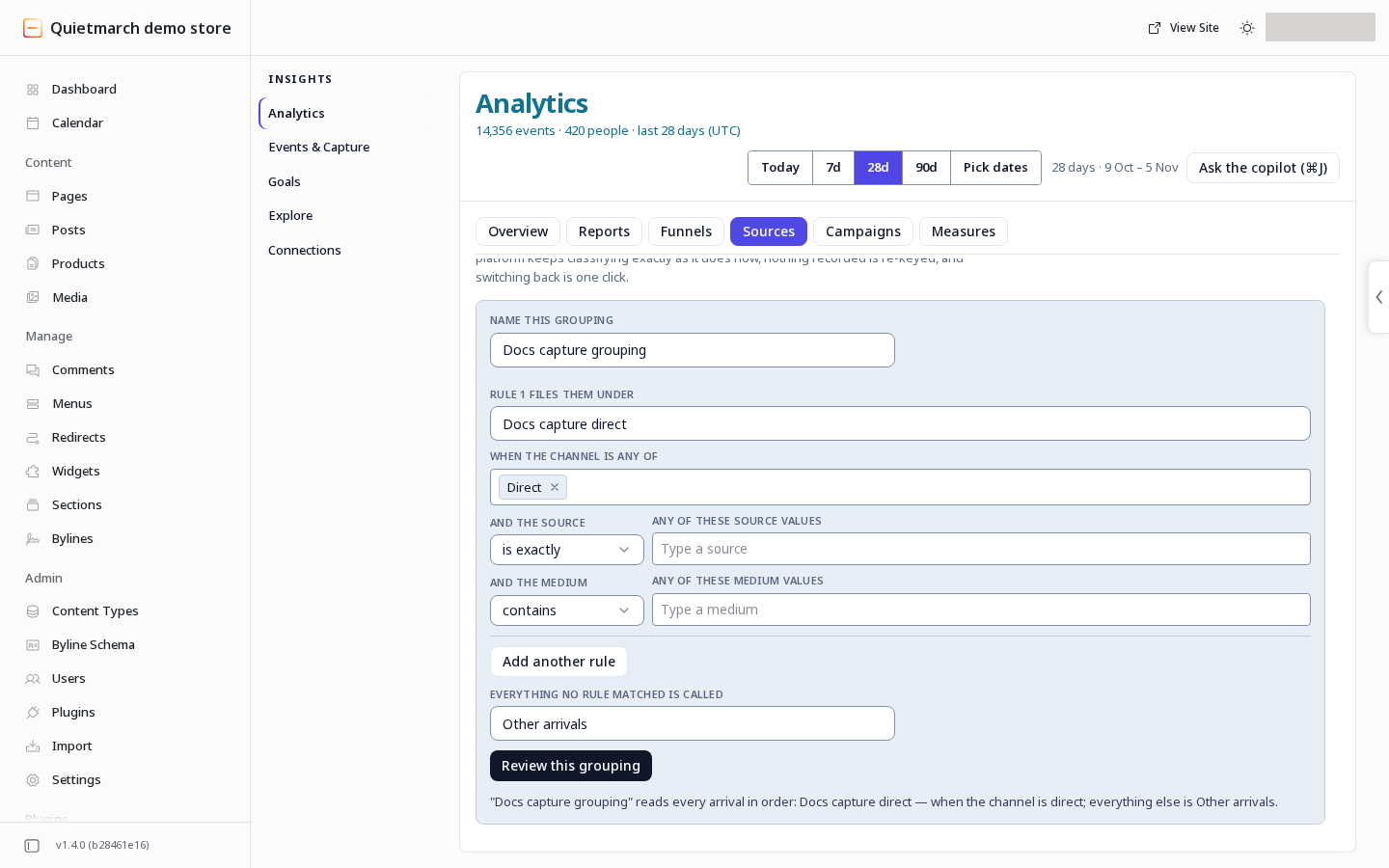
The first matching rule wins. Conditions within a rule work together, while any of the listed values for one condition can match. Add the rules in the order you want them tested. Unmatched arrivals go into the fallback, so the grouping accounts for the same arrivals as the default report.
Review and use it
Section titled “Review and use it”- Choose Review this grouping. The approval shows the grouping and its effect on Sources. If the button is unavailable, read its reason beside it.
- Review the rules and their order. The new labels will be available to other readers of this site’s Sources report.
- Choose Approve & add the grouping if it is right. The receipt confirms the saved grouping.
- Choose Back to the report. Sources opens again.
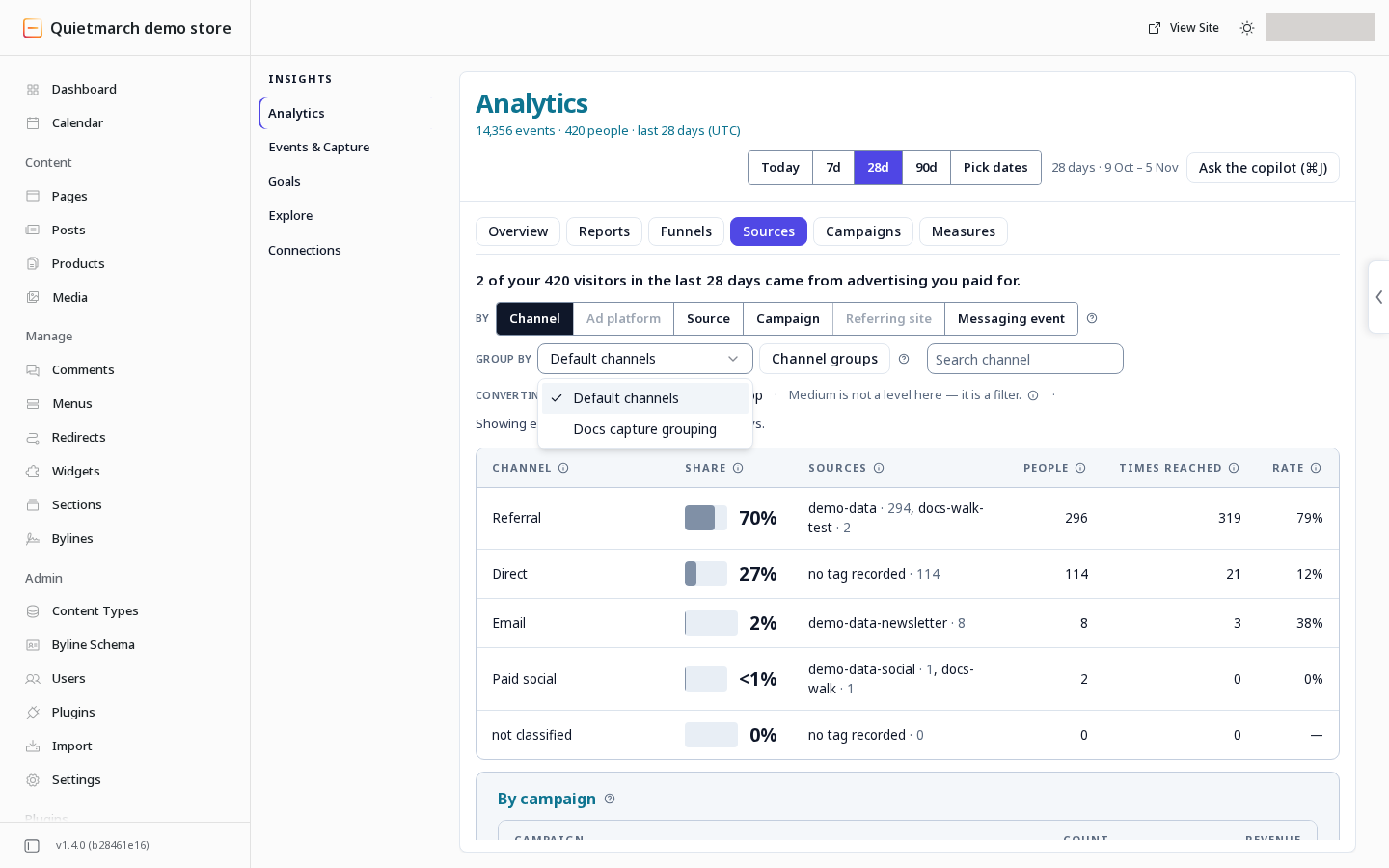
- At the channel level, choose your saved grouping under Group by. The report now uses your group labels.
Ask the copilot
Section titled “Ask the copilot”Ask Copilot to create a channel grouping, giving its name, each rule in order, and the fallback name. Choose Send, then review the same Add this way of grouping your traffic? approval before choosing Approve & add the grouping. Its receipt can offer Undo to remove the newly created grouping.
See Analytics reports and configuration.
Return to the default
Section titled “Return to the default”Choose Default channels under Group by to change the report view back. This does not delete your saved grouping.
To remove the grouping, open Channel groups, choose its Remove action and review the removal approval. Removing it returns reports using it to the default channels. Nothing recorded is rewritten.
Your next step
Section titled “Your next step”In Insights > Analytics > Sources, choose your saved grouping under Group by and read its results. Use Reports, sources and funnels to review the period and reporting population.