Checked against the product’s code on 7 November 2026.
SEO means search engine optimization. This guide shows how to change a page’s title and description supplied to search services such as Google. Open Site, then SEO. Use Issues & content to work on individual pages and Site defaults & robots for shared settings and crawler files.
Start with an issue
Section titled “Start with an issue”What needs attention groups findings such as missing descriptions, hidden pages and canonical addresses pointing to another host. Select a finding to inspect the affected pages, or use All pages to find a page directly.
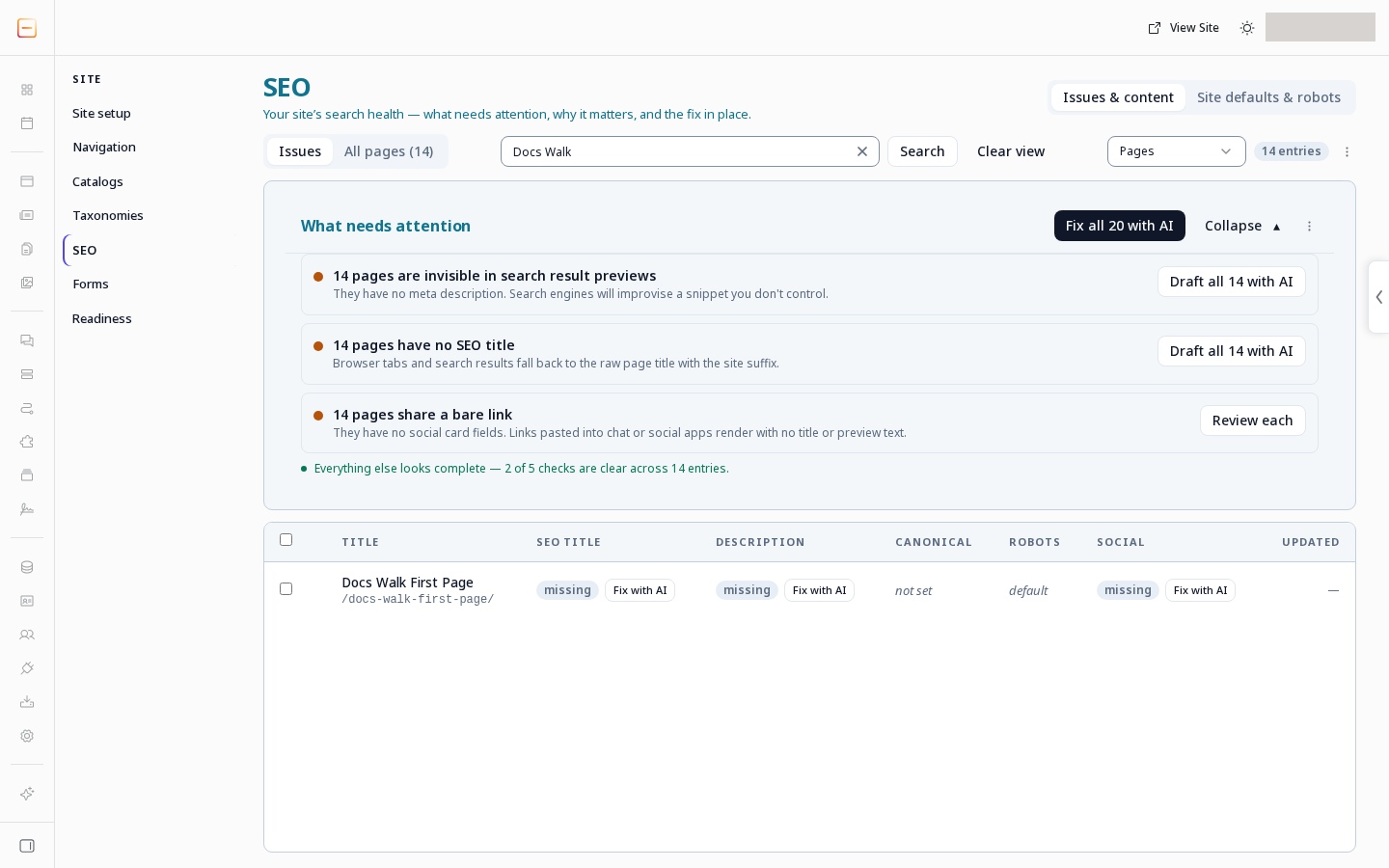
Open a page’s SEO panel. It shows a search result preview and these fields:
| Field | What to review |
|---|---|
| SEO title | The title supplied for search metadata. An empty value uses the site’s title fallback. |
| Meta description | The page description. An empty value can use the site default. |
| Canonical URL | The preferred address for the content. An empty value uses the page’s own address. |
| SEO image URL | The image used by the page’s SEO metadata. An empty value uses the site’s default social image, if one is set. |
| Robots meta (this page) | Page level crawler directives. |
| Social sharing fields (og / twitter) | The titles, descriptions and images supplied for sharing. |
A canonical address on another host is highlighted. Keep it only if that destination is intentional.
Preview and apply a change
Section titled “Preview and apply a change”An applied SEO change is saved now. Visitors see the change within the hour, usually much sooner. While the site’s server is down, visitors may see the previous version of a page for up to a day. It does not wait for the page’s next publish, even when the page body has unpublished changes. Undo restores the previous values.
-
Edit the fields.
-
Choose Preview & save changes.
-
Review the comparison.
-
Read the approval card’s consequence in Apply this SEO change?.
-
Choose Apply SEO change to confirm or Keep current metadata to leave the page as it is.
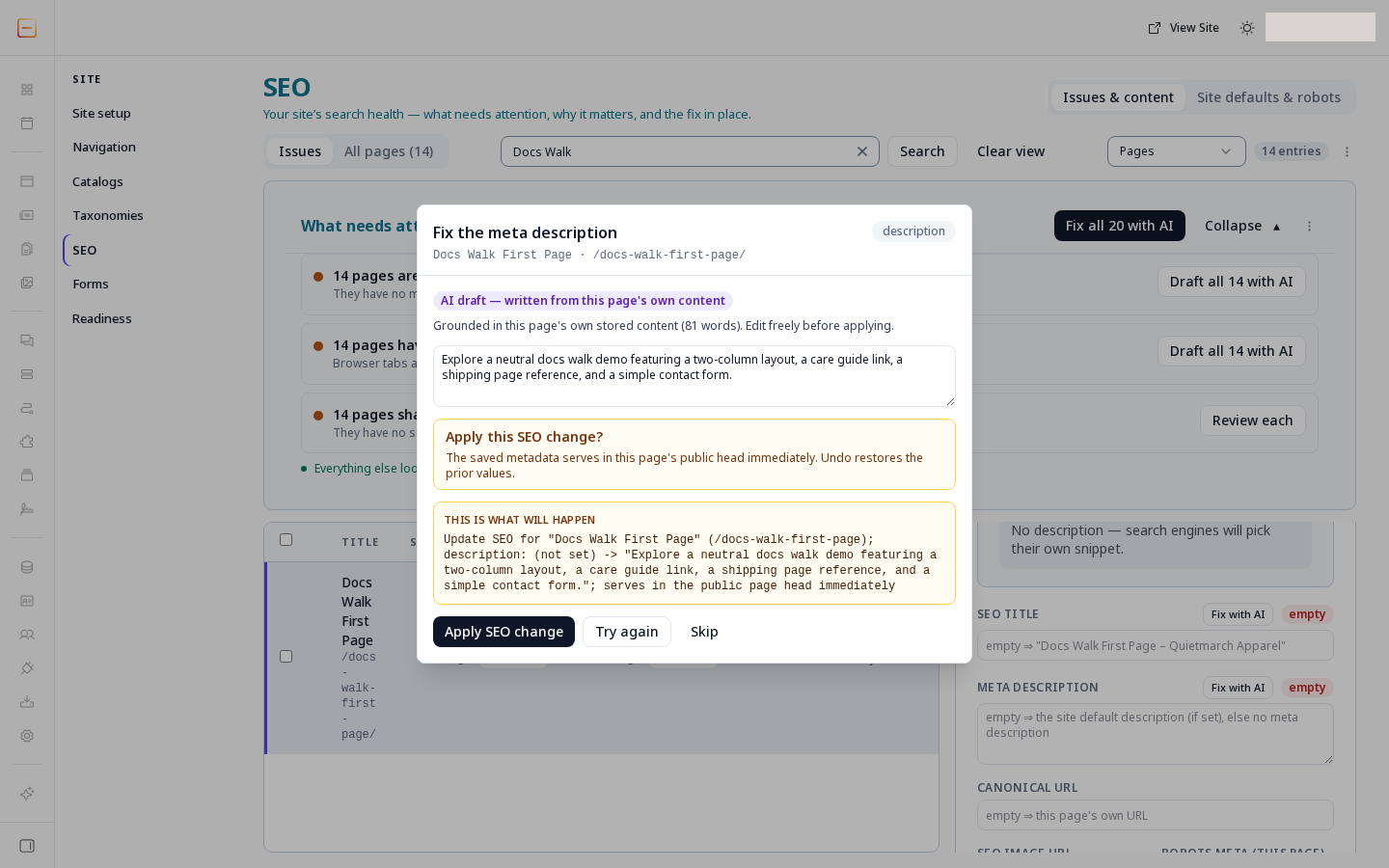
The AI draft is grounded in the page's own content and shown before it is applied. -
Read the receipt.
-
Use Undo if you need to reverse the applied change and it is still available.
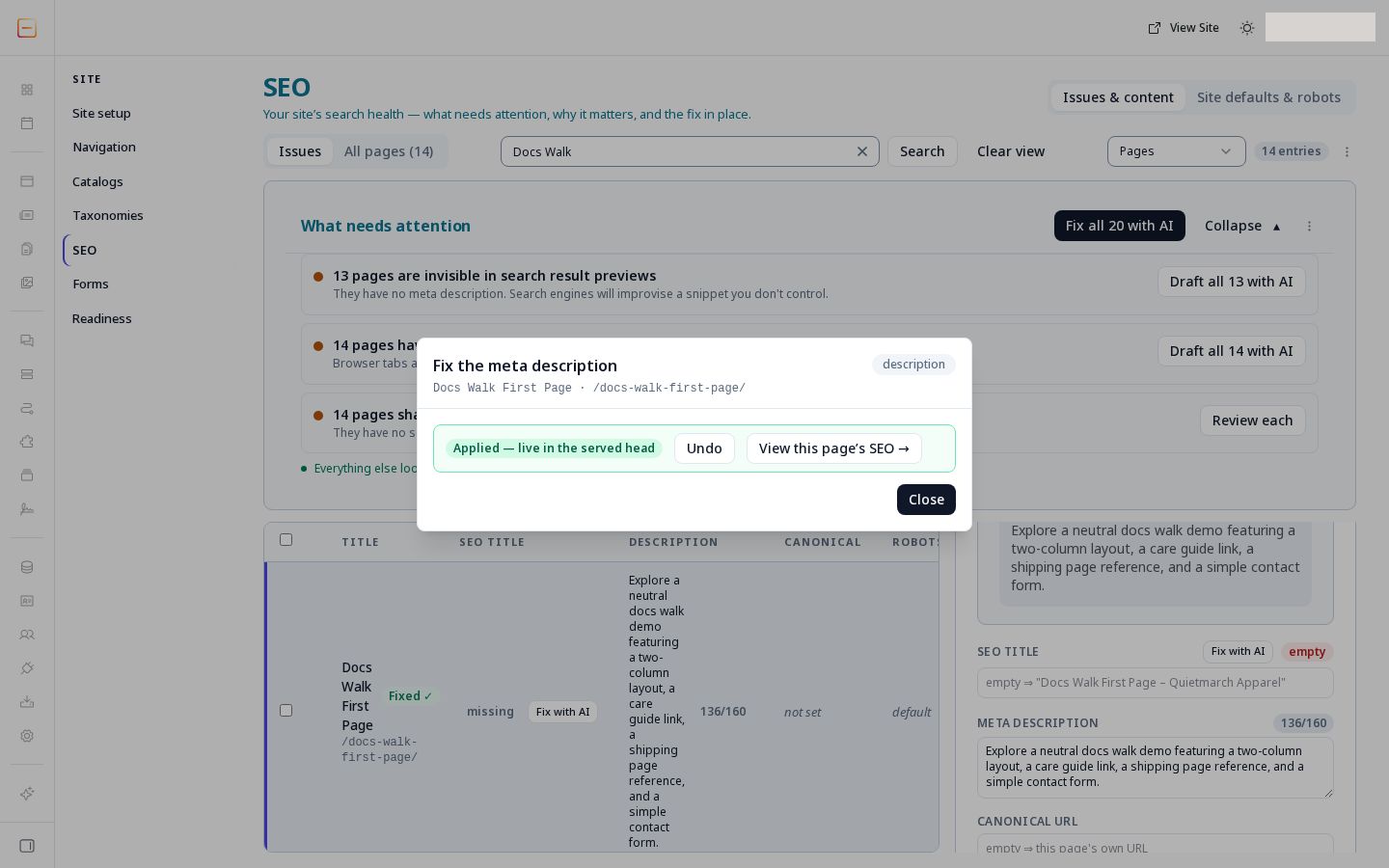
After applying, the description is in the page's head; Undo is offered.
Use an AI draft
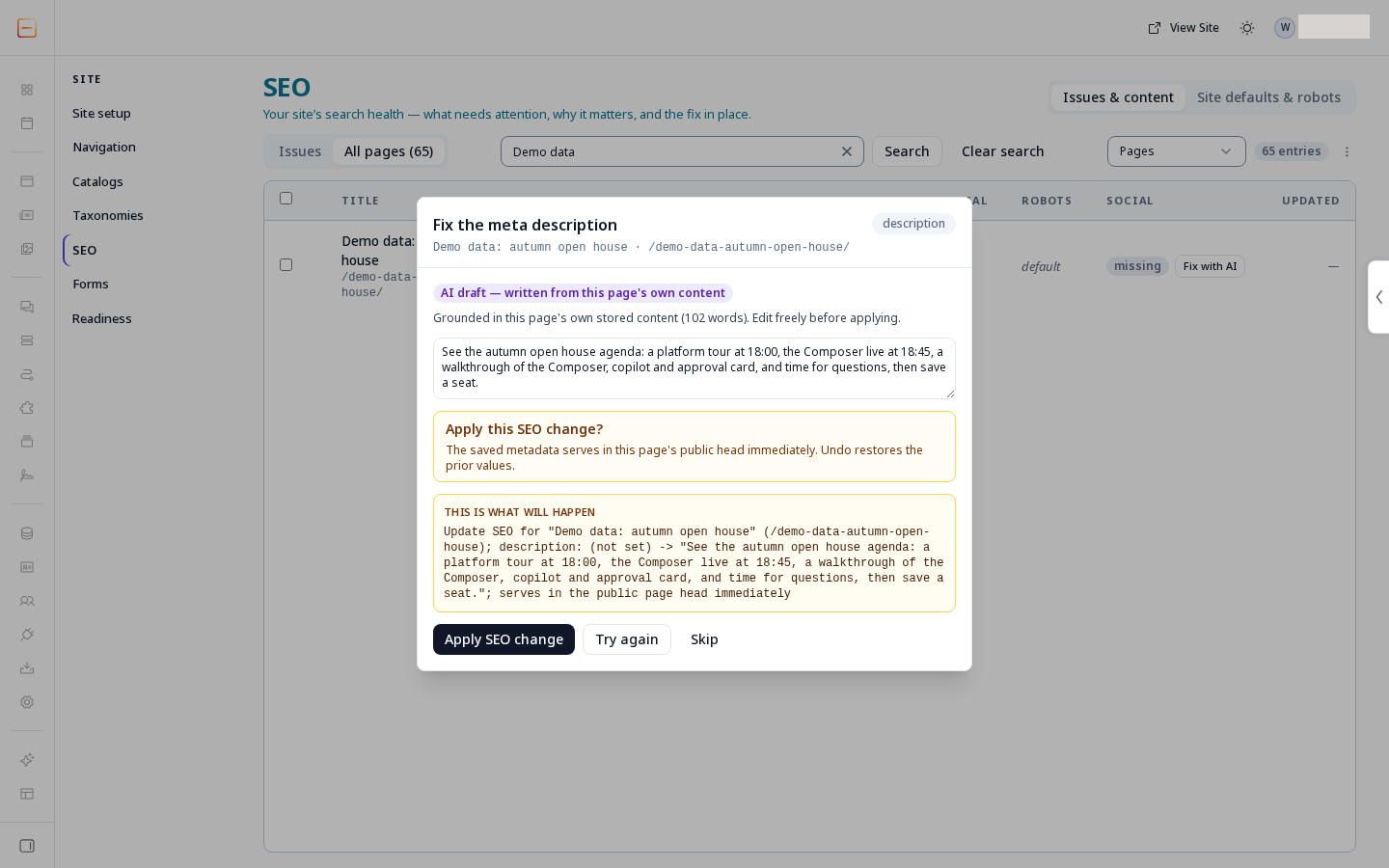
Section titled “Use an AI draft”- Choose Fix with AI on a supported finding.
- Review the proposed words.
- Review the content they were based on.
- Edit the draft if needed.
- Review its comparison before applying it through the steps above.
Skip leaves that draft unapplied.
Some findings offer a button such as Draft all 12 with AI. It drafts up to 20 pages at a time. Review each proposal, then apply only the ones you select.
A page with little usable content can produce a draft labelled as based on limited content, or a refusal asking for better source content. Add the missing facts to the page before asking for richer metadata.
Hide a page from search
Section titled “Hide a page from search”Hide from search asks search engines to drop the page from their results. This is an instruction to search engines; it does not restrict who can open the page or guarantee what every crawler does.
- Open Site.
- Open SEO.
- Choose Issues & content.
- Open the page’s SEO panel.
- Use Hide from search.
- Read Change this page’s search indexing?.
- Choose Apply indexing change or Keep current indexing.
Undo removes the instruction, but the page returns to search results only after search engines crawl it again.
Review defaults and crawler files
Section titled “Review defaults and crawler files”An applied default is used by every page without its own value.
- Open Site defaults & robots.
- Review the shared values.
- Edit the intended default.
- Choose Preview change.
- Read Change site-wide SEO defaults?.
- Choose Approve & apply defaults or Cancel.
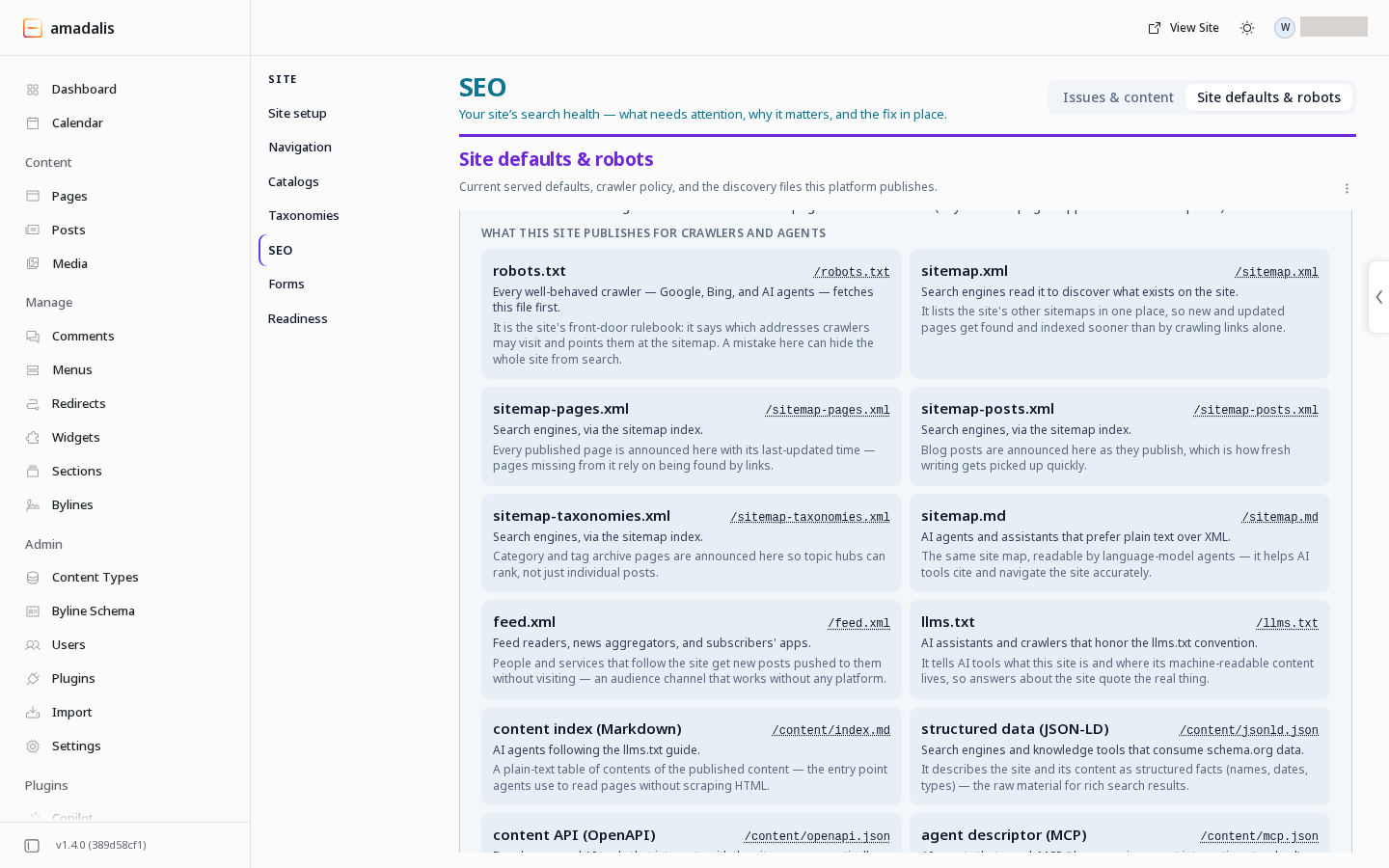
The same tab explains the files your site publishes for crawlers and agents, including robots.txt, sitemaps and llms.txt. Use the links on that screen to inspect your own site’s output. These links belong to your site, rather than this documentation site.
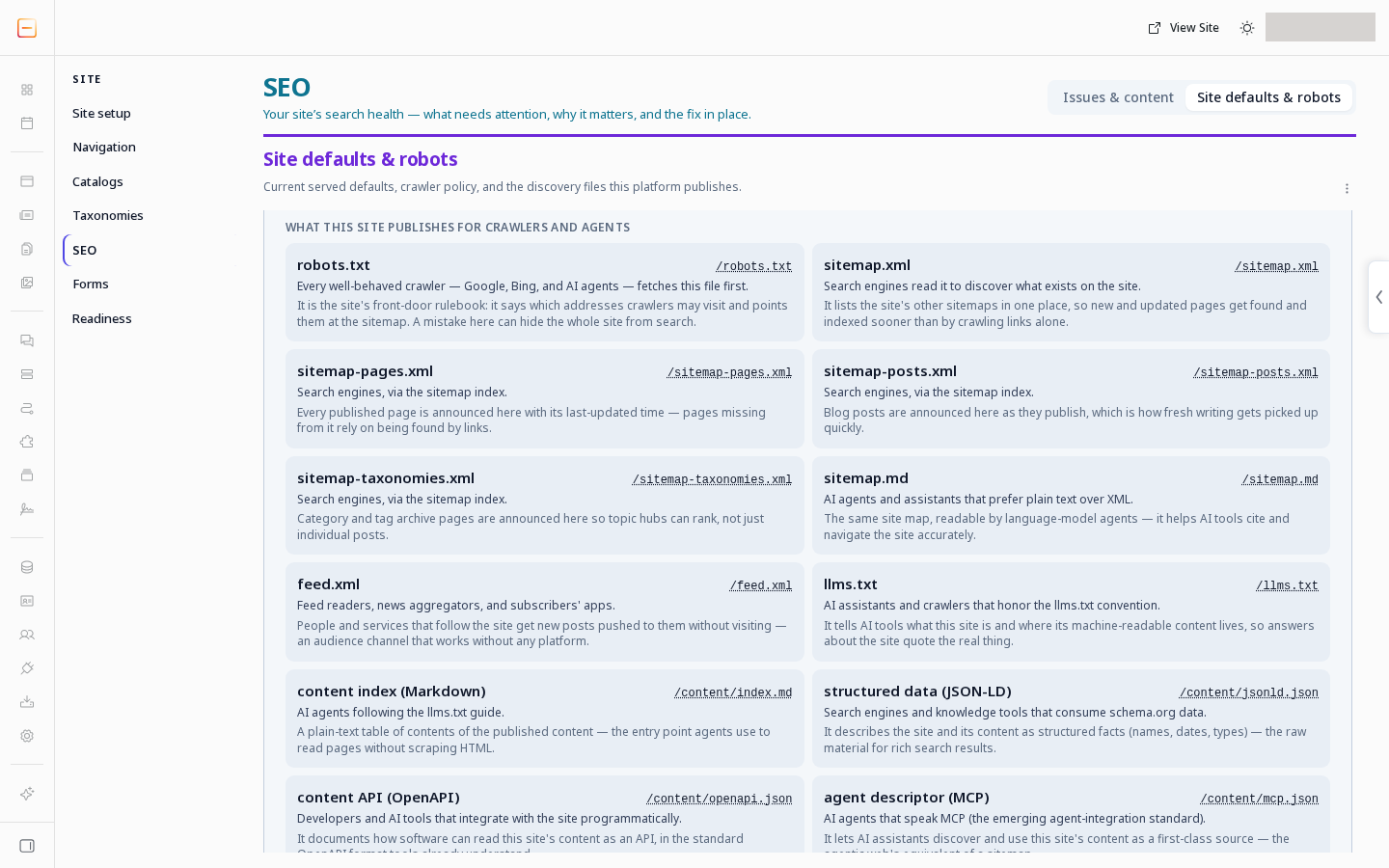
The list separates crawler instructions in robots.txt from published page lists and readable text copies of the site content.
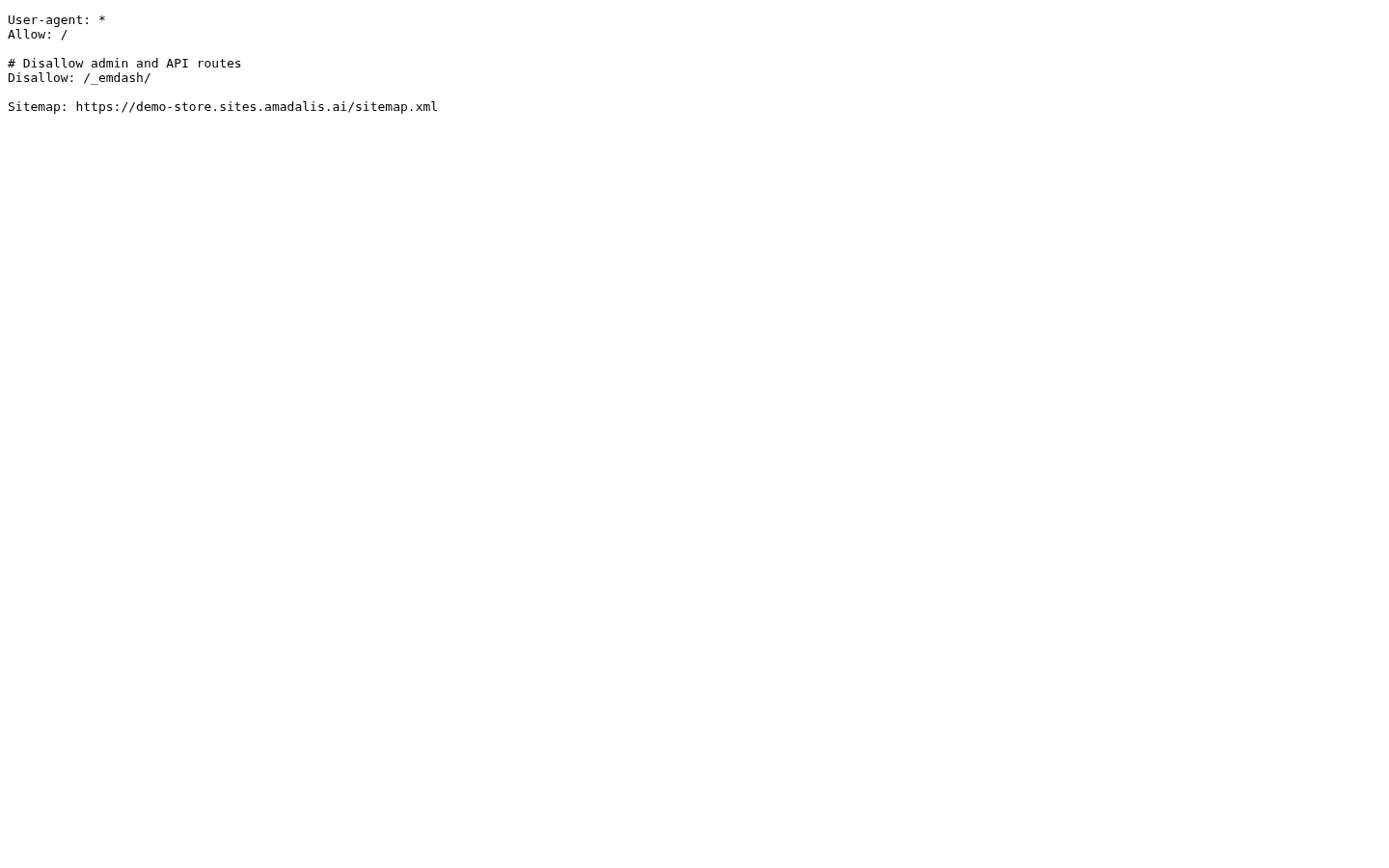
The shown rule allows public crawling and asks crawlers to skip /_emdash/, which is the admin address.
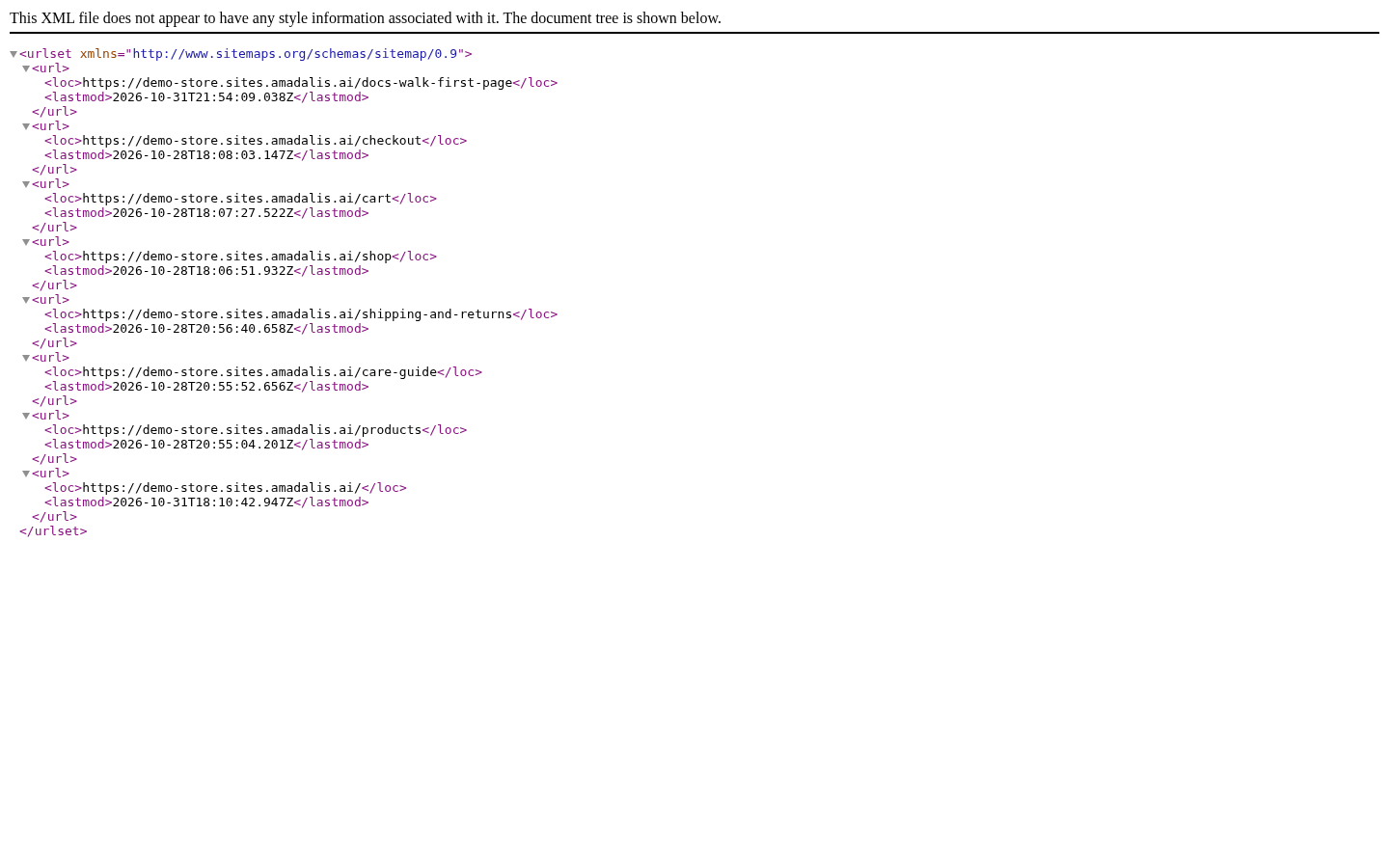
Each page address has a last updated time, and this sitemap lists published pages rather than drafts.
For a broader check, open Site, then Readiness. Its report evaluates the home page. Use Rescan after changes, and read the individual findings alongside the score.