Use Duplicate in EmDash’s own Pages or Posts screens in the site admin to start a new page or post from an existing one. An Author can copy their own entries; an Editor or Admin can copy other entries too. The original stays in place.
Checked against the product’s code on 7 November 2026.
Make the copy
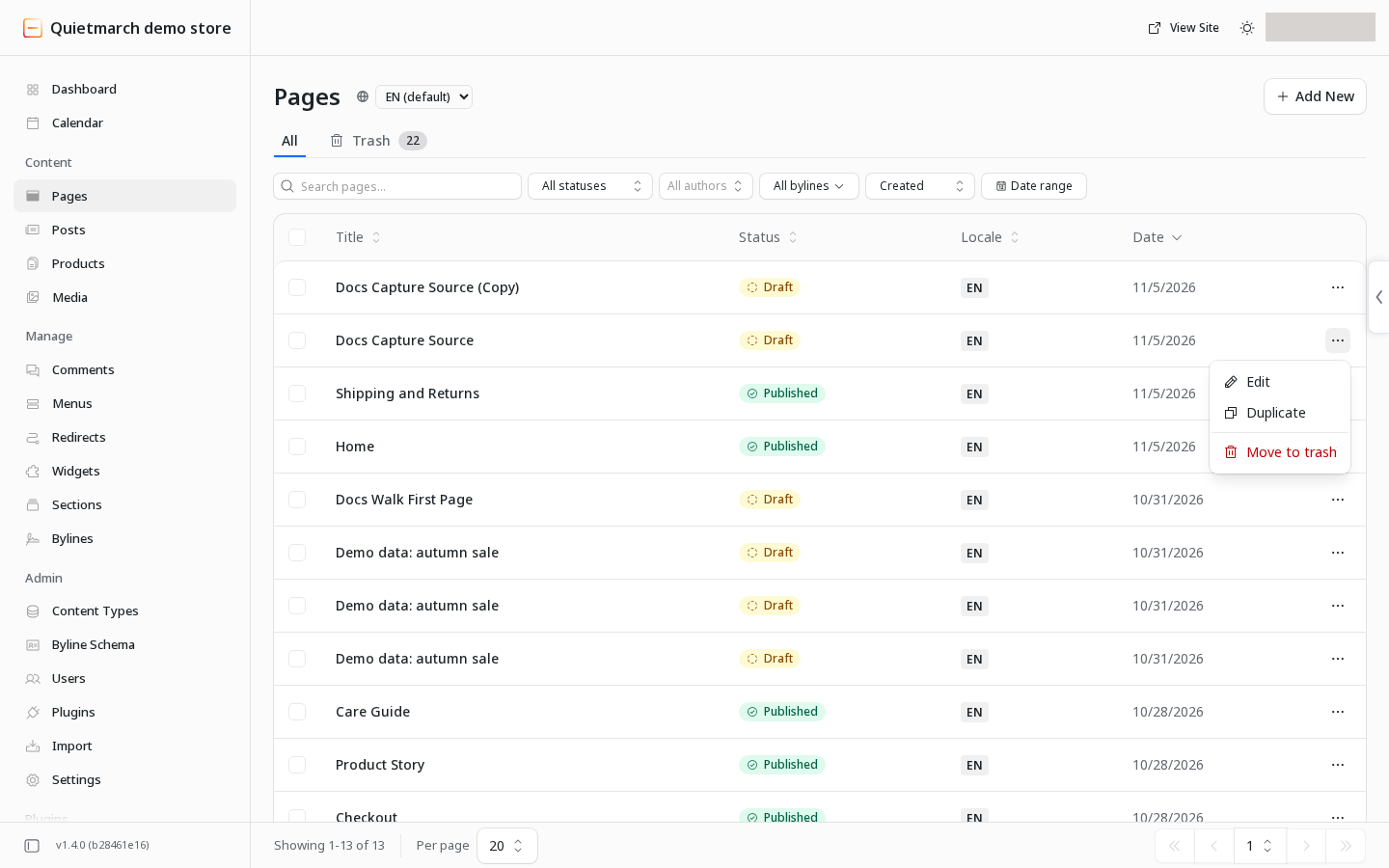
Section titled “Make the copy”- Open Pages or Posts in EmDash’s own content screens in the site admin. You see the entries in that collection.
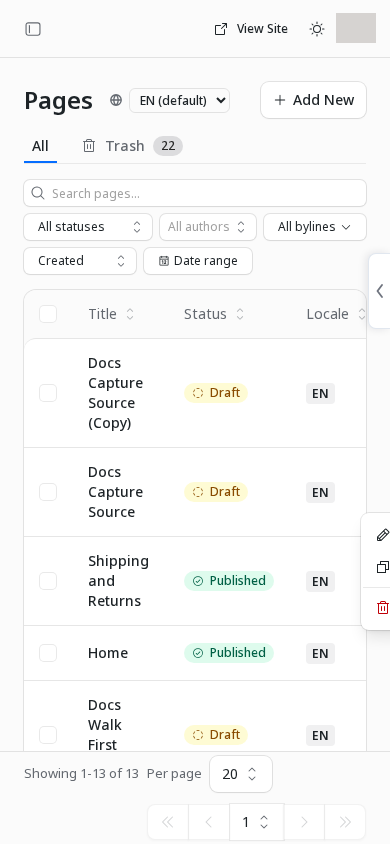
- Open the original entry’s actions menu. It offers Duplicate when you have permission to copy it.
- Choose Duplicate. A new draft appears in the list, with (Copy) added to its title or name and its own address.
- Open the copy by its title. For content built in Composer, open the copy in Composer to edit it. Check that you are editing the new draft.
- Change its title. The copy can now be distinguished from the original.
- Review its content. Replace words and pictures that should differ.
- Check its links and forms. A copied form still uses the original form definition and inbox.
- Follow Review and publish when the copy is ready. Until publication, it remains a draft.
The copy belongs to the person who makes it. It gets new identities for its sections, columns and elements, so targeting attached to the original identities is not inherited. Referenced media remain shared. Copying does not make a separate file for each picture or a separate inbox for each form.
Ask the copilot
Section titled “Ask the copilot”- Open Copilot. The conversation is ready for your request.
- Type “Copy [page or post title] as a new draft”, replacing the brackets with the real title.
- Choose Send. Copying a draft needs no approval card; read the result to find the new entry.
- Open the copy. Review it before publishing separately.
The copilot receipt can offer Undo, which moves the exact unchanged copy to Trash. Later edits or publication can prevent that reversal. See Content and its catalog.
Remove an unwanted copy
Section titled “Remove an unwanted copy”- Open the copy’s actions menu. Check its title before continuing.
- Choose Move to trash. The confirmation names the change.
- Confirm Move to Trash. The copy leaves the main list; the original stays.
The list’s Duplicate action has no automatic Undo receipt. Use Trash and recovery if you later need the copy again.
Your next step
Section titled “Your next step”Review the copy’s links and pictures, and use Forms and replies to check any shared form. Then follow Review and publish for the new draft.