Checked against the product’s code on 7 November 2026.
A developer or designer with permission to edit a page can add JavaScript to only that page in Composer > Scripts. This opens Scripts & events, with Page scripts and Section bindings. Page scripts belong to the page. A section binding moves with its section.
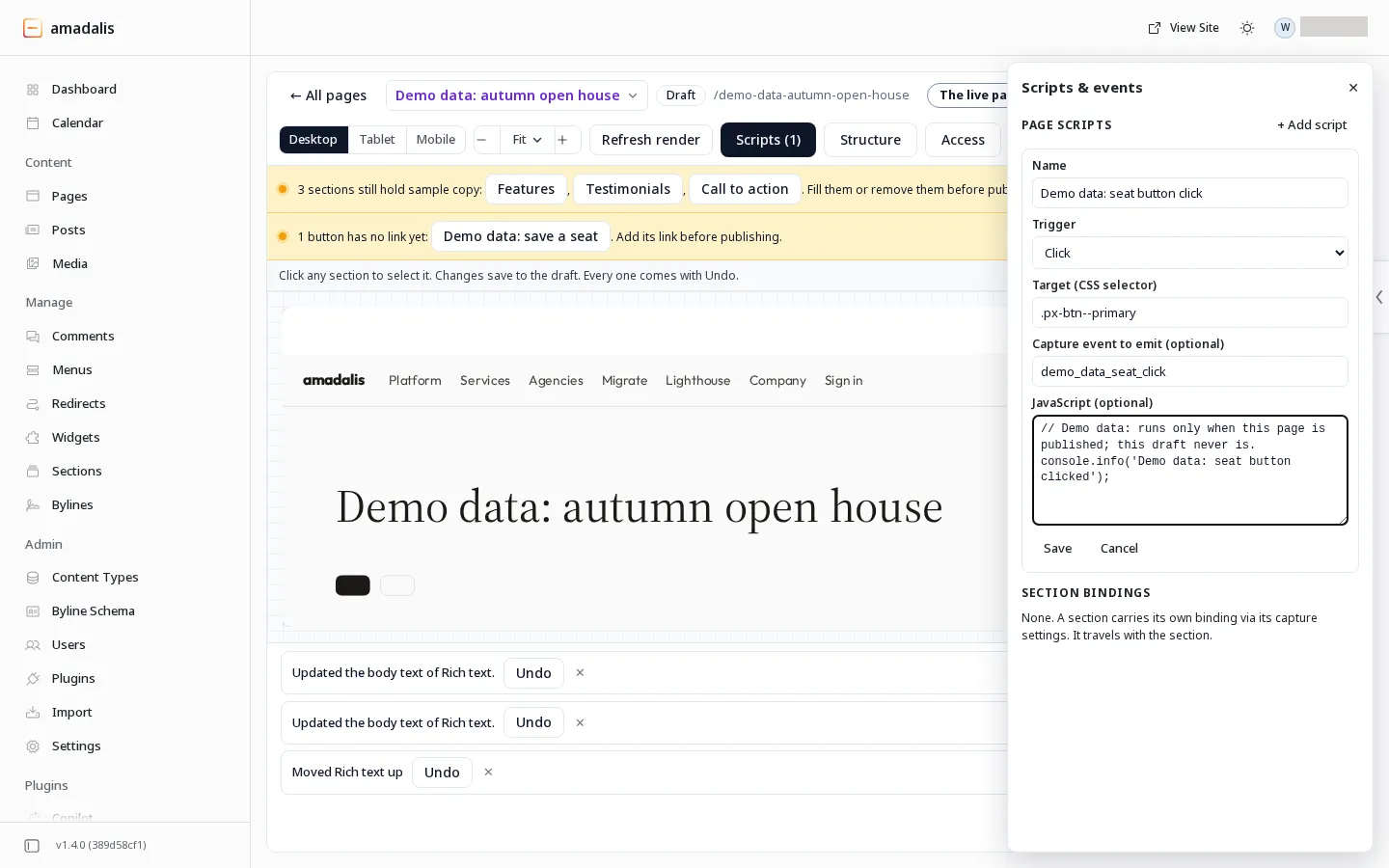
The screenshot is an existing product capture from 31 October 2026. The page shown is a demo draft.
Add a capture binding
Section titled “Add a capture binding”This example uses Page scripts to record a click on an element whose HTML anchor is request-demo. Section bindings is a separate list.
Before you start, check that the target on the page has the anchor request-demo. For a Composer section, Shared section fields explains HTML anchor under Advanced. Work on the base page in Editing for; the scope limit is explained under Consent and scope.
- Open the page in Composer.
- Choose Scripts. The button shows how many scripts and bindings the page has.
- Choose + Add script. A form opens; nothing is saved yet.
- Set Name to a useful description, such as
Demo request click. - Set Trigger to Click.
- Enter
#request-demoin Target (CSS selector). The selector must match the element on your page. - Enter
demo_requestin Capture event to emit (optional). The event name must start with a lowercase letter and use 3 to 64 lowercase letters, digits or underscores. The panel refuses invalid names and names kept for platform events before saving. - Leave JavaScript (optional) empty.
- Choose Save. Review any approval card before confirming the change.
- Publish the page through its approval flow when the change is ready.
The publish card can name scripts added or changed from the live version, addresses written in their code and the tracking events added. Read those lines before approving; they are not proof that the code is safe.
Define demo_request in the event catalog so colleagues know what it means. The binding can emit a custom name before a definition exists.
Cancel closes the form without saving it. Remove asks for a second confirmation before removing a saved script.
Adding, saving and removing a page script enter Changes this session. Read the receipt and use Undo when offered.
Trigger reference
Section titled “Trigger reference”Use Trigger to control when a page script runs. Choose the interaction or page state the script should respond to.
| Trigger | Runtime behavior |
|---|---|
| Page load | Runs when the DOM is ready, or immediately if it is already ready. |
| Click | Runs for a matching element using the CSS selector. A page script needs a target. |
| Submit | Runs for a matching submitted element. A page script needs a target. |
| Becomes visible | Runs once per matched element when at least half is in view. A page script needs a target. |
| Scroll depth | Runs once when the page reaches Scroll threshold %. The runtime uses 50 percent if none is supplied. |
| Toggle open | Runs when a matched element opens. Without a page target, it watches details elements. |
| Hover | Runs once per matched element when a mouse or pen rests on it for Hover time (ms), from 300 to 5000. The runtime uses 500 if none is supplied. Leaving earlier cancels the wait, and a touch tap never starts it. A page script needs a target. |
For section bindings, targets are scoped to the carrying section. Without a target, the section itself is used. Invalid selectors produce no match.
The panel warns when a script needs a target. A page script needs a selector for Click, Submit, Becomes visible and Hover. A section’s Toggle open binding needs a selector for an expandable item inside that section.
Add JavaScript
Section titled “Add JavaScript”The JavaScript (optional) field takes a function body. The runtime provides ctx.el for the matched element and ctx.event for the DOM event. Either can be null for triggers that do not have one.
For example, a Click script can mark the matched element:
if (ctx.el) { ctx.el.setAttribute("data-demo-clicked", "true");}For custom event properties:
- Call
window.praxis.trackfrom your script with the properties you need. See Tracking events for its input and return contract. - Leave Capture event to emit (optional) empty if the code already sends the same event, or the interaction can be counted twice.
The Composer canvas renders an inert script card. It does not execute your page script. The unpublished preview did not load the page-script runtime in the recorded check, so it could not verify a script or capture event. Verify behaviour on an authorised published test page in an ordinary visitor window.
What happens if a page script fails
Section titled “What happens if a page script fails”If JavaScript (optional) throws an error while its function runs, the runtime catches it without displaying a message. It still attempts Capture event to emit (optional) through the usual consent checks. It does not undo changes the function made before throwing.
This handling covers errors thrown during that function call. It does not wait for a returned promise or catch a later asynchronous failure. A syntax error that prevents the script from loading is also outside this handling. Your developer should handle asynchronous errors and test the published page in a visitor window.
Consent and scope
Section titled “Consent and scope”Cookie consent and your JavaScript
Section titled “Cookie consent and your JavaScript”Page JavaScript does not automatically wait for cookie consent. It can run before a visitor makes a choice. The optional capture event goes through praxis.track and its analytics consent checks. Your own fetch, cookies or vendor code do not acquire that protection automatically. Use Head & CSP when adding a site tag that must wait for a consent purpose.
Check Editing for before saving. On the live page, a saved script goes into its draft. On an experiment’s alternative variation, it belongs only to that variation. Scripts cannot be changed while editing an audience or the experiment’s control; switch to the live page for those changes.
Your next step
Section titled “Your next step”Use Tracking events to check the event name and sender, then verify the intended interaction with the site’s consent choices.